
Settings
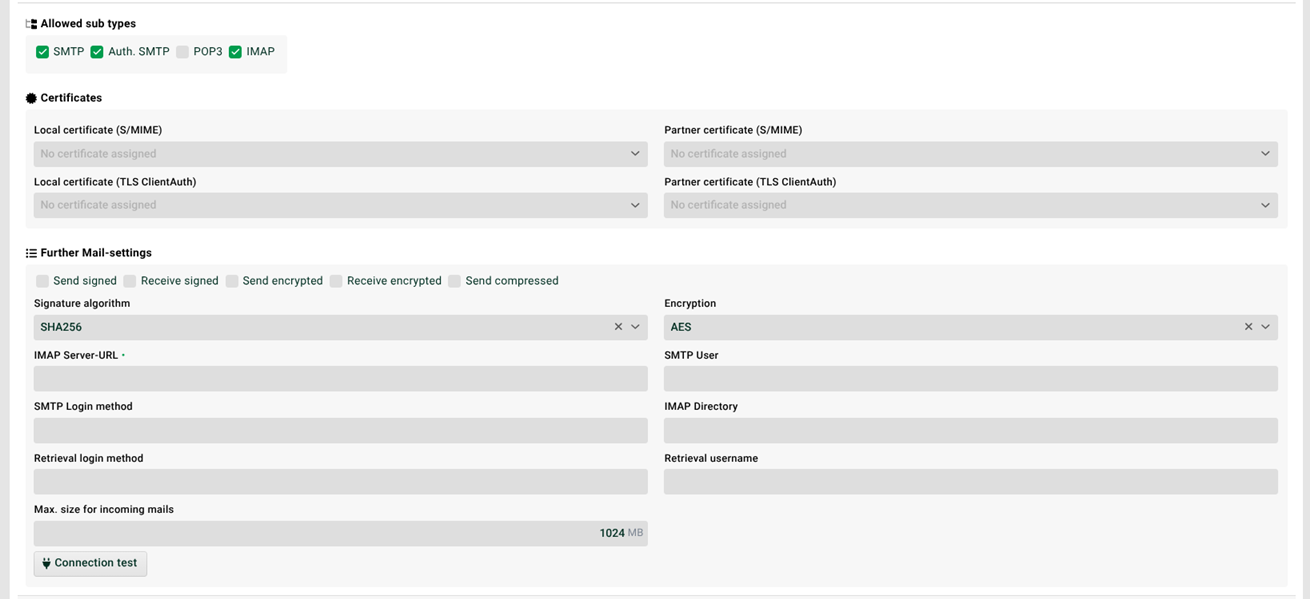
(1) SMTP: The channel can be used to receive or send e-mails via the SMTP protocol.
(2) Auth SMTP: Like (1) but with authentication.
(3) POP3: If POP3 is selected, field (11) has to contain the address of a POP3 server.
(4) IMAP: If IMAP is selected, field (11) has to contain the address of an IMAP server.
(5) Local certificate (S/MIME): A local certificate (with private key) can be assigned to the channel here. This certificate is used to decrypt the incoming data encrypted by the partner and to sign outgoing data.
(6) Partner certificate (S/MIME): A partner certificate, i.e. the public part of a certificate of your partner, can be assigned to the channel here. This certificate is used to encrypt the data to be sent and to check the signature of received data.
(7) Send signed, Send encrypted: Specifies whether data sent from Lobster Integration to the partner system will be signed and/or encrypted. The data is signed with the signature algorithm set in (9) and encrypted using the encryption algorithm set in (10).
(8) Receive signed, Receive encrypted: If set, Lobster Integration rejects received data that is not signed or encrypted.
CAUTION If the partner sends encrypted or signed data, a local certificate to decrypt the data or a partner certificate to check the signing must still be available, even if the option here in (8) is not set. Otherwise, the message would not be decryptable or the signature could not be checked. But the message will not be rejected.
(9) Signature algorithm: Determines which algorithm is used to sign data sent by Lobster Integration. The setting is only effective if the checkbox Send signed (7) is set. Example: "SHA256".
(10) Encryption: Determines which algorithm is used to encrypt data sent by Lobster Integration. The setting is only effective if the checkbox Send encrypted (7) is set. Example: "AES".
(11) IMAP Server-URL: The address of the POP3/IMAP server. Example: "pop3s//example.com:995".
The allowed protocols are "pop3", "imap", "pop3s", "imaps". The port number can be omitted, in which case the default port number will be used: 110 (pop3), 143 (imap), 995 (pop3s), 993 (imaps). It can be overwritten with a value greater than 0 wherever the channel is used.
(12) SMTP user: Here an alternative SMTP user can be specified if this does not match the value in field "Own ID".
(13) SMTP login method: The authentication procedure for the partner SMTP server can be specified explicitly. Default: "PLAIN".
It is also possible to specify several methods separated by blanks (the order is observed). Example: "NTLM LOGIN PLAIN MD5-DIGEST".
(14) IMAP directory: Name of the IMAP directory from which e-mails are to be fetched. Only e-mails from this directory will be read. Any existing subdirectories are not taken into account. To fetch the e-mails from the inbox of the user account, the value "INBOX" must be entered in the field. In order to fetch the e-mails from a subfolder of the inbox of the user account, the value "INBOX.<name of the subfolder>" must be entered.
(15) Connection test: A test e-mail is sent to the partner system with the address specified in the field "Partner address".
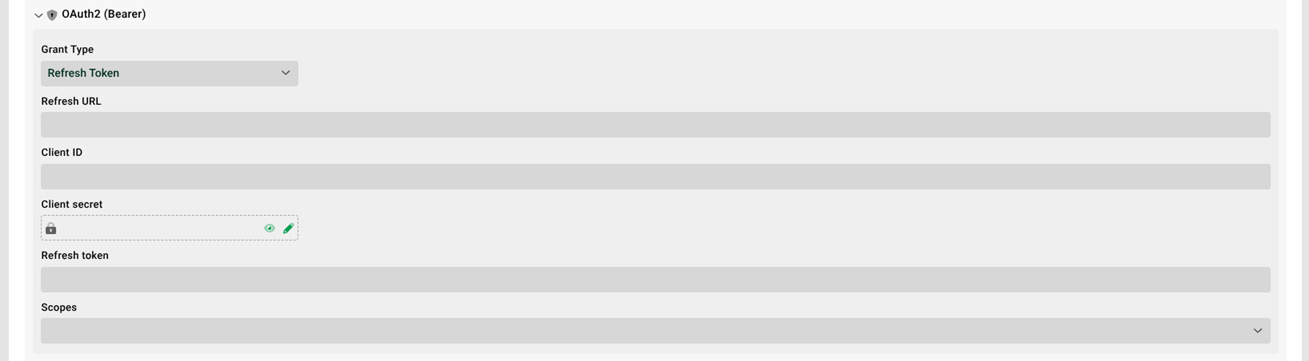
(16) OAuth2 (Bearer) and (17) Retrieval login method, Retrieval user name: For OAuth2 authorization. The necessary values/settings and the procedure are very dependent on the respective provider (e.g. Microsoft, Google, etc.). Two grant types are available: Refresh Token and Client Credentials. Below you will find a small configuration example for the grant type "Client Credentials" and the provider Microsoft Azure, but we cannot guarantee that this information is up-to-date. Please always refer to the documentation of the respective provider. The grant type "Refresh Token" is a little bit more complicated, because you have to fetch a refresh token manually first (grant type "Authorization Code") (e.g. with Postman or an HTTP channel), but that would go beyond the scope here. Contact our support team for more details if necessary.
Example Microsoft Azure
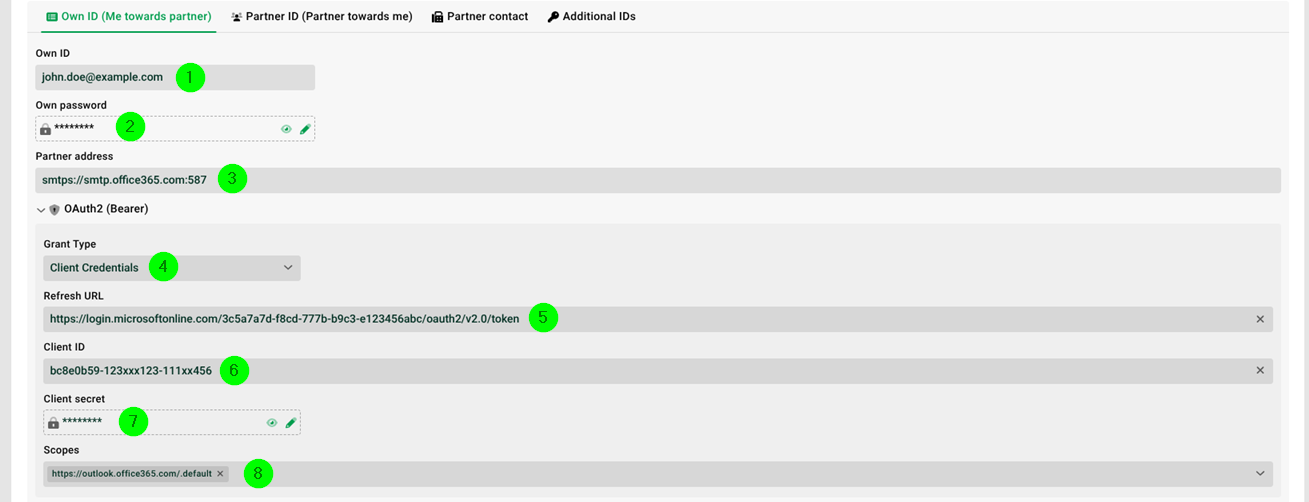
(16.1) Own ID: User name of the e-mail box. Example: "john.doe@example.com".
(16.2) Own password: Password for (16.1).
(16.3) Partner address: SMTP URL of the e-mail box. Example: "smtps://smtp.office365.com:587".
(16.4) Grant type: Select value "Client Credentials".
(16.5) Refresh URL: Use value "https://login.microsoftonline.com/<tenant_ID>/oauth2/v2.0/token" , where instead of <tenant_ID> you have to enter your own tenant ID (displayed to you in Azure). Example: "https://login.microsoftonline.com/3c5a7a7d-f8cd-777b-b9c3-e123456abc/oauth2/v2.0/token".
(16.6) Client ID: The client ID is called "Application (client) ID" in Azure. Example: "bc8e0b59-123xxx123-111xx456".
(16.7) Client secret: The client secret is only displayed once in Azure when setting up an application and is called "Value". IMPORTANT The client secret has a validity period in Azure.
(16.8) Scopes: The permissions that the token should receive are defined here. Use value "https://outlook.office365.com/.default".
NOTE
See also https://learn.microsoft.com/en-us/graph/permissions-reference (→ section "Mail permissions").
The input of individual values can be completed with the "Enter" key. However, you can also enter several values at once, each separated by a space.
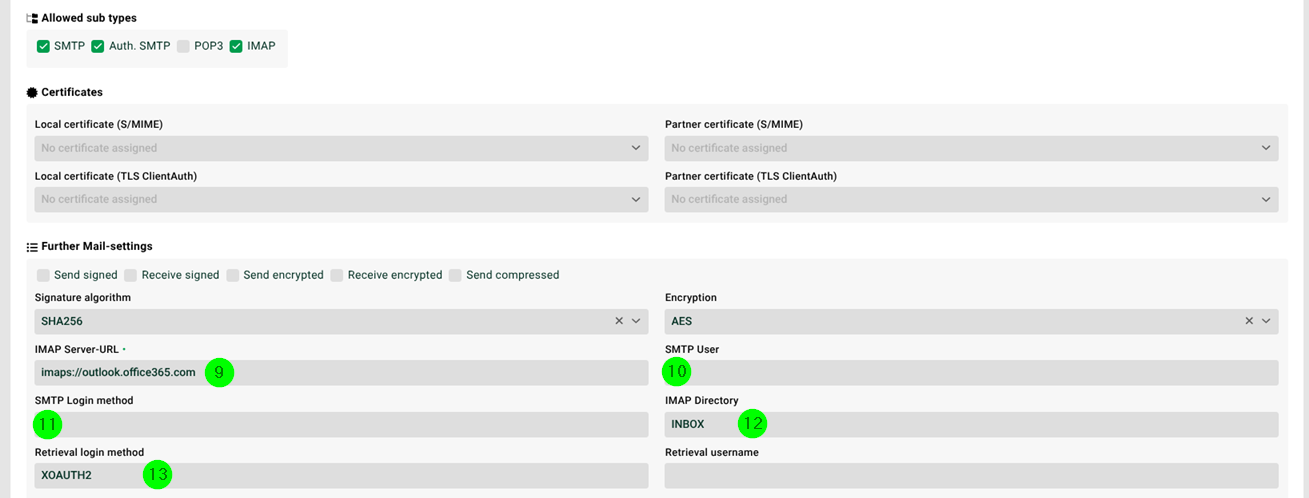
(16.9) IMAP Server-URL: Use value "imaps://outlook.office365.com".
(16.10) SMTP user: Can be left empty, then the value from (16.1) is used.
(16.11) SMTP login method: Can be left empty, then "PLAIN" is used.
(16.12) IMAP directory: Use value "INBOX".
(16.13) Retrieval login method: Use value "XOAUTH2", then OAuth2 is used.
Communication paths
With a "Mail" channel, the following three communication paths are covered.
The channel is selected in a profile with an input agent of the "SMTP" type. In this case, the partner system logs in to Lobster Integration to submit e-mails to Lobster Integration. The content of the "Partner ID" field corresponds to the sender address, provided it is not overwritten in the profile. If the AuthenticationService is defined as the SmtpAuthenticator, then the remote system must use the contents of the fields "Partner ID" and "Partner password" for the login. If no SmtpAuthenticator is defined (or not the AuthenticationService), the contents of the fields "Partner ID" and "Partner Password" have no relevance.
The channel is selected in a profile with a time-driven input agent of the "Mail" type and the "IMAP" or "POP3" subtype. In this case, Lobster Integration logs in to the partner system (IMAP server). For this, it uses the contents of the fields "Own ID" and "Own Password". The e-mails are then read from the IMAP directory.
The channel is selected in a profile with a "Response of the "Mail" type. In this case, Lobster Integration logs on to the partner system (SMTP server), which can be reached via the "Partner address". For this, it uses the contents of the fields "Own ID" and "Own Password". The e-mails are then transferred to the partner system using the SMTP protocol. If the "Partner address" field is empty, the values for the "Partner address", "Own ID" and "Own Password" are replaced by the corresponding values in the configuration file ./etc/startup.xml (see the following listing). The content of fields "Own ID" and "Own password" are ignored in such a case.
<Call name="addApplication">
    <Arg>
        <New class ="com.ebd.util.net.mail.HubStartupConfiguration">
            <Call name="setMailSettings">
                <Arg>localhost</Arg>
                <Arg type="int">25</Arg>
                <Arg>user</Arg>
                <Arg>password</Arg>
            </Call>
        </New>
    </Arg>
</Call>
Instead of "localhost", the address of the server is entered. The port on which the SMTP server is listening is specified in the line afterwards. This is followed by the optional information for user and password.