See also: Date range with time, Relative date with time, Date time field
Resolver – Abstract
Purpose: Defines an absolute time as a static "Date with time" (
DateTime) incl. time zone.Tooltip
Usage: The resolver returns the set static "Date with time" (
DateTime). The input value is ignored.Parameter: The "Date with time" is defined by a Date/Time element, in which the time zone can also be selected.
NOTE If a "Date with time" is to be determined relative to a given time or the system time, the Relative date with time resolver is helpful.
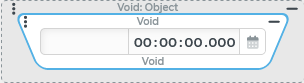
IMPORTANT All resolvers for Static values ignore the input value. Within a resolver chain (see Chained resolver) this prevents the processing of all preceding resolvers (if any).
The Date with time resolver defines an absolute, statically defined value for a "Date with time" (DateTime) in the context of a value configuration.
It appears by default as a suggestion for value configurations from which a DateTime value is expected.
Similar to the Date/Time element, entries or selections are possible for the components day, month, year, hour, minute, second, millisecond as well as for the time zone.
NOTE
If the return value is not to be defined absolutely but relative to the system time or another time specification, the Relative date with time resolver is helpful.
A statically determined time period (From/To) can be defined as "Date range with time" (
DateRange) via the Date range with time resolver.
Configuration
As long as no configuration has been made for the "Date with time", "no value" ($null) is valid as return value.
The Date can be defined in different ways:
Focus input area for the hour: Input of "12" for the hour | Direct input: Date selection:
|
If the input area already shows a date, the displayed text can be edited. If the text is removed completely, the resolver is reset altogether. This also means that any settings made for the time and the time zone will be lost. | |
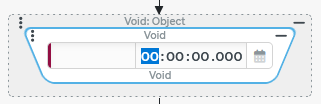
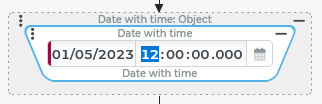
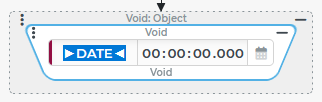
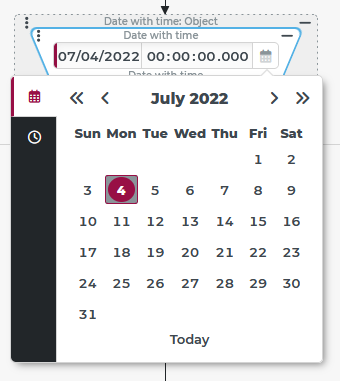
NOTE Settings for the time zone are offered by the second tab of the date selection (not selected in the image) which can be selected by clicking on the clock icon.
Example
A Field restriction identifies user accounts whose creation date (created) falls before a certain key date (01.01.2020).
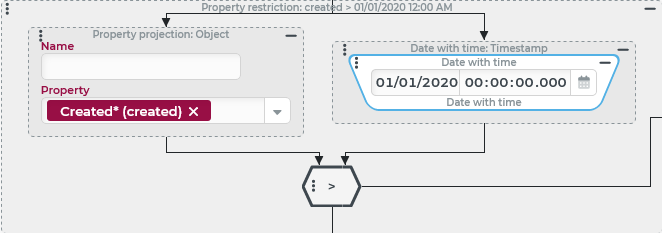
NOTE Since the "UTC milliseconds" are always decisive for a date comparison in Lobster Data Platform/Orchestration, the selection of the time zone for the time specification in the Date with time resolver can influence the result, provided that user accounts were created for the time near the specified key date.