See also: Open view (Form designer) (Behavior type), Open portal (Action)
Event action – Abstract
Purpose: Opens a view to which form data can be passed, and optionally waits for the return of a data object or the closing of the view.
Tooltip
Usage:
If there is access to View name in the execution context due to authorizations and Association criteria, it is opened with the parameterized settings and taking into account the optionally provided Form data.
Views of the 'Entry form' (
detailsWindow) or 'Combined view' (listDetailsWindow) type display the data of an entity that has been 'provided' or referenced via Form data directly.When opening a view of the 'Overview' (
listSearchWindow) type with suitable Form data (entity or reference), the corresponding input form (detailsWindow) is opened in a second view.When opening views of the 'Overview' (
listSearchWindow) and 'Combined view' (listDetailsWindow) types, the Form data can alternatively also specify a 'restriction' for the displayed list:
A 'Search' (
Searchdata object) is converted into a Sub search restriction, a 'Search restriction' is directly AND-linked with any predefined restriction for the View name.
Whether event processing is interrupted until the open view is closed depends on the Wait time parameter:
With a Wait time > 0 (seconds), event processing is only continued after the open view is closed.
Without waiting time, event processing is continued immediately after the view is opened and without a return value.
A value return from a view into a Name of result variable of the return object is possible if the following conditions are met:
Wait time > 0 (finite waiting time)
The View name is a data input form or combined view that is closed via a Request close action to which the return value is assigned as an input value (
$input).
The appearance and behavior of the opened view can be influenced with additional parameters.
Parameter:
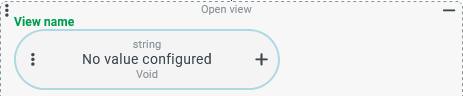
View name (text/value configuration): View name or menu node name for the open view.
Form data (value configuration): can be optionally used in a variety of ways (see above) to define or control the content displayed in the view.
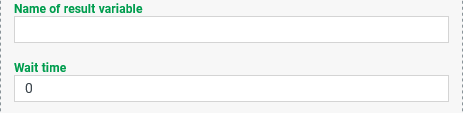
Name of result variable (text): Names a variable to which a return value defined in the context of a data input form is assigned via a Request close.
Wait time (integer → seconds): A value >0 defines the maximum waiting time until the view is automatically closed.
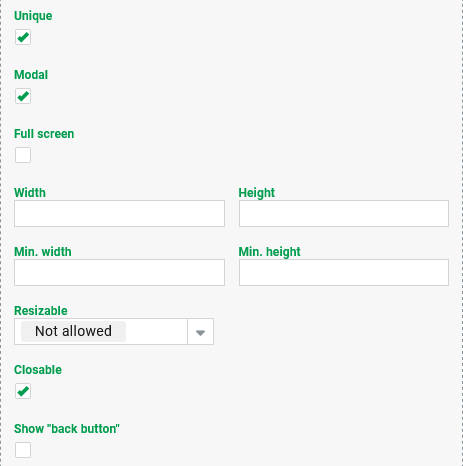
Unique (option): If checked (default), an already opened non-modal instance of the view is used instead of opening a new one.
Modal (option): If checked (different from the default), the View name appears as a window within the current view. Additional parameters are also available.
Full screen (option): If checked (other than by default), the View name appears within the current view. Otherwise: as a dialog box.
Width, Height, Min. width, Min. height (integer → pixels): Specifications for the size of the dialog window (not relevant for Full screen).
Resizable (selection): Determines whether the height and or width of the dialog box can be adjusted at runtime.
Closable (option): If checked (default), the 'X' symbol appears at the top right of the full screen/dialog window, otherwise not.
Show 'back button' (option): If selected (different from the default), a ribbon button 'Back' appears to close the view.
Open after commit: Only opens the view once the event has been fully processed and the database transaction has been completed.
Output: Return object of the view (if suitably parameterized).
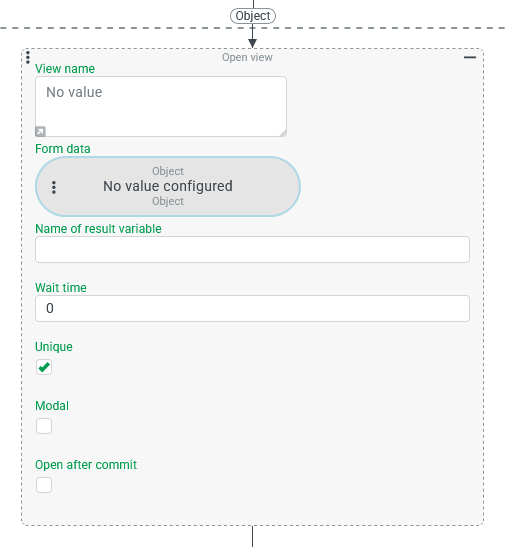
The Open view (Action) opens a view to which form data can be passed and optionally waits for a data object to be returned or for the view to be closed.
Views are Input forms, overviews (incl. Custom overviews), Portals, Dashboard or other views provided by the system (e.g. in the Administration menu item).
NOTE
Views can also be opened directly in the context of forms via the Open view (Form designer) behavior.
Specific configuration options for Portals are supported by the Open portal (Action) event action, which is otherwise structured in the same way.
If the Open after commit option is checked, the view is not opened until the database transaction has been successfully completed. This ensures that any changes that have been made have actually been made completely before the view is opened. Waiting time and return value are no longer applicable.
Configuration
The configuration of the Open view (Action) event action covers a wide range of application scenarios and therefore offers numerous parameters. These are presented below in table form and grouped by focus. The right column of the table always shows the relevant section of the configuration dialog.
Selection of 'View name' | |
|---|---|
The View name can be addressed either by direct text input or by a value trigger. A view is opened only when:
Whether the following sample values for the View name parameter work partly additionally depends on which modules are licensed by Lobster Data Platform/Orchestration:
|
NOTE By clicking on the gray arrow at the bottom left of the input field for the Portal XML parameter, it is possible to switch from direct input mode to the definition of a value resolver:
|
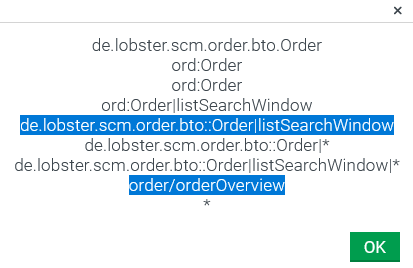
If a view cannot be opened, no exception occurs. Event handling is then usually continued immediately, i.e. without waiting for a possibly parameterized Wait time value return (see below). How to determine the view name or menu node node name: View name and menu node name of a view that is already opened can be determined by clicking on the ? symbol in the upper right corner of the window title, which results in the following message in the example of an input form for Orders (text marking added later):
The first marked row defines the view name of a detail view ( IMPORTANT To open a view, do not use the shorthand notation from the line above, where the associated namespace prefix appears instead of the full class name. The context entries with the wildcard symbol * are not suitable to address the view. The second highlighted row defines the menu node name for the same view, which corresponds to the 'Orders/Order Details' menu path in the main menu in the default configuration. NOTE The menu node name does not appear here if a view was not opened via the main menu bar, but e.g. via Open view (Action) or by clicking on a function in the ribbon ('New' or 'Edit'). Then there is also no access to help topics (see Online help) that are linked to the menu node name. | |
Data assignment for the View name | |
The value configuration for the Form data parameter can be used in different ways to transfer dynamically determined information to the View name, if this is provided for at all. The decisive factor is the data type returned by the value resolver in combination with the type of view to be opened. |
|
Open a view of the input form type (
Open a view of the type Overview (
IMPORTANT In the context of one of the Search (first case above), Joins can be used to perform the search directly (as an
| |
Data return from the view (optional) | |
The optional Name of result variable parameter of the return object can be used to specify the name of a variable that can be used to access return data from the opened view, provided that:
If a Wait time (>0 seconds) elapses without Request close being executed, the view is automatically closed and the return data is empty. If, on the other hand, the Wait time is set to 0 (default), event processing continues immediately after the view is opened and without waiting for the return data. NOTE The Wait time parameter can also be used without the Name of result variable to display a specific view for a limited time. CAUTION If an input form is closed after the Wait time has elapsed, unsaved changes are lost without any further confirmation. |
IMPORTANT The Wait time must be >0 so that the portal is called 'synchronously'. Only then will a Request close action wait for return data in the portal. If the portal is closed without executing the Request close action with the data to be returned as input value ( |
View display behavior | |
If the Modal option is not selected (default), the view should be opened as a separate view. Then the option Unique decides whether the view is opened, even if (at least) one instance of the view is already open non-modally – i.e. as a separate view. IIf the Modal option is selected, the view is displayed within the current view when it is opened. The option Unique is then ignored. Additional options also appear in the configuration:
|
|
NOTE The Back button can be influenced as a ribbon macro by combining the subcategory |
|
CAUTION If the Modal option is checked when opening a view and the Closeable option is unchecked, it should be ensured that another method enables the view to be closed:
If none of these options are applicable, a modally opened view that is not Closeable can only be exited by closing the parent view. | |
The Open after commit option is unchecked by default so that the View name is executed immediately when Open view (Action) is executed.
NOTE To open a view with a data return 'after the commit', a Dispatch action event event action should be executed with the corresponding option. In the event handling for the triggered event, Open view (Action) can then be executed without the Open after commit option but with 'Data return' instead. |
|



Example
Requirements:
If the URL parameter (see URL parameters)
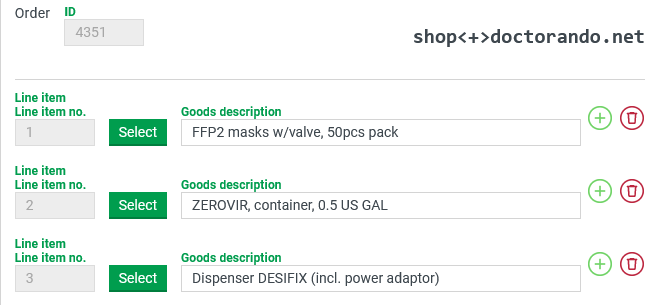
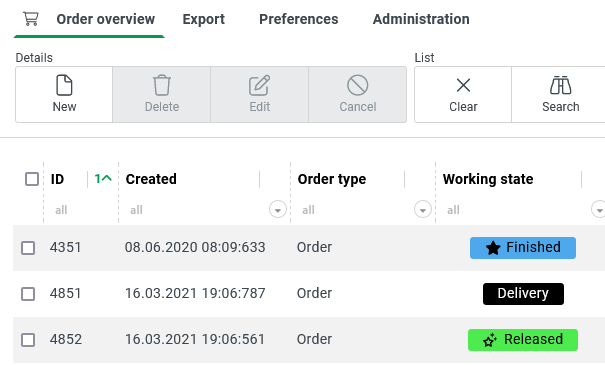
myOrdercontains the (internal) ID of an order (see Orders) as a value when logging in to a Lobster Data Platform/Orchestration session, an entry screen for Orders with the details of the order addressed in the URL should appear immediately after logging in.If the user presses the Select Button for one of the items displayed in this input form, the input form should be closed and an overview of orders concerning the same goods should be opened.
Runtime example:
In the example, the
Even before the actual session begins, an input form with details of the order with the ID '4351' appears in a compact, modally opened input form. This could be called up by scanning a barcode, for example. NOTE The ID field has been visibly included in the form layout in this example for clarification, which in practice is neither usual nor necessary. |
|
NOTE The selection criterion (matching Goods description) for the orders to be displayed was deliberately chosen superficially in the example to simplify matters. In a practical application, more complex criteria (e.g. a combination of creation period, working state, article number, EAN, etc.) would be typical. |
|

Configuration:
The screenshot on the right shows an overview of the event handling to be created. Then configuration details are described section by section.
NOTE It is neither explicitly checked here whether the passed string can be interpreted as a
NOTE A check to see whether an item has been selected in the input form is omitted here. In practice, an If then else event action would be recommended, which only executes the Execute with event action if the |
|
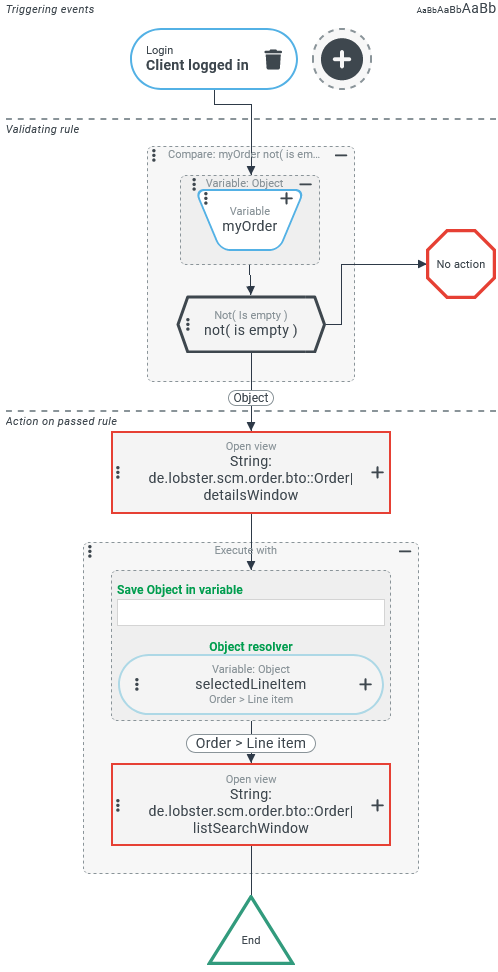
The following sections describe details of the configuration shown in the overview above.
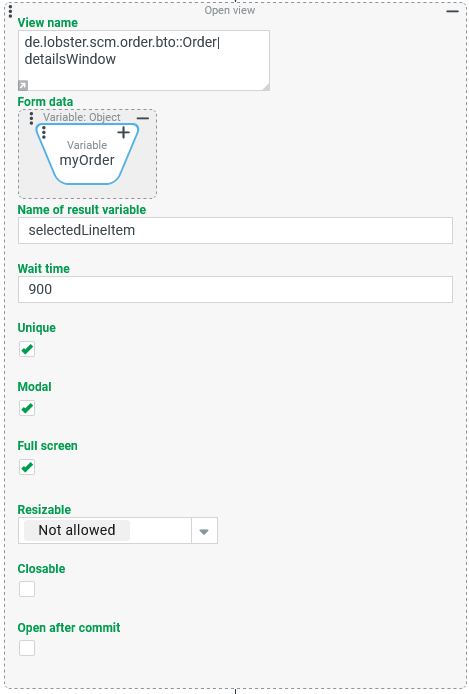
To open the input form with the details of the order specified by URL parameter, the first Open view (Action) event action is parameterized as shown on the right:
|
|
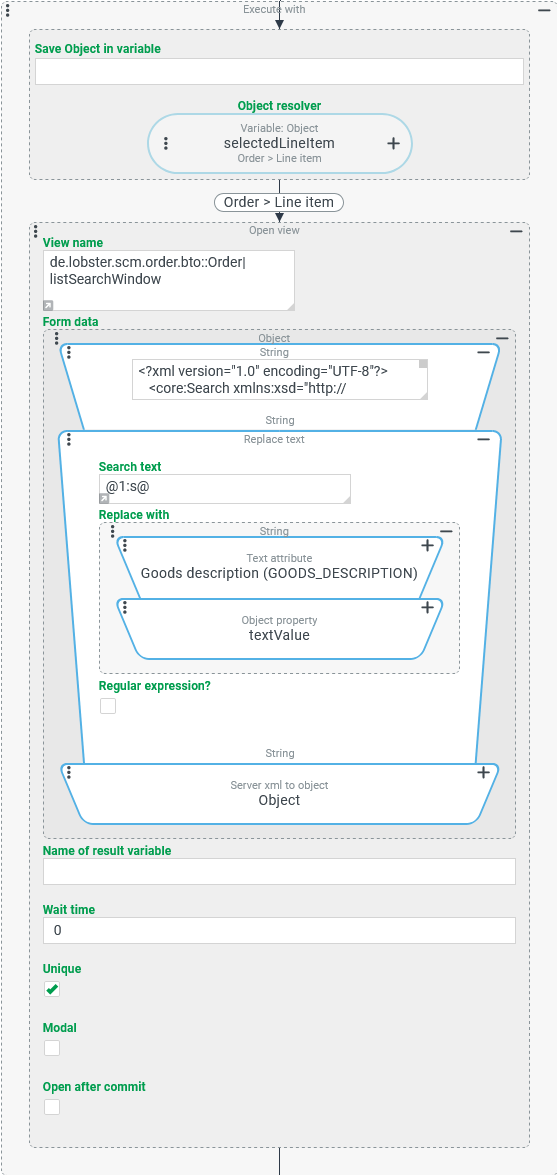
The following Execute with event action is configured as shown on the right to tailor the search criterion for the order overview to be opened based on the order item ('Order > Item') passed as a return value in the
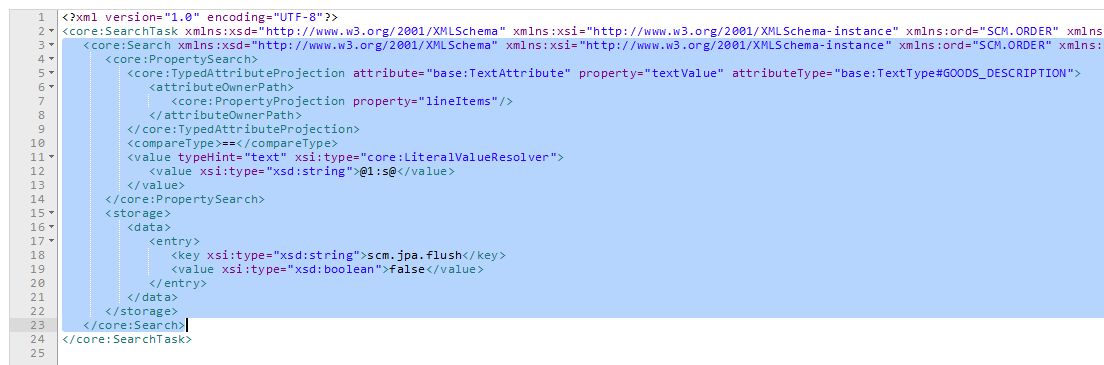
NOTE The static XML string for the
NOTE Alternatively, a |
|
| |