Value resolver – Abstract
Purpose: Searches the string in the input value for matches to the Search text and applies the replacement defined by Replace with to produce the return value.
Tooltip
Usage: Depending on the Regular expression? option, matches for the Search text (plain text or regular expression) are searched in the input value and replaced with the text defined by Replace with or the replacement scheme.
Parameter: The Search text and Replace with parameters can be determined by direct input or by value resolvers.
The Search text is either searched for as a substring in the input value or defines a Regular expression that is applied to the input value to identify sections to be replaced.
The text value for Replace with either replaces all matches for the Search text or defines the replacement scheme (including placeholders for groups $1, $2, etc., if necessary) for all matches returned by the Regular expression in the Search text.
The Regular expression? (unchecked by default) option determines the interpretation of the Search text and Replace with parameters.
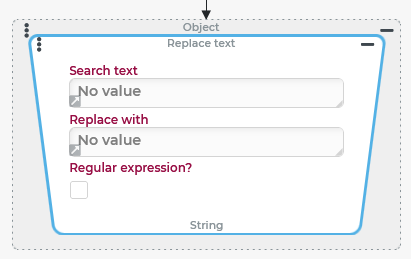
The Replace text value resolver searches within the string in the input value for matches to the Search text, and applies the replacement defined by Replace with to produce the return value.
If no value (
$null) is present as input value, no value ($null) is returned.For input values that are not strings, their string mapping is processed.
The Regular expression? option can be used to interpret the Search text as a regular expression. In this case the expression for Replace with also supports references to groups defined in the Search text ($1, $2, ...).
Configuration
Parameter | Meaning |
|---|---|
Search text | This parameter defines the substring searched for in the input value or the regular expression that identifies passages to be replaced. |
Replace with | This parameter defines the string that will be inserted in the input value at each passage that is considered a match for the Search text. In conjunction with the Regular expression? option, the replacement expression can use placeholders for groups defined in the Search text ( |
Regular expression? | The Regular expression? option decides whether the Search text is interpreted as a regular expression or (by default) searched for as plain text in the input value. |
NOTE The Search text and Replace with parameters can be specified by direct input (as text) or via value resolvers at runtime.
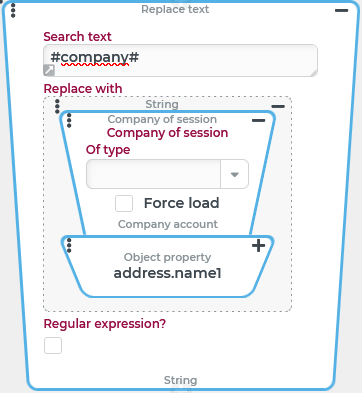
In the example on the right, the Search text was entered directly as static text ( The value for Replace with is determined via the Company of session value resolver at runtime. Each match for the Search text ( NOTE Starting from the direct input provided by default, the definition of a value resolver must be initiated by clicking on the small gray arrow in the lower left corner of the input value (see Search text in screenshot). If "no value" (from the context menu) is selected instead of a value resolver, the direct input appears again the next time the Replace text value resolver is expanded. |
|
Examples
Simple example ("Regular expression?" option unchecked)
The input value is a string containing different characteristics of a container (BIC code, color, size, etc.) separated by spaces. Example: SCMU3216083 WHT/BLU 40ft
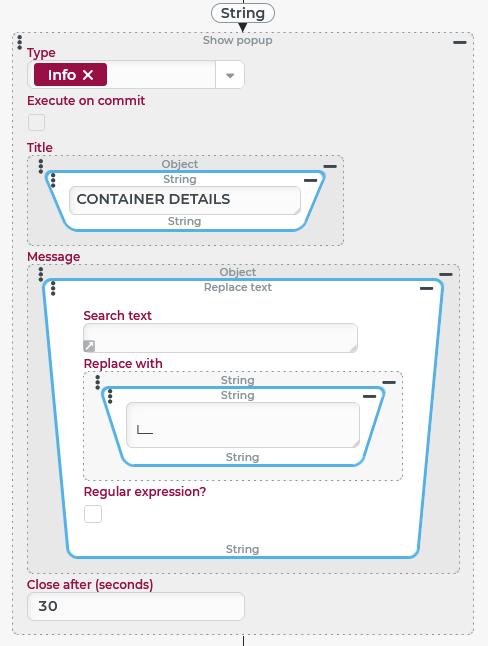
In a notification, this string is formatted to insert a line break and semigraphic characters (└─) instead of the space character, so that the information after the BIC code appears like detail elements in a tree.
Runtime example: (with the sample data given above)

Configuration:
Within the Show alert (Popup) event action, the Replace text value resolver is parameterized as follows to process the input value present here as a reference object into the desired output text for the Message:
|
|
More complex example ("Regular expression?" option checked)
The previous example is now adapted under the assumption that the string with the "Container details" in the input value always contains the same tokens (@BIC@ @COLOR@ @SIZE@) in exactly this order.
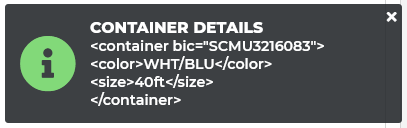
On this basis, this information is converted into an XML structure:
Target structure (schematic) | Runtime example |
|---|---|
|
|
Configuration:
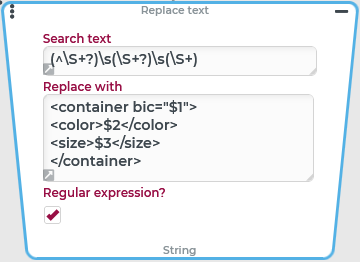
The Regular expression? option is set in the Replace text value resolver this time, because the input value can be conveniently "separated" into the expected tokens with the help of a regular expression as Search text:
The expression for Replace with transforms the acquired groups into XML format of the target structure by combining the placeholders with literals. |
|
Further examples ("Regular expression?" option checked)
The following table shows more examples of using regular expressions to Replace text:
Objective | Input value | Search text | Replace with | Result |
|---|---|---|---|---|
Find and "neutralize" container number at any position |
| |
|
|
Detect container number at any position and "neutralize" all other text sections |
|
|
Blank character |
|
Structured return of container number |
|
|
|
|
Replace unit "ft" or "FT" for container size with minute symbol ( (two alternatives) | | /\b(\d+)ft\b/i | | |
| /(?<=\b\d+)ft\b/i "Positive lookbehind" checks if the group of numbers is prefixed |
|
|