See also: Grid: Clear, Grid: Add row(s), Grid: Remove row
Actions – Abstract
The action Grid: Fill populates the rows of a Data grid linked as a Target element with data from a list. Any existing content in the Data grid will be overwritten.
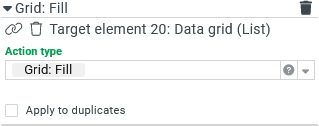
The action Grid: Fill populates the rows of a Data grid linked as a Target element with data from a list. Any existing content in the Data grid will be overwritten.
Existing "rows" in the target element are discarded.
IMPORTANT The specification of a target element from the Data grid type is required so that this action can be selected under Action type.
List data for filling a Data grid element can be obtained by different methods and from different sources, which are described below using examples. The list data for the action Grid: Fill is either provided by the executing element itself (via a suitable Events (Form designer)) or as a return value of a suitable behavior.
Alternatively, a data grid can of course be filled independently of the action by assigning suitable element data, e.g. if an event handler returns suitable content for the data field of the data grid using the variable
formDatawhich is mapped to a parent container by a Dispatch custom action event (Form designer) behavior via Populate element data.For other List elements, however, the data field (or the value of the element) corresponds to a single or multiple selection, while the list data defines the "rows" that can be selected. If necessary, the service configuration (see Services and converters) for the target element regulates the interaction.
Regardless of the data source and the method used to obtain the list data, the filled Data grid only displays the contents of these list entries that match the existing column configuration (especially data fields, calculation expressions). The data structure of the entries is nevertheless completely stored in the element data and is available for Behaviors, Event handling and Calculation field etc. Depending on the data source, this can also affect complete entities (business objects, configuration objects, etc.) as an entry in a list.
Input data for the action Grid: Fill must correspond to one of the following structures so that the Data grid is filled line-by-line:
Input data structure | Example/Description |
|---|---|
Text (XML) A string that results in a valid XML document from which to deserialize an object whose structure matches one of the following definitions. | Example for text that can be interpreted as content for a grid via XML: The internal structure per "item" ( |
Anonymous object with a single field of the "Array" type This complicated-looking designation describes what is actually a fairly simple structure, for example, when deserializing an object from an XML document like the one in the previous example in Lobster Data Platform/Orchestration. | JSON representation of the object from the above XML:
Child elements with identical names are interpreted as an array. The name of the child element appears as the field name, while the name of the root element does not appear. Grid: Fill transfers the contents ( |
Native array The Grid: Fill action can also process an array that is not "packed" as an anonymous object field but is passed directly (as an object of the "array" type. NOTE A corresponding structure cannot be created from an XML text because the XML format requires a single root element. If a lobster_data profile in JSON format returns multiple records, (e.g. Call profile) the behavior typically returns this data as a native array. | Output value of the console for a Data grid with two rows:
In the example, the Validate element behavior element was used to read the contents of a data grid that lists complete business objects. The returned array in business objects can be assigned directly to another data grid via Grid: Fill. |
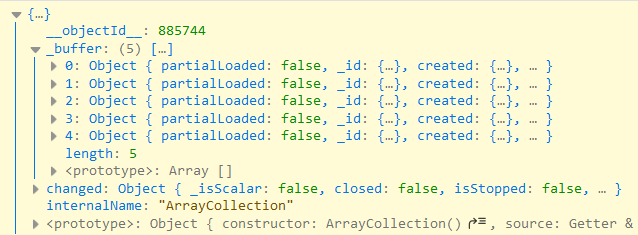
Collection When the Grid: Fill action passes a collection object, it uses the (native) array contained in the collection to fill the grid. | Console output value for the (
The object transferred is of the In the example (above), the ( |
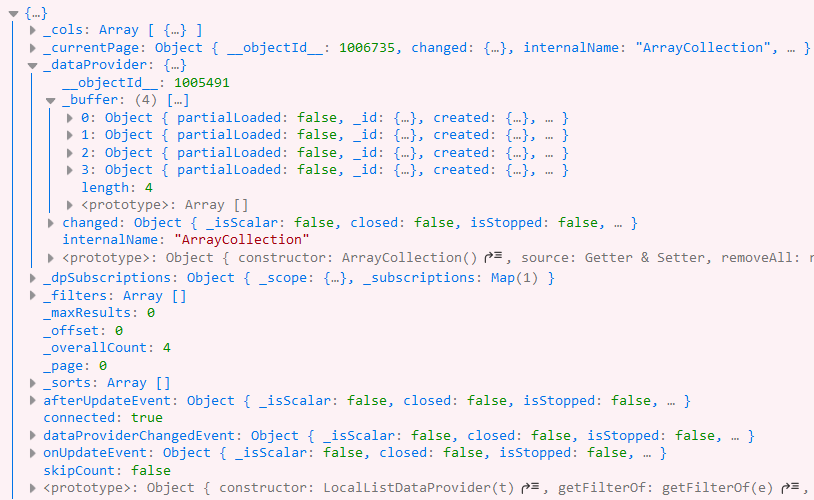
Data provider A collection object, with the native array it contains, is often provided as part of a data provider object. In this two-step "packaging" the Grid: Fill action also uses the contained array to fill the grid. | The console output value for the return value of a behavior that returns business objects from a search:
|

Examples
Fill data grid with list data from a Lobster profile
A Lobster profile can be called synchronously from a form using the behaviors Call profile or Validate element and call profile.
If the called profile provides a suitable return value when called directly in the Behaviors, this value is immediately available for the action Grid: Fill.
In the simplest case, the profile provides a target file in JSON format, which defines a list ([... , ...]) of objects ( { ... } ) with information about the same name-value pairs ( <name> : <value>, ... ).
The following example illustrates this structure:
JSON target file for filling a grid
[{"id":"1", "name":"I", "description":"Category I: Required data"},
 {"id":"2", "name":"II", "description":"Category II: Optional details"},
 {"id":"3", "name":"III", "description":"Category III: Attachments"}]
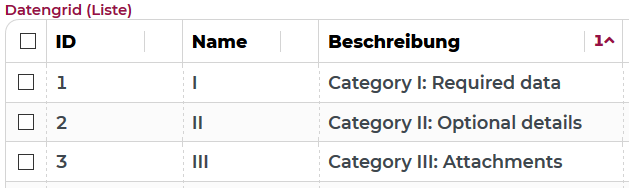
A data grid whose column configuration refers to the id, name and description data fields, lists the corresponding values in a table:
Fill data grid with data from an object selection via a multi-combobox
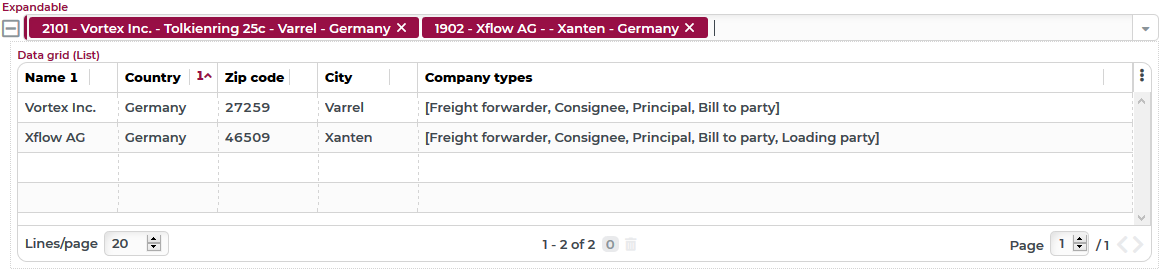
In a portal a Multiselect combobox allows the selection of Companies/Clients. Certain details of the selected company accounts should be displayed in a Data grid.
Both elements are arranged in an Expandable container so that the selection (Multiselect combobox) is always visible and the details (Data grid) can be opened and closed as required.
Runtime sample:
Configuration:
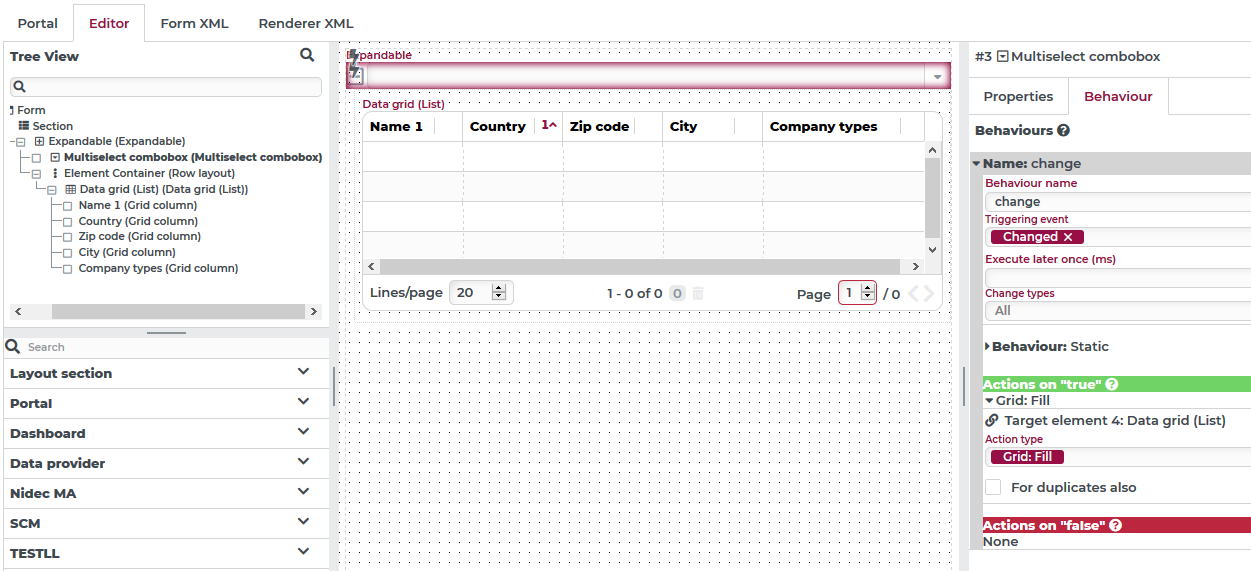
A behavior for the Multiselect combobox responds to the trigger Changed with all change types and Static behavior, so that the Data grid is always filled (or emptied) according to the selection.
Under Actions on "true" the action Grid: Fill is executed with the Data grid as the target element.
The columns in the Data grid refer to the following data fields of the company account:
Column | Data field |
|---|---|
Name 1 |
|
Country |
|
Zip code |
|
City |
|
Company types |
|
Fill data grid starting from a text in XML format
The following example has no direct practical relevance, but should make some technical details about the transfer of XML text in list data clearer to understand.
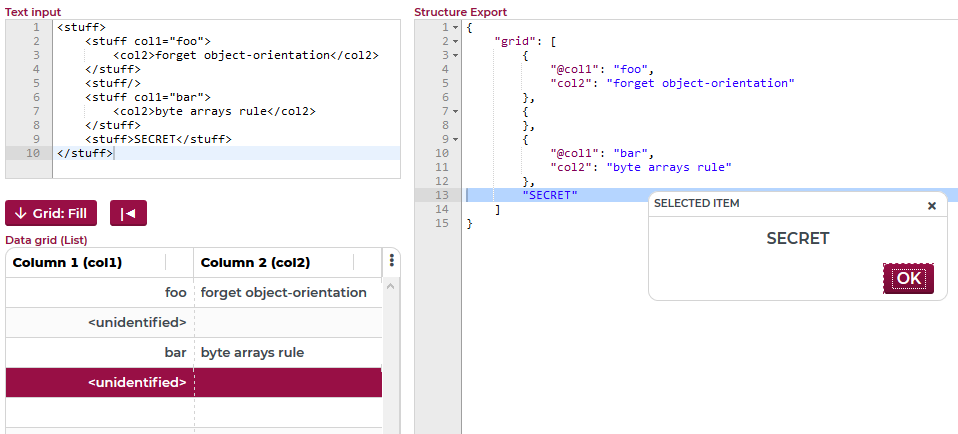
The input in the Text field Text field (top left) is transferred via Grid: Fill action to the Data grid (List) element below when the Grid: Fill button is clicked.
When you select a row in the Data grid, the value of the relevant row is shown as Show alert.
The Structure Export Text field (right) shows the content for the entire portal, which was interactively copied there for this purpose.
This example illustrates the following rules and relationships for the interpretation of text in a Data grid whose columns use the data fields @col1 and col2:
The name of the XML root element is not important for the further interpretation of the data. The name can even be identical to that of the direct child elements (here:
stuff).The different structure of the
stuffchild elements demonstrates different ways to assign values to data fields with a specific name:The first element assigns a data field with the name
@col1the text valuefooby displaying it as an XML attributecol1. The content for the second column is defined by the text content of a child element namedcol2.The second element (
</stuff>) is empty and gives no visible values in the grid. However, in this case, a calculation expression for the first column assigns the string "<unidentified>" as a value.The third element again uses the schema of the first element: An XML attribute
@col1and a child elementcol2return text values.
The fourth element does not provide any starting points for field names, since here there is only direct text content. The appearance in the Data grid corresponds to the empty element (b), but the literal text value is available in the element data (see the blue marker in the Structure Export), so that, for example, the Show alert action (as shown in the screenshot) can work with this data.