Here you can specify how an ETL/ELT pipeline is started. There are three sub-tabs available for this purpose.
Overview of startup options
Manual only: The pipeline does not have an automatic trigger. You start it via the interface.
Time controlled: The platform runs the pipeline according to a schedule (cron).
Event controlled: An external event triggers the pipeline.
Manual only
Selecting "Manual only" specifies that the pipeline has no automatic trigger. You will then have to start the pipeline yourself from the interface.
In the pipeline overview, open the context menu and select Start now.
In the open pipeline, click Save & start in the Main settings section.
Variables with the Changeable at start option are ignored during a manual startup. Instead, pass these variables via a profile or a workflow.
Time controlled
In the Time controlled sub-tab, you can specify when the pipeline should run automatically. To do this, use Cron entries.
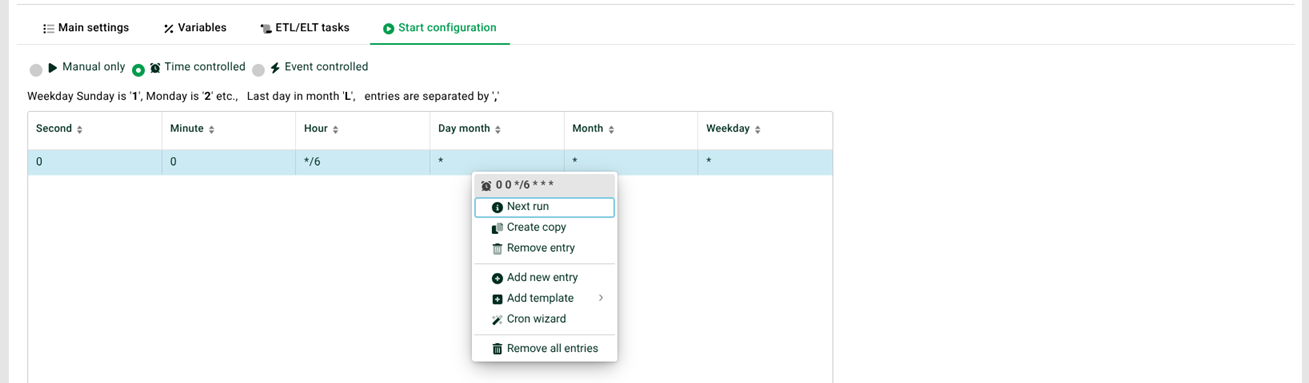
(1) Next run: You can view the next run of the selected cron entry via the context menu.
(2) Add new entry: Creates a new cron entry, which can then be edited manually.
(3) Add template: You can use predefined cron entries and customize them as needed. You can also define your own templates in a configuration file, which can then be selected as well.
(4) Cron wizard: Using the Cron wizard, you can easily create a new cron job.
Event controlled
In the Event controlled sub-tab, you can configure an external trigger for the pipeline. The pipeline will then start as soon as the specified event occurs.
Click the New event configuration button to create a new configuration. Several selection tiles are available for different source types. Select the tile that corresponds to the desired source.
The configuration of the individual source types is based on the event-driven inbound agents in profiles. For comparison and background information, see Event controlled input agents.