Here you can execute SQL queries on connected databases.
Settings
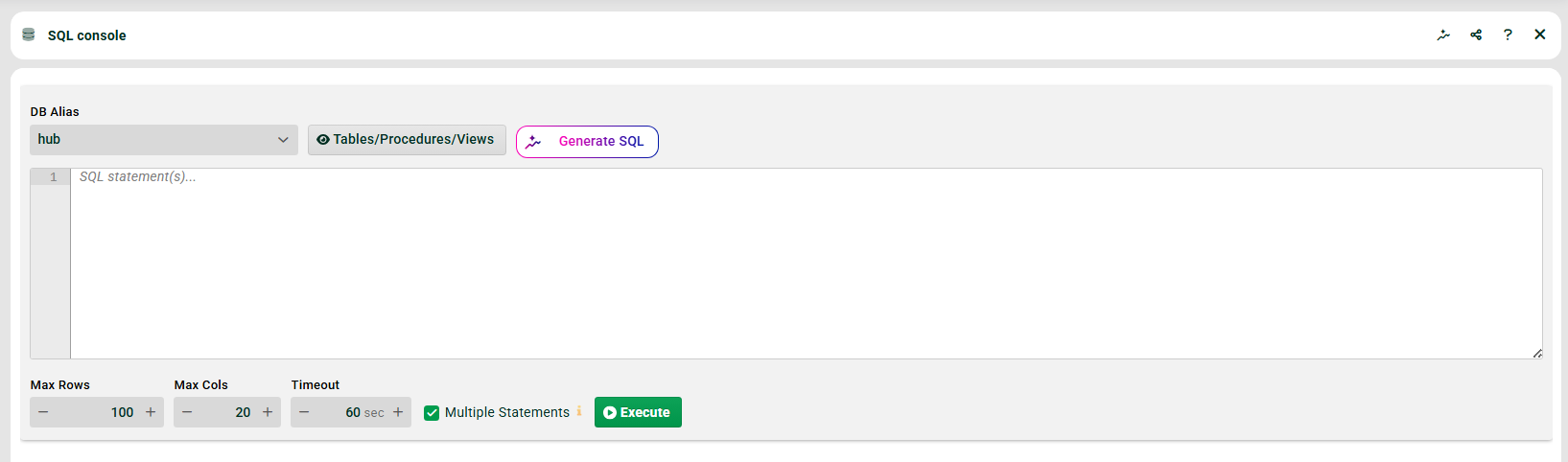
(1) DB alias: Alias of the database to query.
(2) Tables: Display tables of this database.
(3) Input area on top: The query. Queries can be saved and saved queries can be selected via the context menu. There is another dialog (→ User menu → Integration notes → SQL queries) for managing the queries.
NOTE
In the WHERE part of the query, parameters of the form @1:s@ can be used. When the query is started, another dialogue will then appear where you can specify values for these parameters. The first part in the parameter is the parameter number (integer, starting from "0"). The second part after the colon is the data type. Allowed data types:
Abbreviation | Data type |
|---|---|
i | Integer |
f | Float |
r | Real |
d | Date |
t | Timestamp |
s | String |
l | Long |
v | Boolean |
b | Blob |
x | Textstream |
(4) List on bottom: The result of the query. By double-clicking a row, you can display it more clearly in another window.
(5) Multiple statements: If the checkbox is set, multiple SQL statements (separated by semicolons) are executed separately. You will get multiple result sets in (4) in this case. Example:
select * from dw_log; select * from comm_auths |
If the checkbox is not set, you can specify more complex SQL statements, which are then processed as a whole. Example:
CREATE PROCEDURE TESTING (IN p_name VARCHAR, in p_cont INT, OUT ret_id BIGINT) SET ret_id = 0; END; |
(6) Generate SQL: See section "Pathfinder" below.
Pathfinder
Generate SQL
You can use natural language here to get an AI-generated SQL query.
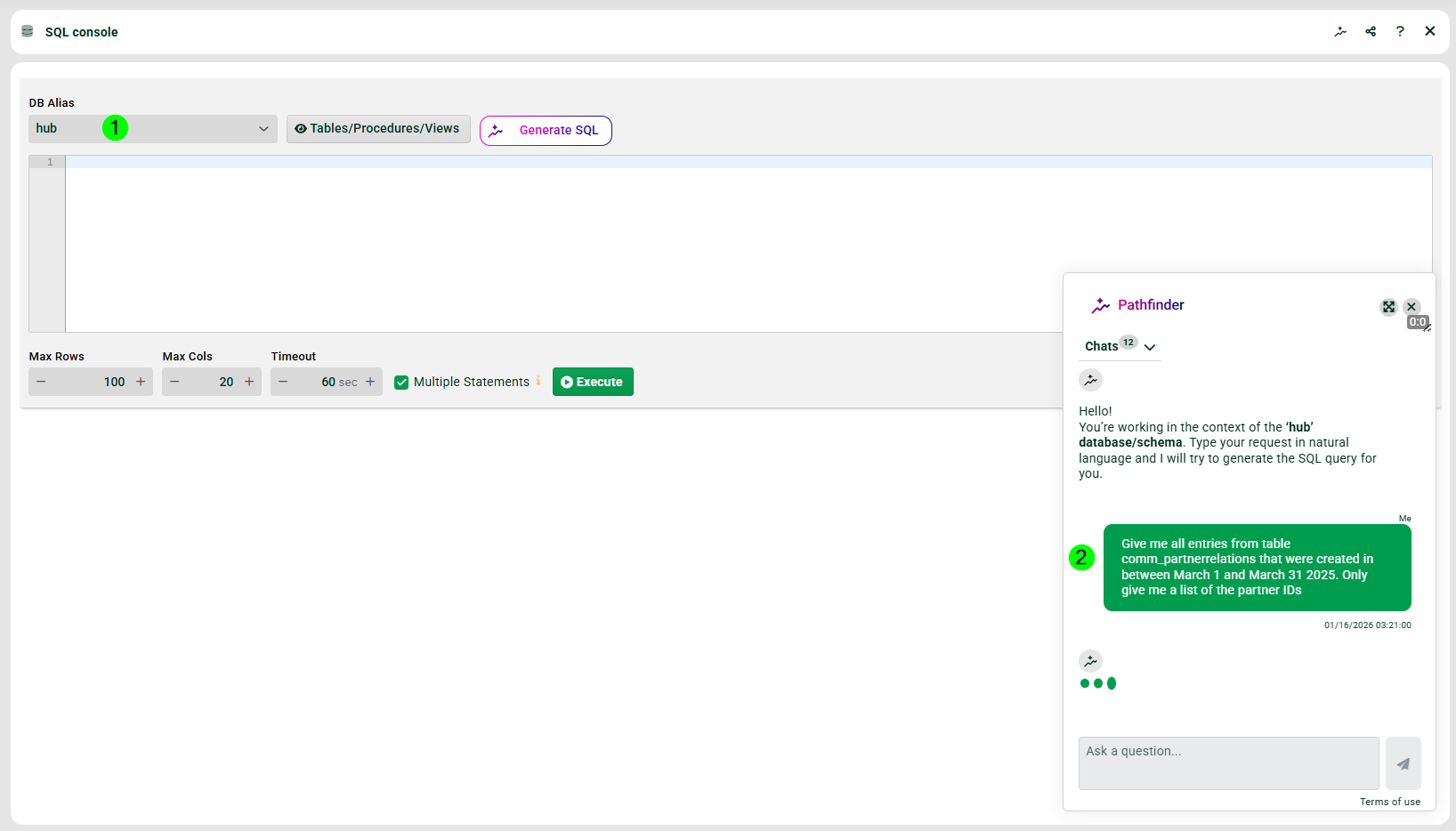
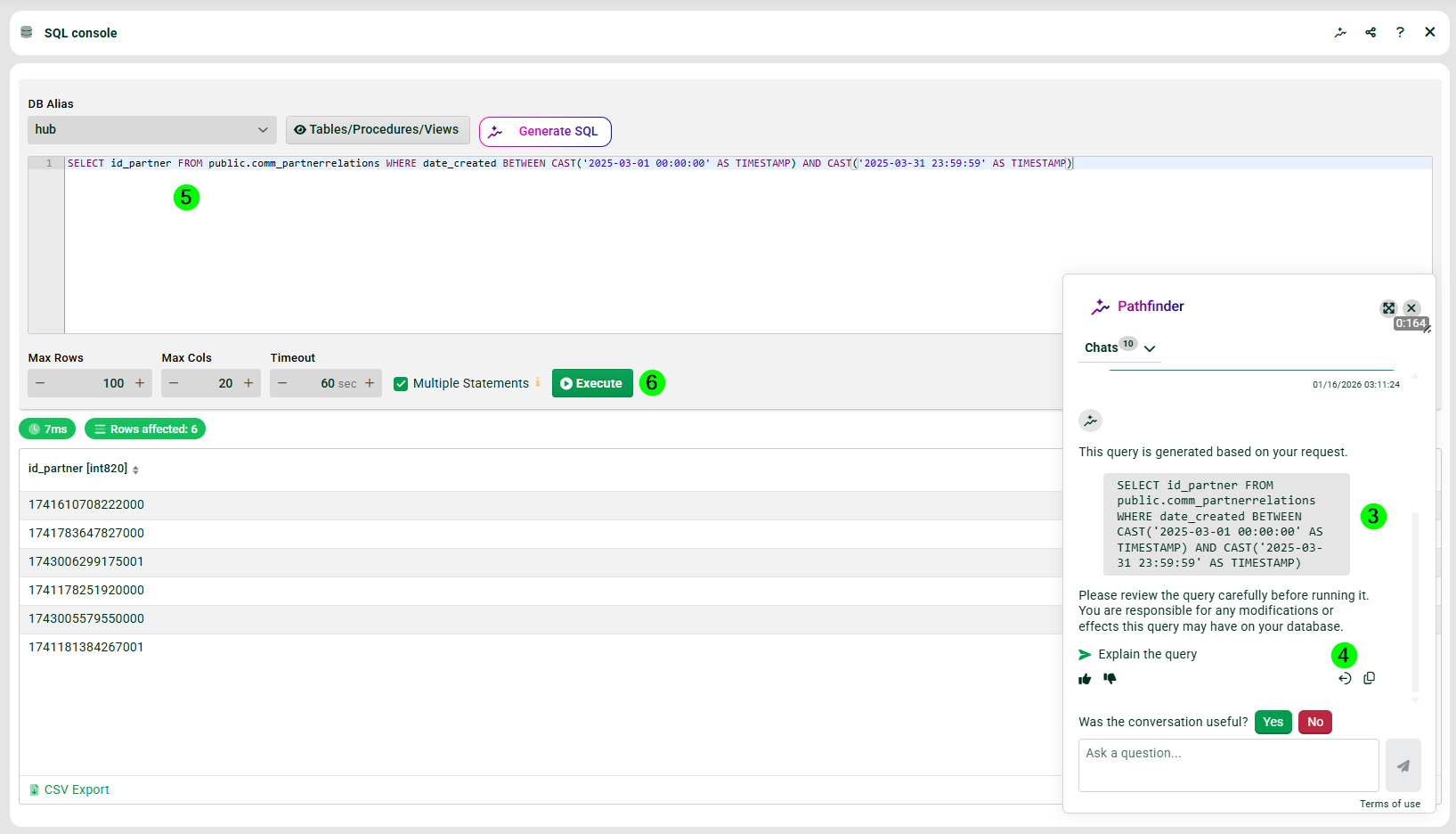
(1) Select your database and press button "Generate SQL".
(2) Enter your natural language query.
(3) The generated SQL query.
IMPORTANT AI can make mistakes. Always make sure to validate the results before you use them.
(4) Use this button to transfer the generated SQL query to (5).
(5) The transferred generated SQL query.
(6) Execute the query.