Settings
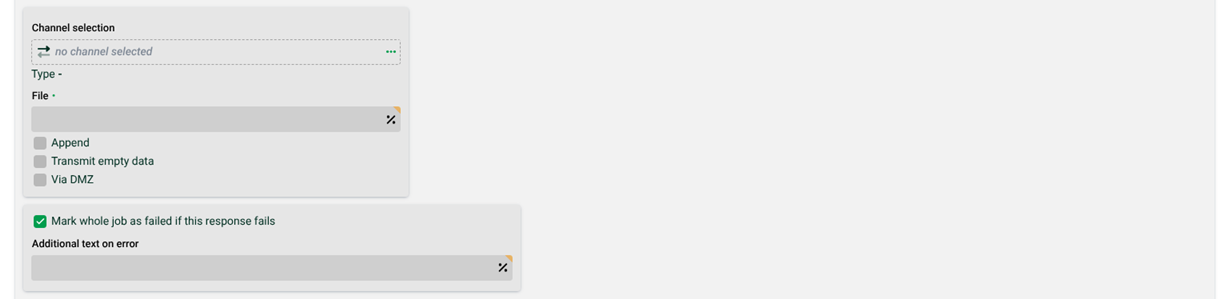
(1) Channel selection: You have to select a channel of type "CloudStorage". NOTE For some cloud providers (Amazon S3, Google Cloud Platform, Microsoft Azure), you will get another field "Bucket". These are data containers. Details can be found in the instructions of the respective provider. For Microsoft Azure, the name for such a container is "Blob".
(2) File: The name of the file to be sent.
(3) Append: If this checkbox is set, no new file will be created for the output data; instead, the target data will be appended to an already existing file. If the file does not exist yet, it will be created. Appending to an existing file is not possible in the following cases. The setting of the checkbox will then be ignored, and a new file will always be created.
Output format: XML. An XML file may only have one root node.
Output format: Excel. An Excel file is a file in a binary file format.
A file containing compressed data is also a file in a binary file format.
(4) Transmit empty data: If this checkbox is set, empty files are transferred as well.
(5) Via DMZ: Send data via DMZ server. If no DMZ is configured, this checkbox will not be displayed.
(6) Mark whole job as failed if this response fails: Normally a job is not necessarily considered to be erroneous if a single Response fails (see section Status of response - error behaviour). But it can be enforced with this option here.
(7) Additional text on error: Here you can specify additional log text for the error case.
Example Azure Blob Storage
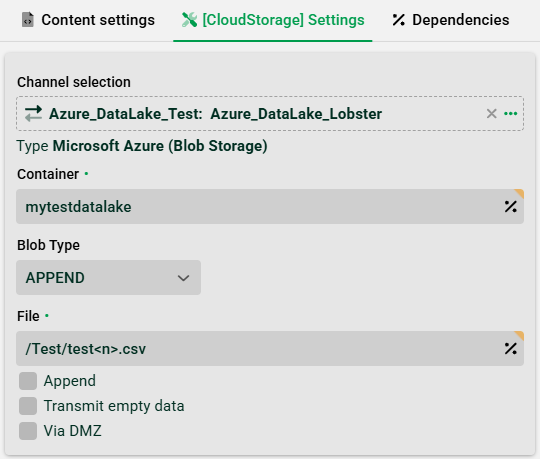
Where can I find a "Container" in Azure Storage?
In the search bar at the top of the Azure Portal, type "Storage accounts" and select it under "Services".
Click on the specific storage account name from the list.
On the left-hand navigation menu for that storage account, scroll down to the "Data storage" section and click on "Containers".
Where can I find a "Bucket" in Amazon S3?
Sign in to the AWS Management Console and search for "S3" in the top search bar.
In the left navigation pane, choose "Buckets" (or "General purpose buckets").
SharePoint / OneDrive (MS 365)
Use a CloudStorage channel of type MS 365 OneDrive / SharePoint for uploads to SharePoint. See SharePoint connection - Tutorial for channel setup and authentication details.
When you select this channel type, two additional fields appear in the response settings.
Drive/Site-ID
This field identifies the target SharePoint site or drive. Use one of these formats:
@Name:<site name>— reference the site by its display name. Example:@Name:Sales Test SiteDrive-ID—reference the site by its unique drive identifier. Retrieve the Drive-ID via the Microsoft Graph Explorer. The account must have the required Graph API permissions before you query the Drive-ID.
Variables are supported. Example:
@Name:@var_sharepoint_sites@
Note
The SharePoint user or Microsoft account must have write permissions on the target site.
Document library
A SharePoint site can contain multiple document libraries. By default, files go to the default Documents library.
Use this field to target a different library:
Enter the library name exactly as shown in SharePoint.
Leave the field empty to use the default Documents library.
Note
If files land in the wrong library, check that the Document library field contains the correct name. The
@Name:notation applies only to the Drive/Site-ID field—do not use it here.