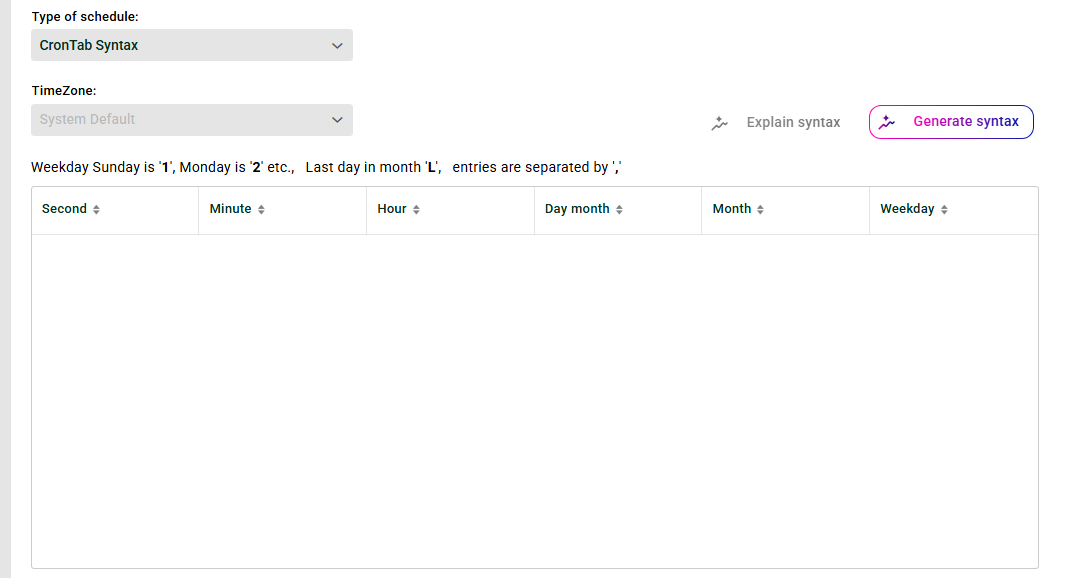
Here you will find a screen for configuring time-driven Input Agents using crontab syntax. Templates and a Cron Wizard are available via the context menu. You can also define your own templates in a configuration file. In addition, we provide AI-supported explanation and generation of cron entries (Pathfinder).
Important notes:
For a manual configuration, please only use values between "0" and "59" for the seconds and minutes and between "0" and "23" for the hours. We recommend using the Cron Wizard.
The syntax used here is similar to the crontab syntax in UNIX systems. However, the numbering of weekdays differs from the UNIX syntax. It starts with "1" for Sunday. In column "Day", for example, a "1" stands for the first day of the month, an "L" stands for the last day of a month, and a "*" means every day.
In any case, avoid a single asterisk "*" in the "Seconds" column, because that means every second and would have a very strong impact on performance.
If a job still runs when a new start time is reached, the new start time is ignored.
Context menu
Next run | Opens a pop-up that shows when the next profile run will be triggered. |
Create copy | Self-explanatory. |
Remove entry | Self-explanatory. |
Add new entry | Self-explanatory. |
Add template (plus icon) | Selection of a predefined template. |
Add template (person icon) | Selection of a self-defined template. See section "Defining Custom Cron Templates" below. |
Cron wizard | Opens the Cron Wizard, which allows you to create an entry by selecting predefined values. |
Remove all entries | Self-explanatory. |
Examples
The following table shows some examples of setting the time points using crontab syntax. For comprehensive explanations and examples on the topic of crontab syntax, please refer to external sources. This is a commonly used concept.
Seconds | Minutes | Hour | Day | Month | Weekday | Meaning |
|---|---|---|---|---|---|---|
0 | 0 | * | * | * | * | Every hour. |
0 | 15 | 10 | * | * | 1 | Every Sunday at 10:15. |
0 | */20 | * | * | * | * | Every 20 minutes, starting from full hours and on the full hour. Example: Let's assume you save your profile at 16:56 with these settings. Then it runs at 17:00, 17:20, 17:40, 18:00, 18:20, ... |
0 | */21 | * | * | * | * | Every 21 minutes, starting from full hours and on the full hour. Example: Let's assume you save your profile at 16:56 with these settings. Then it runs at 17:00, 17:21, 17:42, 18:00, 18:21, ... Note: If you really want the next profile run 21 minutes after the last run, please use intervals. |
*/10 | * | * | 1 | 12 | * | Every 10 seconds on the 1st of December (starting from full minutes and to the full minute). |
0 | */10 | 6-8,16-19 | * | * | * | Every 10 minutes between 6-8 and 16-19 hours (starting from full hours and on the full hour). |
0 | 0 | 18-6/2 | * | * | * | Important note: Please do not use entries that go beyond the day limit "(18-6)". Instead, create two entries: "0-6/2" and "18-23/2". |
Custom cron templates
You can define custom templates in the configuration file "./etc/admin/datawizard/cron_templates.txt". It is not necessary to restart the Integration Server.
# here you can define custom cron templates
# <name of template> = <cron syntax>
# the name should not contain "="

# Example - values on right separated by single blank
Every Friday at 22:00 = 0 0 22 * * 6
Pathfinder
Explain syntax
You can get an AI explanation for a specific cron entry.
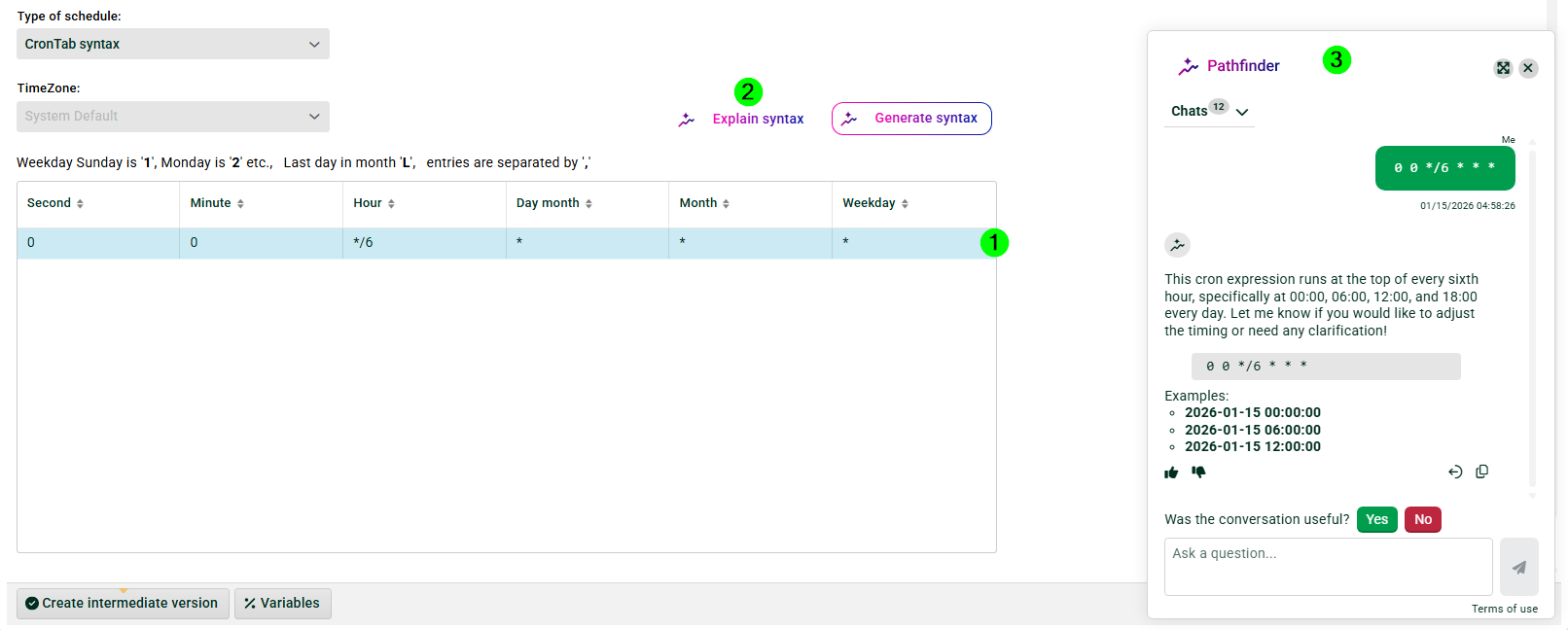
(1) Select your cron entry.
(2) Press button “Explain syntax”.
(3) Pathfinder will open and generate an explanation for your cron entry.
Generate syntax
The AI can also generate a cron entry.
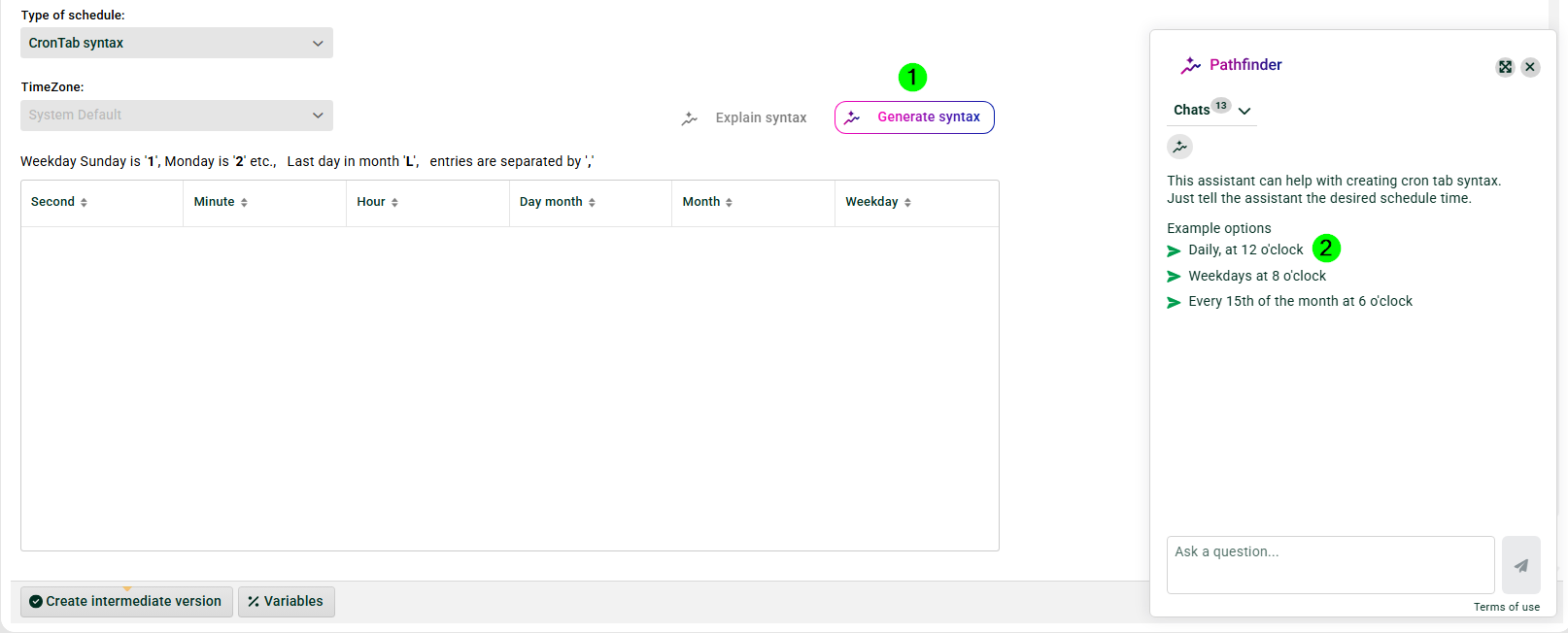
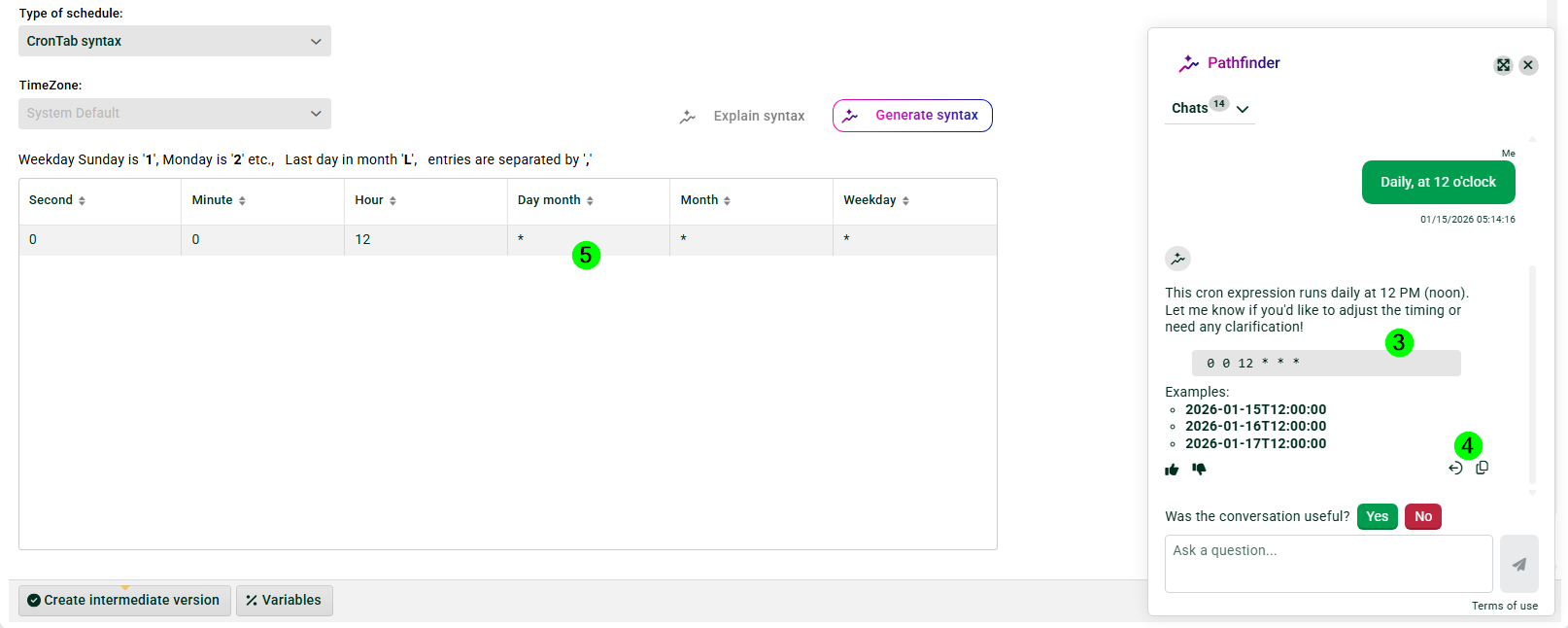
(1) Press button “Generate syntax”.
(2) Select one of the example options or enter your own description.
(3) The generated cron entry. Important note: AI can make mistakes. Always make sure to validate the results before you use them.
(4) Use these buttons to copy the cron entry or place it directly in (5).