Introduction
The Jaspersoft Studio program allows the creation of PDF reports with data from one or more data sources.
To create the PDFs, a JasperReport is generated as a template using Jaspersoft Studio and is integrated into the Integration Server.
Installation and connection
Important note: Special libraries are required for the Integration Server to use JasperReports. Create a ticket to support@lobster.de stating your version and an excerpt of the libraries. If you have already used JasperReports, and also send a sample profile with the report and a test file.
IMPORTANT
Patch version 26.2.4 and above
PDFCreator, MultiPDFCreator, and GeneratePdfPostExecutor now use the same version of JasperReports (6.21.5) as the orchestration print components; therefore, there is no need to provide external libraries. After updating to Lobster Data Platform version 26.2.4 or higher, you must remove all existing JasperReports libraries and dependencies from the “extlib” folder to avoid conflicts in the classpath.
Jaspersoft Studio is currently only available in versions 6.21.5 and 7.0.0. Currently, use version 6.21.5.
https://community.jaspersoft.com/ (Jaspersoft community portal)
https://www.jaspersoft.com/products/jaspersoft-community (Jaspersoft Community Edition product page)
https://www.jaspersoft.com/products/jaspersoft-commercial (Jaspersoft commercial edition product page)
This is used to create the report, which you store in compiled form, that is, as a .jasper file, in a directory accessible to the Integration Server.
You can familiarize yourself with this application in advance with the help of the online tutorials:
https://www.tutorialspoint.com/jasper_reports/jasper_report_sections.htm
https://community.jaspersoft.com/knowledgebase/getting-started/subreports-jaspersoft-studio/
Use of the PDFCreator Integration Unit
Before you can use the PDFCreator Integration Unit, you need to install specially compiled libraries. You can install these using the following instructions:
The Integration Server must be stopped.
Remove the file
ebd_jasperreports-6.0.0.jarfrom the./libdirectory, if it still exists.Remove all
batik-*.jarfiles from the./libdirectory, exceptbatik-all-X.XX.jar.Remove any existing Jasper libraries from the
./extlibdirectory. Only JDBC drivers and drivers for other purposes may be located there.Unpack the delivered libraries into the
./extlibdirectory. The classes must not be located in any subdirectory.Delete PDFCreator, if present, from the
./extdirectory.Restart the Integration Server.
Import the supplied sample profile and run it as a test.
Note
The existing JasperReports integration (PDFCreator/MultiPDFCreator) remains fully supported in version 26.2; however, after upgrading to Java 21, the JasperReports libraries and JDBC drivers in use must be checked for compatibility and updated if necessary.
Helpful links for Jaspersoft Studio
You can familiarize yourself with this application in advance with the help of the online tutorials:
Usage of the test profile
After installing the libraries and restarting the Integration Server, import the test profile and start a new run.
If the profile runs without errors, you will receive a PDF file based on the Jasper report.
Procedure for creating a PDF
Create the profile
Create a new profile or use an existing profile.
If you are not yet certain about the source structure when creating a new profile, select the 'Data Routing' option in the basic data. This allows you to define the input agent and the source structure later.
The target structure should be as flat as possible at the beginning so that you can create a simple CSV file. In general, pre-create and populate all data in the target structure beforehand. This applies to dynamic and static data.
Note that the target structure fields and the fields in the report must have the same name. The path for an image, such as logos or other image files, can be passed to the report via the value of a field, allowing it to be dynamically transmitted to the reference data.
Using the integration unit 'CSVWithHeaderUnit' and the output path 'File' - 'Content of the IU', you can output a file in CSV format. This file is useful for creating the fields in Jaspersoft Studio in the further process.
Create a DataAdapter in Jaspersoft Studio
The creation of a data adapter supports you in setting up the report. You can use the preview to display the output and formatting of the PDF from the design.
Using the generated CSV file, you can create a data adapter in Jaspersoft Studio. The fields in the report are automatically generated using this. The field names are generated from the header of the CSV file.
To create a new data adapter using the generated CSV file, proceed as follows:
Switch to the Jaspersoft Studio.
Create a new adapter under File > New > DataAdapter.
Give the data adapter a descriptive name.
Use the content of the data from CSV.
Add the path to the CSV file.
Adjust the separator under the 'Separators' tab.
Check the 'Skip the first line' box.
Adjust the encoding.
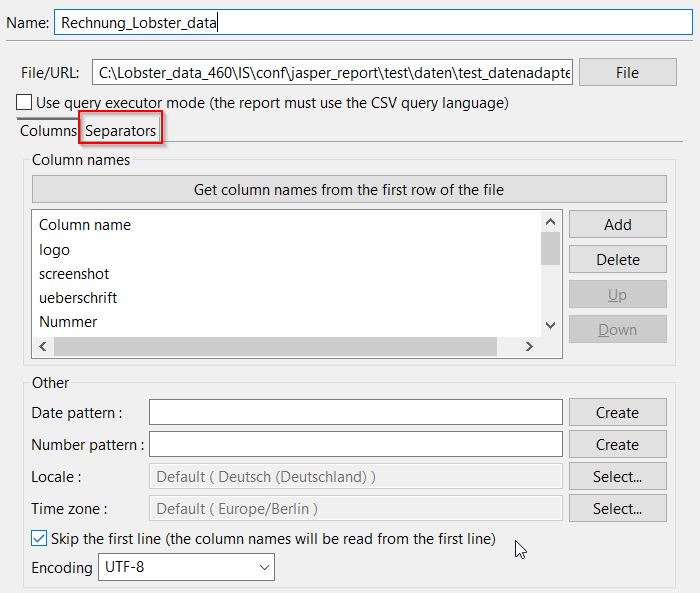
Create a report in Jaspersoft Studio
A new report is created in Jaspersoft Studio via File > New > JasperReport. The previously created data adapter can be added via the wizard.
By default, the report is created empty with the predefined properties and all bands. The bands are used to structure and display elements in the PDF. Note that the detail band is the only band that allows the repetition of field values.
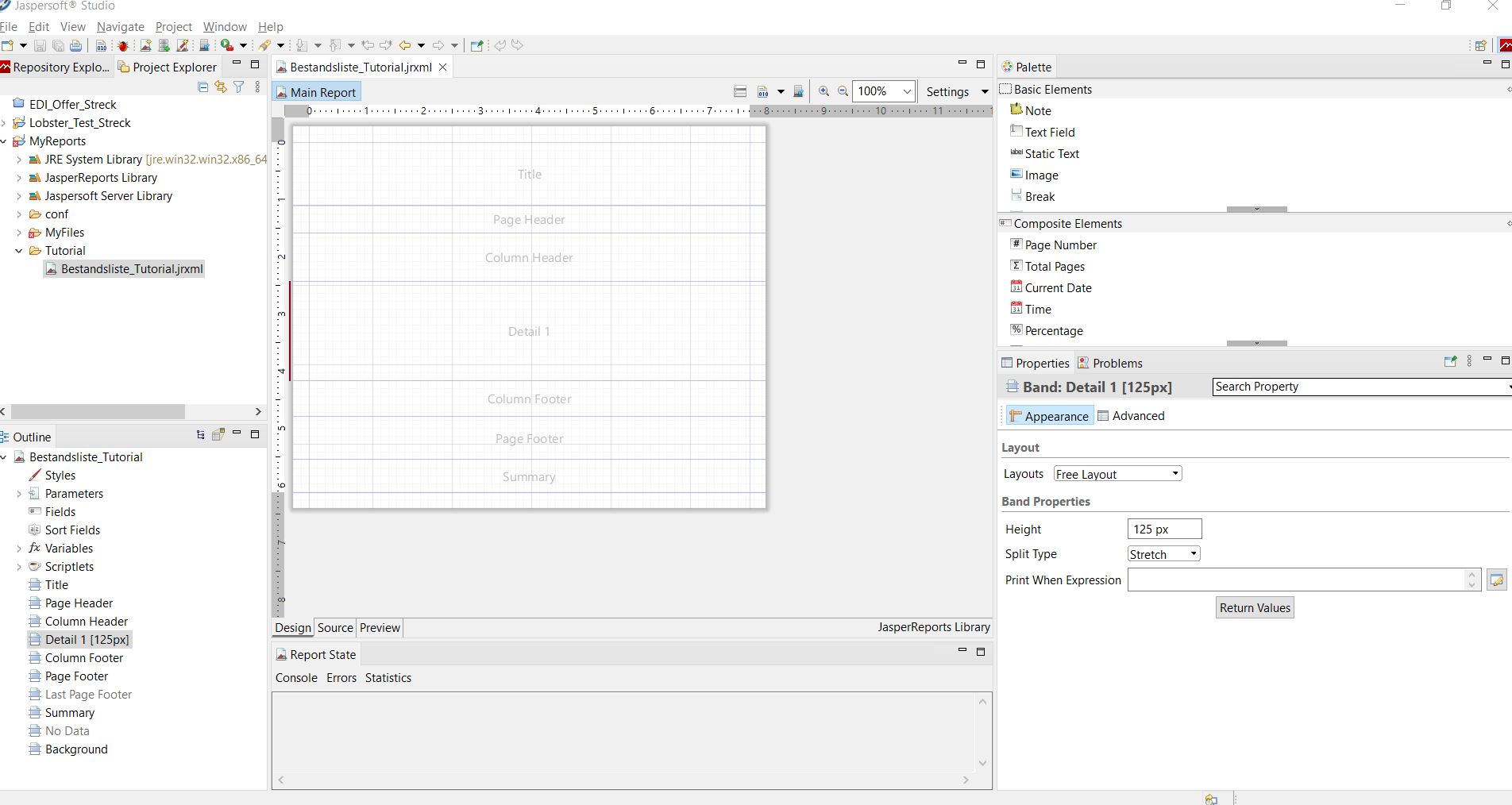
The Jaspersoft Studio is organized as follows:
Project Explorer: The created and compiled reports and data adapters are listed here.
Outline: This area is used to structure the report.
Report properties
Fields
Variables
Bands
Palette: The palette contains elements that can be added to the report.
Properties: Properties for displaying in bands and formatting the fields.
Create fields
Create fields with the DataAdapter
When creating a new report, you can already store the data adapter.
A data adapter can also be subsequently added to a report or additional fields can be inserted. Right-click on the report name in the Outline area to select the data adapter within the 'Dataset and Query' dialog and read in the fields. Dynamic fields are stored in the outline as $F{field name}. This saves you the tedious and potentially error-prone manual creation of fields.
NOTE : In Jaspersoft Studio, numbers are stored as integers. Here you have to adjust the data types manually when importing the fields via the data adapter.
You can then set up your report as desired and display a preview of the PDF via the Preview tab.
The creation of a data adapter using an XML file is described in the section 'Using the PostExecuter'.
Add fields via elements
Fill individual bands of the report either with the dynamic report fields from the data adapter or insert new dynamic or static text fields for headings.
Add all field values, both dynamic and static, via the target structure fields.
Dynamically integrate images
If you want to add a dynamic logo or an image file to your PDF, create a field in the target structure that contains the path to this logo as a value. To achieve this, you can store the path as a fixed value via the field properties or use the 'copy' function on the field.
Ensure that the path to the logo or image file can be reached from the Integration Server. It is advisable to store it within the Integration Server installation directory in the ./conf subfolder.
In Jaspersoft Studio, add an image element to the design of the report. Here you can store a previously created dynamic field via Properties > Image > Expression. The value of the field, which must contain a path to the image file, is resolved there. You can also work with fixed paths.
Click on the following link for an explanation of how to integrate images via an mklink:
https://learn.microsoft.com/de-de/windows-server/administration/windows-commands/mklink
Add barcodes
To integrate barcodes, you also use dynamic fields that you fill with your values.
In Jaspersoft Studio, add the desired barcode as an element in the design of the report. The reference to the values is formed by storing the dynamic field via Properties > Barcode > Expression.
If your barcode contains special control characters, these must be incorporated using variables within Jaspersoft Studio to obtain special fixed values. In this case, the string value in quotation marks and the variable with + V{Variable} must be adjusted under Properties > Barcode > Expressions.
Alternatively, you can use the 'create barcode (a, b, c, d)' function to create barcodes. This function creates a Base64-encoded barcode image, which you can save decoded using the 'write into file' function by setting the parameter d = true and use as an image file.
Compile report
In the last step, save the report and compile it by right-clicking in the Project Explorer > JasperReports > Compile Report. Save the generated *.jasper file in a directory to which the Integration Server has access.
Usage of PostExecuter
Adjust the profile
If you want to create a PDF using an XML structure, the "PDFCreator" Integration Unit cannot be used here. Instead, you need the com.ebd.hub.datawizard.postexec.GeneratePdfPostExecuter, which you can copy into the field in phase 5 or phase 6 of a response path for post-processing.
Uniquely identify the data records via IDs. This lets you select values in an XML file via XPath expressions unambiguously. To do this, you can extend the target structure so that the values are given unique numbers using the iteration-level function.
The profile generates an XML file using the 'XMLNoTemplateUnit' integration unit, which you can then use to generate the report.
To create the PDF, you need an additional response path of the type File with the following settings:
Output of IU
Encoding UTF8
PostExecuter:
com.ebd.hub.datawizard.postexec.GeneratePdfPostExecuter
The configuration file for the PostExecuter must contain the following parameters:
report_template = <Filename of Report>
report_format = 1|2|3|4|5|6
1 => PDF2 => CSV3 => Rtf4 => Odt5 => Xls6 => ZPL
report_folder = <Path to Jasper-File>
Create a DataAdapter with XPath expressions
Once the XML file has been created, it can be used to create the fields in the report using a data adapter and to create the report using them.
Use the wizard to create a new data adapter for the existing XML document via File > New > Data Adapter.
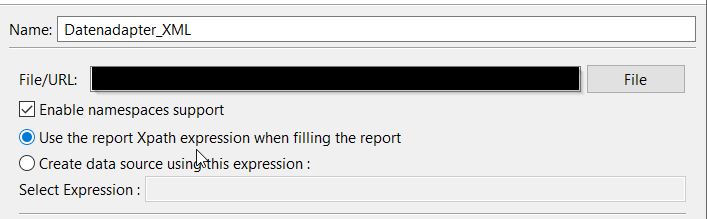
The required fields from the XML structure can then be added to the report using XPath expressions.
To check whether the XPath expressions read the required fields and values, you can use the plugin 'Test XPath' or search the Internet for common tools.
Create the report
Create a new report via File > New > JasperReport and add the stored data adapter.
The necessary fields can be added using XPath expressions. You can then set up your report as desired and display a preview of the PDF via the Preview tab.
Create subreports
If you want to work with subreports, add the basic element “Subreport” to your main report. A wizard appears in which you can integrate an existing report or create a new one.
As soon as this report has been created, compile it.
Within the properties of the main report, the path of the report is stored within the expression for linking. It is important that both jasper files are located in a directory to which the Integration Server has access.
Note: When using an XML via a data adapter, XML_DATA_DOCUMENT must be stored in the subreport parameters with the expression $P{XML_DATA_DOCUMENT}.
An example profile with reports and data adapters is available for download.
Embedding fonts
To integrate external fonts into JasperReports, they must first be stored in Jaspersoft Studio:
To do this, add the fonts via a URL or a file path under Window > Preferences > Jaspersoft Studio > Fonts.
Give your font family a descriptive name.
Enter the fonts via the path for the Normal, Bold, Italic and BoldItalic type (if desired).
Enter a descriptive PDF font name.
Identity-H… is expected under PDF Encoding.
Set the Embed this font in PDF document checkbox.
Save the font family so that you can use it in your report in Jaspersoft Studio.
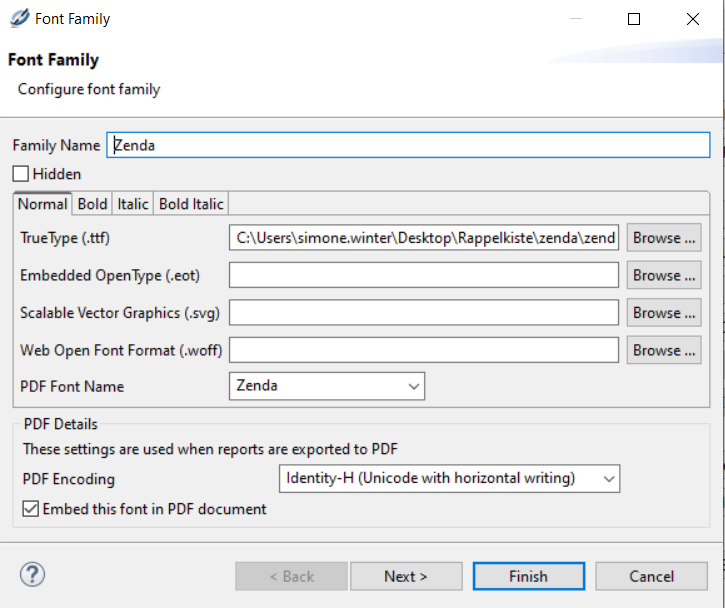
In the next step, you export the fonts from the list. You can store as many fonts as you like in the list and export them as a
.jarfile.Open the
.jarfile by right-clicking via 7-zip and navigate to thefontsfolder. This now contains the fonts as.ttffiles in individual folders.A
fontsfamilyXXX.xmlfile is created for each font. Temporarily copy this file from the directory and edit it as follows:Remove the enclosing brackets
<![CDATA[ ]]>for the path to the font, thepdfEncodingand thepdfEmbedded.Remove the line
<pdf><![CDATA[Zenda]]></pdf>
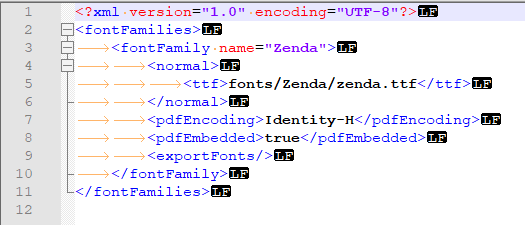
Place the edited
fontsfamilyXXX.xmlfile back into the.jararchive under thefontsdirectory.Shut down the Integration Server before continuing.
Place the newly created
.jarfile in the./extlibdirectory and restart the Integration Server. The.jarfile must be in the same directory as the Jasper libraries.Recompile the report and place the
.jasperfile in a directory accessible to the Integration Server.After the restart, test the newly added font with the specific profile.
Error messages
Missing classes
If certain libraries are missing for using the report and generating the PDF, a ClassNotFound exception will occur. Provide an extract of the libraries to our support for checking.
You can use the following links to check which missing classes are involved:
Embedding images
When embedding an image with a dynamic path, an error message may appear if this image cannot be found:

A dynamically stored image path is stored in a field in the target structure. The field must then be created in Jaspersoft Studio with the same name.
Within the properties of an image element, the created field is stored under Properties > Image > Expression. The value of the field contains the path to the image file. You can also work with fixed paths in Jaspersoft Studio.
Make sure the path is accessible to both Jaspersoft Studio and the Integration Server.
Report cannot be compiled
When creating a PDF via a profile, you receive the following error message:
Nested exception is:
net.sf.jasperreports.engine.JRException: unable to recompile jasper file after error on load

Alternatively:

net.sf.jasperreports.engine.JRException: Error loading expression class
This is an error message that the report was not compiled correctly.
Check whether the fields in the report have been adapted and formatted correctly. Then compile the report again.
In addition, ensure that the correct, compiled version of the report is used.
Could not initialize class net.sf.jasperreports.engine.util.JRStyledTextParser
In this case, send an extract of the libraries to our support for checking.
Check the ./lib directory for the ebd_jasperreport.jar file. If this library is present, you can delete it from the directory and restart the Integration Server.
If this error message occurs under Linux, check whether the 'libfontconfig1' package is installed. To install the package, the following command can be issued in the console:
|
If the package is already installed, the following message appears:
Reading state information... Done
libfontconfig1 is already the newest version (2.13.1-2ubuntu3).
0 upgraded, 0 newly installed, 0 to remove and 8 not upgraded.
On Linux systems, an error may also occur if the dejavu-fonts font is required. A possible solution is to set the system property: -Djava.awt.headless=true
com.ebd.hub.datawizard.DataRetrieveException: error while calling integration-unit
    at com.ebd.hub.datawizard.app.RequestProcessor.process(RequestProcessor.java:2078)
....
    at java.base/java.lang.Thread.run(Thread.java:829)
Caused by: java.lang.InternalError: java.lang.reflect.InvocationTargetException
    at java.desktop/sun.font.FontManagerFactory$1.run(FontManagerFactory.java:86)
....
    at com.ebd.hub.datawizard.app.RequestProcessor.callIntegrationUnit(RequestProcessor.java:2939)
    at com.ebd.hub.datawizard.app.RequestProcessor.process(RequestProcessor.java:2057)
    ... 39 more
Caused by: java.lang.reflect.InvocationTargetException
    at java.base/jdk.internal.reflect.NativeConstructorAccessorImpl.newInstance0(Native Method)
....
    at java.desktop/sun.font.FontManagerFactory$1.run(FontManagerFactory.java:84)
    ... 70 more
Caused by: java.lang.NullPointerException
    at java.desktop/sun.awt.FontConfiguration.getVersion(FontConfiguration.java:1264)
....
    at java.desktop/sun.awt.X11FontManager.<init>(X11FontManager.java:56)
    ... 75 more

<<<<< END OF STACKTRACE -----
See also
Section PDF handling.