"Ribbon macros" are configuration objects, that define overrides and extensions to the appearance and functionality of ribbon menus in views, depending on context and Association criteria.
Regarding the hierarchy of ribbon menus with levels main category (tabs) and sub category (groups of buttons) the following operations are supported:
Adding custom main categories or sub categories.
Controlling the sequence of main categories or sub categories (predefined and custom).
Overrides for labels of main categories or sub categories (predefined and custom).
On the level of individual buttons the following operations are supported:
Adding buttons at a certain position in the ribbon menu hierarchy, by defining a macro with a more or less complex sequence of commands to execute.
Overrides for standard functionalities by custom assignments for commands or adjustments for features of standard buttons.
Controlling the sequence, visibility ("hide") and availability ("disable") of buttons.
The section below describes the functionalities of the "Ribbon macro overview". More details on ribbon macro configuration and available commands are provided in the following pages:
Ribbon macro overview
Clicking the main menu item Ribbon macro overview (Administration/Client preferences/Ribbon macro overview) opens a combined view (with details and a data grid) for managing ribbon macros:
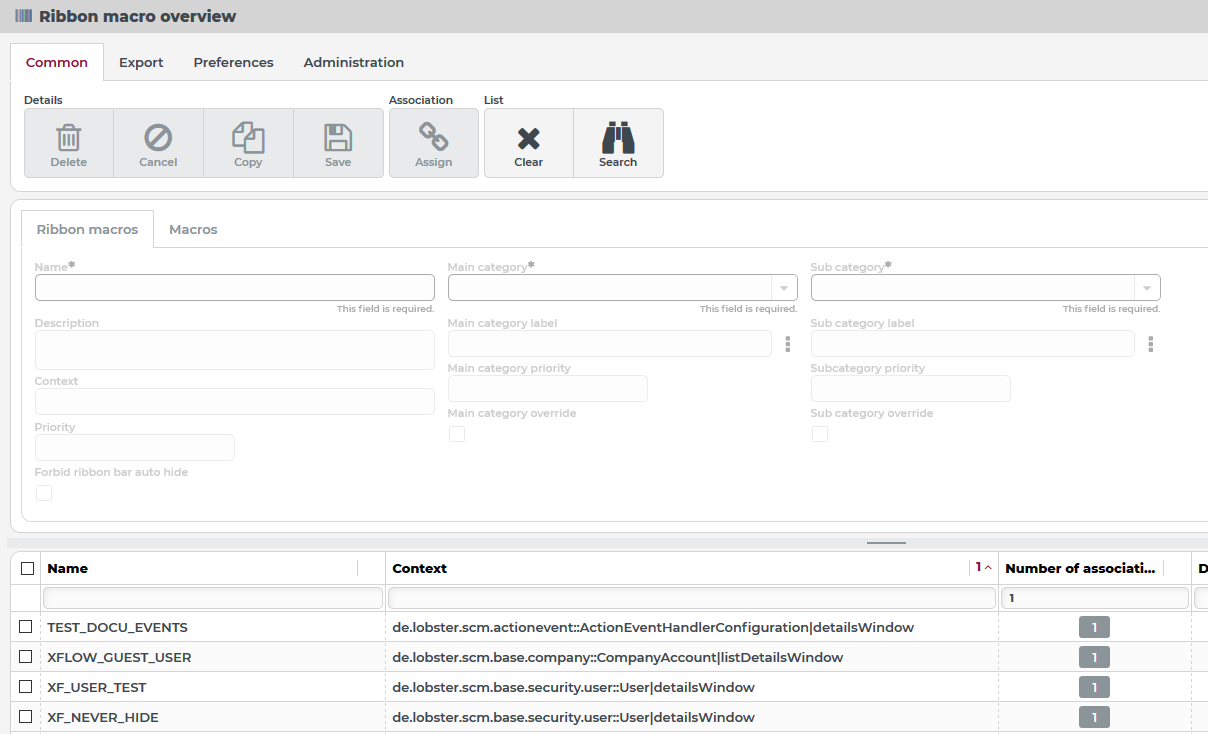
As visible in screenshot (Context column) the ribbon macro overview lists ribbon macros from any context, as far as access is required.
To apply settings for a ribbon menu of a specific context, it is more efficient to enter the overview via a view for that context, by clicking the Edit (2) button (in the main category Preferences (1),of the sub category Ribbon macros):
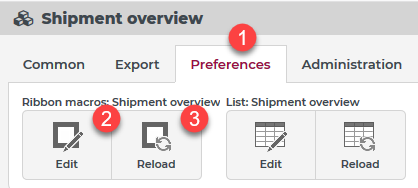
This sub category also features a button Reload (3), that can be used to refresh the ribbon menu of an already opened view after applying changes.
However, the ribbon macro configuration is entered, the view opened is always ribbon macro overview (see screenshot above) providing the standard functionality for data objects in main category Common:
The sub category Details with the default buttons New, Delete, Copy, Save, for the "ribbon macro" data object.
The sub category List with the default buttons Clear (to reset list settings) and Search (to requery list data).
The sub category Association with the default button Assign, to add or remove assignments of Association criteria.
NOTE Association criteria for ribbon macros are evaluated by the all-matching principle, which means a ribbon menu considers configurations from all applicable ribbon macros. The Priority assigned to these association criteria is irrelevant. However, for the context of ribbon macro configurations (see Ribbon macros) dedicated priority values are available on various levels, to control the effective features of a ribbon menu in a certain context.