For security reasons, you can operate an additional DMZ server.
The Integration Server usually operates in an intranet to provide direct and quick access to internal systems like databases, mail servers and file systems. Firewalls are used to protect the intranet from attacks from the internet. But this also locks out partners.
However, it is often desired that partners can deliver data themselves, e.g., by FTP or email. One option is to direct the IT department to establish a whitelist of all partner IP addresses. This is tedious work and not sufficiently secure. If a partner has no access to a fixed IP address, this method fails completely.
This problem can be solved by using a 'Demilitarised Zone' (DMZ), a special network section placed between the internet and the intranet.
A DMZ can communicate both with external systems (customers/partners) and an internal system (the inner Integration Server in this case), while a direct communication between the external and internal system is prevented.
The DMZ also has the further advantage that during a restart of the inner Integration Server, the system appears operable to the outside world, because the DMZ server buffers requests and delivers them after the re-availability of the inner Integration Server. Also, no outgoing data is lost if you restart the DMZ server.
Shared folders and ports to be opened
To ensure bidirectional communication between the inner Integration Server and the DMZ server, the message port 8020 (default) must be enabled.
In addition, if the SSH module is licensed, port 22 must be opened from the inner Integration Server to the DMZ server; otherwise, FTP port 21.
To allow the DMZ server to be monitored and administered internally, it is recommended that ports 21 (FTP), 22 (SSH), 25 (SMTP), 80 (HTTP), 443 (HTTPS), 3305 (OFTP TCP), 6619 (OFTPS), 9000 (Admin Console) are opened internally to the DMZ server.
IMPORTANT : Of course, the ports mentioned are only to be opened if you actually use the respective communication and if there is no deviation from these standard ports.
IMPORTANT : In a DMZ cluster (two or more DMZ servers), you need a shared file system (file share). This file share holds the directories with transactional data: ./as2, ./as4, and ./transfer.
You must place a TCP/IP load balancer in front of the DMZ servers. The load balancer determines which DMZ server is currently reachable. Some firewalls can take over this task.
For details on the shared directories, see DMZ cluster.
Communication between Integration Server and DMZ
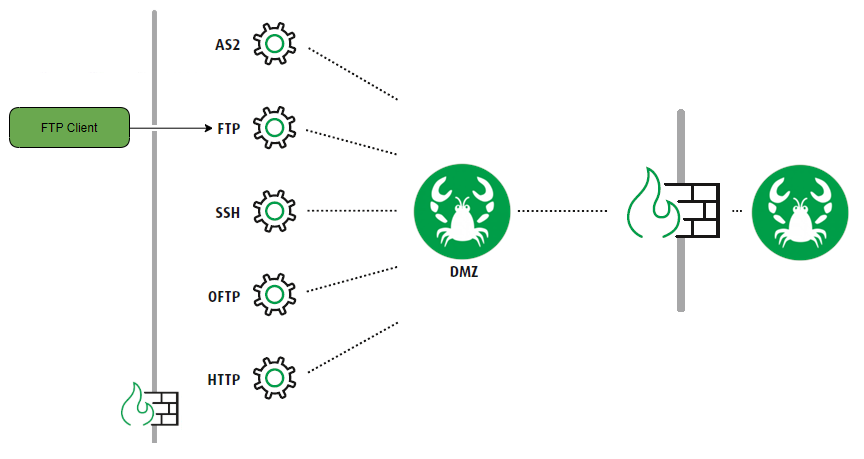
A DMZ server is basically a separate Integration Server, on which, for security reasons, only the required communication services, such as FTP or SMTP, are executed. The firewall between the DMZ server and the internet only allows the required ports and protocols.
Communication between the DMZ server and the inner Integration Server (in the intranet) is executed via a proprietary protocol of Lobster, the MessageService. A penetration from the outside is thus prevented. The Message Service is an HTTP-tunneled protocol that uses TCP/IP exclusively.
A firewall between the DMZ server and the inner Integration Server is also required. It must grant communication on the specified Message Service port (usually 8020, but can be configured) in both directions. In addition, HTTP requests and responses are also passed through in both directions, so the HTTP port (usually 80, but can be configured) must also be open.
For maximum security needs, the Message Service can also be configured in pushback mode. In this case, the connection is always established from the inner server, and no incoming connections from the internet are required.
If a maximum message size is specified or files should be sent/provided via the DMZ server, those files need to be copied from the internal system to the DMZ server. To accomplish this, the firewall needs to be configured to allow for FTP or SFTP connections between the inner and DMZ server.
Using the DMZ in the GUI
In a profile
The checkbox via DMZ (only visible if DMZ exists) must be set in an Input Agent (phase 1) or a Response (phase 6) respectively. NOTE : The checkbox is only visible if a DMZ server is available. However, if the following option is present in the configuration file ./etc/startup.xml, it will still be displayed.
...
<Set name="ignoreDMZSettings">true</Set>
...
CloudStorage (Input Agent Cron)
FTP/FTPS/SFTP (Input Agent Cron)
X.400 (Mail)
Response AS2
Response AS4
Response CloudStorage
Response Fax
Response FTP (FTPS, SFTP)
Response HTTP(S)
Response X.400
In a channel
If the option “Invisible to DMZ is not set, settings of the communication channel are replicated to the DMZ server.
If the option is set, the data of this channel is not passed to the DMZ server. The channel will then not exist on the DMZ server. This can be used to define channels, which should not be accessible externally and only be used internally.
In module ASM
Transmission Type AS2
Transmission Type FTP
Transmission Type Fax
Transmission Type OFTP
Transmission Type X.400
Communication scenarios
Partner sends data to via DMZ
See the following diagram for an FTP example.
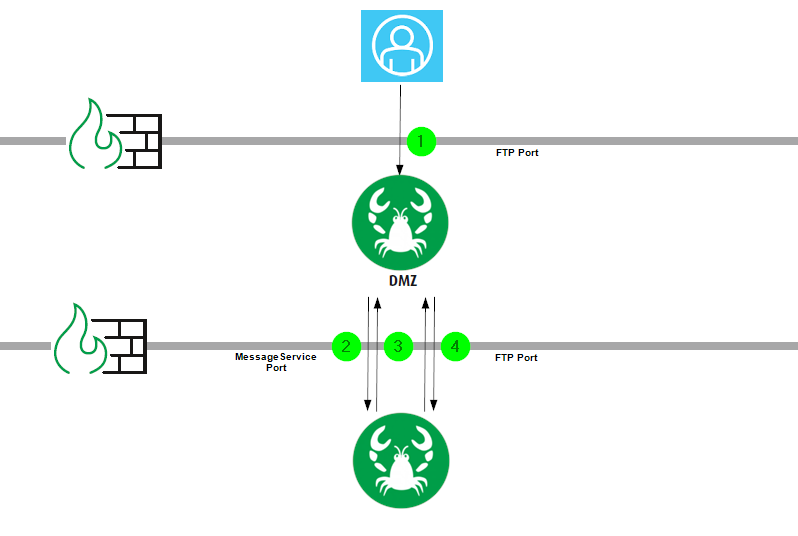
(1) The partner sends files to the DMZ server via FTP.
(2) The DMZ server creates a message containing the file content and the FTP information (login data, home directory, ...) and sends it to the inner Integration Server. A matching profile for the data is searched for, which then processes the data.
NOTE : Also see the note on the pushback mode.
(3) A response message that the data has been processed is sent to the DMZ server.
(4) If the payload is larger than configured in parameter “streamingSize” (see section Parameters), the data is fetched from the DMZ server via FTP and processed. The connection is established by the inner server.
Fetching partner data via DMZ with cron job
See the following diagram for a cron job of type “FTP”.
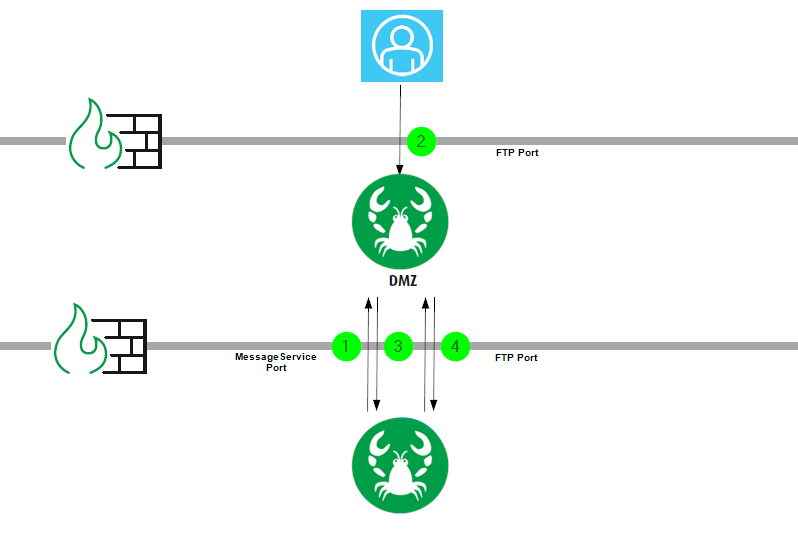
(1) A request message is sent to the DMZ server: Fetch files via FTP (with login data, home directory, ...).
(2) The FTPService of the DMZ server carries out the transfer.
(3) The DMZ server sends a response message to the inner Integration Server: The files have been transmitted. Please pick them up.
(4) The files are fetched from the DMZ server via FTP and processed. The connection is established by the inner server.
Sending a file to a partner via DMZ using a Response
See the following diagram for a file transfer using FTP.
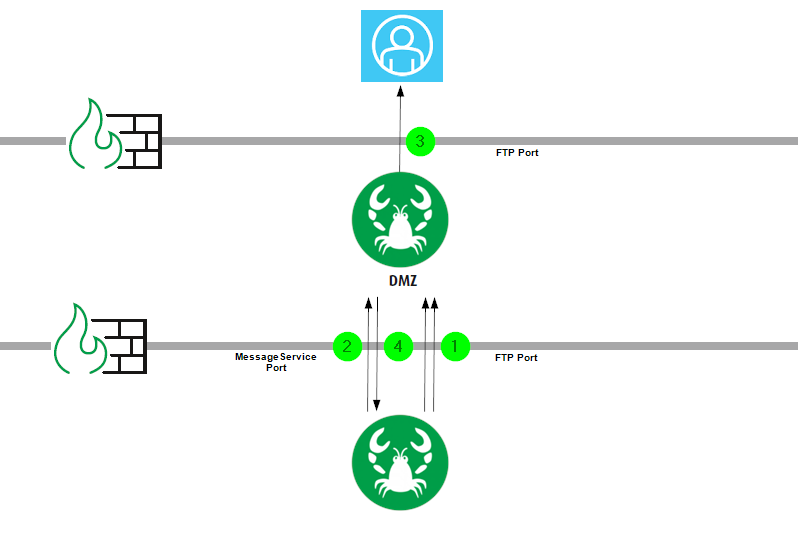
(1) A file is transferred into the DMZ directory, using the FTPService. The internal server establishes the connection.
(2) A request message is transmitted to the DMZ server instructing it to transmit the file to the partner via FTP, including the login data and home directory.
(3) The DMZ server transfers the file to the partner.
(4) The DMZ server sends a response message to the inner Integration Server. The file has been transferred.
Providing data for partner on DMZ
See the following figure for a transfer using FTP.
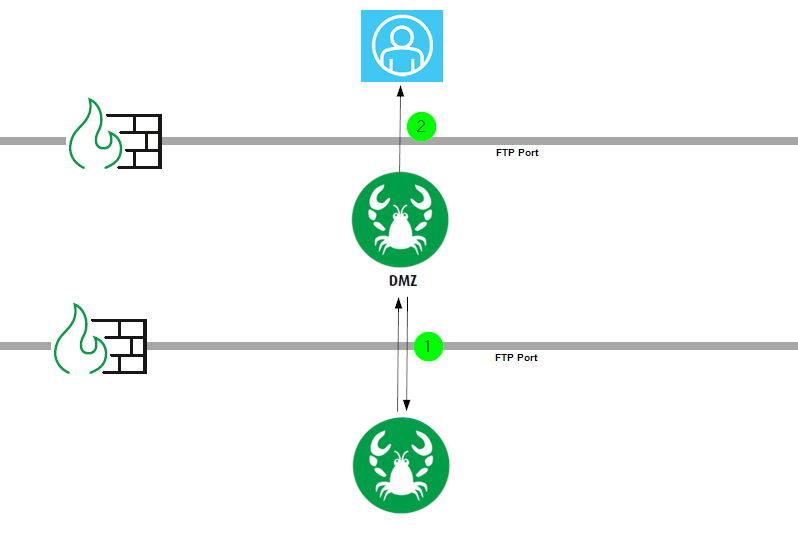
(1) A file is stored in the DMZ directory using the FTPService. The connection is established by the inner Integration Server.
(2) The partner picks up the file there.
NOTE : The MessageService is not needed in this case.