Use the "Update center" to manage and download platform updates, patches, and connectors.
Requirements:
Permissions: You need an administrator role to access the "Update center" and make changes.
Installation: Downloaded updates, patches, and connectors are always installed or updated only after the Integration Server has been restarted.
Manage platform updates
The system gives you precise control over the patch versions in all your environments.
You can select and download specific patches. This is useful, for example, if you want to update your production environment to the exact patch that you have previously tested successfully in your test environment.
To ensure system stability, the "Update center" applies two basic rules:
Upgrades Only: The API server displays only versions that are more recent than your currently installed version. You cannot downgrade your system through the "Update center", either intentionally or accidentally.
Only one download pending: You can have one downloaded platform update at a time that has not yet been installed. The system will block new downloads until you either install the pending update (by restarting the server) or remove it (by clicking Delete).
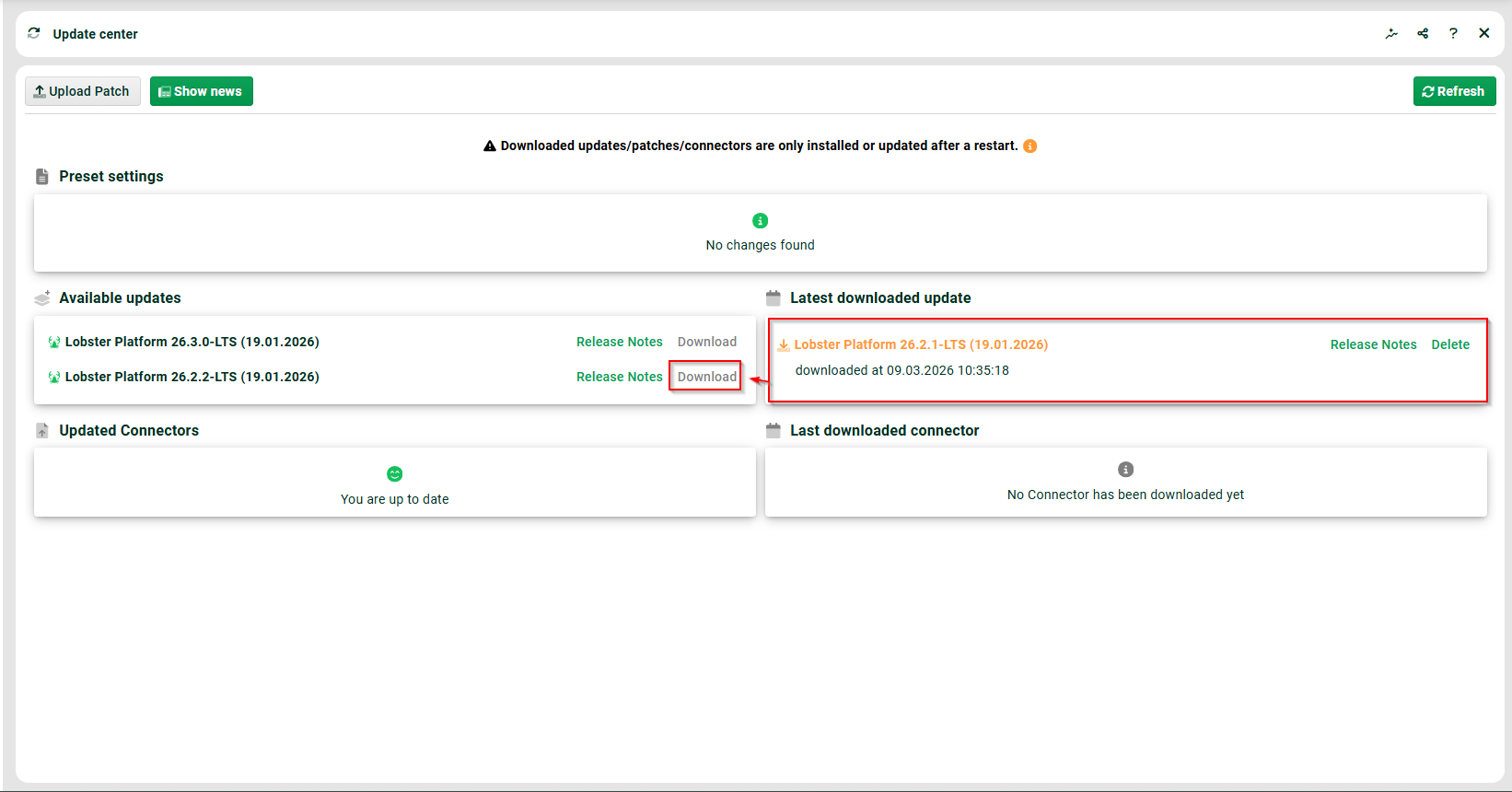
The "Update center" displays the most recently downloaded updates as well as all available updates for the platform.
Overview of the user interface
Section/Button | Description |
|---|---|
Upload Patch | Here you can manually upload a patch (self-developed or specially developed for you or downloaded from the customer area). |
Show news | Get the latest news, announcements, and release information about the platform. |
Refresh | Refresh the "Update center" view to check the latest status of downloads and available updates. |
Preset settings | Download configuration templates for databases/connectors or HTTP agents. These include Databases/connectors, HTTP (cron input agent) and Response HTTP. |
Available updates | Check all valid upgrade targets for your current version line (GA, LTS, and specific patches). |
Download | Start by downloading a specific platform update from the list of available updates. |
Release Notes | View detailed information about the changes, bug fixes, and new features in this version. |
Latest downloaded update | Check for any pending updates. As long as there is a file here, the system will block further platform downloads. NOTE For DMZ users: The system automatically transfers downloaded updates to the configured DMZ server. Restart the Integration Server on the DMZ to install the update there. |
Updated Connectors | Here you will find available updates for your licensed business connectors. You can download individual connectors by clicking the green download icon. |
Download all Connectors | Download updates for all the connectors listed here at once with a single click. |
Latest downloaded connector | Manage your pending connector updates before installation. |
Delete | Remove any platform updates or connectors that have already been downloaded but not yet installed. This will clear the way for a new download. |
Troubleshooting & FAQ
Why is the system preventing me from downloading an update?
There is likely a pending update listed under Last downloaded update. You must either restart your server to install it or click Delete to remove it before you can start another download.
Where have the options for automatic downloads and beta versions gone?
The settings section in the Update center was removed in Release 26.2 to simplify the update workflow. Automatic downloads are now disabled by default in the system configuration.
Why doesn't a specific older version appear in the list of available updates?
You can only upgrade your system. The API server checks your current installation and only offers newer versions for download.
Logs and debugging
You can find the "Update center" logs by navigating to Administration > Server logging and checking the internal section.
For more in-depth error analysis, you can enable debug mode by adding the following entry to your configuration file ./etc/startup.xml.
WARNING
Since debug mode generates a significant amount of data, do not leave it enabled permanently.
<Call name="enableLobsterLoader">
	<Arg>
		<New class="com.ebd.hub.datawizard.app.update.LobsterLoader">
			<Set name="verbose">true</Set>
		</New>
	</Arg>
</Call>