Self-registration template 1.0.0
This template automates external onboarding by enabling guest users to self-register their accounts and companies within the Lobster Data Platform.
Scope
Administrators: Efficiently onboard external partners without manual data entry.
Organizations: Ensure data accuracy by shifting responsibility to the end user.
Teams: Scale onboarding via secure, token-based guest sessions.
Key benefits
Reduced workload: Eliminates manual entry for administrators.
Data Integrity: Users manage their profile and company data directly.
Scalability: Supports multiple registrations per invitation token within defined limits.
Security: Executes automated cleanup of guest accounts after expiration or upon reaching the registration limit.
Process flow
1. Invitation
The administrator accesses the Invitation for registration portal (selfRegistration: InvitationForm) via My Data Apps.
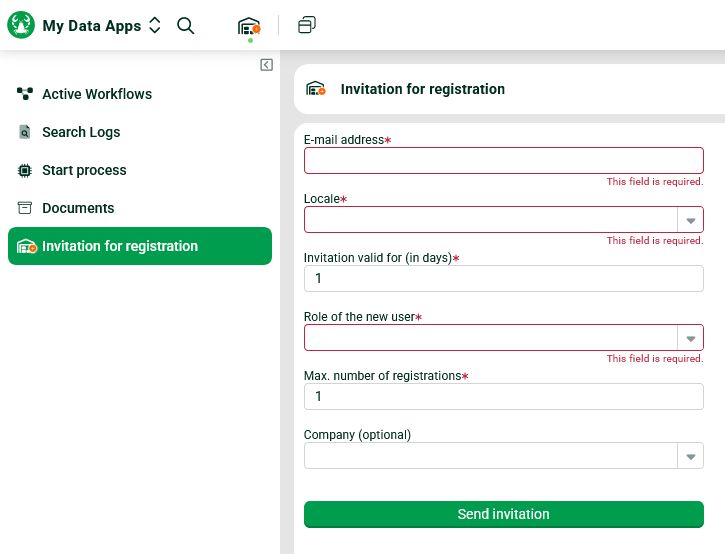
Form for user registration with required fields and invitation details displayed.
CAUTION
To prevent duplicate company records, select or create the company in the optional Company field before inviting multiple users from the same organization.
2. Guest account and e-mail
The system generates a guest account and dispatches a registration link.
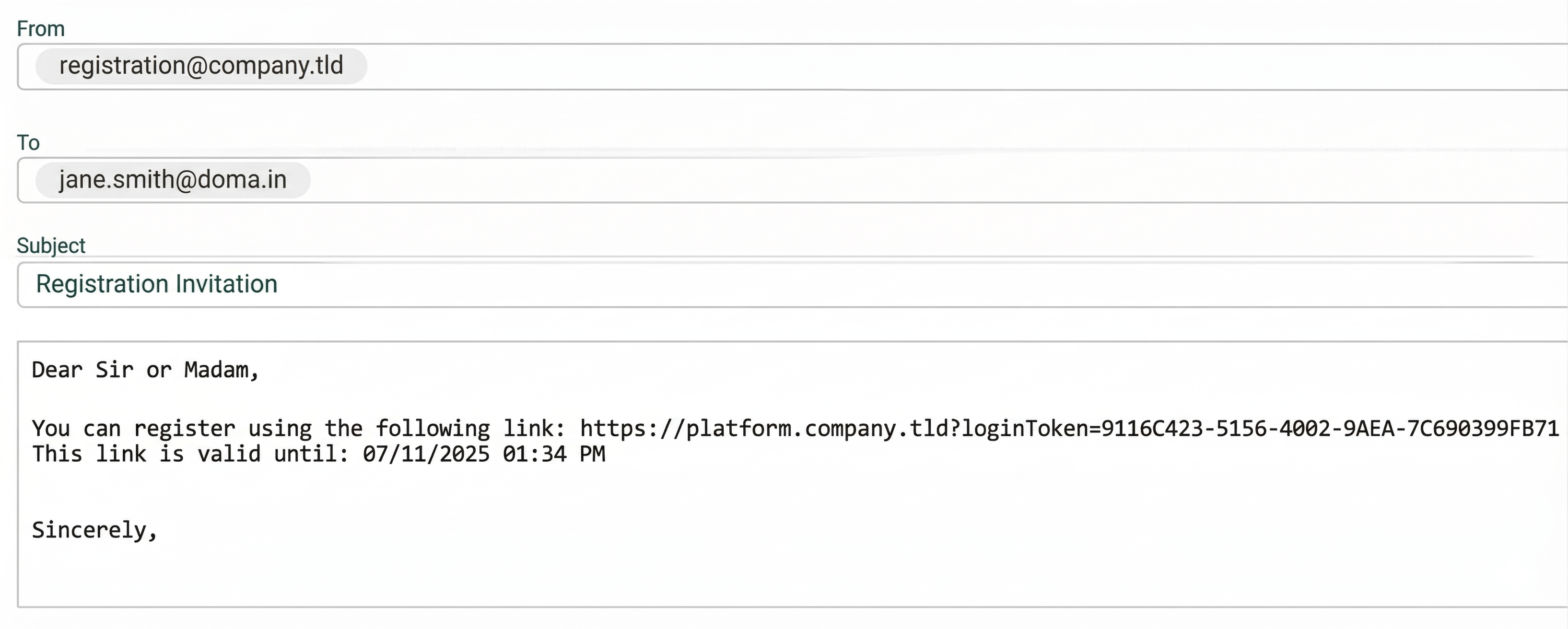
E-mail invitation for registration with a link and expiration date included.
Validity: The token expires after the defined "Invitation valid for (days)" period, regardless of remaining registration slots.
3. Self-registration session
The invited user completes the registration form within a restricted guest session.
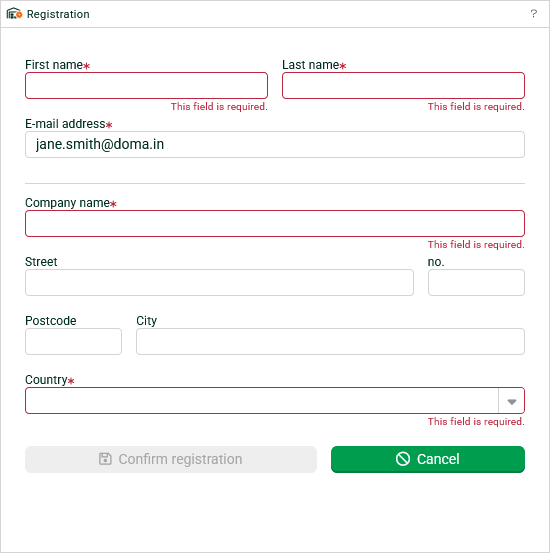
Registration form with required fields
Username logic: The system generates usernames in the format
firstname.lastname(lowercase). It resolves naming conflicts by appending numeric suffixes.Company logic: If a company was preselected during the invitation, the field remains read-only. Otherwise, the user must provide company details.
Account cleanup: The system deletes the guest account once the maximum number of registrations is reached.
4. Credentials delivery
The system dispatches the username and password in two separate emails to the registered user to enhance security.
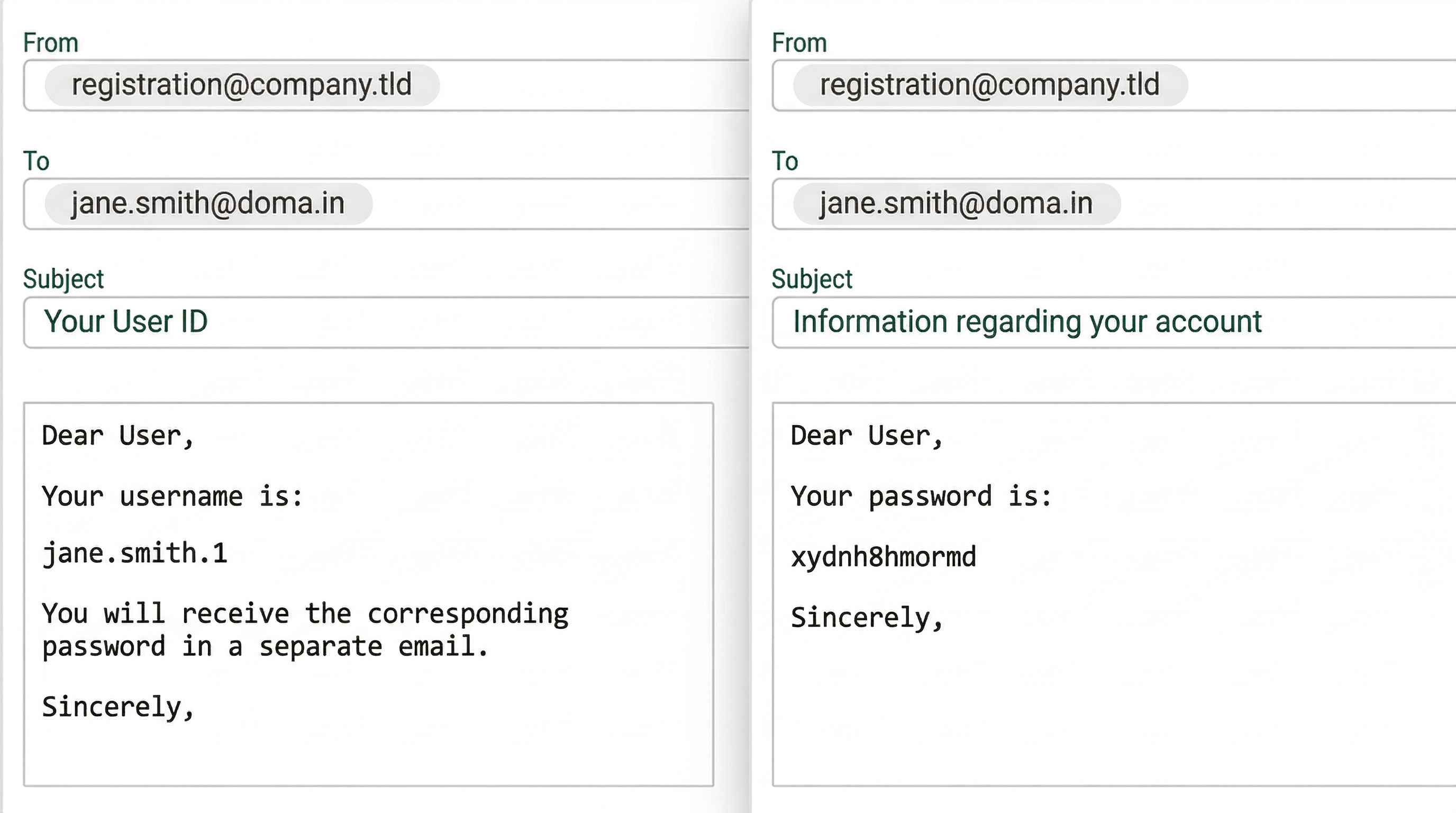
E-mail correspondence showing user ID and password information for account access.
Setup and installation
Permissions: Execute the setup with the Super user role to prevent authorization errors.
Installation: Deploy the template via the Template Gallery. Meta Exchange opens automatically.
Import configuration
IMPORTANT Do not overwrite existing customized objects (e.g., Localization entries).
Company accounts: Link the existing top-level hierarchy to the Default client instead of creating a duplicate.
Guest template: Ensure the system creates
selfRegistration: Guest company. It serves as the master template for new company records.Roles:
Recreate the
selfRegistration: Self-registration guest userrole.Link referenced roles (e.g., Super user) without updating them to respect ownership restrictions.
Post-import customization
Localization and branding
Texts: Edit e-mail templates (e.g.,
invitationMailBody,registrationNameMailBody) within theselfRegistrationresource bundle.UI: Modify portal titles in the
scm.portalbundle.
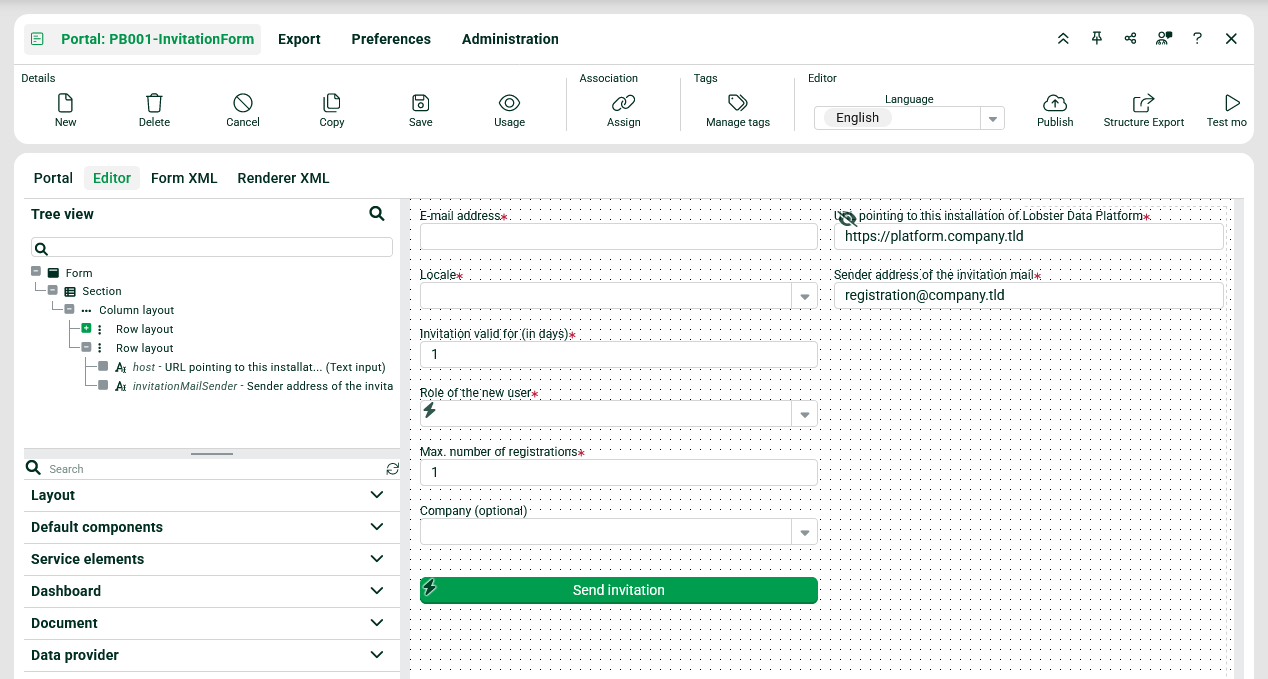
Invitation form in the editor
Portal configuration (selfRegistration: InvitationForm)
NOTE
The portal is delivered without an association criterion assignment. It will not appear in My Data Apps until at least one criterion is assigned. Create a new criterion if no suitable one exists.
Visibility: Assign at least one Association criterion (create one if needed) to control which users see the Invitation for registration menu item in My Data Apps.
Environment URL: In the form editor, set the hidden field
URL pointing to this installation of Lobster Data Platformto your environment's base URL. This value is embedded in the invitation e-mail link.Sender address: Set the hidden field
Sender address of the invitation mailto the desired outbound e-mail address.
E-mail dependency
Outbound e-mail delivery depends on platform-wide e-mail settings. Verify that your SMTP or mail relay configuration is active before sending invitations.
Additional customizations
Form layout: Use the form editor to customize
selfRegistration: InvitationForm— for example, adjust field visibility, labels, or default values.Restricting selectable roles: To limit which roles appear in the Role of the new user dropdown, add a Search restriction in the Service configuration within the form editor. If the restriction includes or excludes specific roles, identify them using Role resolvers rather than hard-coded IDs. This ensures the restriction remains valid after Meta exchange across environments (Test/Prod) where internal IDs may differ.
Default role assignment: The Role of the new user field cannot be set to a static default in the form editor. Instead, pre-assign it at runtime using the
load: set default valuebehavior with a Tuple search. In theWHEREclause, select the target role via a Role resolver (entered as a static value). This approach guarantees Meta exchange safety, because the resolver dynamically MAPS to the correct role ID on each environment.
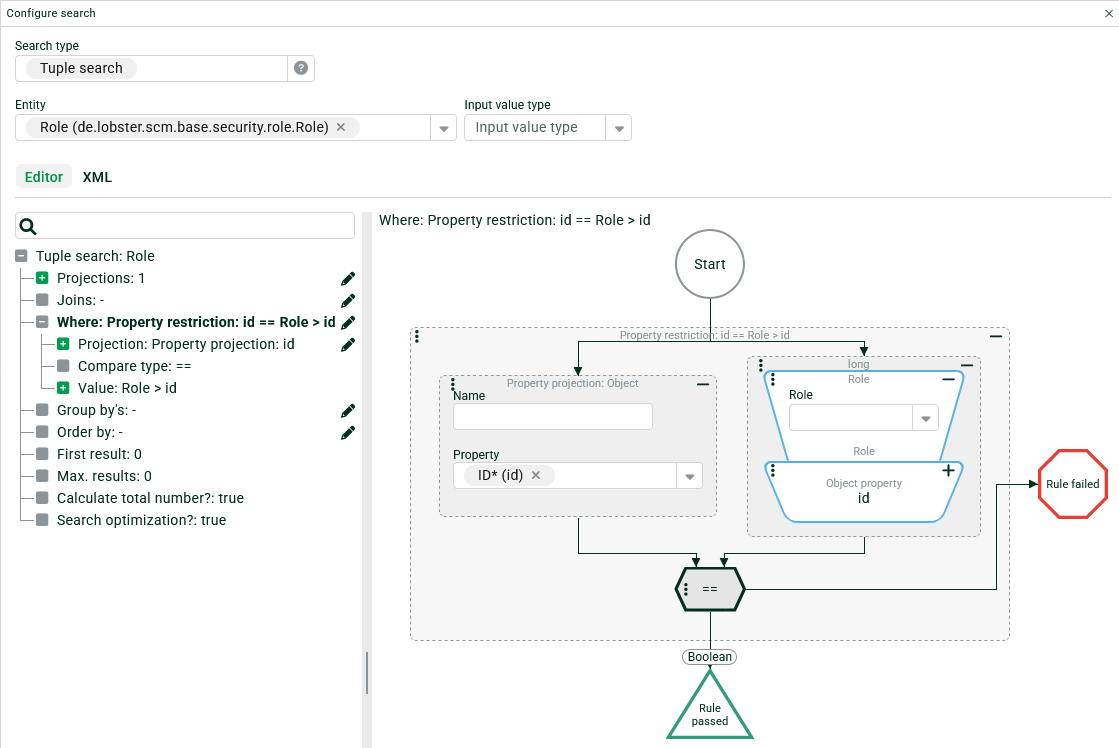
Configuration interface for tuple search
Configuration reference
Element | ID/Name | Function |
|---|---|---|
Tag |
| Groups all template components. |
Role |
| Session identifier for guest users — grants no permissions on its own. Do not select this role in the Invitation for registration form. All registration actions execute via Run as with the Super user role. |
Company |
| Prototype for newly created company accounts. During registration, the system clones this company to create the new account. |
Company authorization |
| Grants permissions from |
Localization |
| Resource bundle containing all translatable strings — e-mail templates, form labels, and validation messages. |
Portal |
| Administrative interface for sending invitations. Appears by default as the menu item Invitation for registration at the top level of My Data Apps. |
Portal |
| User-facing registration form. Opens automatically when the invited guest logs in via the link in the invitation e-mail. |
Association criterion |
| Identifies a guest user session used for registration via a role rule. Must be added manually after import. |
Event handler |
| Creates a guest user account and sends an invitation e-mail containing the registration link. |
Event handler |
| Opens the |
Event handler |
| Terminates the current guest session. |
Event handler |
| Core registration logic. Creates a new company if none was preselected, generates a user account ( |