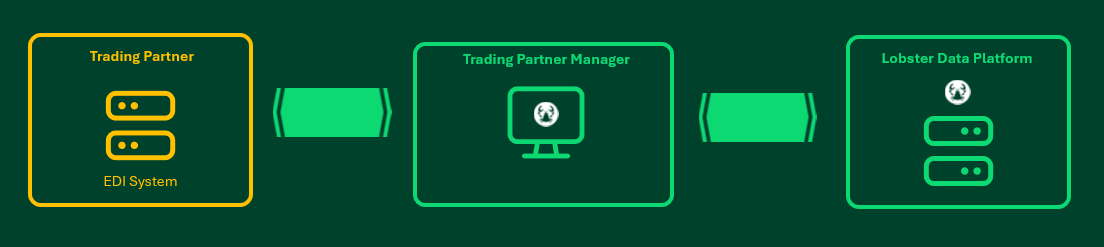
The Trading Partner Manager (runs in the Lobster cloud) allows Lobster Data Platform users to set up communication channels (SFTP, AS2, OFTP) together with their trading partners (you). The Lobster Data Platform user sets up all his communication parameters on the Trading Partner Manager and then invites you via email to the Trading Partner Manager to do the same. Once that is done, communication channels will be created automatically on the Lobster Data Platform and ready to be used by you.
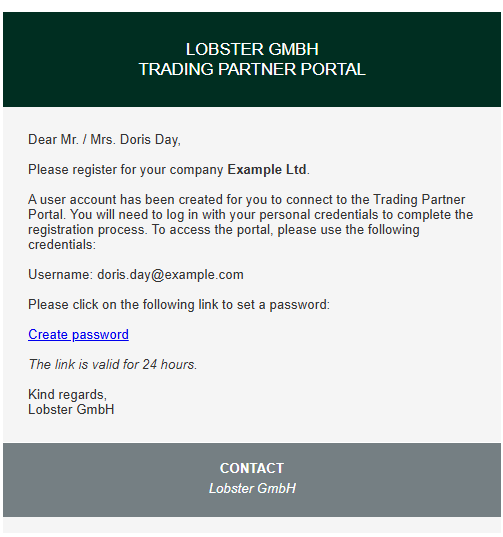
Invitation/Registration
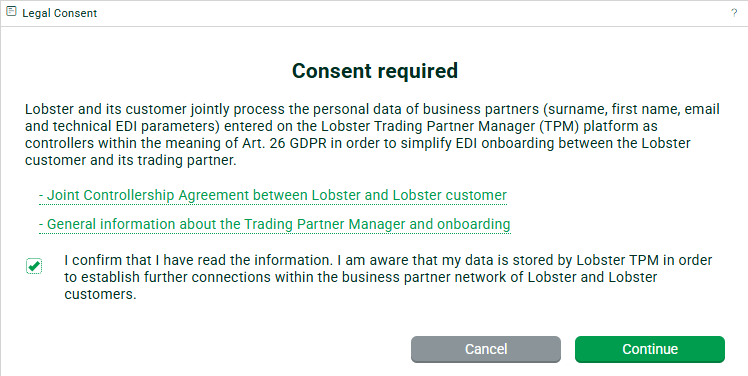
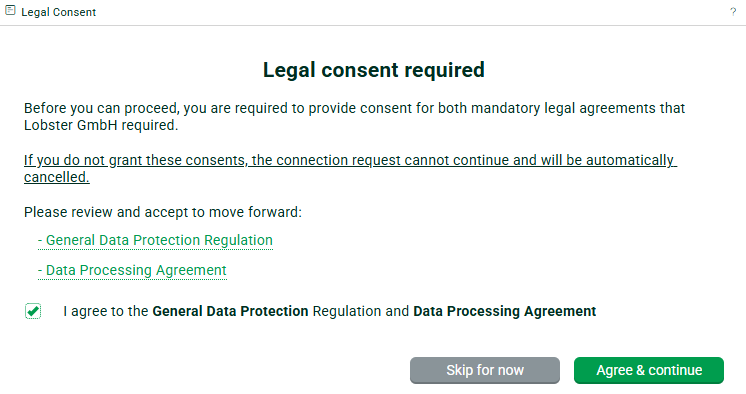
Once you receive an invitation email, you have to register an account and accept all legal terms. From that moment on, the collaboration environment on the Trading Partner Manager will be active for both sides.
Your company details/additional users
Once you are logged in, navigate to “My company → Company details” and complete your company details there.
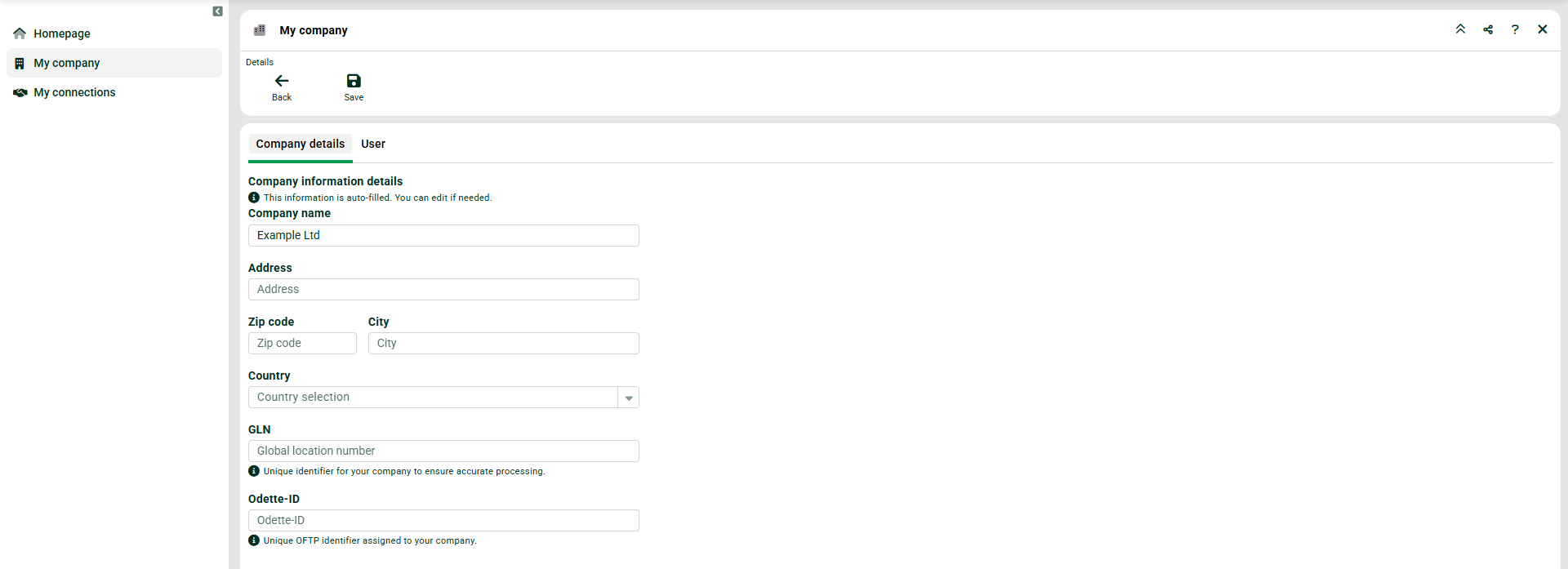
You can also invite further users under “My company → User”.
Your connections/channels
Navigate to “My connections”.

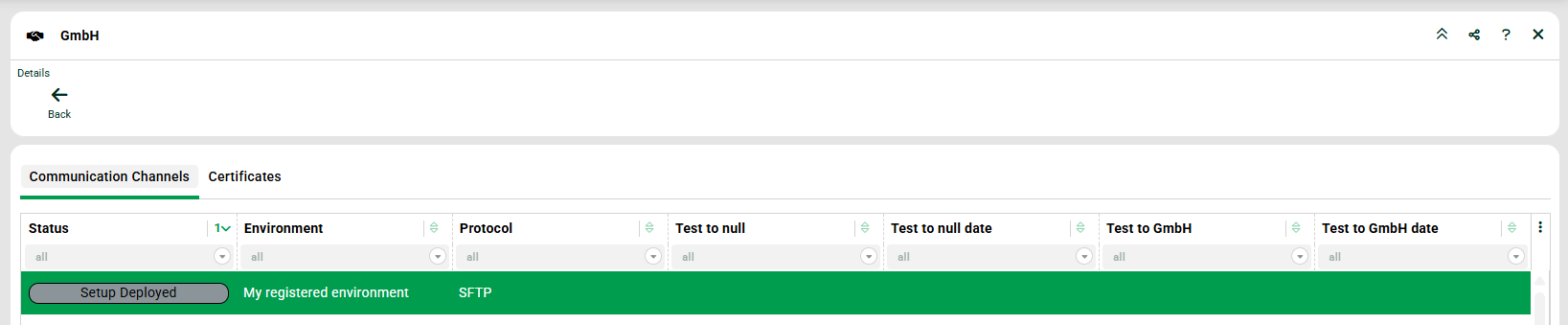
Here you will see the connection to your partner (here “Gmbh”). Open the entry to see the prepared communication channels in tab “Communication Channels”. Open a channel to see its details. Navigate to the second tab (here “Example Ltd settings” = you). We will show that for SFTP.
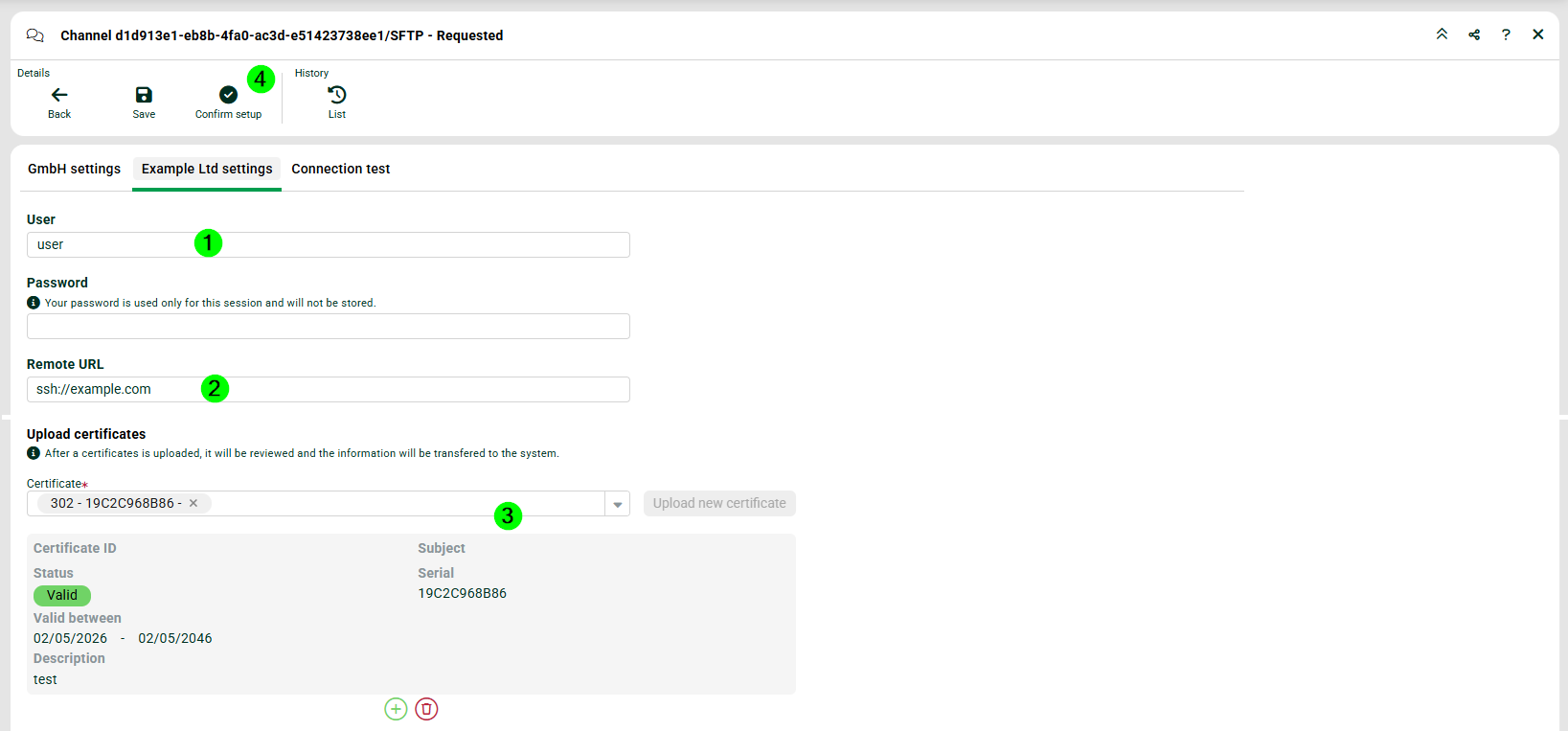
(1) The SFTP user on your system.
(2) The URL of your system. For technical reasons, this address always has to start with ssh:// when dealing with SFTP connections. Please provide the publicly available IP of your system here.
(3) Select previously uploaded certificate (“My connections → Certificates”) or upload it directly. Important note: No private keys!
(4) Click “Confirm setup”. The communication channel has now successfully been configured (hopefully) and is ready for use. If changes are made to the channel at a later date, the “Confirm setup” step must be repeated so that the changes are applied to the channel on the Lobster Data Platform.
Testing of channel
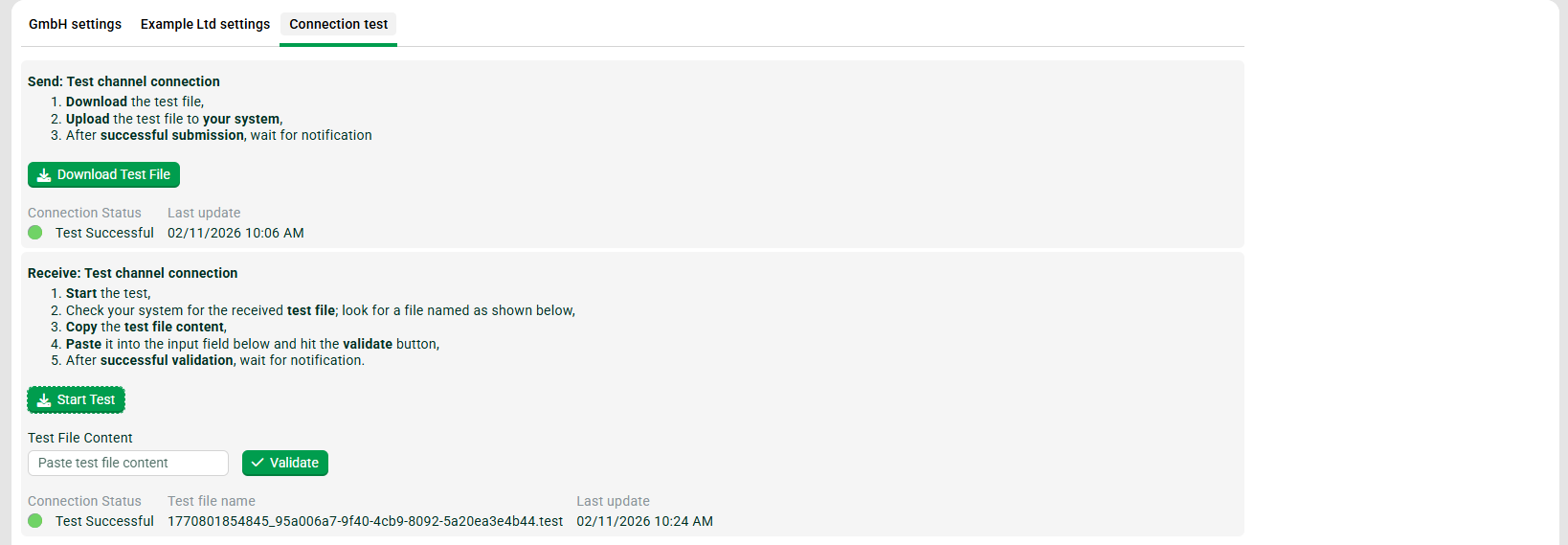
You can now test the created channel in tab “Connection test”.
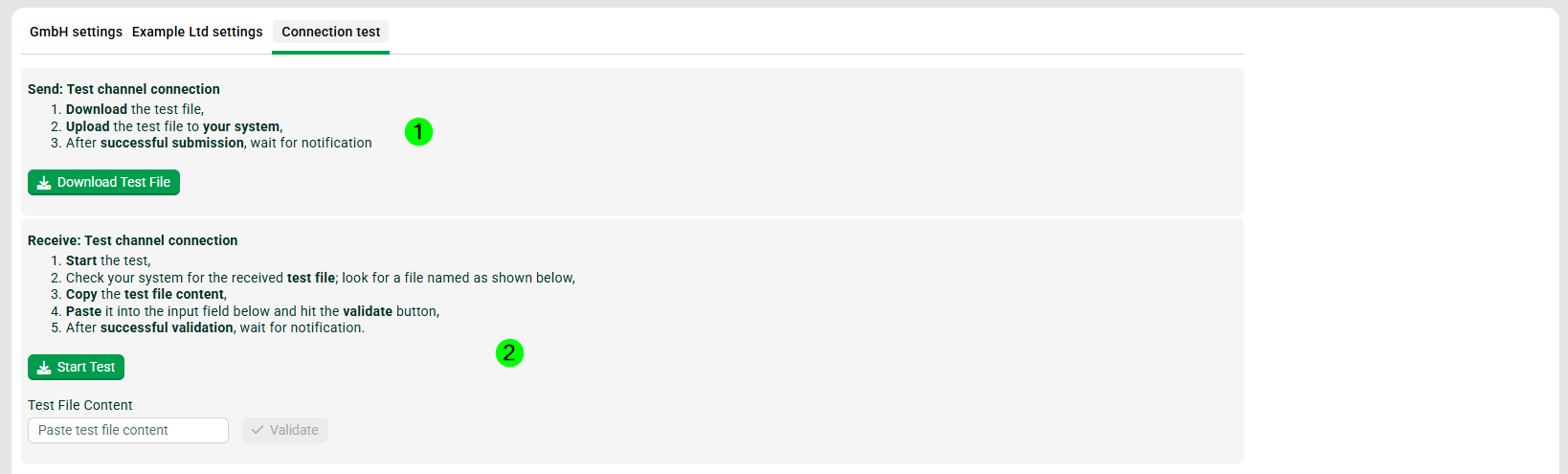
(1) This test checks the connection to the Lobster Data Platform. Click button “Download Test File”. Take the file and upload it to the Lobster Data Platform with the specified connection details, see tab “GmbH settings” (here). Remember to use the public IP of the LDP system (if available). Certificates can also be found there. If the file is uploaded successfully to the LDP, the test will be successful.
(2) This test checks the connection to your system. Click button “Start Test”. You check if file was received on your system. The content of the file now has to be copied into field “Test File Content”. Then click button “Validate”. If the content is correct, the test will be successful.
View after successful tests