To use the AS2 (bridge data service), create a special AS2 channel on the Lobster Data Platform and then apply the parameters of this channel to the bridge configuration.
You can then transfer files from the bridge to the Lobster Data Platform. The bridge automatically generates AS2 messages for this purpose. Use a profile with an AS2 input agent that uses the dedicated AS2 channel to receive these files.
You can also transfer files from the Lobster Data Platform to the bridge. To achieve this, use a profile with an AS2 response path that uses the dedicated AS2 channel to send these files.
Endpoints
Bridge endpoint:
https://<Ihre Bridge>/BusinessConnector/AS2RetrievePlatform endpoint:
https://<Ihr Lobster Data Platform Integration Server>/partner/AS2RetrievePlatform endpoint via DMZ:
https://<Ihr DMZ-Server>/partner/AS2Retrieve
AS2 channel configuration on the Lobster Data Platform
Create a new AS2 channel on the Lobster Data Platform under Administration > Partners > Partners/Channels and set the following parameters.
Select Lobster Bridge: Select your bridge. This sets the Partner address and the certificates.
Own ID: This value must match the Partner ID on the bridge.
Further AS2 settings: Select Send signed, Send encrypted, Receive signed, and Receive encrypted..
Partner ID: This value must match the Local AS2 ID on the bridge.
Partner address: Enter the AS2 endpoint for the bridge:
https://<Your Bridge>/BusinessConnector/AS2Retrieve.
.png)
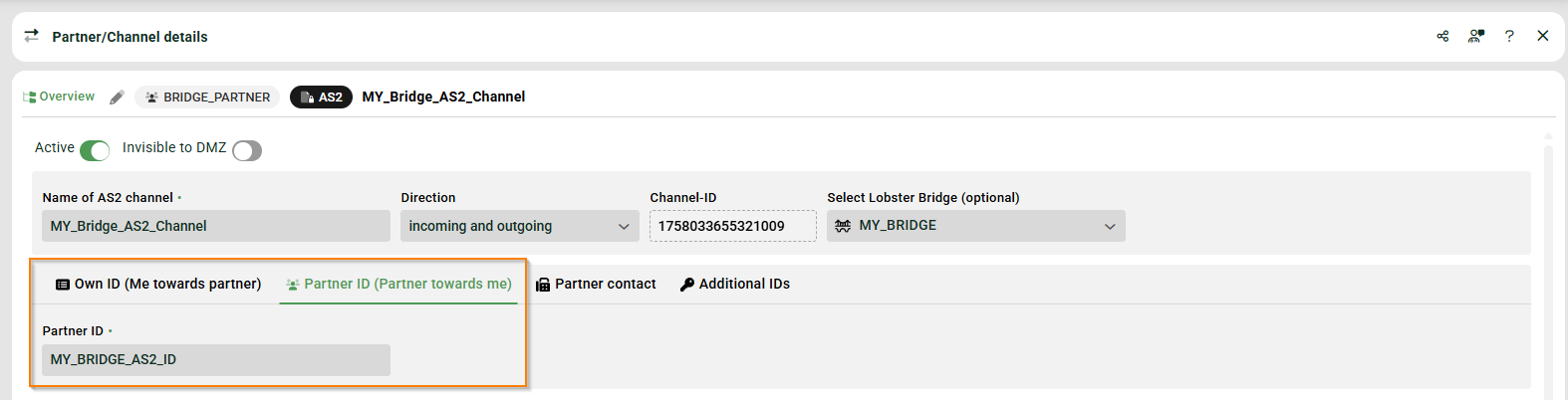
AS2 channel configuration on the bridge
On the bridge, navigate to Administration → AS2 Configuration → Partner Channel.
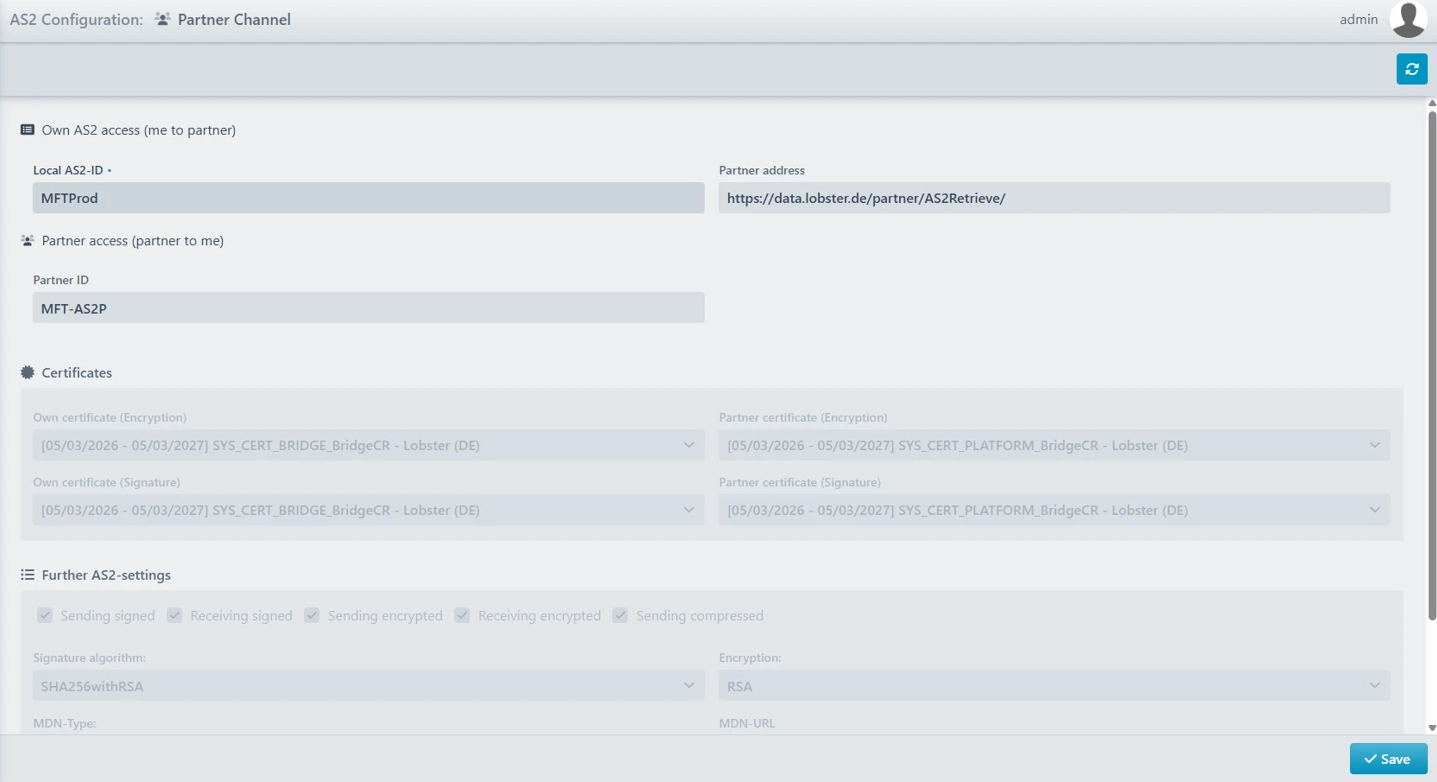
Local AS2 ID: This value must match the Partner ID of the AS2 channel on the Lobster Data Platform.
Partner ID: This value must match the Own ID of the AS2 channel on the Lobster Data Platform.
Partner address: Enter the AS2 endpoint for the Lobster Data Platform.
Depending on your infrastructure, use one of the following endpoints:
https://<Ihr Lobster Data Platform Integration Server>/partner/AS2Retrievehttps://<Ihr DMZ-Server>/partner/AS2Retrieve
AS2 file routing on the bridge
On the bridge, navigate to Administration > AS2 Configuration > File Routing
You can control monitored folders for outbound pickup and inbound forwarding using an XML configuration file. Manage these settings using the Smart Editor with its guided default settings. Alternatively, you can use the Expert Editor and edit the XML file directly. Enter the folder paths in the Folder fields. For supported path formats and OS permissions, see Supported folder path types below.
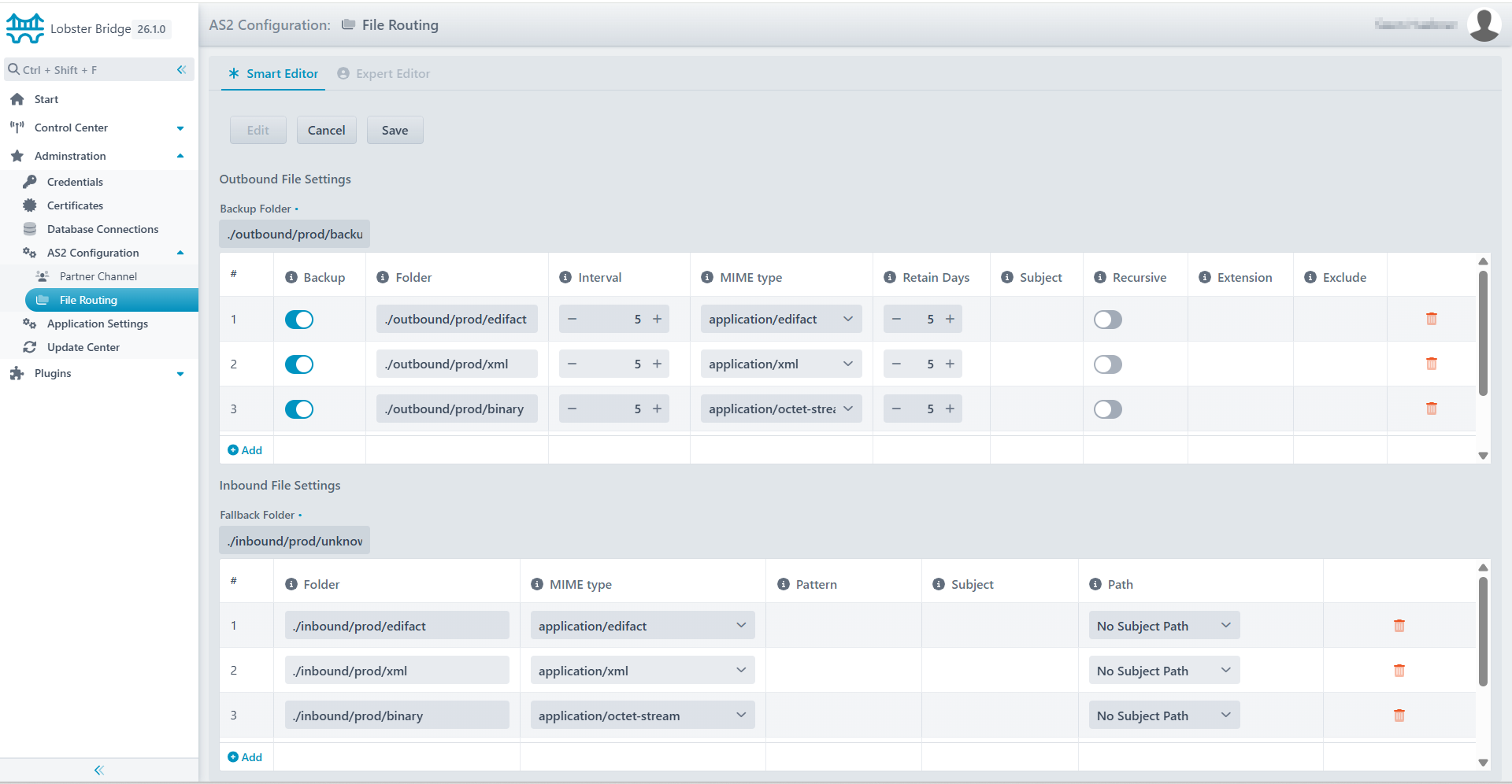
Outbound file settings
Parameter | Requirement | Default | Description |
|---|---|---|---|
Backup folder | Yes | Path to the backup folder. | |
Backup | No | false | If you enable this setting, the system will create a backup before deleting the files. |
Folder | Yes | Path to the folder that the system monitors for files. | |
Interval | No | 5 | Scan interval (in minutes) for the folder to send files. Minimum: 1. |
MIME type | Yes | MIME type for the content of the AS2 message. | |
Retain days | No | 0 | Retention period for backup files in days. 0 means no cleanup. |
Subject | No | Subject of the AS2 message. You can use the placeholder | |
Recursive | No | false | If you enable this setting, the system will include subfolders in the scan. |
Extension | No | File extension filter, for example | |
Exclude | No | Name of the folder that the system excludes during recursive scanning. |
Inbound file settings
Parameter | Requirement | Description |
|---|---|---|
Fallback folder | Yes | Directory path for files that do not match any rule. |
Folder | Yes | Destination directory for the relevant files. |
MIME type | No | MIME type of the files in this folder. |
Pattern | No | File name patterns for comparison. |
Subject | No | AS2 subject line templates for comparison. |
Path | No | Specifies how the system determines the file path. |
Supported folder path types
The Bridge resolves all folder paths through the host OS file API (java.io.File). Any path the OS can access works as a regular file system location, including network shares on a different server. No additional configuration or libraries are required beyond making the share accessible at the OS level.
OS | Path type | Example |
|---|---|---|
Windows | UNC path (no mounting needed) |
|
Windows | Mapped network drive |
|
Windows | Local absolute path |
|
Linux / macOS | CIFS/SMB mount point |
|
Linux / macOS | Local absolute path |
|
All | Relative path |
|
NOTE A relative path resolves from the Bridge working directory, the directory from which the Bridge process was started.
OS permissions
The OS user account running the Bridge process must have the following permissions:
Folder type | Required permission |
|---|---|
Outbound (scanned) folder | Read |
Inbound (delivery) folder | Write |
Backup folder | Write |
On Windows: UNC paths use the credentials of the Bridge process. Grant the Bridge service account the appropriate permissions on the file server share.
On Linux: Mount the CIFS/SMB share before starting the Bridge. Use the mount point path in the Bridge configuration.
Minimal /etc/fstab entry:
//fileserver/share /mnt/fileserver/share cifs credentials=/etc/bridge-smb.creds,uid=bridge,gid=bridge 0 0 NOTE The credentials file (e.g., /etc/bridge-smb.creds) is an OS-level configuration. It is not part of the Bridge configuration.
Windows network share authentication
The Bridge passes the path directly to the OS. The OS handles authentication. There are no credential fields in the Bridge XML configuration.
Windows authenticates using the identity of the process that opened the path.
Bridge runs as | Credentials sent to the file server |
|---|---|
Windows service with domain account (e.g., | That domain account |
Windows service as Local System | Machine account ( |
Windows service as Local Service or Network Service | Anonymous / limited; usually cannot access remote shares |
Interactive process (manual or dev start) | The logged-in user's credentials |
Frequently asked questions (FAQ)
Question | Answer |
|---|---|
Can I configure SMB credentials in the Bridge XML configuration? | No. The Bridge passes the path to the OS. The OS handles authentication. There are no credential fields in the Bridge configuration. |
How does Windows know which credentials to use for a UNC path? | Windows uses the identity of the process that opened the path, the user account the Bridge runs under. Configure this at the OS or Active Directory level, not in the Bridge. |
What do I need to do to make a network share accessible? | Grant the Bridge service account the appropriate read/write permissions on the file server share. This is a Windows or Active Directory administration task. Nothing changes in the Bridge configuration. |
What if the Bridge and the file server are in different domains or workgroups? | Ensure a trust relationship or explicit share permission exists for the Bridge service account. If that is not possible, run the Bridge under a local account that mirrors a local account on the file server with the same username and password. Windows uses this for implicit authentication. |
What credentials does the Bridge use depending on how it runs? | See Windows network share authentication above. |
Enable and disable the AS2 connector
On the bridge, navigate to Administration > Application Settings > AS2 Configuration
Use the Stop sending & receiving or Activate sending & receiving button.
.png)
When does a message appear under 'Unresolved'?
A message appears under Unresolved, when:
No profile was found for processing.
The signature check was successful.
The message was successfully decrypted.
A message does not appear under Unresolved when:
The signature check was unsuccessful.
The message could not be decrypted.