See also: Show alert, Abort
Event action – Abstract
Purpose: Displays a popup (as a notification or alert) with configurable content to the user in an interactive session:.
Tooltip
Usage: The graphical user interface allows any number of alternative blocks of event actions to be defined, which are selected depending on rules according to the If/Then/Else scheme.
Parameter:
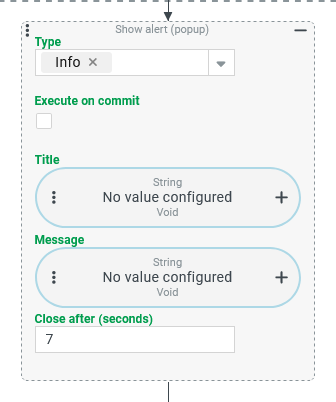
Type: Notification of the category 'Success', 'Info', 'Warning', 'Error' OR 'Alert' that appears as a popup dialog.
Execute on commit: decides whether the message is issued immediately OR only on successful completion of the transaction.
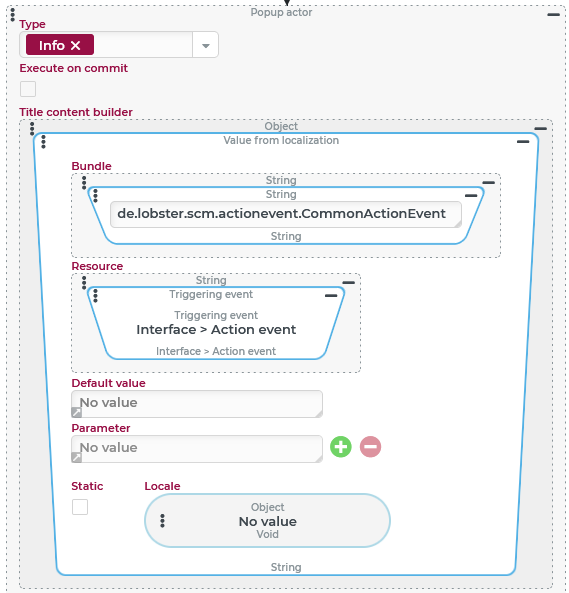
Title content builder: determines the text for the title line in the popup.
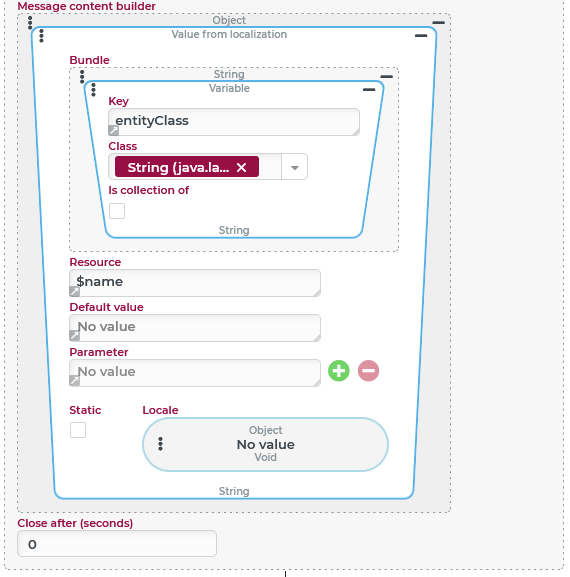
Message content builder: determines the message text in the popup.
Close after (seconds): Determines the display duration for a notification (not relevant for the 'Alert' type, because it remains visible until the 'OK' button is clicked).
Output: Popup appears.
NOTE In contrast to the Show alert in the form, the Show alert (Popup) does not access localization for localizable content (enumeration values, role names, etc.) unless the value resolver Value from localization is used.
The Show alert (Popup) event action displays a configurable popup to the user in an interactive session, either as a notification (on the right edge of the screen) of a specific type, or as an alert (centered dialog with OK button to acknowledge the message).
NOTE The Show alert action (in the context of Behaviors in forms) and the Abort can mimic alerts, although the type does not completely match by name. Functional details differ as well (see 'Configuration' below).
Configuration
'Type' parameter
The Type parameter defines the appearance of the popup at runtime and also has functional implications:
Type | Features | Example |
|---|---|---|
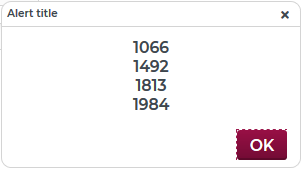
Alert (corresponds to an 'Alert box' in the Show alert and 'Semantic Exception' in the Abort) | A dialog appears, which can be closed by clicking the OK button or by clicking the 'x' symbol (top right). NOTE
|
|
Info (Styles Properties
| A notification appears (see illustrations on the right), which is displayed at the right edge of the browser window below previous notifications, if applicable. NOTE
The text and background colors can be defined for all popup types via the Styles properties given on the left, deviating from the standard shown on the right. However, it should be taken into account that customizations for the scope of the Styles apply globally (to all popupsof the type) and the same color values can also affect system-generated notifications and other functionalities (Abort, Show alert, Set hint, etc.) or color values directly or indirectly (via inheritance, see Styles). |
|
Error (Styles Properties |
| |
Warn (Styles Properties |
| |
Success (Styles Properties |
|
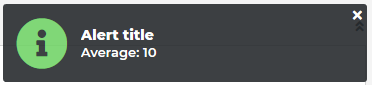
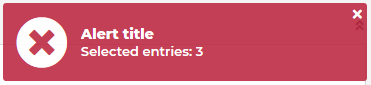
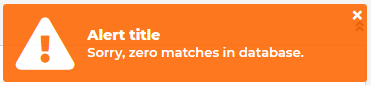
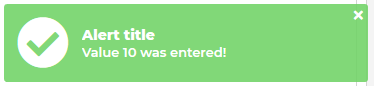
'Execute on commit' option
If the Execute on commit option is set differently from the default, then the relevant popup appears only if a 'commit' is made on the database at the end of the event processing (i.e. if necessary after processing a complete event chain). This is only the case if the event handling is triggered at all in the context of a transaction and runs without errors and without an Abort (i.e. without rollback).
IMPORTANT In connection with the Execute on commit option, it is important to consider the following aspects:
A Custom action event does not automatically require a transactional context. Without this, popups for which the Execute on commit option is set will not be displayed.
Also, when running Tests for event handlers, the 'commit' is omitted, so popups do not appear for which the Execute on commit option is set.
The Resolvers for the content of Title and Message of a popup are only processed if the Execute at commit option is set. This means that the content of the message (if relevant) takes into account the data state of variables and objects that applies at the time of the commit, not the one at the time the Show alert (Popup) event action is executed. The only information 'held' at the time of the event action for later use is the current reference object (
entity). However, only a reference is 'noted' and not a snapshot, so that Resolvers that refer to the reference object again 'resolve' the possibly deviating data status during the commit.
'Title' and 'Message' parameters
Strings are expected as values for the Title and Message parameters, which appear at different positions in the alert format depending on the Type (see above).
NOTE For the Title parameter, the default value 'Title' appears if the string returned by the value resolver contains no characters or 'no value' (null) is returned.
If one of the used value resolvers returns a data type other than String at runtime, i.e. no string as return value, then an attempt is made to automatically convert the return value into a string:
A Boolean value is converted to the text value
trueorfalse, for example.Instead of a complex data object for an entity e.g. of the Users type, a text value like
1901:de.lobster.scm.base.security.user.User@5ffd2762appears.If a list is returned, then each element is converted to a string and the strings of all elements appear separated by commas between square brackets. As the following expression illustrates, this concept also works recursively when a list value is in turn a list:
[2021, is a good year for, [decisions, wine, Lobster]]Instead of the localization for the value of a dynamic enumeration, its internal name (
name) appears, e.g.CNEfor the 'Consignee' Company type.NOTE In the context of a form, Show alert automatically accesses the Localization or Company specific localization to consider localizable content in the title or message text. Show alert (Popup), on the other hand, always accesses the relevant internal name of a localizable content and takes localizations into account only if the value resolver Value from localization is used (see example).
'Close after (seconds)' parameter
The specification for the Close after (seconds) parameter only applies to notifications with a Type from the notification category, since the alert Type is not closed automatically..
With a value of 0 seconds, a notification is displayed indefinitely, that is, until the user uses the 'x' icon to close it.
Example
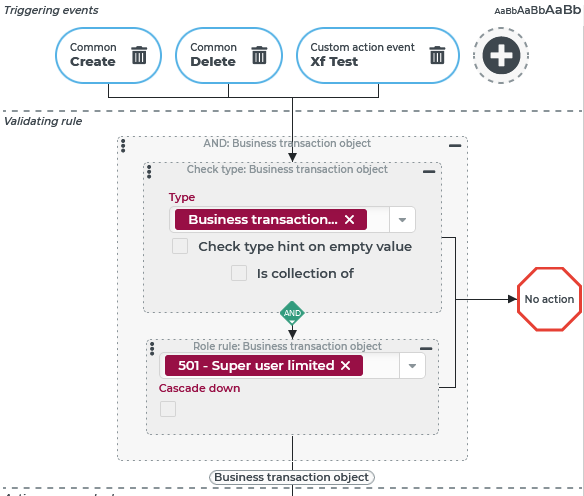
When triggering selected events for all objects of the 'Business transaction object' type, a notification of the notification type : Info should appear if a 'Super user limited' (role) is logged in.
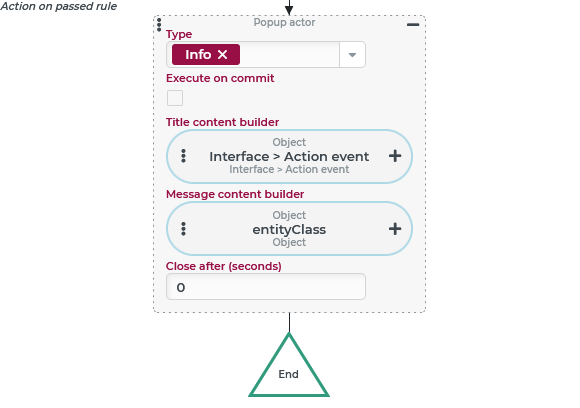
The popup should remain open indefinitely and provide the 'Super user limited' with information about the type of object (in the Message) and the event triggered (in the Title), as seen in the following runtime example for the 'Delete' event for an order:

Configuration:
An event handler is created and configured as shown to the right:
|
|
The only Action on passed rule here is configured to be a Show alert (Popup) event action as shown to the right:
|
|
Variant:
Instead of the internal identifiers (name for the triggering event, class name for the business object type), the following configuration of the Show alert (Popup) event action is to display the corresponding texts from the Localization:

The Show alert (Popup) event action is reconfigured within the existing event handling as shown to the right:
|
|
|
|