You can configure a class that creates an internal cron job (without a profile) that deletes old files. There is a legacy class for this and a more powerful new one. Deleted files are permanently removed.
Legacy class (DeleteFilesCronJob)
Please use new class for new developments.
Activate the following section in configuration file ./etc/cron.xml. This defines a cron job that deletes old files every 10 minutes.
...

<Call name="addJob">
	<Arg>
		<New class="com.ebd.hub.services.cron.CronJob">
			<Arg>Remove files</Arg>
			<Arg>
				<New class="com.ebd.hub.services.cron.DeleteFilesCronJob">
					<Set name="configFilename">./conf/sample_delete_cron_old.properties</Set>
				</New>
			</Arg>
			<Call name="setTimeSchedule">
				<Arg>
					<New class="com.ebd.hub.services.cron.Schedule">
						<Arg type="long">600000</Arg>
					</New>
				</Arg>
			</Call>
		</New>
	</Arg>
</Call>

...
The path to a properties file, which contains the specific settings for deletion, must be specified in parameter configFilename.
# sample config for cron job to delete files within named directory
# define the entry folder to look for
directory=./tmp
# do this for sub folders within named directory as well
recursive=true
# define file pattern for selecting files
file.pattern=*.tmp
# files older than 7 days are being removed
retain.days=7
New class (DeleteFilesCronJobWithPathSupport)
Insert the following section in configuration file ./etc/cron.xml.
...

<Call name="addJob">
    <Arg>
        <New class="com.ebd.hub.services.cron.CronJob">
            <Arg>Remove files</Arg>
            <Arg>
                <New class="com.ebd.hub.services.cron.DeleteFilesCronJobWithWildCardSupport">
                    <Set name="configFilename">./conf/sample_wildcard_delete_cron.properties</Set>
                </New>
            </Arg>
            <Call name="setTimeSchedule">
                <Arg>
                    <New class="com.ebd.hub.services.cron.Schedule">
                        <Arg type="long">600000</Arg>
                    </New>
                </Arg>
            </Call>
        </New>
    </Arg>
</Call>

...
Cron job name
The name of the cron job is set in class CronJob. In this case the name is “Remove files“.
Cron job interval
The cron interval is set in class Schedule in milliseconds. In this case: 600000 milliseconds = 10 minutes.
Configuration file
The detailed parameters of the class are specified in a properties file that is set in parameter configFilename.
Example 1:
directory=./var/logs
file.pattern=*.log
exclude.pattern=*.tmp;important/*
retain.days=30
recursive=true
verbose=false
This simple configuration is backwards compatible, which means you can use the properties files you used with the legacy class.
Example 2:
# Default/Global settings (optional fallback)
retain.days=30
recursive=true
verbose=true

# Path configuration 1
path.1.directory=./var/logs/application
path.1.pattern=*.log;*.txt
path.1.exclude=important/*;*backup*
path.1.retain.days=7
path.1.recursive=true

# Path configuration 2
path.2.directory=./var/logs/system
path.2.pattern=*.log
path.2.exclude=critical/*;audit/*
path.2.retain.days=90
path.2.recursive=false

# Path configuration 3
path.3.directory=./tmp/cache;/tmp/temp
path.3.pattern=*.*
path.3.retain.days=1
As you can see, the advanced settings allow you to define multiple deletion paths (with specific parameters). If an optional parameter for a path is not set, the respective global default applies.
Parameters (global defaults)
Parameter | Type | Default | Description |
|---|---|---|---|
directory | String | No default value. | (mandatory) Semicolon-separated list of directories to monitor. Non-existent directories are skipped. |
file.pattern | String | *.* | (optional) Semicolon-separated file inclusion patterns. |
exclude.pattern | String | No default value. | (optional) Semicolon-separated file exclusion patterns. |
retain.days | Integer | 7 | (optional) Number of days to retain files. Must be ≥ 1 (zero or negative values skip execution). |
recursive | Boolean | false | (optional) Scan sub directories recursively? |
verbose | Boolean | false | (optional) Enable detailed logging? |
Parameters (path specific)
The placeholder N can range from 1 to 100.
Parameter | Type | Description |
|---|---|---|
path.N.directory | String | (mandatory) Semicolon-separated list of directories to monitor. Non-existent directories are skipped. |
path.N.pattern | String | (optional) Semicolon-separated file inclusion patterns. Overwrites global parameter file.pattern |
path.N.exclude | String | (optional) Semicolon-separated file exclusion patterns. Overwrites global parameter exclude.pattern |
path.N.retain.days | Integer | (optional) Number of days to retain files. Overwrites global parameter retain.days |
path.N.recursive | Boolean | (optional) Scan subdirectories recursively? Overwrites global parameter recursive |
Pattern matching
Pattern | Description | Matches |
|---|---|---|
* | Matches any characters. | *.log matches all .log files |
*.* | Matches any file with extension. | Matches all files with dots |
test* | Matches files starting with "test". | test.log and test123.txt matches |
*backup* | Matches files containing "backup". | mybackup.sql and backup_old.zip matches |
Patterns containing / are matched against the full relative path.
Pattern | Description | Matches |
|---|---|---|
logs/*/*.tmp | Temp files in subdirectories. | logs/app/cache.tmp |
*/temp/* | Any files in temp folders. | data/temp/file.txt |
important/* | All files in important directory. | important/data.xml |
*backup*/* | Files in directories containing "backup". | mybackup/file.txt |
Use prefix regex: for complex patterns. Incorrect regex patterns will cause errors.
file.pattern=regex:.*\.(log|txt)$
exclude.pattern=regex:.*_(backup|archive)_.*
Where can I see my cron job?
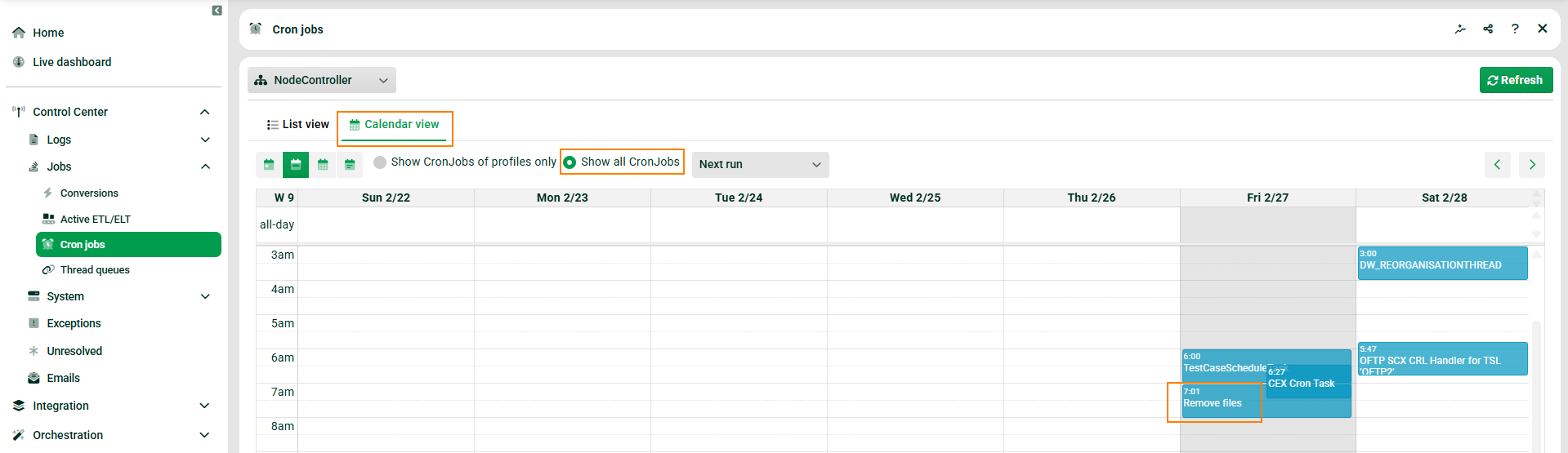
To see your cron job, navigate to “Control Center → Jobs → Cron jobs” and select the “Calendar view” and set option “Show all cron jobs” (because this is an internal cron job and not a profile cron job).
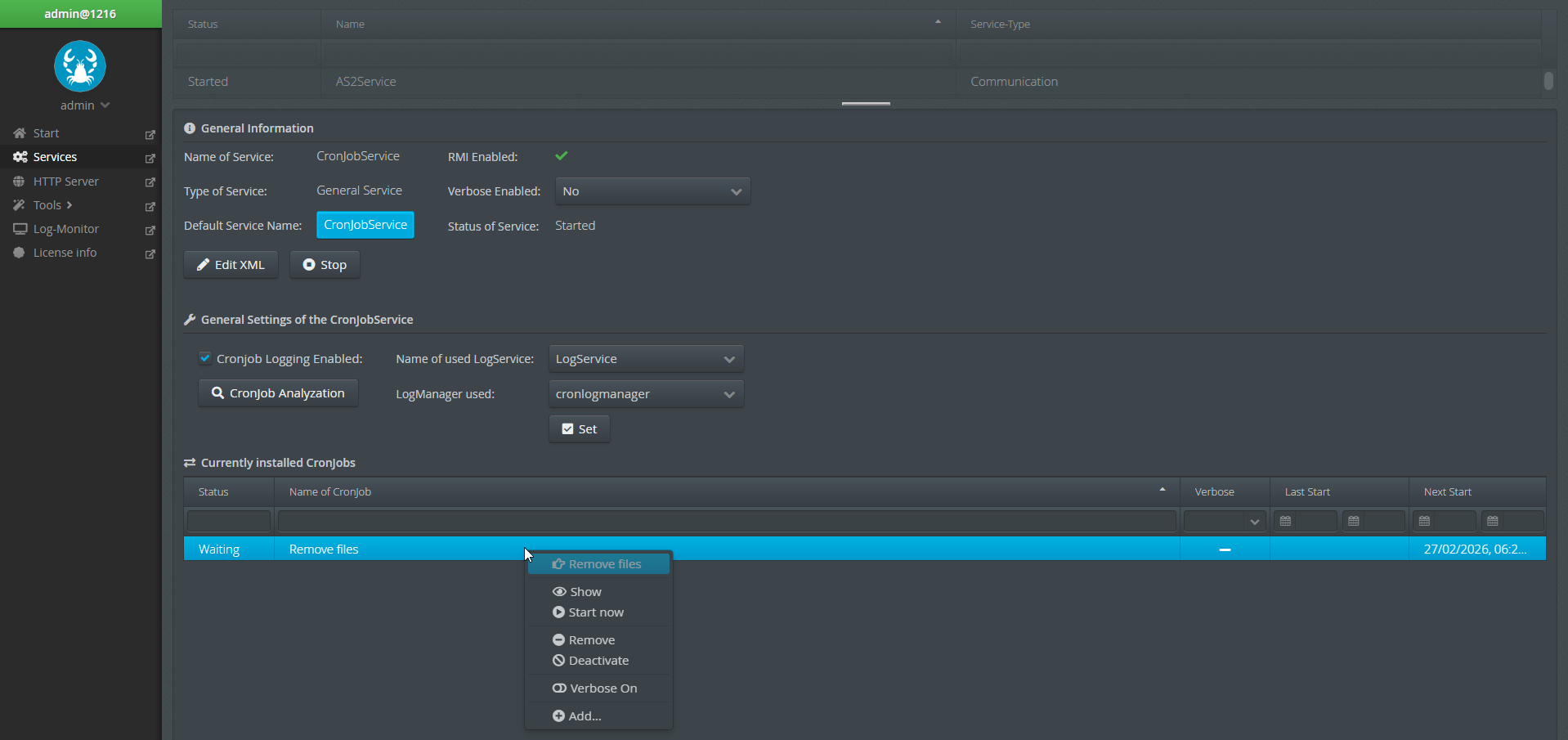
Another possibility is navigating to “Administration → Admin console” and then to “Services → CronJobService”.
Logging
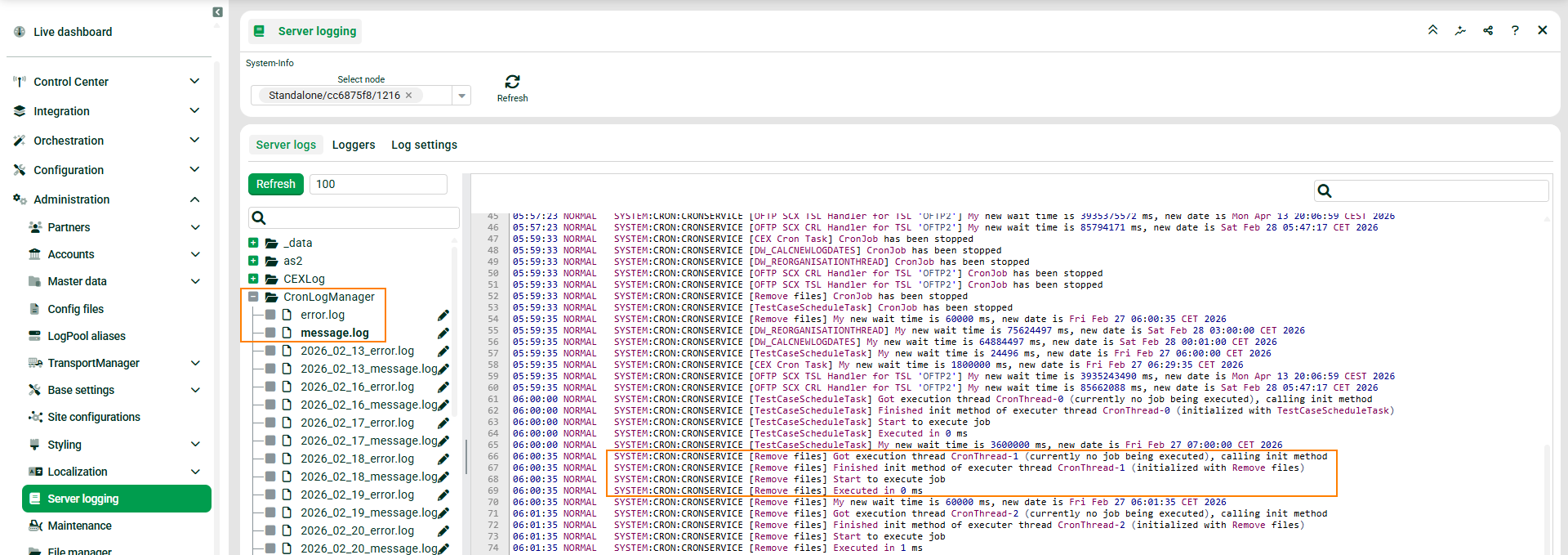
To see log message of your cron job, navigate to “Administration → Server logging → CronLogManager”.
Usage examples general
Example 1: Clean application logs
# Clean logs older than 7 days, keep important logs
directory=./opt/app/logs
file.pattern=*.log;*.out
exclude.pattern=error.log;fatal.log;important/*
retain.days=7
recursive=true
verbose=true
Example 2: Multiple directory cleanup
# Default settings
retain.days=30
recursive=true
# Application logs - keep 7 days
path.1.directory=./var/log/myapp
path.1.pattern=*.log
path.1.exclude=audit/*;security/*
path.1.retain.days=7
# System logs - keep 90 days
path.2.directory=./var/log/system
path.2.pattern=*.log
path.2.retain.days=90
# Temp files - delete after 1 day
path.3.directory=./tmp/app;./tmp/cache
path.3.pattern=*.*
path.3.retain.days=1
Example 3: Advanced exclusions
directory=./data/uploads
file.pattern=*.*
exclude.pattern=*important*;*/archive/*;*/backup/*;permanent/*
retain.days=14
recursive=true
Example 4: Regex-based cleanup
directory=./logs
file.pattern=regex:^(debug|trace)_.*\.log$
exclude.pattern=regex:.*_(critical|fatal)_.*
retain.days=3
recursive=true