As a Java-based application, Jaspersoft Studio requires at least a so-called Java Runtime Environment (JRE) to start and open document templates. However, a Java Development Kit (JDK) is required to modify and compile document templates. We therefore recommend that you always install an up-to-date Java Development Kit when using Jaspersoft Studio.
Download
Java Development Kit
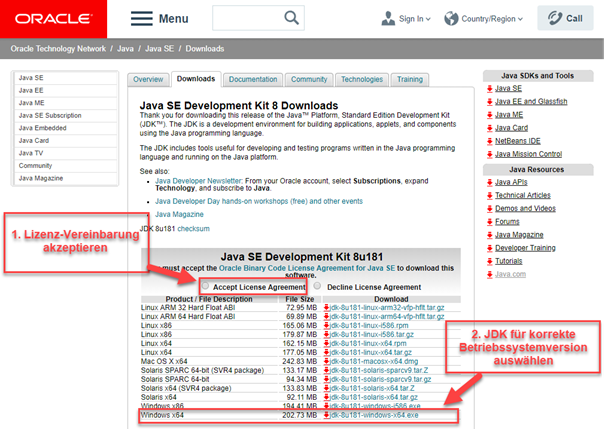
Installation (Windows)

1. Start installation with a double click
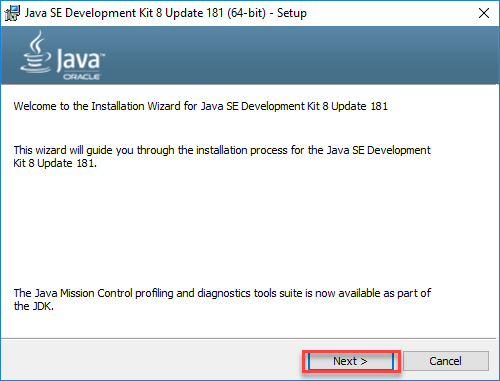
2. Click "Next"
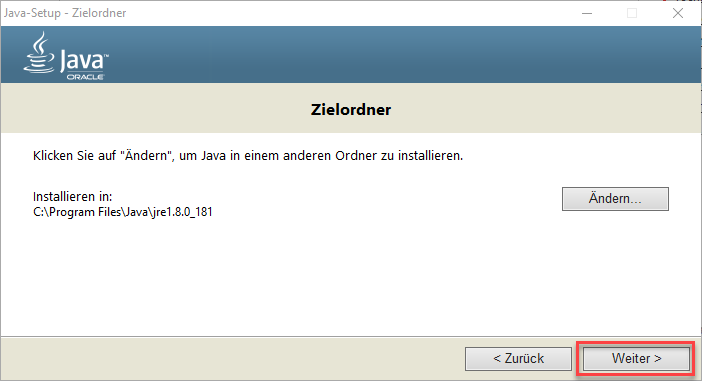
3. If necessary, select another destination directory and click "Next"
Note: Language changes in the installation routine can be ignored!
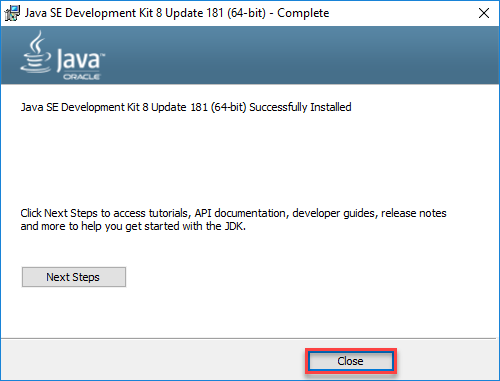
4. Click "Close"
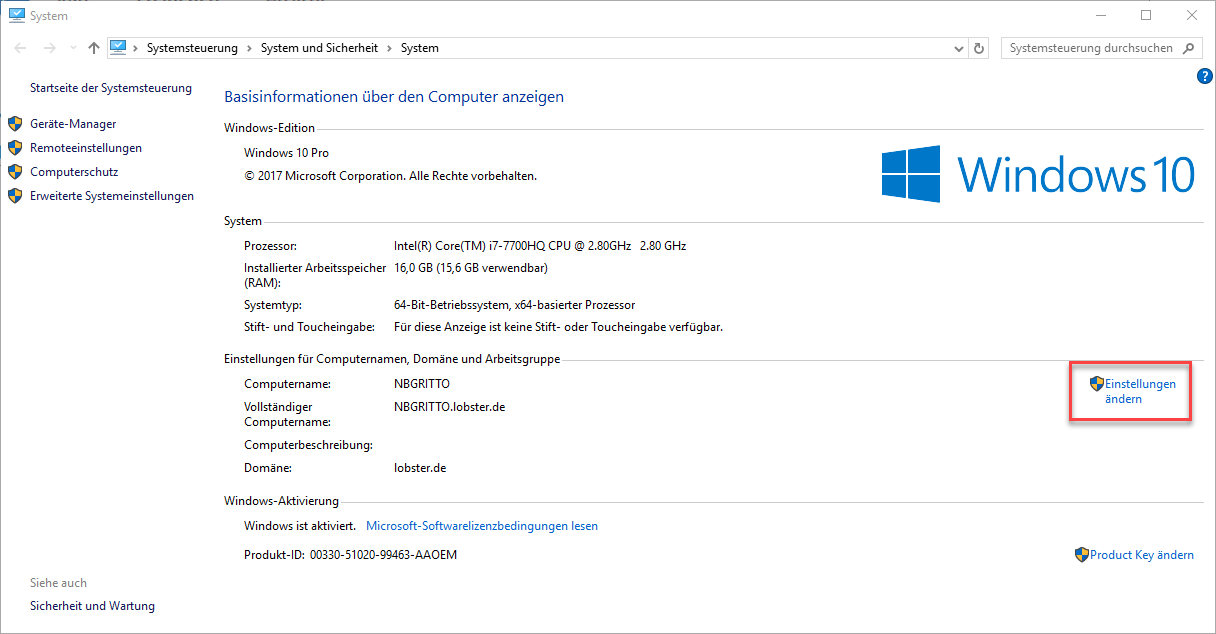
5. Under "Control Panel/All Control Panel Items/System" click "Change settings"
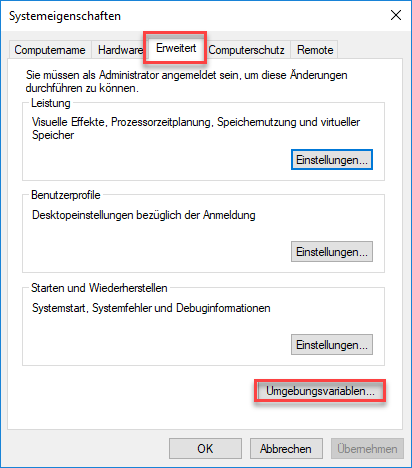
6. In the "Advanced" tab click "Environment variables"
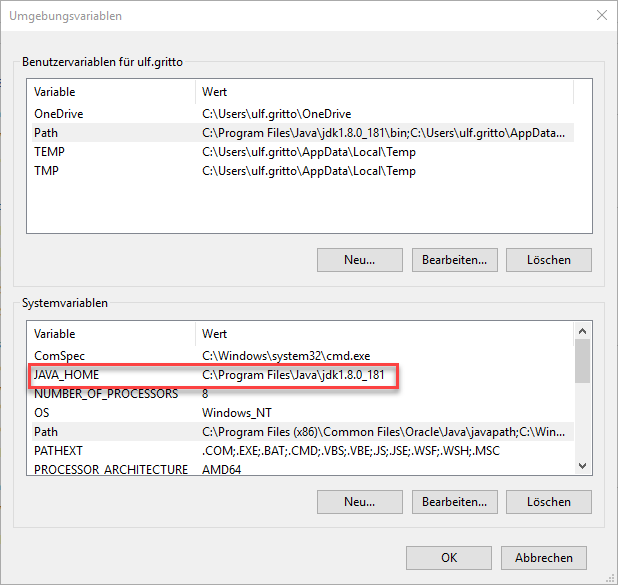
7. Register a new entry JAVA_HOME in the system variables with the directory to the JDK just installed (e.g. C:\Program Files\Java\jdk1.8.0_181)
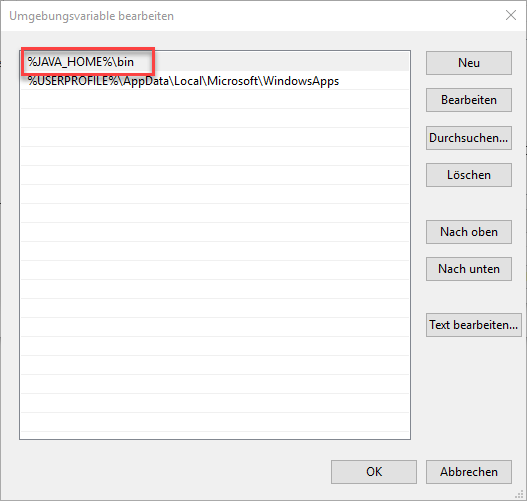
8. Add an entry to the %JAVA_HOME%\bin directory to the user variable "Path" (Note: in older Windows versions the paths are entered in one line and separated by a semicolon)
Check
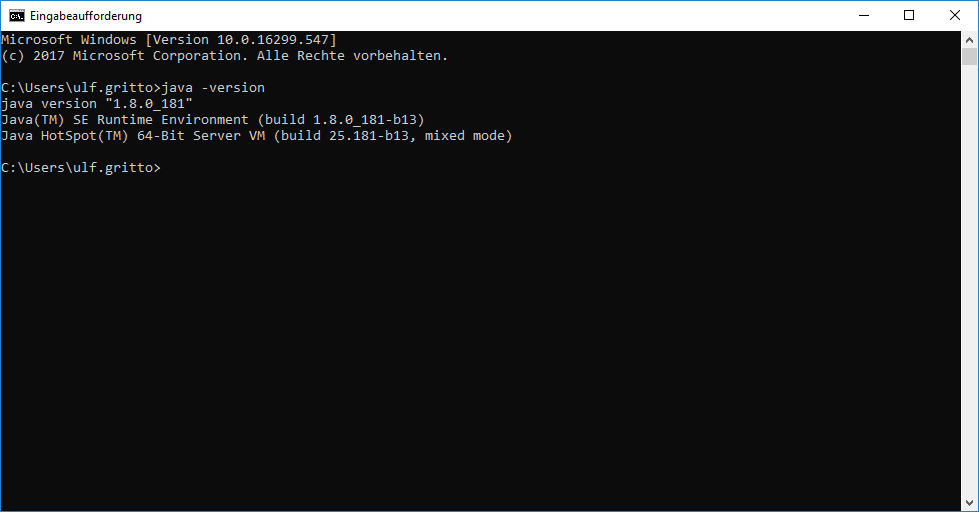
If the version is now displayed when entering the command "java -version" in the Windows command line, the settings are correct and the installation of the JDK is complete.