Pathfinder helps you create and understand regular expressions (regex). A regex is a formal notation for text patterns. In the Lobster Data Platform, you can use it to validate, extract, or replace content in data fields. This guide covers three common use cases:
Generate a new regex from a description.
Explain the existing Pathfinder regex.
Check the validity of a regex.
Requirements
Pathfinder must have been activated for your organization.
You already know which field you want to use regular expressions in.
NOTE
In supported input fields, Pathfinder displays a tooltip: “Need regular expressions? Ask Pathfinder”. The tooltip appears when you hover over the field or click inside it. A list of supported fields is provided below.
Generate a new regex
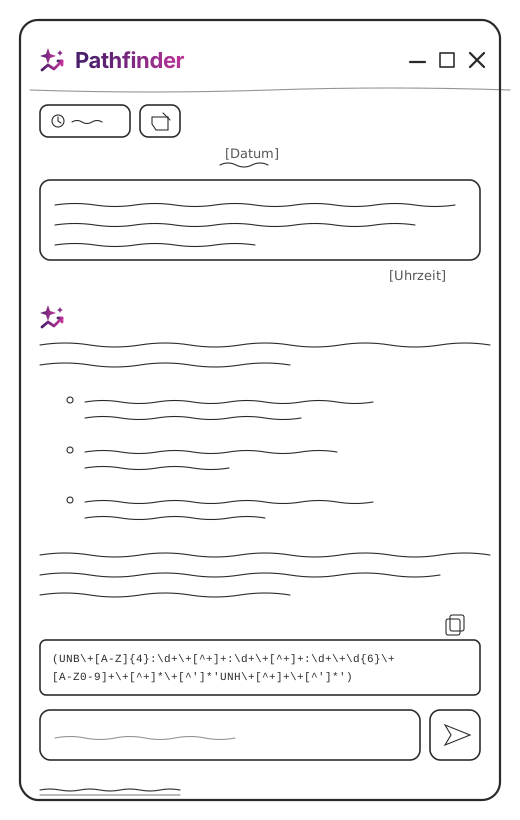
To create a new regular expression:
Open Pathfinder by clicking the Pathfinder icon in the top menu bar (the first one in the row).

Describe the desired pattern in plain language. Example: “Generate a regex for a German postal code”.
Pathfinder generates a valid expression in the forma
^...$.Click the Copy to clipboard icon.
 .
.Paste the text from the clipboard into the desired field.
The text is copied exactly as it is and can be used immediately. Pathfinder does not add any additional characters or formatting.
Explain the existing regex
Here's how to get an explanation of an existing regular expression:
Open Pathfinder.
Paste the regex into the Pathfinder input field.
Ask what it means. Example: “What does this regex do?”
Read the explanation, which includes a description of the pattern and examples.
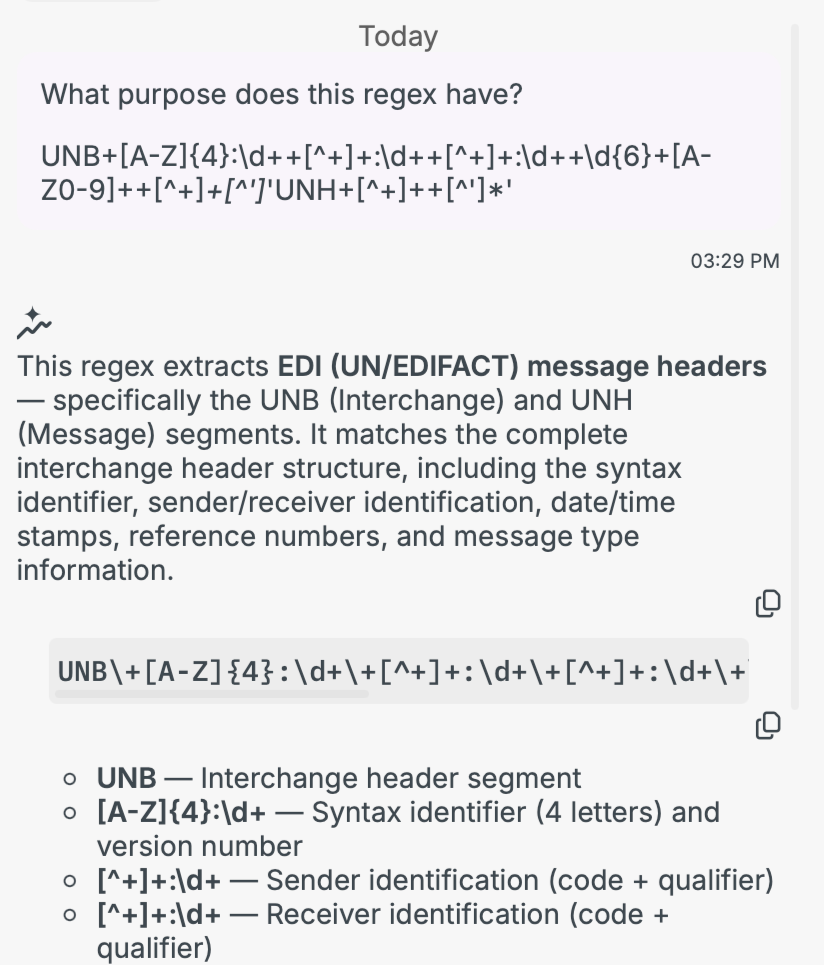
Pathfinder also verifies whether the expression is syntactically valid.
Check the validity of the expression
Pathfinder automatically checks the syntax of a regex as soon as you submit it for analysis. There are two possible outcomes:
Valid: Pathfinder explains the pattern and provides examples.
Invalid: Pathfinder flags the syntax error and explains the cause.
Supported fields
The following fields support regular expression input and display the Pathfinder tooltip:
Location | Field or function |
|---|---|
Profiles > Open profile > Phase 3 > Functions |
|
Profile > Open profile > Source structure (right-click on the field) > Define matchcodes | Condition: Regular expression |
Profile > Open Profile > Main settings > Extensions > Check preparsing > Preparsing by |
|
In the preparser, the tooltip appears only when the option is enabled EncodingPatcherWithRegexReplacement.