Starting with Release 26.1, administrators can add and revoke local certificates through the REST API over HTTP. You can also download local certificates. Downloading uses a separate endpoint. A local certificate contains both the public key and the private key. This sets it apart from a partner certificate, which holds only the public key.
This endpoint is disabled by default. You must enable it explicitly before use.
The behavior mirrors the Partner certificates (REST API) endpoint. The JSON body differs in these ways:
relation: never used for local certificates.id: omitted when you add a certificate. The server generates it and returns it. Required when you revoke a certificate.passwordandnote: added as new fields.
Caution
This endpoint transmits the private key of a local certificate to the Integration Server. The transmitted key is not end-to-end encrypted. If you enable this endpoint, you accept the resulting security risk. Lobster disables it by default for this reason. Enable it only if your security policy explicitly permits the transmission of private keys.
Enabling the endpoint
Set this property in the Admin Console.
Open Tools > JVM.
You see the property list.Add the following JVM system property and set it to
true:
hub.datawizard.allowLocalCert=true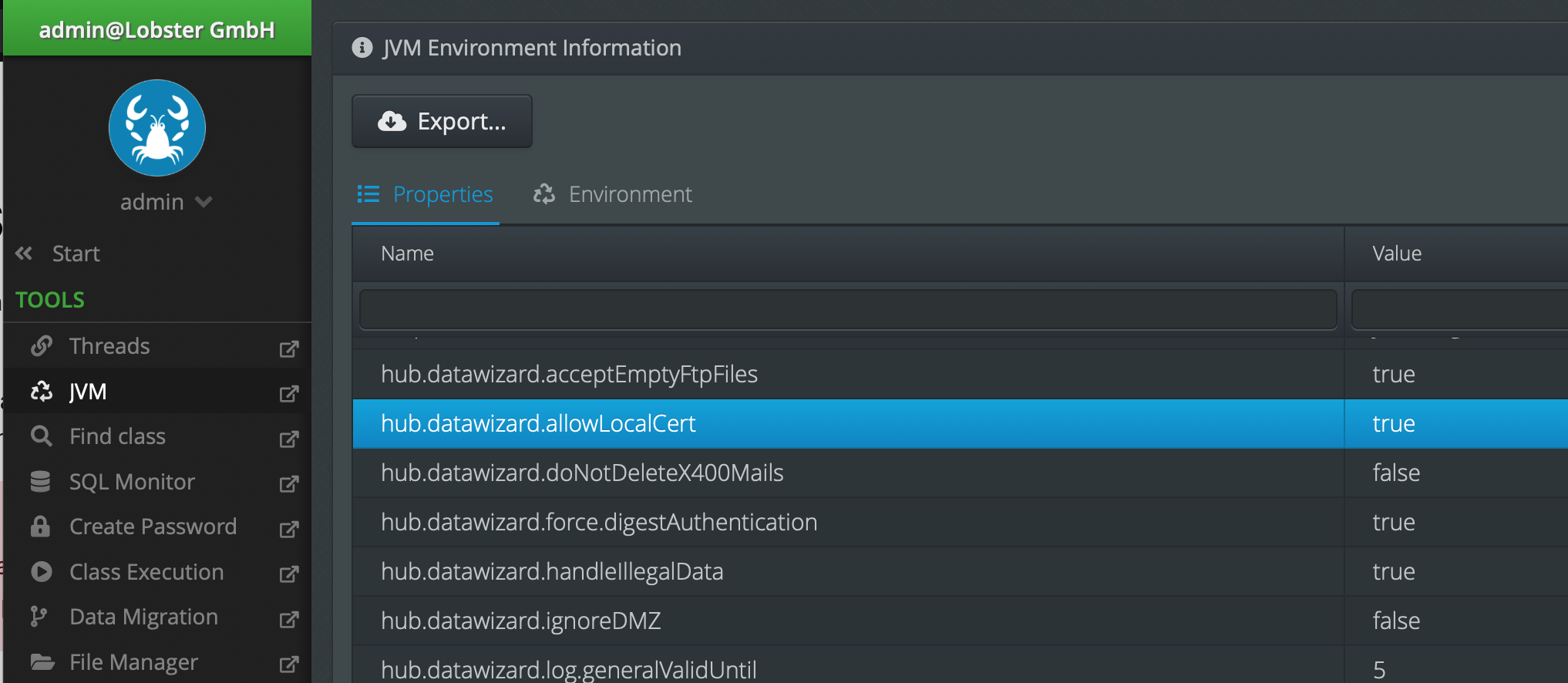 The endpoint stays unavailable while the property is unset or
 false.
Adding a local certificate
URL (HTTP POST with JSON):
http(s)://<IP or URL of Integration Server>/dw/auth/v1/localcertificate
The request body uses these parameters:
Parameter | Required | Description |
|---|---|---|
| Yes | The action to run. Use |
| Yes | The Common Name (CN) of the certificate. |
| Yes | The certificate data, is Base64-encoded. See Encoding the certificate below. |
| No | The password of the certificate. Required for password-protected files, for example: PKCS12. |
| No | A free-text note, stored with the certificate. |
Example request:
{
    "operation": "add",
    "commonName": "myserver.example.com",
    "certificate": "MIIWrwIBAzCCFmUGCSqGSIb3DQEH...<Base64 data>...",
    "password": "certificate-password",
    "note": "local-cert-chain"
}
Example response:
{
    "response": {
        "status": "ok",
        "id": "1768285182284753"
    }
}
The id in the response is the ID of the imported local certificate. You need this ID to revoke the certificate later.
Encoding the certificate
The certificate parameter accepts these formats: DER, PEM, PKCS12. You must Base64-encode the file content first.
On Linux, use the terminal:
base64 full-cert-pkcs12.p12 > full-cert-base64.txtOn Windows, use the command prompt:
certutil -encode full-cert-pkcs12.p12 full-cert-base64.txtCopy the encoded content from the output file. Paste it as the value of certificate.
Note
Do not include the PEM markers
-----BEGIN CERTIFICATE-----and-----END CERTIFICATE-----. Encode the whole file as shown above. A full certificate chain (end-entity, intermediate, root) imports the same way.
Revoking a local certificate
Revoking a local certificate works like revoking a partner certificate. The relation field is omitted.
URL (HTTP POST with JSON):
http(s)://<IP or URL of Integration Server>/dw/auth/v1/localcertificate
Example request:
{
    "operation": "revoke",
    "id": 1768285182284753
}
Downloading a local certificate
You download local certificates with the same endpoint used for partner certificates. This is the exportcertificate endpoint.
URL (HTTP GET):
http(s)://<IP or URL of Integration Server>/dw/auth/v1/exportcertificate?id=<id>&format=<format>
Set <id> to the certificate ID. Set <format> to the export format.
Allowed values: DER, PEM, OPENSSH, PKCS12, PKCS7, PUTTY, or INFO.
Unknown formats fall back to DER. The value INFO returns metadata only, not the certificate.
See Partner certificates (REST API) for more detail.
Logs
Find the logs for these requests in the Server Logging. Open Administration > Server Logging. The relevant file is internal/message.log (also at ./logs/services/message.log).