The Test mode for forms lets you test a form design directly in the form editor. You do not have to save and publish the design first.
Difference from the test scenario
Tests and Test mode for forms have both similarities and differences.
In Test mode for forms, the
isTestVariable is set ($true) in the context of Event handling. The same applies when you run Tests. For profile calls, the same applies through theVAR_IS_TESTvariable. This flag lets you define separate workflows for test operation and production in profiles and Event handling. One example is response paths with dependencies in profiles. Within forms, you can check theisTestVariable in a Client Workflow. In addition, the Is editor test mode behavior provides a matching case distinction.When you run Tests for configurations, no effective commit is performed. This affects, for example, Event handling, Association criteria, or Rules and values. Tests causes persistent data changes only in special cases, for example, with File reference. In Test mode for forms, by contrast, all mechanisms that can be configured in the context of a form are triggered. Unlike Tests, Test mode for forms can also perform commits. This happens, for example, when Event handling contain Event actions such as Save changes later or Delete later. Such actions create, modify, or delete entities (see Common action event).
EXCEPTION Certain Event actions are not executed if theisTestvariable contains the value$true. One example is the E-mail or a profile call as Export. This also applies to their execution in Test mode for forms.
NOTE If such actions must also run in Test mode for forms, set the value of theisTestvariable to$falseor$nullbeforehand.
Use test mode

In the ribbon for all configurations generated with the Form designer (Input forms, Portals, Dashboard), the Editor subcategory (within the Common main category) displays the Test mode button.
NOTE After you open a new view with the Form designer, the Test mode button stays disabled in the ribbon until you select the Form editor tab for the first time. In the screenshot above, the Test mode button is already enabled.
The Test mode button shows the "Play" icon (►) exactly when test mode is inactive. You can then edit the form in the form editor.
In this case, clicking the Test mode button starts test mode.
When test mode is active (see the screenshot below), the Test mode button shows the "Stop" icon (■). You can then only test the form "in production"; you can no longer edit it.
In this case, clicking the Test mode button stops test mode.

NOTE Executing the Request close action for a form running in test mode only exits test mode. The view that uses the Form designer stays open.
IMPORTANT If a form contains Ribbon button (Portal) elements, these appear as additional buttons in the ribbon for the Form designer when the form runs in test mode (provided they are visible).
Load test data (for data input forms)
For Input forms, the Test mode button offers a context menu on right-click. You can use it to load data from existing entities into the form.
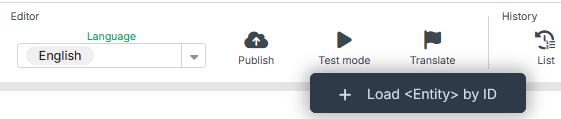
Initially, the context menu contains exactly one entry (see the screenshot). It opens the following Load test data dialog:
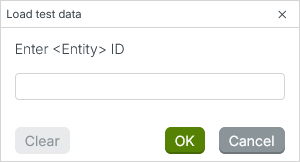
NOTE Instead of "<Entity>", the localized name ($name) of the entity type that the data input form refers to appears.
In the input field, enter the ID (
id) of an existing instance for the entity type. When you click the OK button, test mode starts with the data of that entity. This requires read access to that data.If the entity requested by ID does not exist, or if read access is missing, test mode starts with a newly created instance of the entity type. The behavior matches a direct click on the Test mode button.
IDs that you already requested for testing appear in the context menu for selection the next time you open it. This lets you run a data input form alternately with different test data.
NOTE The context menu appears only to start test mode, that is, when test mode is stopped. To switch entities, stop the test and restart it through the context menu.
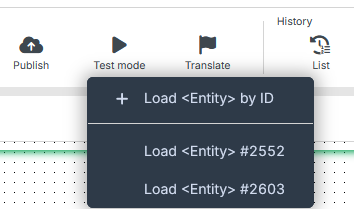
The list of entities already requested stays available until you close the view for editing the data input form.
If you switch between different designs for data input forms of the same entity type without closing the form designer view, you can test them alternately in different form layouts.
Data changes in test mode
WARNING
Actions in Test mode for forms can permanently modify, delete, or create entities!
Typically, the entities loaded as test data in Test mode for forms should not be permanently modified or deleted. Permanently creating entities is usually also not the goal of form tests.
In test mode, the applicable ribbon of production is not shown. This includes buttons such as New, Save, or Delete. As a result, it may appear that entities are protected from changes in test mode.
However, test mode does not fully protect the entities loaded as test data from write operations. These include creating, modifying, and deleting.
The tested form can trigger events. If actions such as Save changes later, Delete later, or Set current working state run during processing, they take effect permanently when the transaction completes.
The same applies to access to entities that are involved in the tested processes through embedded forms or automation functions. Profile calls triggered during the test can also cause permanent changes to data.
Association criteria in test mode
CAUTION
Limited consideration of Association criteria in Test mode for forms
Forms can use the Association criterion matched behavior. This binds case distinctions in the automation context to Association criteria.
During production use of a form, the system determines the return values of such Association criteria exactly when the form is initially loaded or when the Invalidate context action runs.
In this context, Test mode for forms imposes restrictions. You may need to take these into account:
The Invalidate context action is categorically not executed for the tested form. During the test, Association criteria are therefore never re-evaluated.
When test mode starts with test data, the evaluation of Association criteria is skipped. The test uses the most recently determined return values. These come either from entering the Form editor tab or from the last start of test mode without test data.
Because of these restrictions, Association criteria that refer to properties of the input value never evaluate test data assigned at the start or data modified during the test in Test mode for forms.
Some forms evaluate such Association criteria, for example in the context of the Association criterion matched behavior. In Test mode for forms, these forms can show characteristics that differ from production.
This also applies to time-varying Association criteria. One example is a rule based on the current system time or an Check existence. During production use, the Invalidate context action would evaluate these repeatedly.
IMPORTANT Associations of Association criteria to Input forms do not matter for test mode. So you can also run tests with forms that have no associations yet or whose associated criteria do not apply in the context of the session.