This page shows all error jobs. So an error message always represents precisely one job and thus refers to exactly one profile.
Open the Control Center.
Go to Logs > Error.
Settings
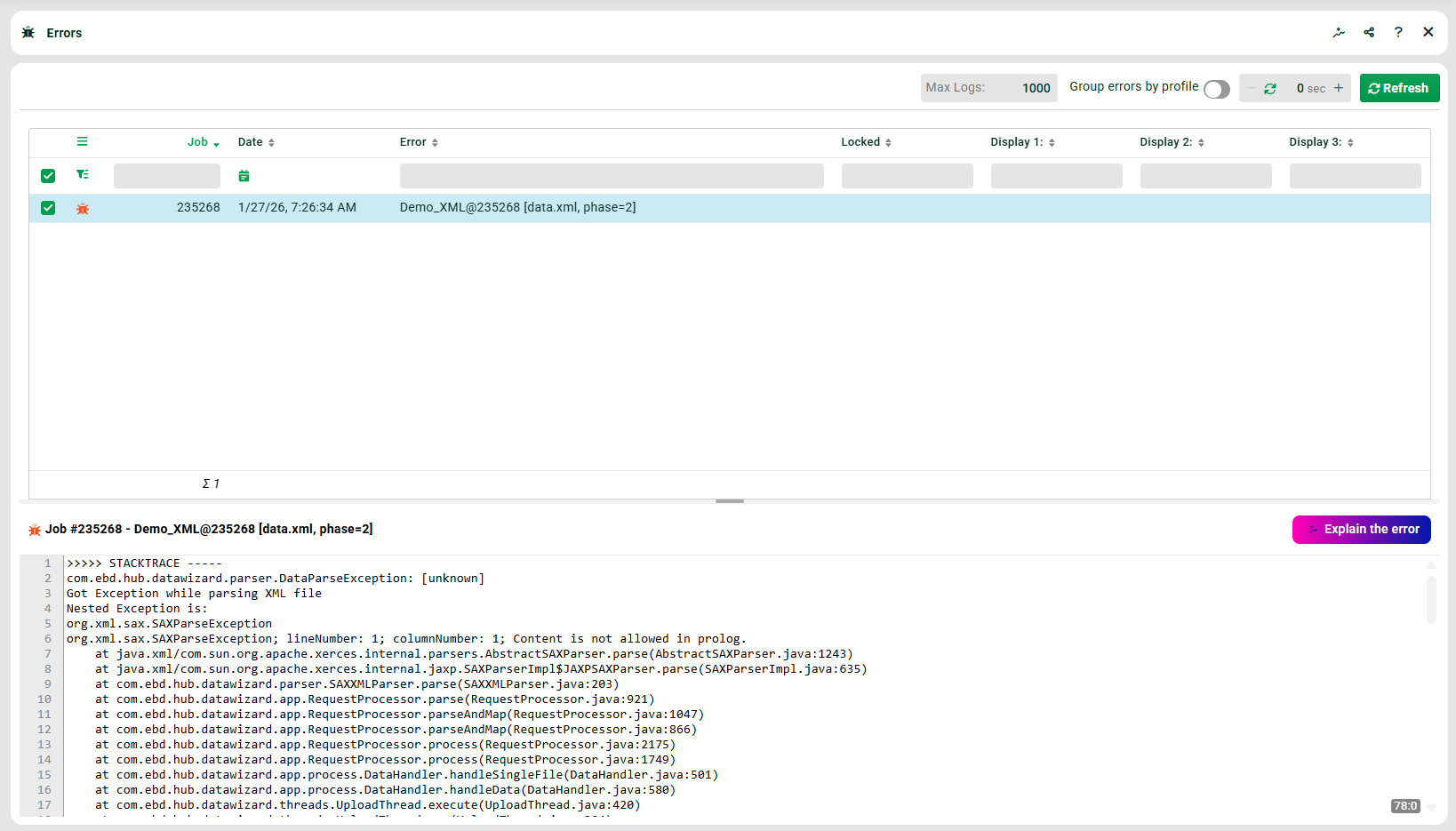
List top area: One or more errors can be handled via the context menu (right-click).
Locked: Indicates whether an error job is locked and by which user. See also context menu below.
List bottom area: A Stacktrace of the selected error. Highlighted text can be copied with Ctrl+C. NOTE If available, a trace file can be opened via a right-click and viewed under Administration > Server Logging.
Group errors by profile: If this option is set, errors will be displayed summed up per profile.
Display 1, Display 2, Display 3: These columns are custom columns. The values for these columns can be set with the function set display column().
Button Explain the error: See How-to article Analyze errors with Pathfinder.
Context menu
Name | Description |
|---|---|
Lock for me | You can lock one or more errors under your user name. This prevents simultaneous processing by multiple users. NOTE See also the function get unassigned errors(). |
Pass on editing task | Another dialog opens. There you can lock the error for a specific user. You select the user from a list. You can also add a note. The note appears as a pop-up when you point to the user in column Locked. NOTE See also the function get unassigned errors(). |
Restart/Restart all errors of selected profile | Starts the selected job (or several or all) after a confirmation dialog. The stored input data (backup) is used. The restart dialog does not appear. A new job is created. If a restart is successful, the error job disappears from the error list, but not from the overview. See also the option View file. NOTE See also system variable NOTE If the input data of this job no longer exists when it is restarted, this results in an error. |
Restart with other profile | Another profile can be selected, which is started with the backup file of this job. The behavior is the same as for a 'normal' restart (see above). |
View file | The input file can be opened and edited in an editor. If saved afterwards, the job is restarted with the adjusted file. This creates a new job. The old error job remains in the error list and in the overview, regardless of whether the new job is successful or not. See also option Restart. |
Delete | Marked errors will be deleted from the error list. A confirmation dialog will open. You can also specify a deletion reason. NOTE The specification of a deletion reason can be forced with the option WARNING Jobs are only deleted from the error list. They can still be found as an error in the job overview. The deletion reason you specified will be displayed at the end of the job log. |
Delete all errors of selected profile | All error jobs of the marked profile will be deleted from the error list. A confirmation dialog will open. You can also specify a deletion reason. NOTE The specification of a deletion reason can be forced with the option WARNING Jobs are only deleted from the error list. They can still be found as an error in the job overview. The deletion reason you specified will be displayed at the end of the job log. |
Delete all errors | Absolutely all errors are deleted (of all profiles and all clients). WARNING Jobs are only deleted from the error list. They can still be found as an error in the job overview. The deletion reason you specified will be displayed at the end of the job log. |
Download file | Downloads the input file of the job locally. |
Unlock/Force unlock | You can unlock an error that you locked yourself. See (1). With administrator rights, you can also force the unlock. This applies even when another user locked the error. |
Edit errors | If an error is triggered by the function log user error(), this option appears. The function can mark specific fields of the input data as faulty. In the Control Center, these errors can then directly be corrected in the input data in a special dialog. Error jobs that have been flagged by this function are marked with an exclamation mark ! before the profile name. For details, see the function description. |
To clipboard | In a further dialog, the job number, profile name, and file name can be copied. |
@Lobster Support | The error can be sent directly to Lobster Support by email. |
Find follow-up jobs | You can search for jobs that have been created as subsequent jobs of this job (so, for example, if a subsequent profile has been triggered in a Response of type "Message"). |
Search profile chain in Dataflow | Opens the process view in module Data Flow if there is an entry with this profile. |
Edit metadata | Opens an additional metadata editor in which you can view and edit existing variables from the metadata. |
Jobs per profile | The view Jobs per profile is opened for the marked profile in a new tab . |
Edit profile | Opens the profile (that has executed this job) for editing. |
Notification emails
See section Error handling.