This page shows the log messages of finished jobs. You filter by log pool, time period, or other search fields.
Open the Control Center.
Go to Logs > Overview.
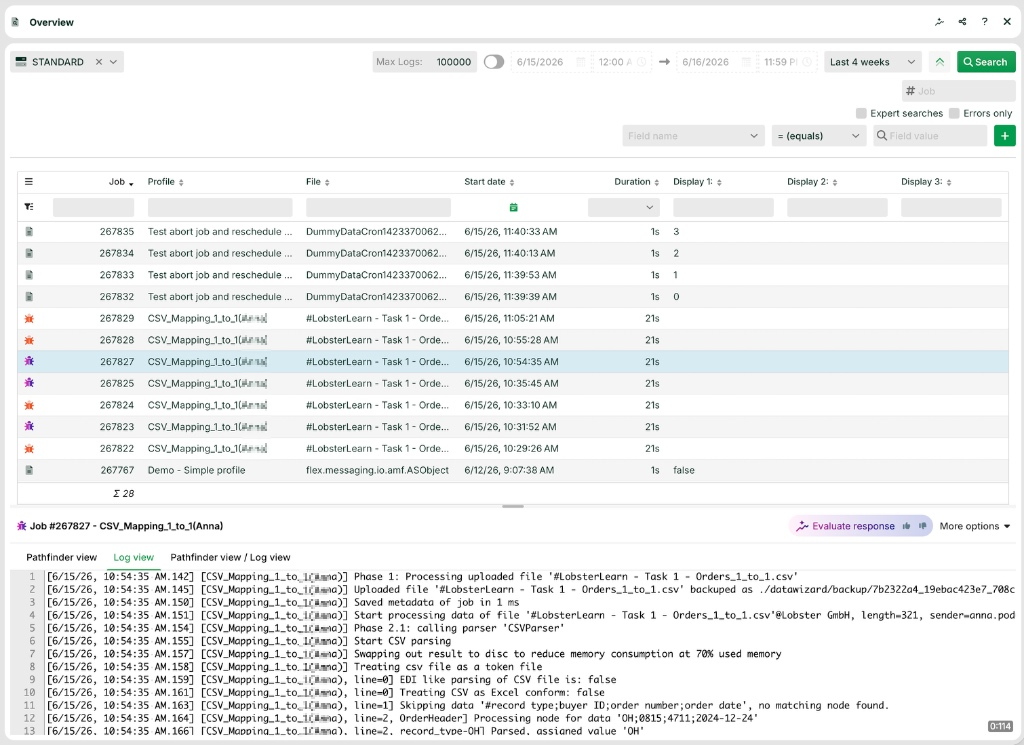
Default view
Icon  next to Search: This button opens expert searches. See Expert searches.
Log view, Additional info: The log messages of a marked job. Right-click the log messages to open an existing trace file. You view the trace file in Administration > Server Logging (see section System logging). Additional info shows the text from function log info().
Log pool: See log pool.
Display 1, Display 2, Display 3: These columns are custom columns. You set the values with function set display column().
The ☰ menu (top left): The ☰ menu offers additional display properties.
Filter fields above the columns: A filter field is available for each column. Enter search terms there. Only rows that contain the search term as a substring in that column appear. Prefix an exclamation mark to negate a term, for example !searchterm. The filter for column Duration is an exception. There you select only predefined values. You enter a specific seconds value, for example 3. Alternatively, you enter an interval, for example 2-4.
Expert searches
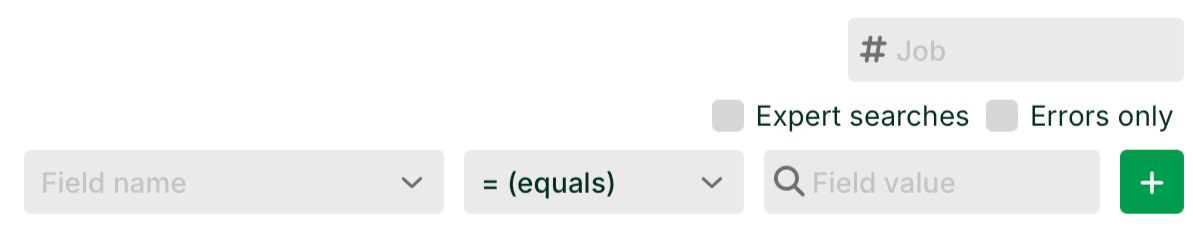
#Job: Restriction to a specific job number (must be complete).
Expert search: See section Expert searches.
Errors only: If this checkbox is set, only jobs that match the search criteria and ended with an error appear.
Field name, Field value: A target field can have the property Log field values set to Yes. You can also set the property Name for logging. Then the field value is written to the job log with that name. You select a name in the left field. You select the matching value in the right field. NOTE The search is case-sensitive. Additional search options:
Name | Description |
|---|---|
Profile | Restriction to a specific profile name. |
Additional information | See function |
Input filename | Restriction to a specific input file name. |
Output filename | NOTE Restriction to a specific output file name. You must activate the option Created file names in the logging configuration in phase 6. |
Display 1-3 | Refers to the columns of the same name. For details on these custom columns, see the function |
The plus icon adds a condition.
Job errors
A red bug icon ( ) marks erroneous jobs. Utilize the context menu of a highlighted erroneous job to access it directly on the Errors subpage. With Release 26.3, you can use the Explain Error button to receive an AI-supported explanation and troubleshooting tips. All details can be found in the How-to article: Analyze errors with Pathfinder.
Context menu of a job line
A right-click on a job line opens its context menu.
Name | Description |
|---|---|
Download file | Downloads the input file. |
Edit metadata | Opens an additional metadata editor. There you view and edit existing variables from the metadata. |
Edit profile | Opens the profile of the selected job for editing. |
Find follow-up jobs | If the selected job was part of a profile chain, you can display all jobs of this profile chain here. |
Restart | Opens the restart dialog for this job. This creates a new job. NOTE See also system variable |
Search profile chain in Dataflow | If the selected job was part of a profile chain, you can display it in the Data Flow module. |
Show backup path | Shows the path to the backup file of this job in another dialog. |
Show Comm-Log entries | If a Comm-Log entry exists for this job, you can jump directly to it. |
Show input message as structure | If a profile has a source structure, you can display an analysis of the input data. The analysis is relative to the source structure. The result is an XML file. Its structure matches the source tree, that is, the input data parsed into the source structure. |
To clipboard | In another dialog, you can copy the job number, profile name, and file name. |
To error | Opens an erroneous job on its Errors subpage. |
View file | Opens the input file in the editor. If you save it afterward, the job restarts with the adjusted file. This creates a new job. NOTE If an error job is restarted and the new job succeeds, the old error job disappears neither from the overview nor from the error list. |
View/download target file | Opens the selected target file in the editor or downloads it to a local computer. These files must have been created via a Response of type File. The Is backup of target data checkbox must be enabled. |
Notification emails
See section Error handling.