Pathfinder is the AI-powered analysis feature of the Lobster Data Platform. It explains error messages from the system logs in plain language. Starting with version 26.3.0, this feature is now also available in the Logs overview.
Requirements
Your instance is connected to the Pathfinder service.
You have read access to the Control Center.
How to start the analysis
Open the Control Center.
Navigate to Logs > Overview or to Logs > Error.
Select a log entry that contains an error.
You can identify these by the red bug icon
 . Log entries that have already been analyzed are indicated by the purple bug icon
  .
.Click the Explain the error button to start the Pathfinder analysis. NOTE Unless the error is marked with
, the AI button remains hidden in the log view.Pathfinder analyzes the error, and the Pathfinder view with an error analysis is displayed. The problem is highlighted, and suggestions for resolving it appear below.
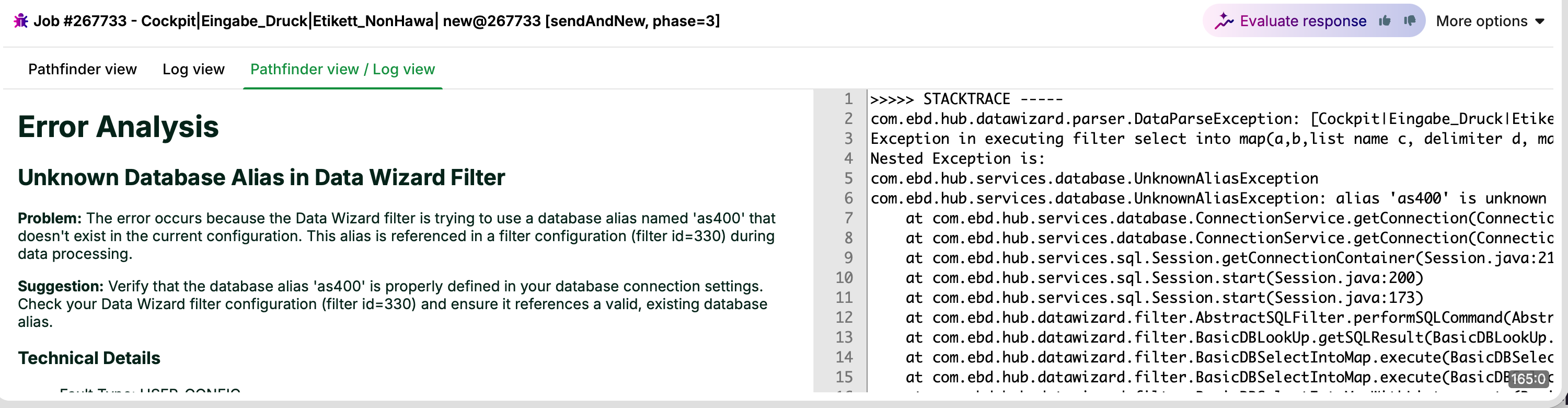
Optional:
Click the More options menu button after the Pathfinder analysis.
The following menu commands are available here:
Go directly to Edit profile to resolve the problem.
Click Download to download the error report.
Send as mail lets you send the error report using your local e-mail client.
Select Undo explanation to remove the AI explanation.
Optional: By clicking the icons in Evaluate response, you can let the system know whether you are satisfied with the AI's response.
The following tabs appear in the details area:
Tab name | Contents |
|---|---|
Pathfinder view | AI-generated analysis of the error in plain text. |
Log view | Original log text for the selected element. |
Pathfinder view / Log view | Pathfinder analysis and log text side by side. |
NOTE
Unless a Pathfinder analysis has been completed, the details area only displays the Log view.