The Localization entries menu item appears under the Localization menu node if the Role of session has the "Administration/Configuration/Localization/Display" permission.
It opens a combined view for the "Localization entry" (LocalizationEntry) entity type.
View name:
de.lobster.scm.coresystem.localization.db::LocalizationEntry|listDetailsWindowMenu node name:
admin/localizationGroup/localization
Special features of the "Localization entries" view
The view for Localization entries appears as a combined view with an input form for editing above a list area in which the entry to be edited must be selected.
At first glance, this corresponds to the classic structure of a generic view for any entity type. However, there are some special features to note for Localization entries:
The list area does not only display rows for Localization entries for which entities of the "Localization entry" (
LocalizationEntry) type have been created and saved in the database.Instead, lines that are directly based on "resources" provided by the system also appear as Localization entries. A "localization entry" entity is only created if these localizations provided "by default" are to be adapted.
The "State" column (
LocalizationStatus) in the list area can be used to differentiate between these two types of entries:
For
LocalizationEntryentities that represent adapted or supplemented Localization entries, the status is: "Database" (DATABASE).For "System localizations" that appear in the list but are not "known" in the database, the state is: "System" (
SYSTEM).The state "Changed" (
CHANGED) indicates added or edited list entries with unsaved changes.IMPORTANT In contrast to conventional overviews, the view for Localization entries allows several entries to be edited before their volatile data is saved as a whole (see "Special features in the ribbon" below).
Access to entities for Localization entries is regulated by the permissions for the "Administration/configuration/localization" node (administration/designer/localization).
IMPORTANT
Access rules for entities:
Although an "owner" (
ownerId) is formally identified for each entity of the "Localization entry" (LocalizationEntry) type, there are effectively no owner restrictions for this entity type.For read access to
LocalizationEntryentities via Search API, the "Read" or "Display" permission must be available for the "Administration/configuration/localization" node (administration/designer/localization).The lookup of language management localizations using system functions (e.g. Value from localization, Access to localized resources (Calculation expression)) is not tied to permissions.
NOTE For Company specific localization and the "overloads" defined therein for Localization entries, owner restrictions and therefore possibly also Company authorizations are explicitly relevant.
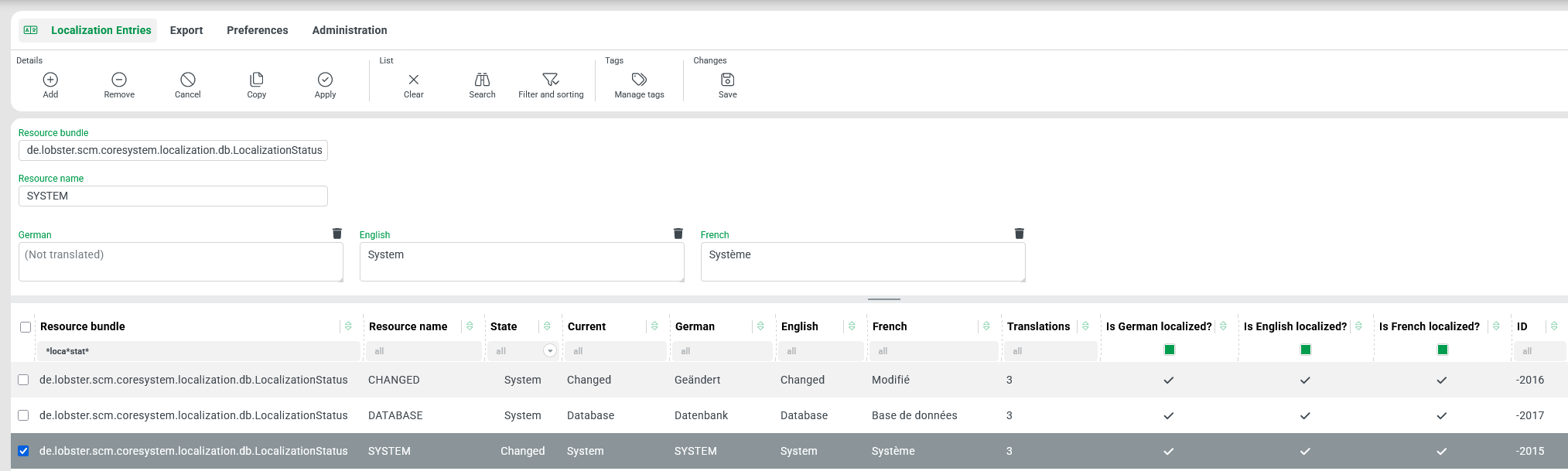
The following screenshot shows the combined view with the default ribbon, including the default input form with the details of the localization entry selected in the list area (at the bottom).
NOTE The filter for the Resource bundle ( resourceBundle ) column is set in the screenshot so that the list shows all localizations for the LocalizationStatus class. This class is a Static enumeration that defines the options for the State column of this list.
Special features in the ribbon
The ribbon buttons in the Details subcategory differ significantly from the default for generic overviews.
Sub category | Ribbon button | Description |
|---|---|---|
Details |
| The Add ribbon button creates a new "Localization entry" ( NOTE If the input form contains data that has not yet been accepted (see Apply), a "Discard changes?" prompt is displayed. IMPORTANT If the entries for Resource bundle ( |
| The Remove ribbon button appears active when a new "Localization entry" ( When clicking on Remove, a prompt for "Confirm deletion" appears. The entry is only removed from the list if it is confirmed. However, the entry is only actually deleted when a user clicks on Save to save all changes to the list. IMPORTANT
NOTE The Search ribbon button (in the List subcategory) does not retrieve the list contents again in the Localization entries overview as it does when the list is opened. | |
| The Cancel ribbon button is used to discard changes to a "Localization entry" ( Clicking Cancel effectively deselects a selected list entry. If there are changes that have not yet been confirmed by clicking Apply, a "Discard changes?" prompt is displayed. NOTE If changes have already been confirmed for the relevant list entry using Apply, these remain in place when Cancel is selected. However, they only become effective when the Save function is triggered for all changed entries. | |
| The Copy ribbon button creates a copy of the "Localization entry" ( If the original contains changes that have not yet been confirmed via Apply, a "Discard changes?" prompt is displayed. NOTE As a rule, at least one of the key fields, Resource bundle ( | |
| The Apply ribbon button transfers any edited data state for a "Localization entry" ( Accepted changes only take effect when Save is used. | |
List |
| Unlike in generic overviews, clicking on the Search ribbon button for Localization entries has no effect on the list content, as this should be protected as a possibly volatile processing status. NOTE If the |
Changes |
| The Save ribbon button transfers all changes to list entries to the database that have been confirmed by clicking Apply since the overview was opened or, if applicable, since the last Save in the overview. This also applies to the deletion of entities for entries after Remove (if applicable). If there are unsaved changes when the view is closed, a "Discard changes?" prompt is displayed. |


Contents of the default input form
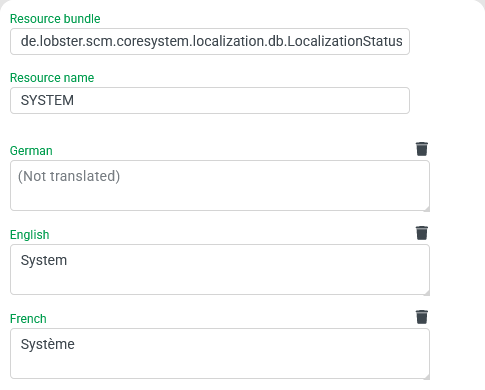
The default input form for Localization entries provides Text field elements for the following properties: The Resource bundle ( In addition, the detail area displays a Text field for each supported Locale, in which a localization text for the respective Locale can optionally be entered. The trash can symbol on the right above the input area allows a user to Remove the localization value from the list field ( In this specific case, when retrieving the localization for the Locale "German" ( |
Effective localization per language:
|
NOTE If a uniform localization is to apply to all languages, this does not have to be explicitly assigned to each supported Locale, but only for the English ( | |
Columns in the list area
The Data grid in the list area displays additional information in columns together with the fields of the "Localization entry" (LocalizationEntry) entity.
Column | Data field name | Data type | Description |
|---|---|---|---|
Resource bundle |
|
| Text key for a system-defined or fictitious Resource bundle. |
Resource name |
|
| Text key that must be unique in the specified Resource bundle. |
Current | n/a (calculated) |
| Effective text for the localization entry for the Current locale identified by Resource bundle and Resource name. NOTE For entries with the State "Changed" ( IMPORTANT This column takes into account applicable Company specific localization for Resource bundle and Resource name. |
<supported Locale> by default:
|
|
| The The list offers a column for each supported Locale, in which either a stored localization text appears or, instead of "no value" ( NOTE For entries with the State "Changed" ( NOTE The placeholder text "(Not translated)" is defined by a localization entry for the Current locale, which can be found in the Resource bundle for the "Localization entry" ( |
Translations |
|
| Number of "translations" (→ "Localization value" entities) in the |
Is <supported Locale> localized? | n/a (calculated) |
| The list provides a column for each supported Locale in which the value NOTE For entries with the State "Changed" ( |