Value resolver – Abstract
Purpose: Generates a string from a numeric input value with the formatting defined by the parameters.
Tooltip
Usage: From a numeric input value a formatted number representation is generated depending on the parameters.
Parameter:
The Force sign option activates the display of the sign "+" for positive values.
The option Use thousands separator, activates the grouping of numbers for Integer digits in groups of three, if relevant.
The thousands separator is used for the Current locale (lobsterui/thousandsSeparator).The Integer digits parameter defines the minimum number of digits output "before the decimal point" (with leading zeros if necessary).
The Precision parameter defines the number of digits displayed as decimals (with zeros at the end, if necessary). With Precision >0 the decimal separator for the Current locale appears (
lobsterui/decimalSeparator)NOTE To maintain the defined Precision, the last digit specified is rounded if necessary (see details in the manual entry).
IMPORTANT A "Unit number" is not considered as a numeric value. Only its numeric component in the "Value" field is suitable as an input value.
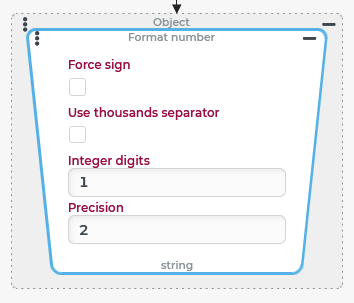
The Format number value resolver generates a string with the formatting defined by the parameters, starting from a numeric input value.
If no value (
$null) is present as input value, no value ($null) is returned.If the input value is not empty (not
$null) and non-numeric,, then an error occurs (IllegalArgumentException).
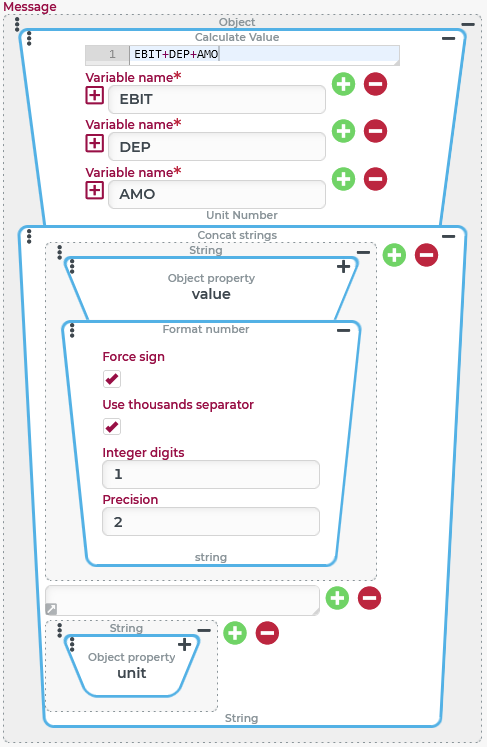
CAUTION A "Unit number" is not considered a numeric input value. Only the included "Value" (value) field is suitable as a direct input value for the Format number value resolver. The example below shows how the value resolver can be used to format a "Unit number".
Configuration
The Format number value resolver expects a numeric input value and returns a string (or $null).
The following parameters are offered for defining the desired number format:
Parameter | Default value | Effect | Examples |
|---|---|---|---|
Force sign (optional) | unchecked | If the option is checked, then the plus symbol ( |
|
Use thousands separator (optional) | unchecked | If the option is checked, then the integer digits in the return value appear in groups of 3 digits separated by the applicable thousands separator. The Localization defines per Bundle/Resource |
|
Integer digits (integer) | 1 | Defines the minimum number of displayed digits for the integer part of the return value. Line items not occupied by the input value are "populated" with the digit
NOTE The specified number of Integer digits has no limiting effect. All digits are always output that are required to reflect the integer component of the input value. |
|
Precision | 2 | Integers
The examples on the right show the return values for the input value CAUTION For the treatment of midpoint values (e.g. 0.5195 between 0.520 and 0.19) their data type may be crucial. Basically, the rounding uses the HALF_EVEN principle, so that each midpoint value is rounded to the even final digit. If the input value 0.5195 is generated via a Floating number value resolver, a double value is generated that is very close to this value, but despite the high resolving power (due to the double number of bits) is not considered as a midpoint value during rounding. Therefore, for the input value |
|
Examples
In the following examples, the Format number value resolver is used in each case to convert a statically defined input value into a specific target format.
The left column ("Configuration") shows in each case the configuration for the Message within a Show alert (Popup) event action. the right column ("Result") shows the output as an "Alert".
Configuration | Result |
|---|---|
|
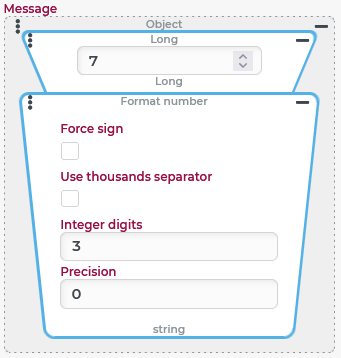
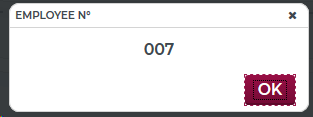
The Integer digits parameter is assigned the value 3 here to generate a text output with at least three digits starting from an integer input value. In this specific use case, the numeric identifier identifies a particular "Employee". The "leading zeros" in this context ensure that a sequence (according to the formatted text value) results in the same order as a sequence based on the underlying numerical values (i.e. "007" before "010", while a text sequence would place "10" before "7"). NOTE The numbers of employees with more than three digits (>999) would be displayed completely (with all digits) with the formatting demonstrated here. |
|
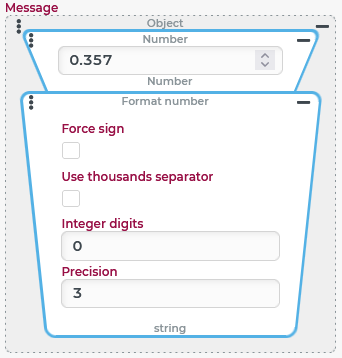
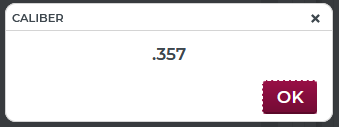
The caliber of handguns is often given in inches, rarely involving calibers of more than half an inch but, for obvious reasons, involving relatively high precision in diameter. Therefore, specifications in hundredths or thousandths of an inch are common, typically without the otherwise usual zero in front of the decimal point. The configuration demonstrates the formatting for the corresponding notation:
NOTE With regard to the imperial unit of measurement, the separator would be expected to appear as a decimal point even if a comma was specified as a decimal separator for the Current locale. This is where the Format number value resolver reaches its limits, since it always obtains the decimal separator for the Current locale from the Localization or Company specific localization (per Bundle/Resource |
|
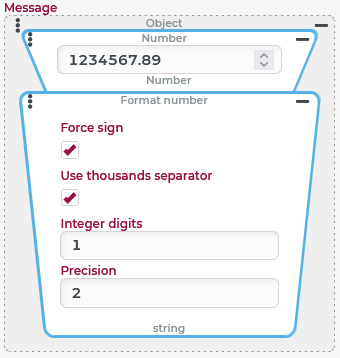
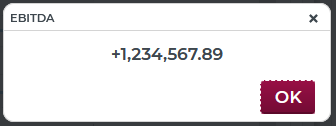
The configuration on the left shows a typical formatting for numerical values that concern monetary amounts for which the sign is an essential piece of information, such as surcharges/discounts or (as here) an operating result that can be positive or negative:
|
|
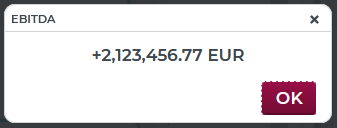
The formatting from the previous example is now used to format the EBITDA parameter as the result of a calculation (per Calculate value value resolver), where the "unit" ( The Calculate value value resolver returns the result of the addition (
|