This article covers the SSO system preferences of the Lobster Data Platform. It explains external identity provider authentication and shows how to configure and test SSO.
Background
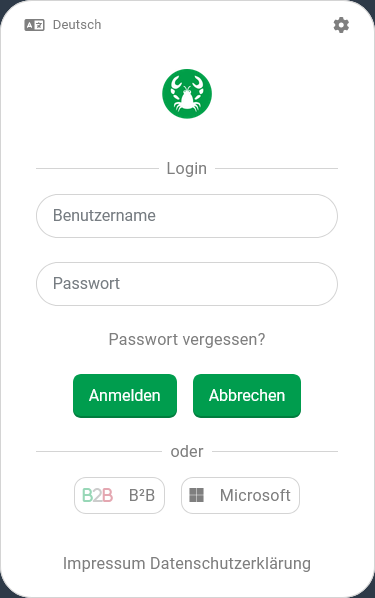
(Single Sign-On) replaces manual credential entry with an existing login at an "external identity provider". If no such login exists, the Lobster Data Platform opens a separate browser window for authentication. In the login dialog, click the button for your preferred "external identity provider". Manual credential entry is not required. If the submitted identity is linked to an active user account, the system logs you in with that account. |
|
What happens when you click on ( Microsoft)?
| |
IMPORTANT If multiple user accounts exist for the Lobster Data Platform with the matching providerAlias/userterm combination, the system uses only the first match. This applies even if that account is not active.
NOTE Users who are assigned different Companies/Clients and/or Roles can and must select from the available alternatives during the login process. If the "Cancel" button is selected in this second step of the login process, the login dialog shown above reappears. For technical reasons, the system pre-fills the "username" field with the "User term" (userterm) from the canceled SSO login. The pre-filled user term does not necessarily match the "username" (username) of the account. A conventional login using this pre-filled value only makes sense if both values are identical.
Example
For a user identified via Microsoft Azure using their business e-mail address (jack.tonic@doma.in) (let's call him Jack), a user account with the "username" jtonic is set up on the Lobster Data Platform, with a reference to the "Azure user term" (jack.tonic@doma.in) noted under "External user credentials". An SSO login with Jack's azure "User term" (userterm) jack.tonic@doma.in therefore links to the account with "username" (username) jtonic.
The "" (roles) list in Jack's user account provides two different Roles to choose from. At each SSO login, Jack is prompted to select the Role of session. He can also cancel this selection. The login is then considered canceled.
The login dialog reappears. The "username" field is pre-filled with
jack.tonic@doma.in. The actual "username" (username) of the account isjtonic.
A successful SSO login requires the following:
In the execution context of the login, a registration with the desired external identity provider must be established or created.
A valid reference to the provider account must be stored in an active user account for Lobster Data Platform (see Users, "External user credentials").
Appropriate "SSO System Preferences" for communication with the "SSO Provider" must be set up, activated, and, if necessary, supported for the specific login context (see Site configurations).
The following documentation covers only the last point in this list.
Access to "SSO System Preferences"
The Authentication view (see Base settings) provides a dedicated tab for SSO (Single Sign-On) settings.
The SSO (Single Sign-On) tab contains an overview listing all "SSO System Preferences" (SSOSystemPreferences) for which read access is available in the context of the current session.
If ownership restrictions apply to the Role of session (see Roles), only "SSO System Preferences" (SSOSystemPreferences) owned by the Company of session or covered by Company authorizations appear in the list.
Further permissions for listed "SSO System Preferences" (SSOSystemPreferences)—e.g., "Change", "Create", "Delete", etc.—must be granted to the Role of session and applicable for the respective instance based on ownership and, if applicable, Company authorizations, for the associated ribbon buttons to be visible or active depending on the selection in the list.
With sufficient permissions for a list entry selected by single click or double-click, the associated configuration details can be accessed in a separate view. This view is a data input form (see Input forms), also referred to below as the detail view.
Configuration
The system-predefined detail view for "SSO System Preferences" is required, among other things, to create a new "SSO System Preferences" instance via the New ribbon button (in the overview or detail view). Initially, the SSO provider type (ssoType) must be selected using a Combobox, so that additional, potentially provider-specific Form elements appear.
WARNING If you change the SSO provider after filling in the Form elements, all entered data is lost. This applies even if the new provider supports the same properties.
Background to the data model
Technically, the SSO provider selection assigns a data object with a specific class ({Google|Azure|Auth0|Facebook|Amazon|Frontegg|Custom}SSOConfiguration) to the preferences field of the "SSO System Preferences" (SSOSystemPreferences) class. The parent class "SSO (Single Sign-On)" (BaseSSOConfiguration) provides the shared properties. The specific classes may contain additional properties.
In practice, largely the same properties are offered for all SSO providers, as shown in the following table. The few provider-specific properties are shaded gray in the table.
Subject | Name | Data field | Data type | Description |
|---|---|---|---|---|
General properties | ||||
Alias |
| String | System-wide unique identifier shown to the user at login, unless a localization (see Localization) is defined. | |
(Status) NOTE In the data input form, the associated Check box displays its value ("active", "not active") instead of a label. |
| Boolean | Flag that must be set ( | |
Client ID |
| String | Public identifier for your application, issued by the identity provider (e.g., Google, Amazon). | |
Client secret |
| String | Private key for authenticating your application with the identity provider. IMPORTANT Keep this confidential! | |
Authorization URL |
| String | URL where the Lobster Data Platform redirects you to log in with the identity provider. | |
Callback URL |
| String | URL where the identity provider redirects users after a successful login. NOTE The text value is automatically assigned based on the alias for the current system. The associated Text field is therefore read-only. The Button provided to the right copies the calculated value to the client clipboard. | |
Comment |
| String | Free text for comments on the configuration. | |
└► Azure SSO only |
| String | Specific tenant or organization ID within the identity provider (used in multi-tenant setups such as Azure AD). | |
└► Auth0 SSO and Frontegg SSO only | Domain |
| String | Expected domain of the user's e-mail or organization (used to route or restrict login access). |
Advanced settings | ||||
Token URL |
| String | Endpoint for exchanging the authorization code for an access token. | |
User info URL |
| String | Endpoint for retrieving user profile information (such as e-mail and name) after login. | |
Scope |
| String | Keywords for requested permissions (e.g., | |
State field |
| String | Parameter for maintaining state between request and callback. Helps prevent CSRF attacks. | |
Field mappings |
| String | String defining a mapping of identity provider fields (such as e-mail or name) to your application's user attributes. | |
Additional authorization parameters |
| String | Optional query parameters to include in the authorization request (e.g., | |
Icon |
| String | Reference for the icon displayed alongside the alias (or its localization) in the login dialog (see also Working with image resources (Icons)). NOTE If no icon is assigned, a default "key" icon appears. | |
Localization (alias) | One Text field per supported Locale | n/a | String | Localization value for the alias in the respective Locale (Bundle |
IMPORTANT Placeholder texts describe default values. For many of the shared properties, the empty Text field shows a placeholder that may be specific to the SSO provider (ssoType). Example: For the SSO provider "Azure SSO", the placeholder for the Authorization URL (authorizationUrl) is: https://login.microsoftonline.com/{tenant}/oauth2/v2.0/token. This placeholder describes the default value that applies at runtime as long as no custom value is entered. The placeholder text may contain a reference to a specific property's data field (e.g., {tenant}, {domain}). In that case, the system uses the value of that property at runtime instead. This applies only to default values. Using such references in custom text values for SSO configuration properties is not supported. Hard-coded default values are not explicitly persisted in the database when saving an "SSO System Preferences" instance. Affected fields remain empty. The associated data object also does not return the effective default value when reading an undefined property.
Specific menu functions
Once the "SSO (Single Sign-On)" tab is selected within the "Authentication" view, the applicable ribbon buttons appear. In addition to the generic functions, two specific ribbon buttons are available:
Ribbon button | Context | Description |
|---|---|---|
Test SSO |
| Overview and data input form. Runs a test for the selected "SSO System Preferences" instance and displays a success or error notification. A separate browser window opens temporarily for the test. The "Status" property ( |
Activate/deactivate |
| Overview. Inverts the Boolean value of the "Status" property ( |
WARNING Avoid conflicts with SSO regarding external identity providers
Since LDP 26.1, SSO is configured exclusively through the Lobster GUI. Do not maintain provider settings in the external-identity-providers.xml file alongside the GUI configuration. The XML and database configurations are not synchronized, and coexistence can lead to unpredictable behavior, including XML settings overriding UI-configured providers after updates, or residual XML content breaking SSO login entirely.
Related topics
Authentication – Configuration page for SSO system preferences and other authentication options.
Users – User account management, including "External user credentials".
Site configurations – Controls which SSO providers appear in the login dialog for a given login context.
Configuring Azure SSO: step-by-step example – Complete setup of Microsoft Azure as an SSO provider.
User management with SSO – Options for user management in SSO operation.
Registered login – Event triggered on successful SSO login.
Unregistered login – Event triggered when no user term is stored for the SSO identity.