Go to Administration > Base settings > Authentication.
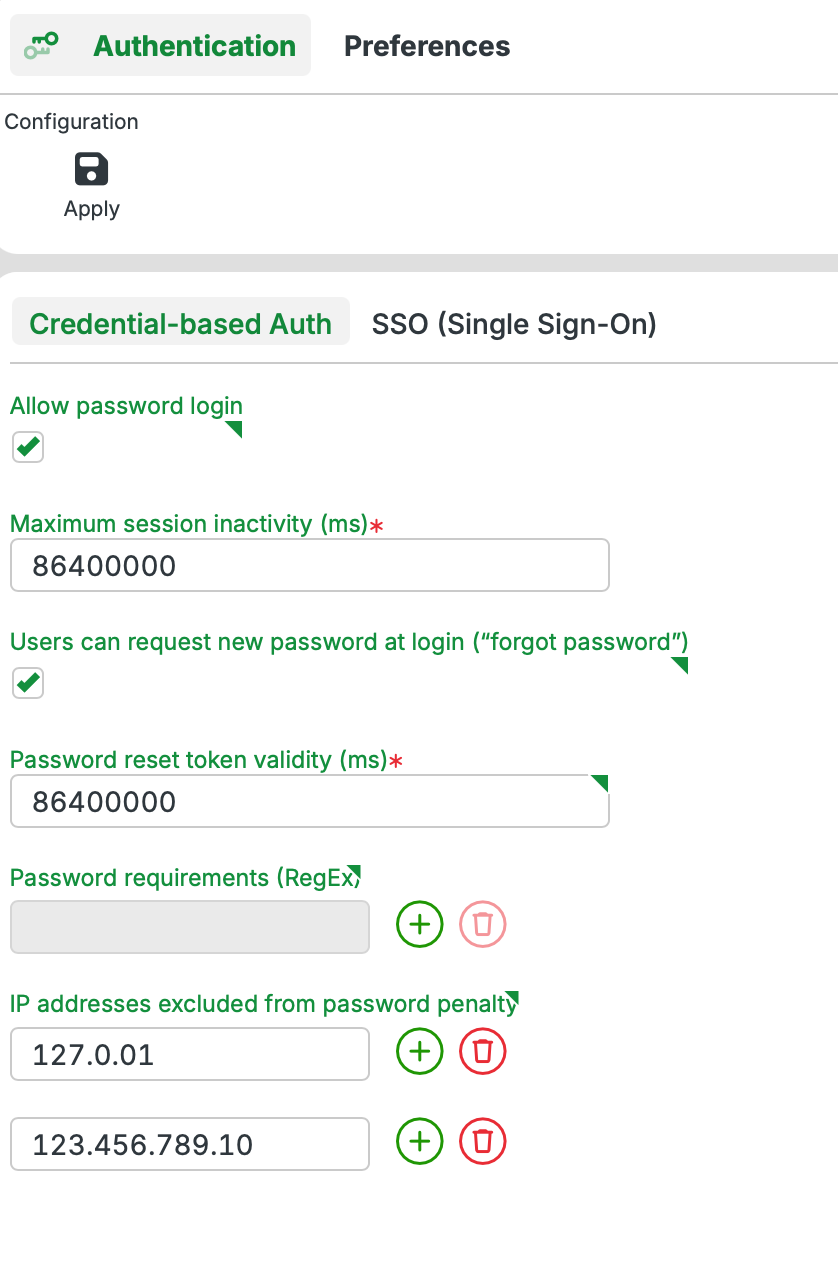
The Authentication view holds the credential and session settings for an interactive Lobster Data Platform/Orchestration session. The settings are split across two sub-tabs:
Credential-based Auth: password login, session inactivity, password reset, password requirements, and IP exemptions. This tab documents these settings.
SSO (Single Sign-On): configuration of Single Sign-On providers. For details, see SSO (Single Sign-On).
To view or change these settings, your session role needs the relevant permissions. See Base settings for details.
Click Apply to save your changes:
Immediate: changes take effect right away. No service restart is needed.
Cluster-wide: in a cluster, Apply propagates the changes to all nodes.
Persistent: the system writes your changes to the relevant XML configuration files. The settings survive the next system restart.
IMPORTANT When opened, the view always displays the settings currently active in the system. A new XML file version placed in the background through direct file system access is not yet visible. The system reads such a file only after a service restart. Clicking Apply before that restart overwrites the file with the version shown in the view.
Configuration
Parameter | Description | Example |
|---|---|---|
Allow password login | The option Allow password login must be selected (default) to allow users to authenticate by entering a username and password in the login dialog. | CAUTION If SSO (Single Sign-On) is unavailable or misconfigured, deactivating this option may lock all users out. |
Maximum session inactivity (ms) | The Maximum session inactivity (ms) parameter defines the maximum duration of user inactivity. After this duration, the system automatically logs off the inactive session. The integer value is interpreted as milliseconds (ms). | The default value is 7200000 (ms). With this default, the system ends an interactive session after 2 hours of user inactivity. |
CAUTION When the system ends a session automatically, you may lose unsaved changes. The system does not prompt you to save first. | ||
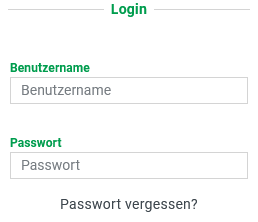
Users can request new password at login ("forgot password") | The Users can request new password at login ("forgot password") option determines whether the Password forgotten label appears in the login dialog, which can be used to request a token to reset the password ("ON" → see screenshot on the right) or not ("OFF" → no label). NOTE The option only controls whether the clickable label appears in the login dialog. The process for sending a token by e-mail (see also next parameter) to "reset" the password requires further configuration (for details, see 'Forgot password' function). |
|
Password reset token validity (ms) | The Password reset token validity (ms) parameter defines how long a token sent via the 'Forgot password' function function can be used to set a new password for a user account. The integer value is interpreted as milliseconds (ms). | The default value is 86400000 (ms). A password reset token remains valid for 24 hours with this setting. |
Password requirements (RegEx) | The Password requirements (RegEx) parameter enables the definition of Password guidelines in the form of regular expressions. Each click on the Add button adds a text input field instance, which is designed as a required field. The "trash can" button on the right is used to remove the relevant policy. If several policies are defined, a password must be considered "compliant" with all regular expressions for it to be accepted by the system. The conditions formulated using RegEx are therefore AND linked. Click (+) for each row of the RegEx guidelines:
More details and further settings are described on the page for Password guidelines. |
|
IP addresses excluded from password penalty | IP addresses that the system exempts from the failed-login time penalty. Logins from these addresses are not throttled, regardless of the number of failed attempts. Click + to add an entry. Click the trash can to remove one. Multiple addresses are allowed. For background, use cases, and a security note, see IP addresses excluded from password penalty below. | CAUTION Excluded IPs lose brute-force throttling. Add only addresses from trusted network zones. |
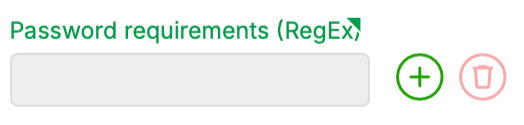 With the example RegEx from the left column, a valid password must be at least 4 characters long, contain a number, an uppercase letter, and a special character, and must not include any common (insecure) standard terms.
IP addresses excluded from password penalty
After failed login attempts, the system enforces a progressive time penalty per source IP address. This protects against brute-force attacks. Each additional failed attempt from the same IP increases the delay before the next login is accepted.
In environments where many users share one source IP address, this protection can have unintended side effects. Common examples are terminal servers, Citrix environments, and VDI setups. A single user's failed login then penalizes everyone else connecting from that IP. Valid logins get delayed.
The IP addresses excluded from password penalty setting exempts specific IP addresses from this penalty. Add an address with the + button. Remove an entry with the trash can button.
Typical use cases
Terminal server, Citrix, or VDI: many users share a single outgoing IP address. Add that IP to prevent one user’s typo from blocking everyone else.
Load balancer or reverse proxy: a proxy forwards all requests with a single source IP. Add that IP to avoid collective penalties.
CAUTION Excluded IP addresses no longer benefit from brute-force throttling. Add only addresses from trusted network zones. Public-facing or untrusted IPs weaken login security.