The Loop source data type repeats a task a specified number of times. Typical use cases:
Creation of multiple files.
Multiple executions of child tasks.
Process a fixed number of steps iteratively.
The Loop is a source data type in the ETL/ELT module. It generates one row of data per iteration. Other source data types include Database, CSV/Text, XML, JSON, and file folders.
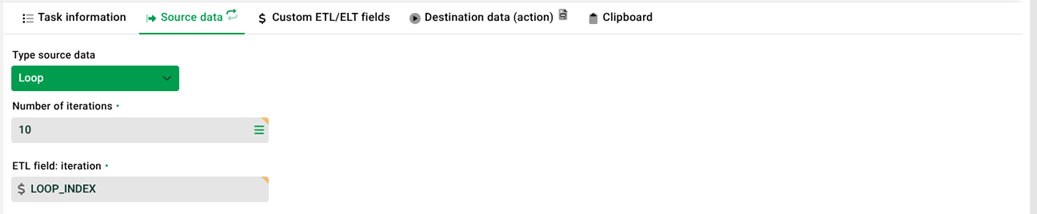
Settings
(1) ETL/ELT tasks
A loop task executes child tasks or the target page of the current task multiple times. No input data is required.
There are two ways to process the generated data rows, either through the target data of the loop task or through a child task. Child tasks automatically have access to the ETL/ELT fields of the parent task. Sibling tasks can only access these fields via the clipboard.
Each ETL/ELT task can access the current iteration number via the system variable $rownum.
(2) Number of iterations
Determines how many times the loop runs. The value is a positive integer.
Property | Description |
|---|---|
Type | Positive integer. |
Minimum |
|
Maximum | No documented system limit. In practice, high values are possible (e.g., |
Value range and behavior:
The system does not accept values below
1. At least one run is required.Very high values are technically possible. However, consider runtime, memory consumption, and log volume.
A directly entered integer is the typical choice. Use an ETL/ELT variable with
@VAR@syntax only if its value is fixed at pipeline start. See section Note on variables.
User-defined global ETL/ELT variables cannot be used within the same task if their values are generated during runtime of that task. They cannot be resolved directly within that task. However, if the value is set at pipeline start (either fixed or passed by a workflow), the variable resolves with @VAR@ syntax directly in the task.
System variables such as $rownum, on the other hand, are already known to the script at runtime. The iteration value must be set when the pipeline starts. For instructions on how to set it using a workflow, see the section “Passing values from a workflow.”
(3) ETL field: iteration
The "Loop" task automatically provides this ETL/ELT field. It contains the current iteration number. You can read it on the target page or in child tasks.
Property | Description |
|---|---|
Initial value |
|
Increment | +1 per iteration. |
Availability | The loop task's target page and all child tasks. |
Access | Using the field names specified in the configuration with the |
Other source data types follow the same pattern. The "Filefolder" source data type automatically provides the fields $FILENAME and $PATH_AND_FILE. The "Loop" task provides the iteration field in the same way.
Use in child tasks: In a child task, you reference the iteration field directly. To do this, use the field name prefixed with $. Possible locations include conditions, output in the target data, or your own ETL/ELT fields. The burger menu  in the target data displays all available ETL/ELT fields. This also includes the fields from the parent task.
Use in sibling tasks: Sibling tasks do not have direct access to the ETL/ELT fields of the loop task. To transfer the iteration field, use the clipboard.
Procedure
The "Loop" task generates as many data rows as specified in the "Number of Iterations" field. Each data row corresponds to one iteration. For each iteration, the task performs the following steps:
The "ETL field: iteration" is incremented by 1 (starting at
1).The task will run the target page (if configured).
The task executes all child tasks (if any).
The loop repeats this process until all iterations are complete.
Practical example: Creating multiple files with sequential numbering
Scenario: You want to create five notification files. Each file has a sequential number in its filename and content.
Structure:
Task | Type | Description |
|---|---|---|
| Parent task (Loop) | Source data type: Loop, Number of iterations: |
| Child task | Source data type: None, Target data: CSV file. |
Parent task configuration (notification_loop):
Source data → Type: Loop
Number of iterations:
5ETL field iteration:
$iterationNo target data in the parent task (the child task handles the processing)
Child task configuration (notification_loop.1):
Source data → Type: None
Target data → Type: File (CSV)
File name:
./webapps/root/output/notification_$iteration.csvIssue:
Notification No. $iteration
Result: After the test run, the task generates five files:
notification_1.csv → Content:"Notification No. 1"
notification_2.csv → Inhalt: "Notification No. 2"
notification_3.csv → Inhalt: "Notification No. 3"
notification_4.csv → Inhalt: "Notification No. 4"
notification_5.csv → Inhalt: "Notification No. 5"
This example illustrates the typical pattern: A parent task executes a child task for each row of source data. The difference is that the loop generates the data rows. A CSV file is not required as the data source.
Note on variables
System variable $rownum:
Every ETL/ELT task provides the system variable $rownum. It contains the current iteration number. The variable is independent of the loop task and is available for all source data types.
Custom ETL/ELT variables:
You create global variables in the "Variables" tab of the pipeline. They cannot be resolved directly within the same task. They are not yet known at runtime. Proceed as follows:
Create a variable in the ETL/ELT entry (the "Variables" tab).
Create a task without a data source or data destination. Create a custom ETL/ELT field within it.
Refer to the global variable names (from the summary → XML debug).
Create a child task. In its condition, use the ETL/ELT field with the
$prefix.
Passing values from a workflow
ETL/ELT variables can take a value from an upstream workflow at pipeline start. Use this approach to set the iteration value dynamically:
In the Variables tab of the pipeline, create a variable.
For this variable, activate the Changeable at start option.
Enter the variable name with
@VAR@syntax in the Number of iterations field.Call the pipeline from a workflow. Pass a workflow variable with the same name and the desired value.
Manual pipeline starts ignore variables with the Changeable at start option. Pass these variables through a workflow instead. For more details, see Variables (ETL/ELT).
Availability of variables in the loop context:
Variable type | Example | Scope |
|---|---|---|
System variable for iteration number |
| Available within each iteration. Contains the current iteration number. |
ETL field "iteration" (custom-named) |
| On the loop task's target page and in all child tasks. |
System pipeline variables |
| Across the entire pipeline. The platform sets the values automatically. |
Custom ETL/ELT variable (fixed value) |
| Across the entire pipeline. The value is set at the start of the pipeline. |
Custom ETL/ELT variable with Changeable at start |
| The value is taken from a workflow at pipeline start. Ignored on manual start. |
The variable types are not cast-safe. If necessary, cast the type directly in the database statement.
Related Topics
ETL/ELT tasks: Overview of the task structure (parent, child, and sibling tasks).
Custom ETL/ELT fields: Definition and use of custom fields.
Clipboard (ETL/ELT): Passing ETL/ELT fields to sibling tasks.
Examples (ETL/ELT): Examples, including child task patterns (Example 4) and the use of variables (Example 3).
Source data (ETL/ELT): Overview of all available source data types.