Simplified context
Basically we want to receive data (Protected Resources) with our channel (Client) from an HTTP(S) server (Server).
Therefore we need an "Access token", which we get from the server in advance. The access token is stored internally in the HTTP channel.
The following screen is only about how we get this "Access token". See (5), (6), (7).
NOTE See also: https://tools.ietf.org/html/rfc5849#section-1.1.
Settings
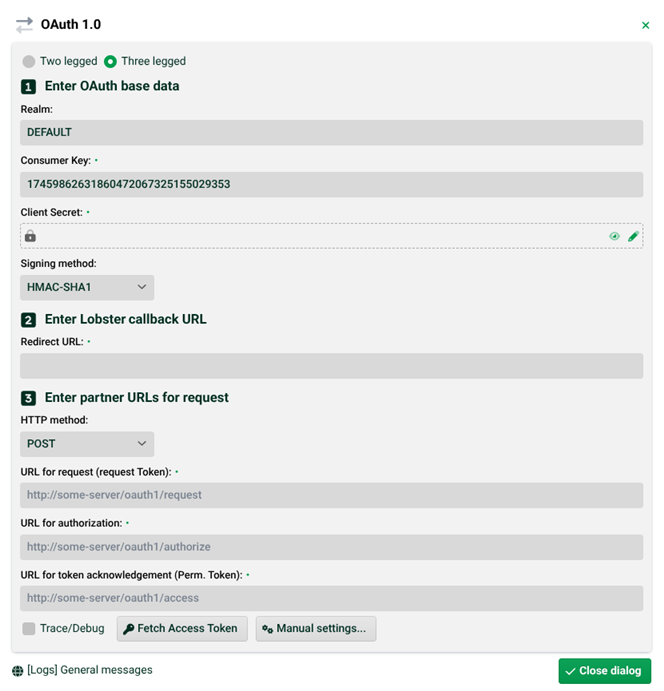
(1) Two legged, Three legged: With "Two legged" the authorization step is omitted. The items (4) and (6) are then grayed out.
(2) Realm: This is taken automatically from the HTTP channel.
(3) Consumer Key, Client Secret: The "Client key" is a public identifier for applications (here our channel). The "Client Secret" is the password for it.
NOTE Both are generated and provided by the server in advance. See also: https://tools.ietf.org/html/rfc5849#section-3.4 for the signing method to be used.
(4) Redirect URL: Will be entered automatically. This is grayed out if "Two legged" is set in (1).
(5) URL for request (request token): Request Token URL. The URL used to obtain an unauthorized Request Token.
(6) URL for authorization: User Authorization URL. The URL used to obtain user authorization.
NOTE This is grayed out if "Two legged" is set in (1). See also https://tools.ietf.org/html/rfc5849#section-2.2.
(7) URL for token acknowledgement (perm. token): Access Token URL. The URL used to exchange the user-authorized request token for an access token. NOTE See also https://tools.ietf.org/html/rfc5849#section-2.3
(8) Trace/Debug: If this checkbox is set, you will find additional trace messages in (11).
(9) Fetch Access Token: Click here to obtain the access token. You will find an entry with the name SYS_HTTP_OAUTH1 in "Additional IDs" in Channels for the access token.
(10) Manual settings: See the following section "Manual settings".
(11) Logs General messages: Jumps to the "General messages" page of the Control Center.
Manual settings
If the automated process (9) via (5), (6), (7) does not work for some reason, you can also obtain the access token by manually executing the corresponding requests step by step.
The access token (and the corresponding "Access token secret"), as well as other values that are otherwise stored internally during a successful automated process (9) and are required for an OAuth1.0 request, have to be manually specified in the following screen.
Settings
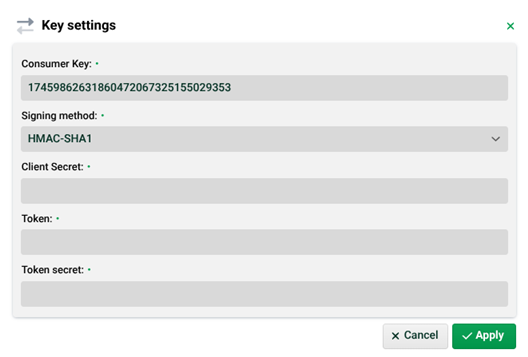
(12) Consumer Key: Is taken automatically from (3).
(13) Client Secret: See (3).
(14) Token: The access token you got back after all manually executed requests.
(15) Token secret: The access token secret for (14).
(16) Apply: After clicking the button, you will find an entry with the name SYS_HTTP_OAUTH1 in "Additional IDs" of Channels for the access token.