Whenever possible, use channels. Channels let you manage connection parameters centrally. This improves clarity and simplifies maintenance. When connection parameters change, you update them in one place only. Nothing gets overlooked.
Create channel
To create a new channel, the Lobster Data Platform offers two options:
Via the context menu
Navigate to Administration > Partners > Partners/Channels.
Right-click the partner.
From the context menu, select Create new channel, then the channel type, for example, HTTP(S).
Via the quick access
Select a partner from the list.
Click the plus button in the bottom-right corner.
Select Create new channel, then the channel type, for example, HTTP(S).
General channel settings
A channel bundles the essential parameters of a communication connection to a partner. For an FTP connection, these are for example the server URL, the login name, and the password. The channel name must be unique.
If a partner server changes its URL, you update it once centrally in the channel. The change then applies automatically to all profiles, ASM entries, and Content Inspection entries that use this channel.
The following sections describe all general configuration areas using an FTP channel as example.
Settings
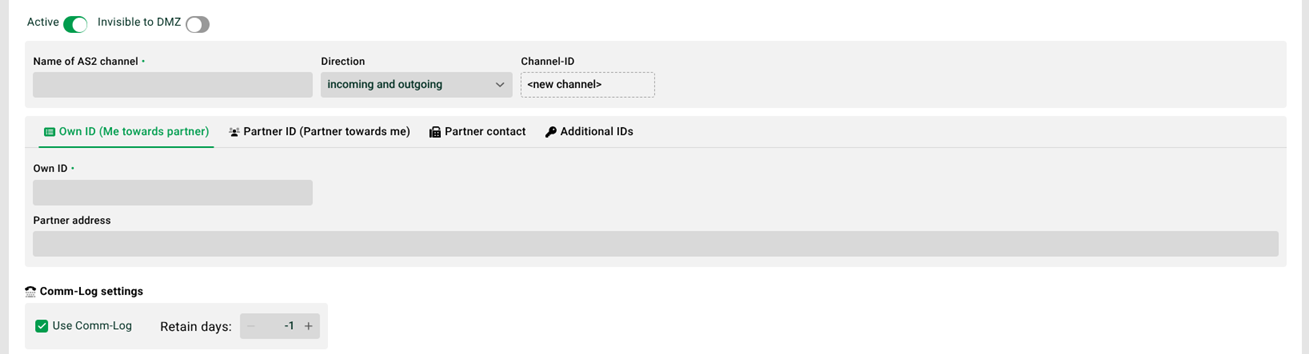
(1) Channel ID: The system assigns the channel ID when you save the channel for the first time.
(2) Active: If this checkbox is not set, the channel is inactive. An inactive channel is not available for communication. An active channel is also unusable if the associated partner is inactive.
(3) Invisible to DMZ: If this checkbox is set, the system does not forward this channel's data to the DMZ server. The channel is not visible to the DMZ server. Use this option for channels intended for internal use only. For channel types AS2, X.400, HTTP(S), and all FTP subtypes, see also Sending via dynamically assigned alternative DMZ. NOTE : This setting is not available for channel type SMB.
(4) Direction: Set the direction of the data flow. Outgoing (me to partner): You transfer data to the partner. Incoming (partner to me): The partner transfers data to you.
(5) Use Comm log: If this checkbox is set, the system additionally logs all communication steps with the partner system. MDN messages are also logged if the channel supports MDNs, for example for channel type AS2. You find the logs in the Control Center area. Each Comm log entry triggers an event that the Comm-Log input agent can intercept.
NOTE The behavior differs for HTTP channels. Comm log events only occur in the HTTP response path and for ASM transfers via HTTP. HTTP code >= 200 and < 300 counts as MDN, otherwise as NDN. The Control Center does not display these events. The Comm-Log input agent can still intercept them.
See also the option No processing of files already handled.
(6) Retain days: See Retention periods for backup files, logs, and crashed jobs.
Passwords
For Vault passwords, see Vault provider configuration.
Own ID (me towards partner)
Here you enter the ID, password, and address of the remote server (example: FTP server). NOTE : Include the protocol in the address, for example, ftp://. The system warns you on incorrect input. The port is optional. Without entry, the system uses the default port.
Specific features
Channel type Fax: This configuration area is not available for this channel type.
Channel type HTTP: For details, see HTTP(S) (Channels).
Channel type OFTP: The ID is also called SSID in OFTP.
Channel type SMB: This configuration area is not available for this channel type.
Partner ID (partner towards me)
Here you set the ID and password for the partner's access to your server. Share these credentials with your partner. The partner uses them to set up access to your server.
Specific features
Channel type Fax: This configuration area is not available for this channel type.
Channel type OFTP: The ID is also called SSID in OFTP.
Channel type SMB: This configuration area is not available for this channel type.
Partner contact
Here you store the contact information of a contact person for the channel.
Additional IDs (in channel)
Here you set the channel-specific values for central Additional IDs of the partner management. For details, see the linked description.
Specific features
Channel type OFTP: If a value is set for the additional ID with key ENGDAT_SFID, the ENGDAT module uses this value as SFID when sending. NOTE : An SFID is a start-file command that a partner sends to transfer a file. It contains information about the originator, destination, OFTP Virtual File Name, file format, and options for file compression, file encryption, and signed EERP.
Channel type HTTP: You recognize an access token by the name SYS_HTTP_OAUTH2 (or SYS_HTTP_OAUTH1), a refresh token by the name SYS_HTTP_OAUTH2_REFRESH. With additional IDs of the form SYS_HTTP_<HEADERNAME>, you create HTTP request headers. If a header with the same name is set in the profile, that one applies. For details, see HTTP (Input agent cron) and Response HTTP(S). NOTE : This option is useful, for example, for setting a header for an API key.
Overwriting channel values
When you select a channel in a profile, the system highlights fields that use channel values. To use a different value for a field, enter it directly. This overwrites the channel value for that field (example: field Port). Fields not overwritten continue to use the value from the channel (example: field User).
Context menu partner/channel
Edit partner | Edit the partner name and set the active status. |
Export partner | Export the partner as a file with or without its certificates. |
Export multiple partners | Export multiple selected partners with or without their certificates. |
Delete partner | Delete the selected partner and all associated channels. |
Create datasheets | Creates datasheets for all channels of a partner, with or without passwords. |
Create new channel | Create a new channel for the selected partner. |
Import partner | Import a previously exported partner. |
Create new partner | Create a new partner. |
Edit channel | Open and edit the settings of the selected channel. |
Used in | Opens a dialog with all entries that use the channel: profiles, Content Inspection entries, ASM entries, and ENGDAT entries. ETL/ELT and workflow entries also appear if a function uses the channel ID as a parameter. For profiles, the dialog shows whether the channel is used in the input agent → (input). Response paths that use the channel appear listed with number → #. Inactive entries appear in grey and italics. The context menu lets you open entries directly. NOTE : See also class ChannelReportCron. |
Display as Data Flow | Display the channel in the Data Flow module. |
Datasheet without/with passwords | Creates a zipped PDF report with the essential channel parameters, with or without passwords. Language: German or English. In a follow-up dialog, you can adjust the contact information, which by default comes from the client. Note: You can set the server URL in configuration file ./etc/admin/datawizard/defaults.properties. |
Delete channel | Delete the selected channel. |
Copy channel | Creates a copy of the selected channel. NOTE : All fields that must be unique for a channel (partner name, partner ID) are cleared in the copy. You must enter them again. |
Testing channels
The Data Flow module provides a simulator to test the behavior of partner channels. For many channel types, a connection test is also available.
System variables
The following system variables are useful for channels and partners:
VAR_SYS_PARTNER_NAME_RESPONSE[1..n]VAR_SYS_CHANNEL_RESPONSE[1..n]VAR_SYS_CHANNEL_NAME_RESPONSE[1..n]VAR_SYS_TRIGGER_CHANNEL_IDVAR_SYS_TRIGGER_HTTP_CHANNEL_IDMSG_CALL_HTTP_AUTH_USERVAR_SYS_COMM_CHANNEL_IDVAR_SYS_COMM_CHANNEL_TYPE
Functions
The following functions are useful for channels and partners: