The partner overview lists all communication partners and their channels. You can filter the view by specific channel types.
Settings
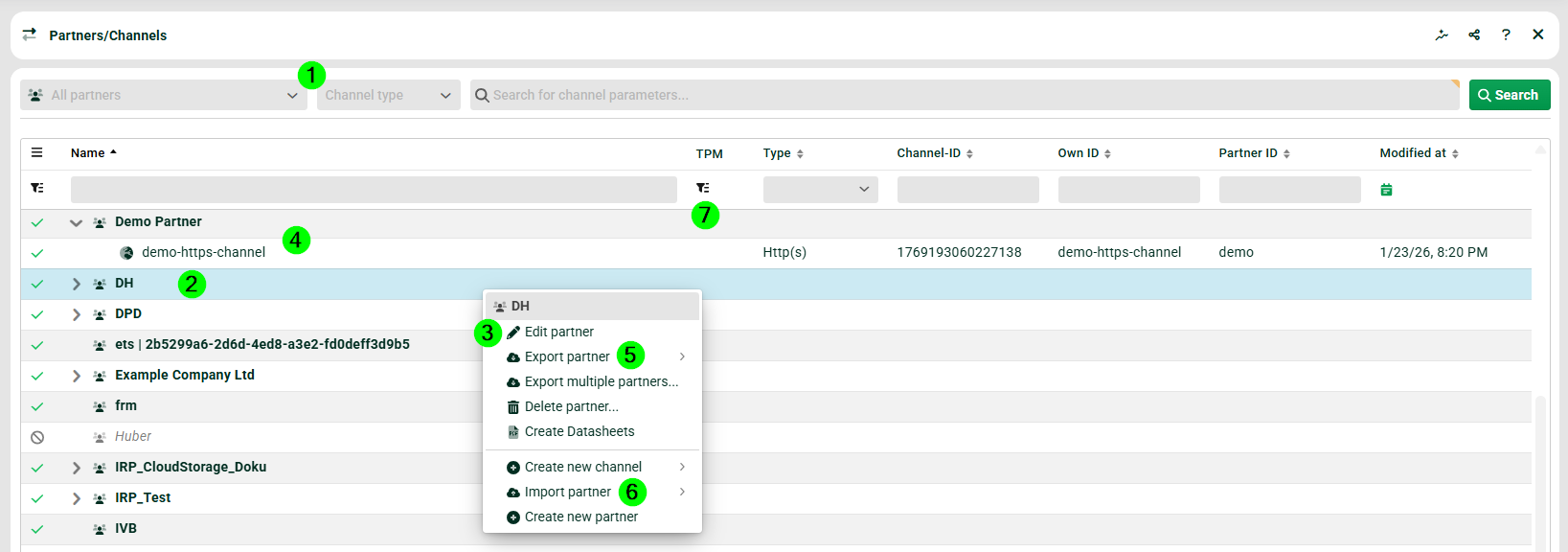
(1) All partners, Channel type: These filters control the view. By default, you see all partners. With the channel type filter, you see only partners with channels of the selected types.
NOTE A partner is a name and a set of channels. The partner groups its channels. The partner name must be unique.
(2) List below: To edit a selected partner, use the context menu (right-click).
(3) Context menu, Edit partner: Here you change the name of the selected partner. You also set the partner to active or inactive. You also find the partner ID here.
IMPORTANT Channels can be active or inactive, regardless of the partner's active status. Only for channel type AS2 does an inactive partner have an effect.
(4) List below, expanded partner: You see all channels of a partner.
(5) Context menu, Export partner: See section Exporting and importing a partner.
(6) Context menu, Import partner: See section Exporting and importing a partner.
(7) Indicates whether the partner or channel is managed by the Trading Partner Manager.
Exporting and importing a partner
You can export partners with or without local certificates. You import an exported partner from the same area.
Navigate to Administration > Partners > Partners/Channels.
Right-click to open the context menu.
Select Export partner or Import partner.
NOTE
The values for additional IDs in the partner channels refer to the central additional IDs. A central additional ID must exist in the target system. Otherwise, the system cannot create the corresponding additional ID in the channel during import. The additional ID then appears in the channel without a name. In the target system, manually create a central additional ID. Use the same ID, not the same name. The system then also updates the name in the channel's additional ID.
Creating a partner
To create a new partner, the Lobster Data Platform offers two options:
Using the context menu
Navigate to Administration > Partners > Partners/Channels.
Right-click in the overview.
From the context menu, select Create new partner.
Using the quick access
Click the plus button in the bottom right.
Select Create new partner.