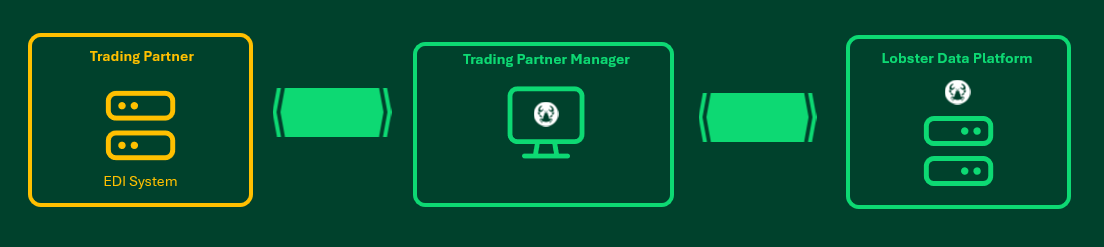
The Trading partner manager (runs in the Lobster cloud) allows you to set up communication channels together with your trading partners. Once you have registered your Lobster Data Platform (LDP) on the Trading partner manager and set up all the communication parameters, you can invite your partner to do the same. Once that is done by both parties, the communication channels will be created automatically on the Lobster Data Platform and ready to be used. The Trading partner manager thus enables simple, fast, centralized, and secure exchange of communication parameters with your partners without them getting lost in endless e-mails and phone calls.
Registering environment (LDP user)
First, we have to register our LDP environment on the Trading partner manager. Navigate to "Administration → Trading partner manager” on your Lobster Data Platform.
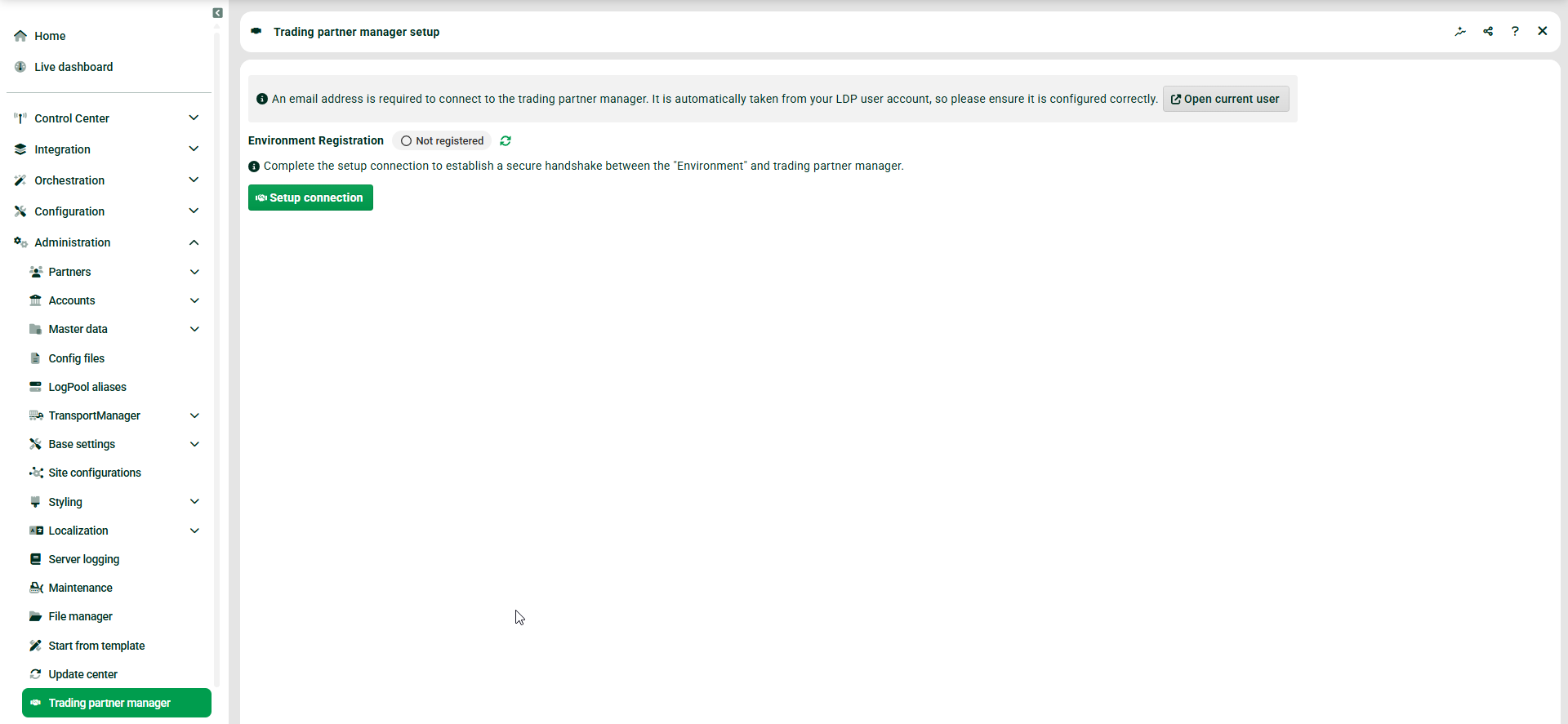
Click on "Setup connection". Make sure that the user you are logged in with on the Lobster Data Platform has a valid e-mail address configured (see "Administration → Accounts → Users → Communication infos → Communication info type = E-Mail, Value = <your_email_address>”).
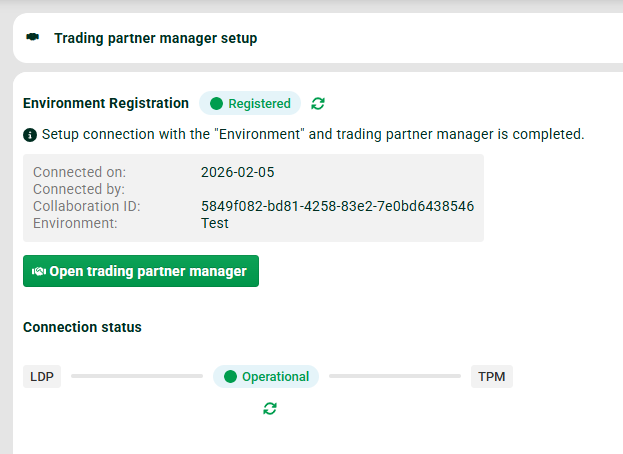
After successful registration, it will look like following. To unregister an environment, you have to contact our support.
Opening "Trading partner manager" from Lobster Data Platform (LDP user)
To open the Trading partner manager now click button "Open trading partner manager".
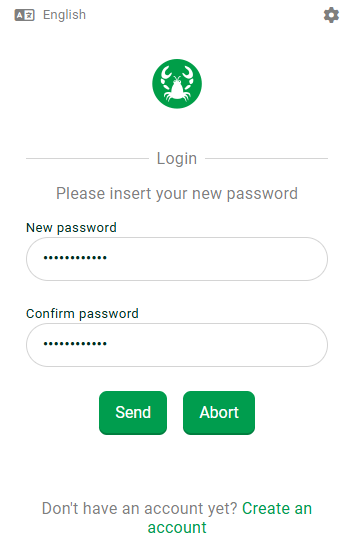
Use the link "Create an account" on the bottom right (with the e-mail address of the LDP user). You will receive an e-mail that will allow you to enter a new password. After that, log in with the new password.
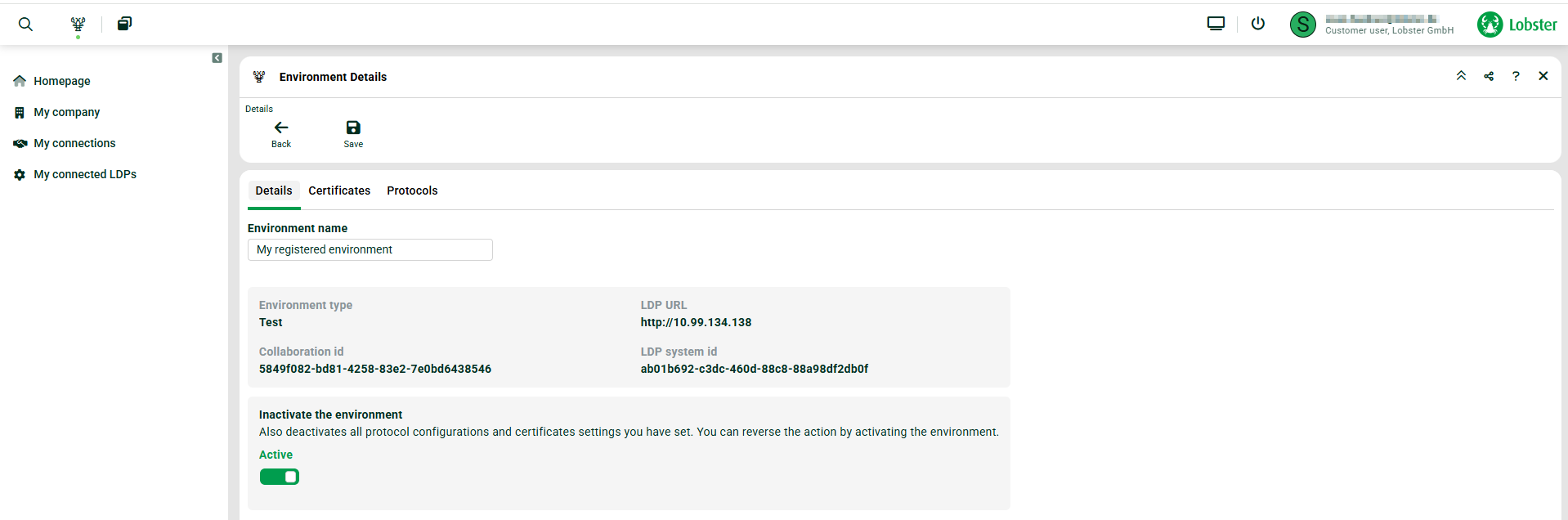
Once logged in, you will see your registered environment. You will find all connected environments on page "My connected LDPs" in the left menu.
You can disable and enable the environment using the "Active" switch.
Setting company policies (LDP user)
Navigate to "My company" and then to tab "Legal & Privacy". Here you can add your company’s legal documents that will be received by your partners.
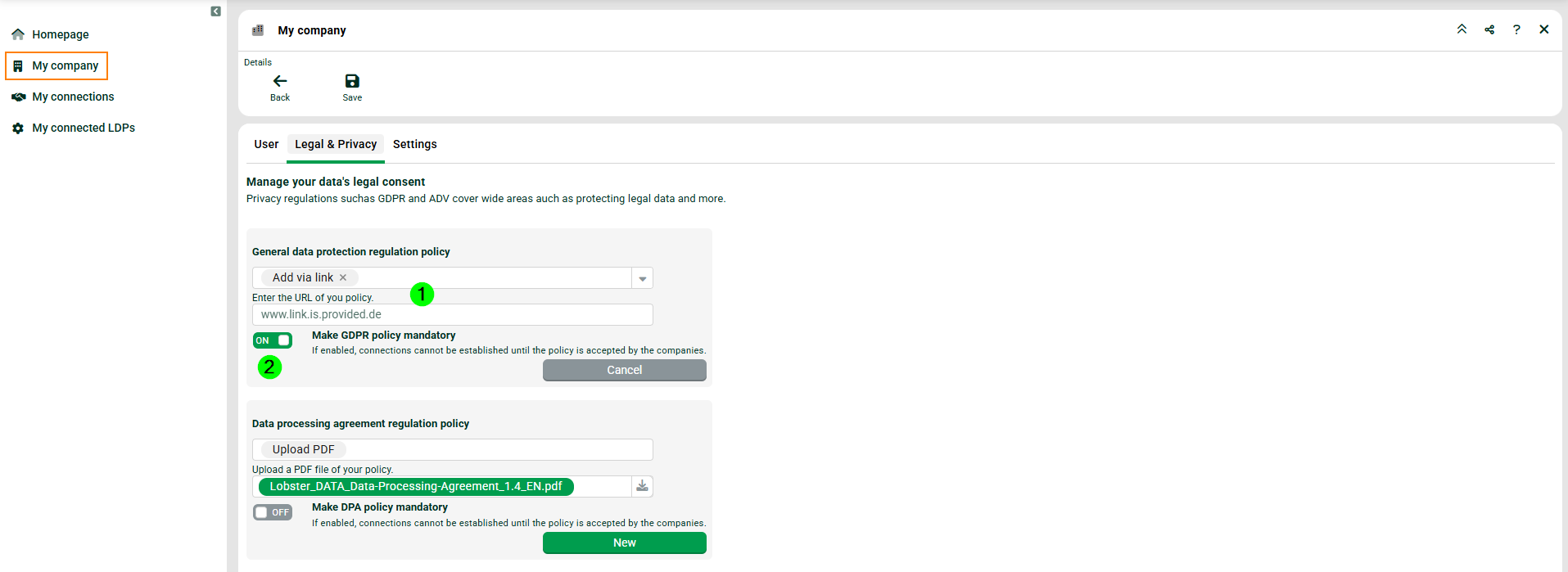
(1) Enter your document via link, manual entry or uploaded PDF.
(2) Set this option to make it mandatory for your partner to accept your document.
Setting company logo (LDP user)
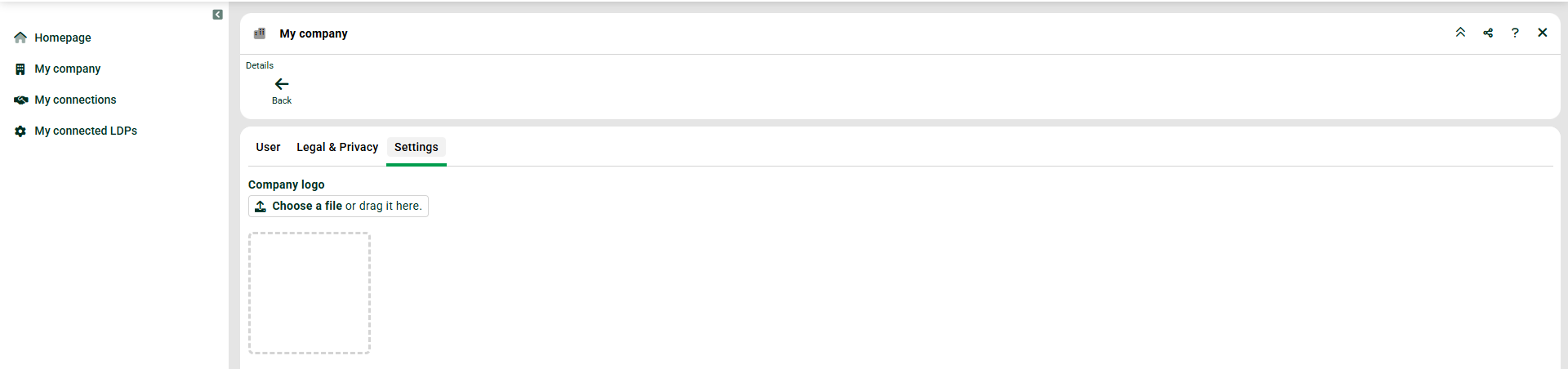
Navigate to "My company" and then to the "Settings" tab. Here you can add your company’s logo that will be used in the invitation e-mails to your partners.
Uploading certificates (LDP user)
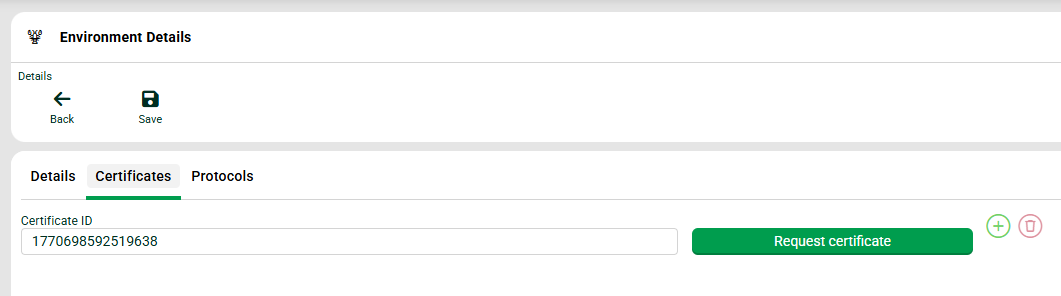
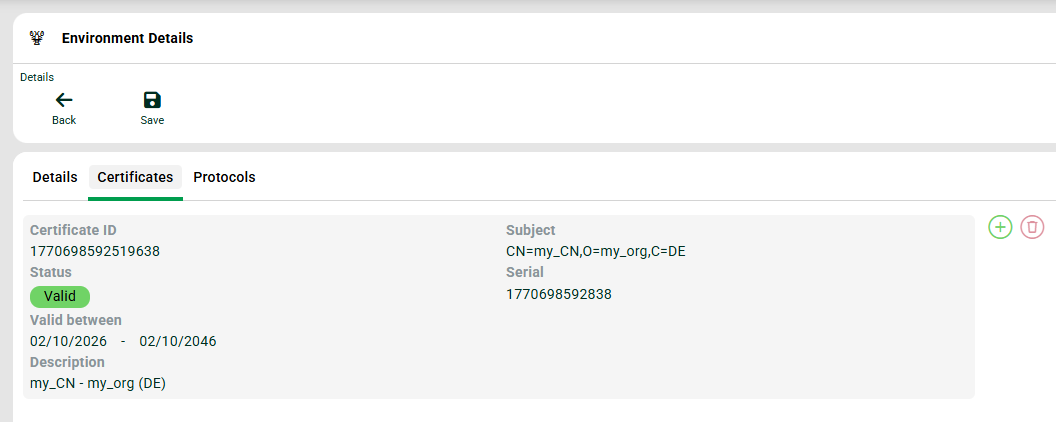
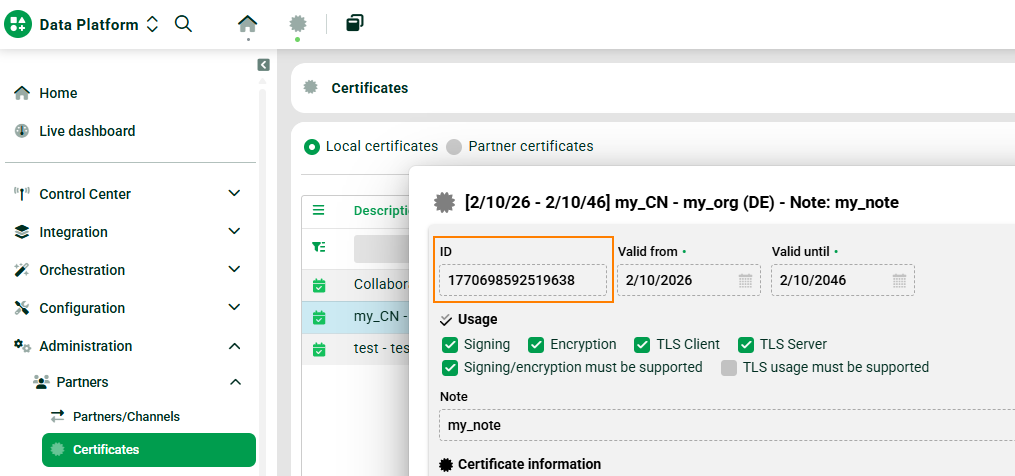
Next, we need to upload all the certificates we plan to use when creating channels in collaboration with our partners. Switch to tab "Certificates" (in your environment details). To request a certificate from the connected Lobster Data Platform, you have to provide the ID of the certificate. To get this ID, navigate to "Administration → Partners → Certificates" on the Lobster Data Platform, open the certificate you want to use and copy the ID. Now paste the ID (in the Trading Partner Manager) and click button "Request certificate". Then click "Save". Of course you can also add further certificates.
Setting up protocols (LDP user)
Once you have uploaded all the certificates you plan to use, you can start setting up the protocols you want to use for your partner channels. Currently you can use SFTP, AS2, and OFTP. We will show an example for SFTP.
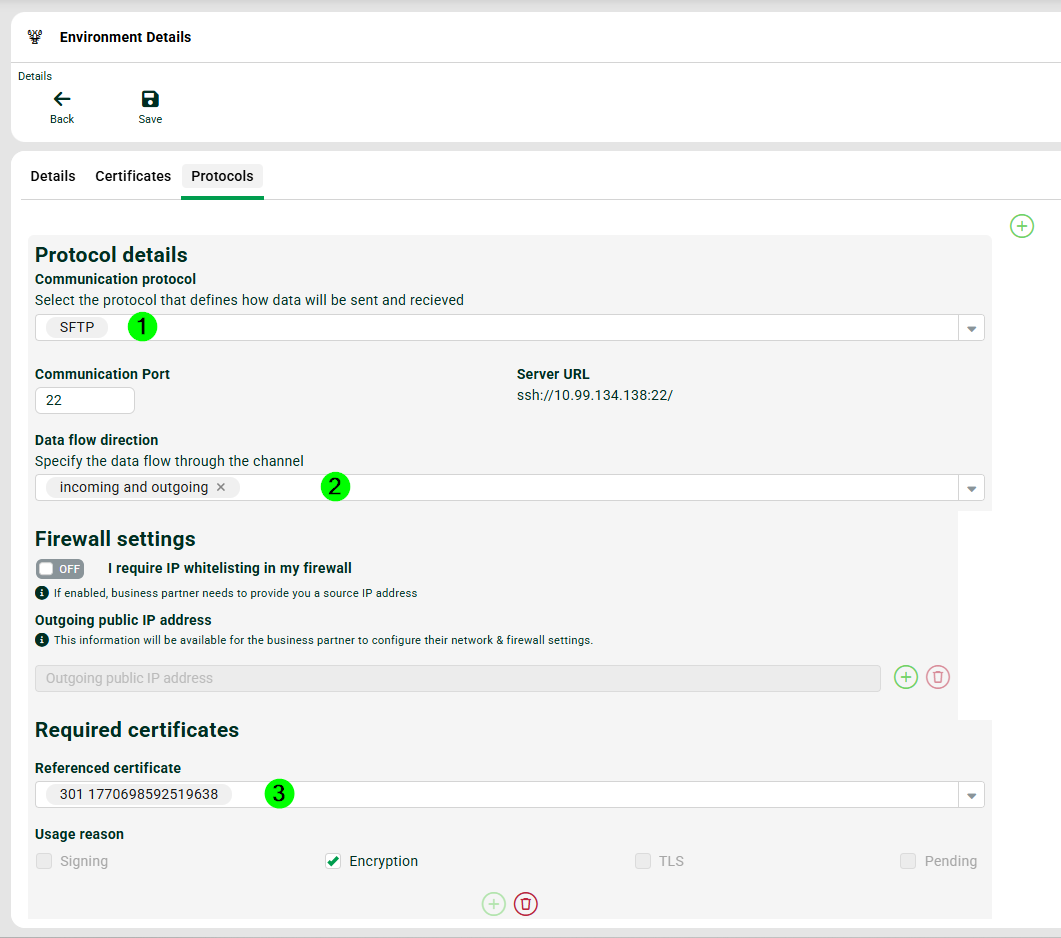
(1) Select the protocol. In this case "SFTP". NOTE You can also select multiple protocols.
(2) Specify the data flow direction (just like you know it from channels).
(3) Select the certificate you want to use for this channel and specify the usage reason (in this case "Encryption"). NOTE All certificates that you have uploaded to the environment are available here.
(4) Click "Save".
Public IP
Please note that for technical reasons the "Server URL" will always show the internal IP of the LDP system. So if your LDP system can only be reached by partners from a public IP, you have to provide this IP in field "Outgoing public IP address". This information will later be available to the partner.
Inviting a partner (LDP user)
After you have finished the setup on your side, you can now invite a partner so he can continue with the setup on his side.
Navigate to "My connections" and click on "Add Connection".

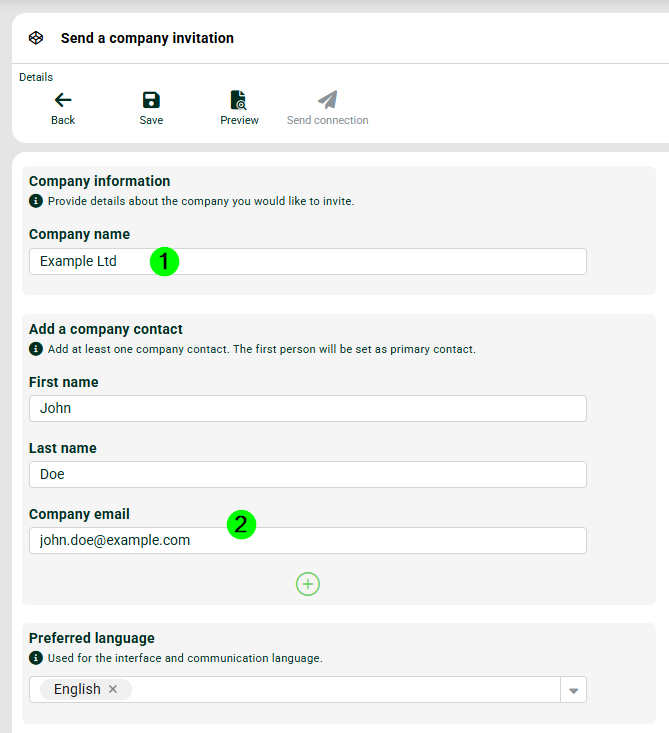
(1) Enter the name of your partner company.
(2) Enter the contact details of your partner company (the invitation will be sent to this e-mail address).
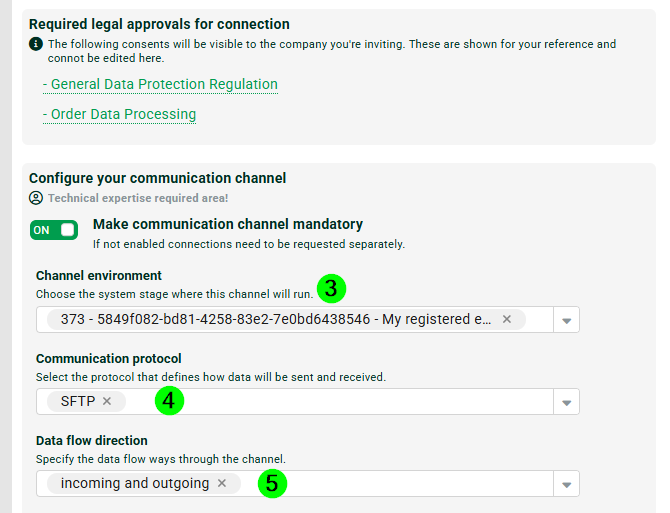
(3) Select your registered environment (LDP) from earlier.
(4) Select the communication protocol. In our case just "SFTP". NOTE All protocols that have been set up for the environment (3) are available here.
(5) Select the data flow direction. Use "incoming and outgoing" like before.
(6) Click button "Save".
(7) Click button "Send connection".
Partner accepts (partner)
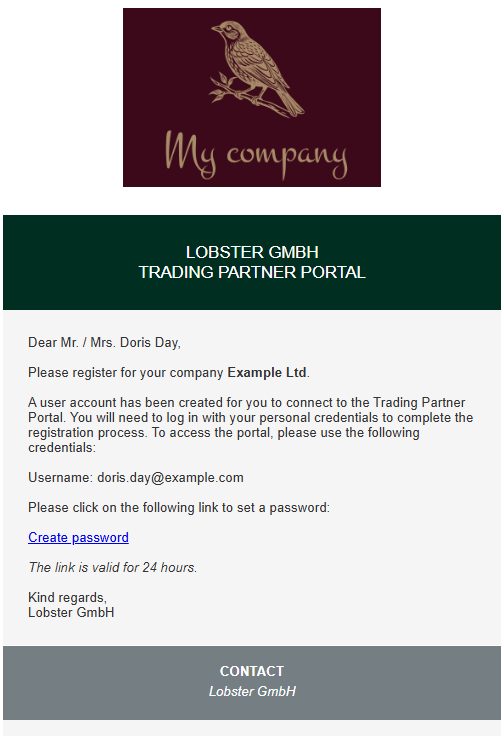
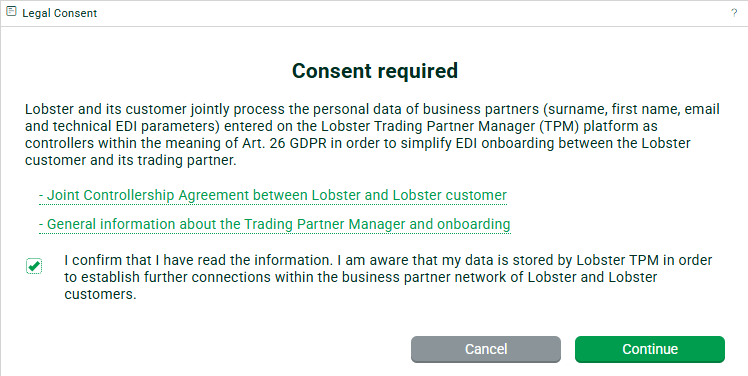
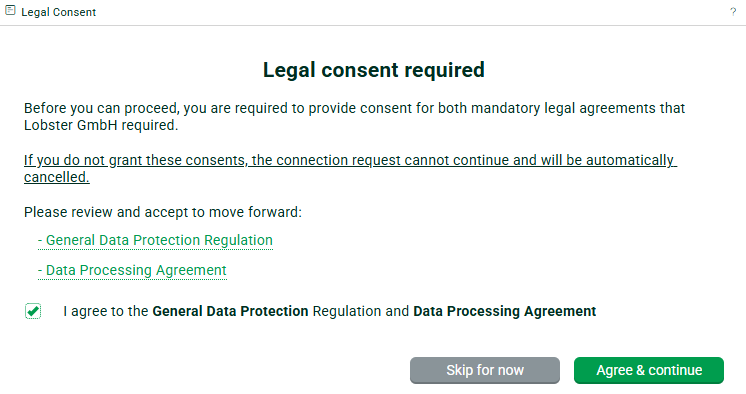
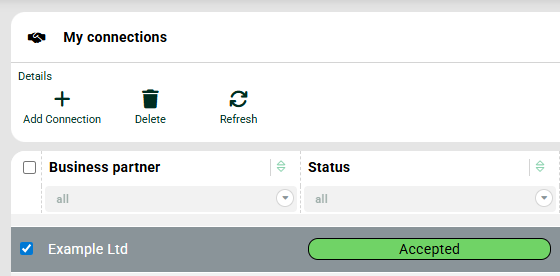
Once your partner has received the invitation e-mail and accepted it (account created and legal documents accepted), the status of your connection will change to "Accepted".
Entering channel details (partner)
The partner (with his access to the Trading partner manager) now has to enter the following information under "My connections → Communication channels".
.png)
(1) The SFTP user on the partner system.
(2) Remote URL of partner system. This address always has to start with ssh:// (when dealing with SFTP connections), otherwise the channel (SSH channel) won’t be created correctly. Please provide the publicly available IP of your system here.
(3) Partner selects previously uploaded certificate ("My connections → Certificates") or uploads it directly. NOTE No private keys!
(4) Click "Confirm setup".
Changing channel details
If changes are made to the channel at a later date, the "Confirm setup" step must be repeated so that the changes are applied to the channel on the Lobster Data Platform. Both parties (LDP user and partner user) should always make changes on the Trading partner manager.
Created channel on LDP (LDP user)
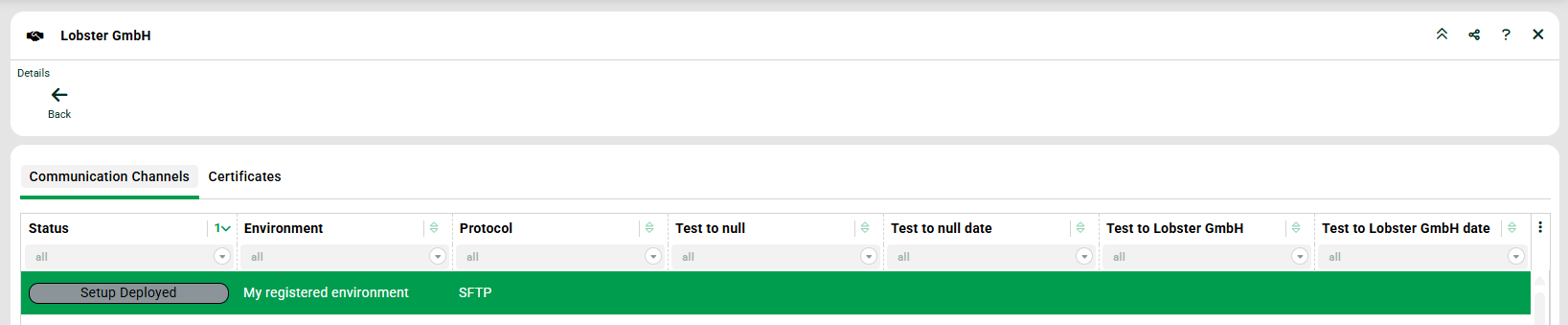
If the setup has been deployed, a partner and a channel will have been created on the Lobster Data Platform.

Testing of channel (partner)
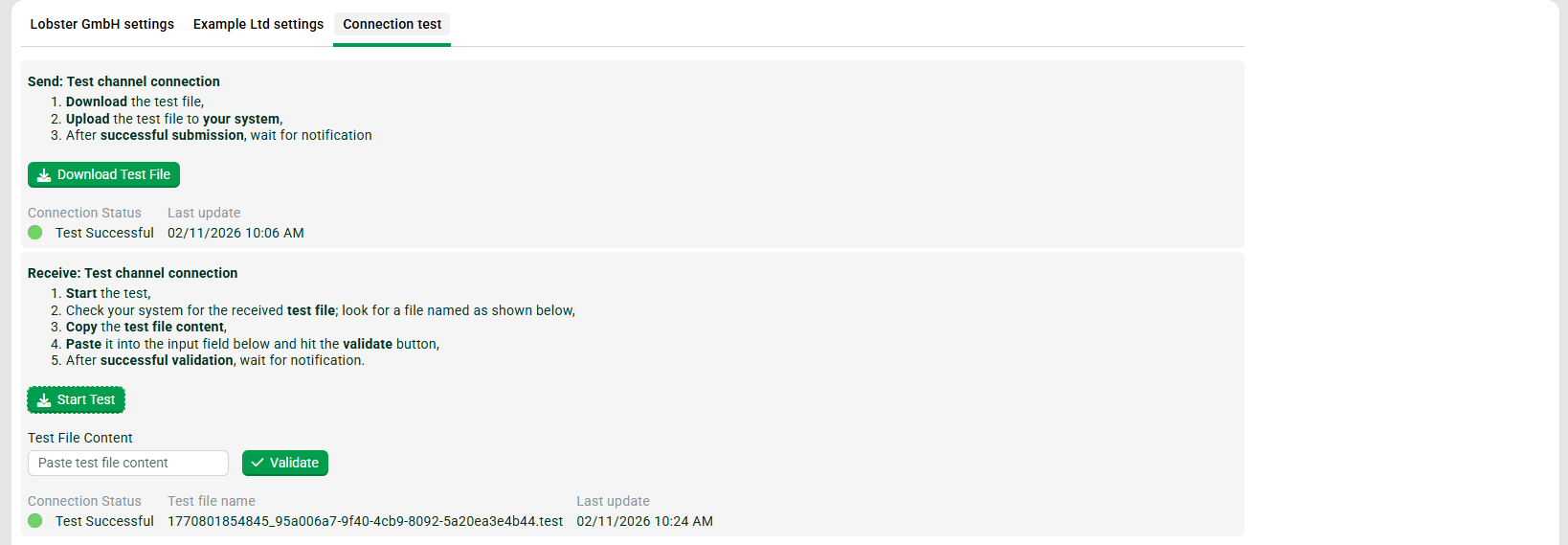
Your partner can now test the created channel in tab "Connection test".
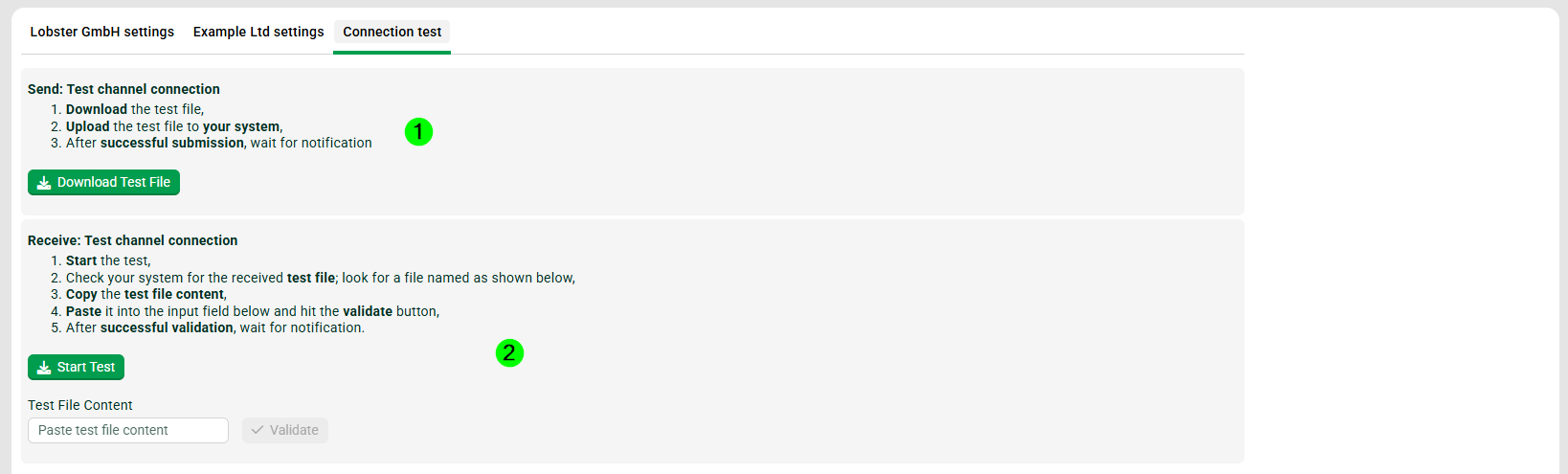
(1) This test checks the connection to the Lobster Data Platform. Click button "Download Test File". Take the file and upload it to the Lobster Data Platform with the specified connection details, see tab "Lobster GmbH settings" (here). Remember to use the public IP of the LDP system (if available). Certificates can also be found there. If the file is uploaded successfully to the LDP, the test will be successful.
(2) This test checks the connection to the partner system. Click button "Start Test". The partner checks if file was received on his system. The content of the file now has to be copied into field "Test File Content". Then click button "Validate". If the content is correct, the test will be successful.
View after successful tests

Adding further channels (LDP user)

To add further channels to a partner, navigate to "My connections" on the Trading partner manager, open your partner, click on "Add channel" and simply repeat the process.
Logging (LDP user)
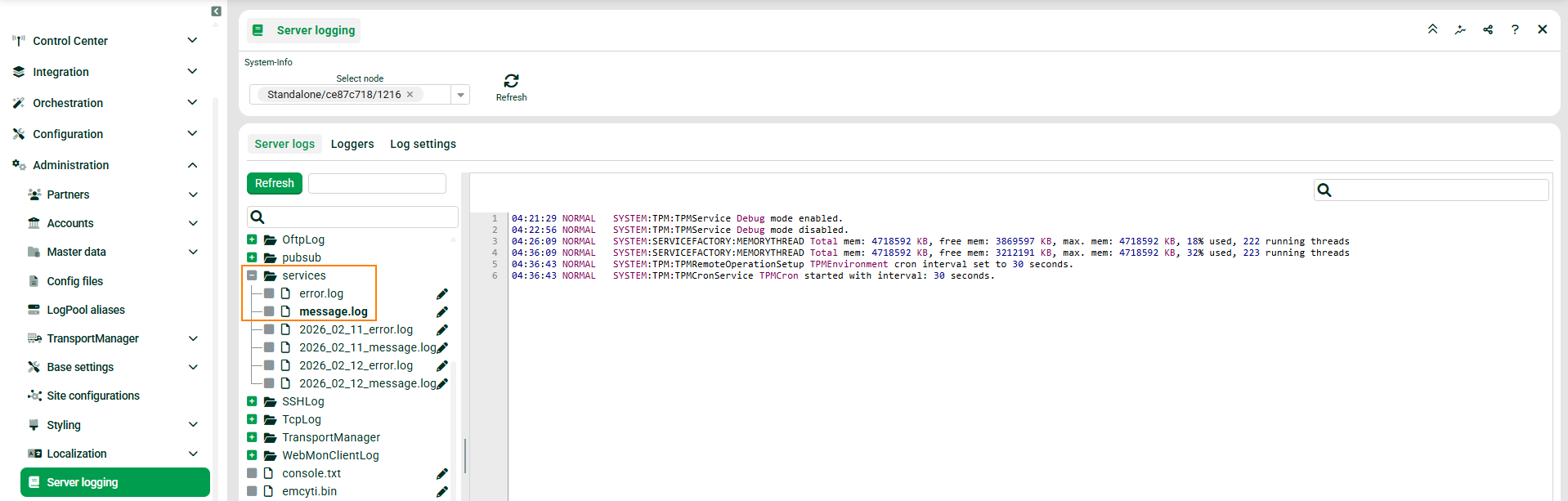
Logs related to the Trading partner manager can be found in the Server logging under "services" ("message.log" and "error.log"). Search for "TPM".
Debugging mode
To activate/deactivate the debugging mode you can use the following REST API calls:
http(s)://<URL/IP of LDP>/tpm/debug?debug=true
http(s)://<URL/IP of LDP>/tpm/debug?debug=false
The debugging mode will also write logs to the console.