Last updated: 2026/05/20
Connect to Microsoft Fabric from Lobster
In this tutorial, you connect the Lobster Data Platform to a Microsoft Fabric Lakehouse or Warehouse using the Microsoft SQL Server JDBC driver and a service principal for authentication. When you're done, you'll have a working connection that lets you read data from a Lakehouse or read and write data to a Warehouse.
Tip
You can also use this procedure to connect to any Microsoft SQL database in the Azure Cloud, including Dataverse.
Prerequisites
Access to the Azure portal
Access to the Microsoft Fabric portal
A Fabric workspace that contains an existing Lakehouse or Warehouse
Administrative access to your Lobster installation
The following library files (tested versions):
mssql-jdbc-12.10.2.jre11.jar(Microsoft SQL Server JDBC driver, Download from Microsoft)azure-identity-1.15.3.jaroauth2-oidc-sdk-11.23.1.jarmsal4j-1.19.0.jarcontent-type-2.3.jar
NOTE Newer driver versions may require different dependencies. If so, check the release notes of the respective driver.
Register an app in Microsoft Azure
Create an app registration in Microsoft Entra ID. This app provides the service principal credentials that Lobster uses to authenticate with Fabric.
Sign in to the Microsoft Azure portal.
On the home page, under Azure services, select the shortcut App registrations.
.png)
On the App registrations page, select New registration, enter a name for the app (for example,
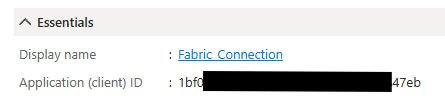
Fabric_Connection), and then select Register.On the Overview page, copy the Application (client) ID. You'll need this value later.
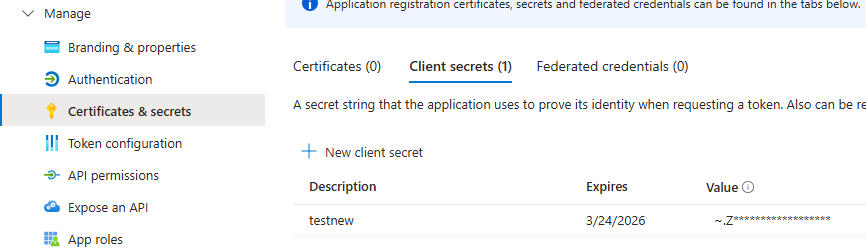
Select Certificates & secrets → New client secret. After you create the secret, copy the Value column (not the Secret ID). You'll need this value later.
Select API permissions → Add a permission, and then add the following permissions:
Tenant.Read.All
Tenant.ReadWrite.All

You now have the two values that you require for the connection: the Application (client) ID and the client secret value.
Grant workspace access in Microsoft Fabric
Give your app permission to access the Fabric workspace that contains your Lakehouse or Warehouse.
Add the app to your workspace
Sign in to the Microsoft Fabric portal.
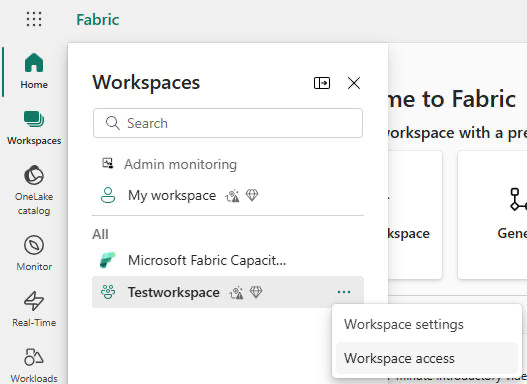
In the left navigation, select Workspaces. Next to your workspace, select the ellipsis (…), and then select Workspace access.
Search for the name of your app (for example,
Fabric_Connection), and then add it.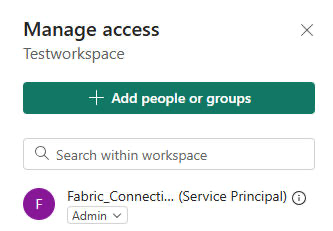
Set the role to Admin or Contributor.
NOTE The "Service Principal" is created automatically in the background after you add the app.
Get the SQL analytics endpoint
Open the workspace that contains your Lakehouse or Warehouse.
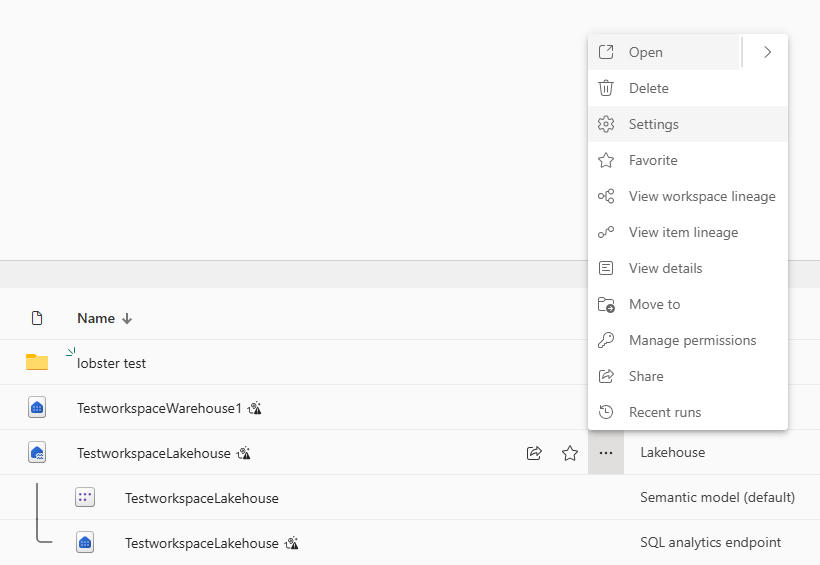
Next to your Lakehouse or Warehouse, select the ellipsis (…), and then select Settings.
Under SQL analytics endpoint, copy the SQL connection string.
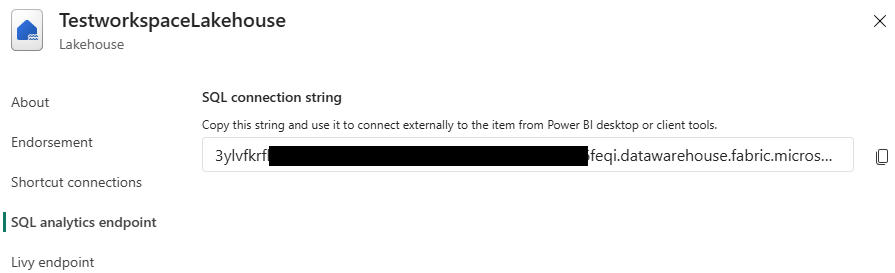
NOTE The SQL connection string follows the pattern <random-string>.datawarehouse.fabric.microsoft.com.
Configure the connection in Lobster
Now that you have all the required values, you can configure the database connection in Lobster.
Install the required libraries and drivers
Download the Microsoft SQL Server JDBC driver directly from Microsoft: Download from Microsoft
Download and extract the remaining four files and drivers using the link below.
In the Lobster interface, go to Configuration → Databases/Connectors.
Select Manage drivers.
Upload the extracted
.jarfiles and the driver by using drag and drop, or copy them directly to the/extlib/directory of your Lobster installation.
Create the database connection
Go to Configuration → Databases/Connectors.
Add a new connection by selecting the Plus (+) button or by using the context menu.
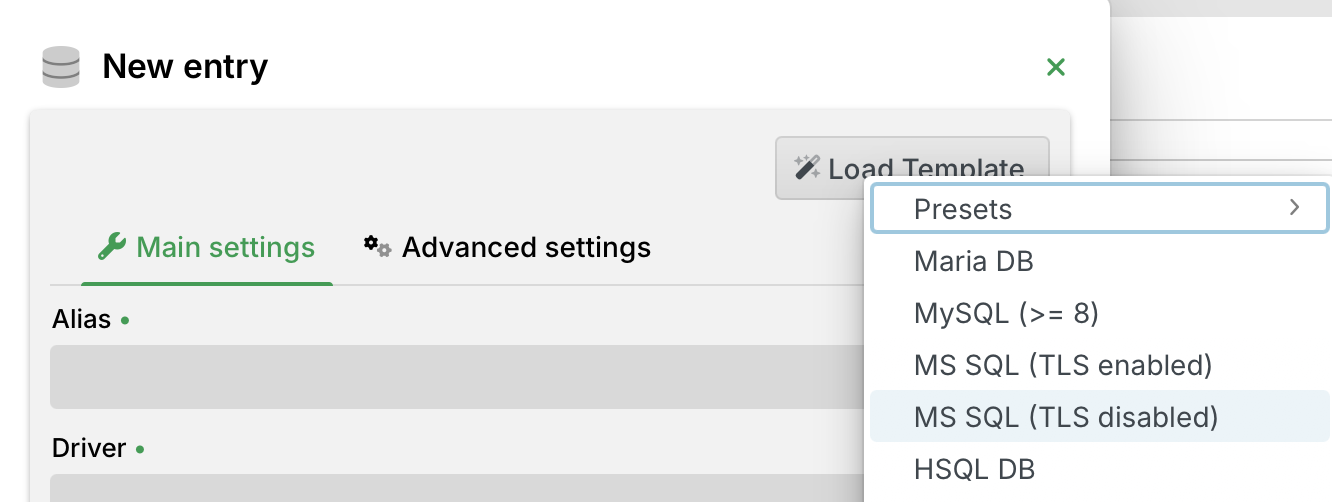
Select Load Template, and then select MS SQL (TLS enabled).
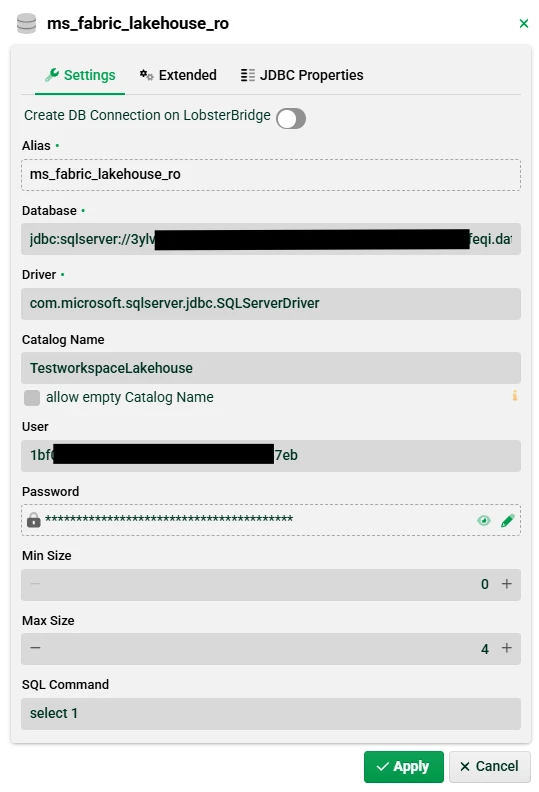
Enter the connection values that you collected earlier:
Field
Value
Alias
Enter a name for the connection (for example,
ms_fabric_lakehouse_ro).Database
Enter the SQL connection string from the Fabric portal. Replace
<your-endpoint>with the endpoint from your connection string, and replace<YourLakehouseOrWarehouse>with the name of your Lakehouse or Warehouse. The port is1433.jdbc:sqlserver://<your-endpoint>.datawarehouse.fabric.microsoft.com:1433;DatabaseName=<YourLakehouseOrWarehouse>;encrypt=true;trustServerCertificate=trueCatalog Name
Enter the name of your Lakehouse or Warehouse (for example,
TestworkspaceLakehouse).User
Enter the Application (client) ID from your app registration.
Password
Enter the client secret Value from your app registration.
It should look like this:
Select the JDBC Properties tab, and then add the authentication property from the table below. IMPORTANT This property is required. If you don't add it, authentication fails.
Name
Value
AuthenticationActiveDirectoryServicePrincipalSave the connection, and then test it by using the SQL Console plug-in.
You now have a working connection from Lobster to your Microsoft Fabric Lakehouse or Warehouse.
Glossary
App registrations
Enable secure and controlled access to APIs and services by registering and configuring applications for authentication and authorization in Azure.
Fabric workspace
A container in Microsoft Fabric that organizes your data projects. A workspace can hold multiple Lakehouses and Warehouses.
Lakehouse
A data store in your workspace that is optimized for analytical workloads. Through the SQL endpoint, you can read data only.
Warehouse
A data store in your workspace that behaves like a traditional Azure SQL database. Through the SQL endpoint, you can read and write data.
FAQ—Frequently asked questions
Can I write to Lakehouse by using another method?
Yes. You can write to a Lakehouse by using the GraphQL API.
Can I use these libraries to connect to a standard Azure SQL database?
Yes, if the database is cloud-hosted in Azure. You might need to configure additional settings in the Azure portal to allow external IP access.
Are other authentication methods supported?
Yes, but only ActiveDirectoryServicePrincipal has been tested with these libraries.
Are there differences between Fabric SQL databases and Azure SQL databases?
Yes. For current limitations, see SQL database in Microsoft Fabric limitations.