|
Introduction
NOTE For connecting to Microsoft Fabric, a dedicated tutorial is available: Microsoft Fabric. Fabric requires specific authentication and connection settings that go beyond the generic JDBC connection process.
Lobster Data Platform supports connecting to approximately 30 database systems. Any relational database that provides a Java 8-compatible JDBC driver can be connected. From version 4.5 onward, Java 11 drivers are also supported. Since Spring Release 26.2, Java 21 drivers are supported as well.
NOTE From version 4.5 onward, you can add database connections using the GUI. You no longer need to edit the configuration file ./etc/database.xml. A restart is only required after uploading a new driver.
JDBC driver download
The following table provides an overview of the most common JDBC drivers for database systems such as MS SQL Server, MySQL, MariaDB, Oracle, and PostgreSQL.
NOTE : Newer driver versions may require additional dependencies. In that case, check the release notes of the respective vendor or driver.
Database | Link | Info |
|---|---|---|
MS SQL | Current version: https://learn.microsoft.com/en-us/sql/connect/jdbc/download-microsoft-jdbc-driver-for-sql-server?view=sql-server-ver15 Older versions: https://learn.microsoft.com/en-us/sql/connect/jdbc/release-notes-for-the-jdbc-driver?view=sql-server-ver15#previous-releases | The support matrix and version compatibility table shows the mapping of JDBC driver to MS SQL Server version: NOTE If you use multiple MS SQL Server instances with different versions, choose a driver that covers the range from the lowest to the highest version. Only one driver can be stored. |
MySQL | If you are using JDBC driver versions 8.0.27 or 8.0.28, replace them with a newer version. | |
MariaDB | Current version: mariadb-java-client-3.2.0.jar (direct link) | Do not use mariadb-java-client-3.2.0-sources.jar, javadoc.jar, or sources.jar. |
Oracle | https://www.oracle.com/database/technologies/appdev/jdbc-downloads.html | You need a Java 8-compatible JDBC driver that matches your Oracle database version (18, 19, or 21). Driver file name: ojdbc8.jar |
PostgreSQL | Installing Postgres 12 with JDBC driver version 42.2.11 (4.2 for Java 8) causes errors and the Integration Server fails to start. Solution: use JDBC driver version 42.2.10 (4.2 for Java 8) instead. | |
Informix DB | https://mvnrepository.com/artifact/com.ibm.informix/jdbc/4.50.10 | On the download page, download the .jar file (listed under Files) in the upper section. |
Snowflake | https://repo1.maven.org/maven2/net/snowflake/snowflake-jdbc/ | Tested with driver version 3.9.2. JDBC connection: https://docs.snowflake.com/en/developer-guide/jdbc/jdbc-configure |
Installing the JDBC driver
From version 4.5 onward, you can upload drivers using the GUI (step 1): Administration > Databases/Connectors > Manage drivers. You can also add drivers manually to the ./extlib directory. Only .jar files are accepted — zip files are not supported.
Restart the service. The Integration Server must restart once for the driver to load correctly. Factor this into your installation or commissioning plan.
Verify that the driver loaded correctly. At startup, depending on the database system and driver, entries like the following should appear in ./logs/wrapper.log:
INFO   | jvm 1    | 2022/08/10 08:53:24 | 178      file:/C:/Lobster/IS/extlib/mssql-jdbc-10.2.0.jre8.jar
INFO   | jvm 1    | 2022/08/10 08:53:24 | 179      file:/C:/Lobster/IS/extlib/mysql-connector-java-8.0.26.jar
INFO   | jvm 1    | 2022/08/10 08:53:24 | 180      file:/C:/Lobster/IS/extlib/ojdbc8.jar
Configuring the database connection
From version 4.5 onward, you can create database connections using the GUI.
Right-click, or click the plus button in the lower right, to open a new window for adding a connection.
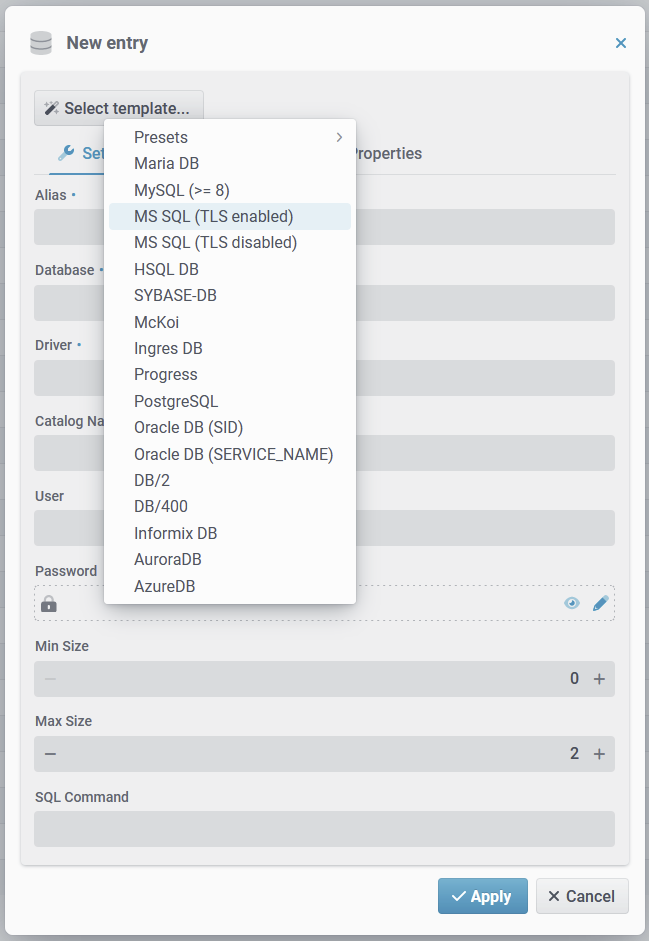
Use Select template to choose from various templates or presets. Select the database template.
In the Database field, update the database string by replacing DB_HOST_OR_IP and DB_NAME with your actual values.
Fill in any remaining fields and JDBC properties as needed, for example Catalog Name, User, and Password.
Click Apply to save the new database connection.
NOTE You can test the connection directly from the overview. Right-click an entry and select the connection test option from the context menu.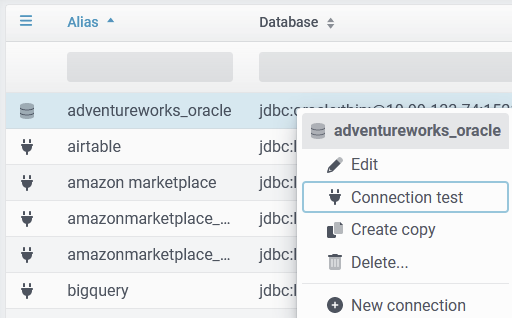
Testing the database connection
You can test the connection using Plugins > SQL Monitor.
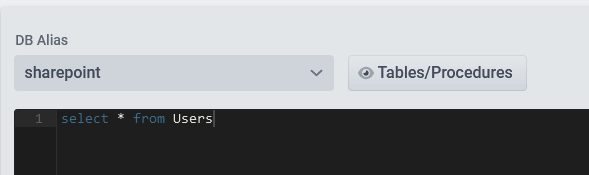
Select the database alias you created earlier from the dropdown field.
Clicking Tables/Procedures should return a list of all available tables and stored procedures.
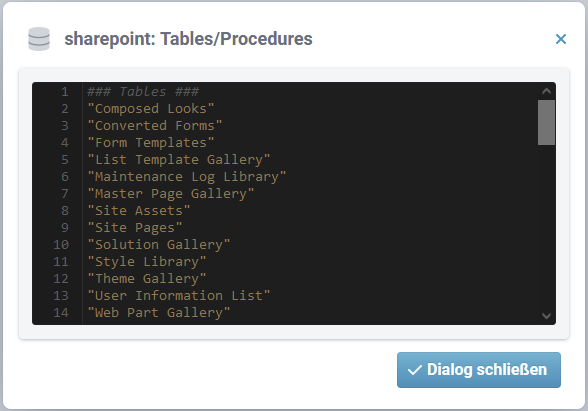
If the message "No entries found!" appears or a SELECT statement fails (pool exhausted), check your database connection settings again.
Related topics
Microsoft Fabric: Dedicated tutorial for connecting to Microsoft Fabric (cloud data platform).
Databases/Connectors: GUI for managing database connections and drivers.
SQL Monitor: Plugin for testing a database connection and running SQL statements.
Disclaimer
Databases and the JDBC drivers used to access them are third-party products. Lobster neither supports them nor provides them. Any support or advice on databases or JDBC drivers provided by Lobster Support is voluntary and does not imply any transfer of responsibility. The installation, operation, and maintenance of databases and JDBC drivers — as well as any actions taken on them — remain entirely the customer's responsibility.
Lobster Support is happy to assist with the internal configuration required to connect to working third-party systems.