The process map is an automatically generated, read-only visualization of your data processing flow. It shows connected data processing modules and how they link together. These modules include profiles, Content inspection entries, ASM entries, ETL/ELT pipelines, databases, portals, and REST APIs.
Opening a process map
To open a process map for a single profile, follow these steps:
On the profile overview, select a profile.
Open the context menu.
Select Process map.
NOTE You can also select a whole group. The process map then covers all profiles in that group.
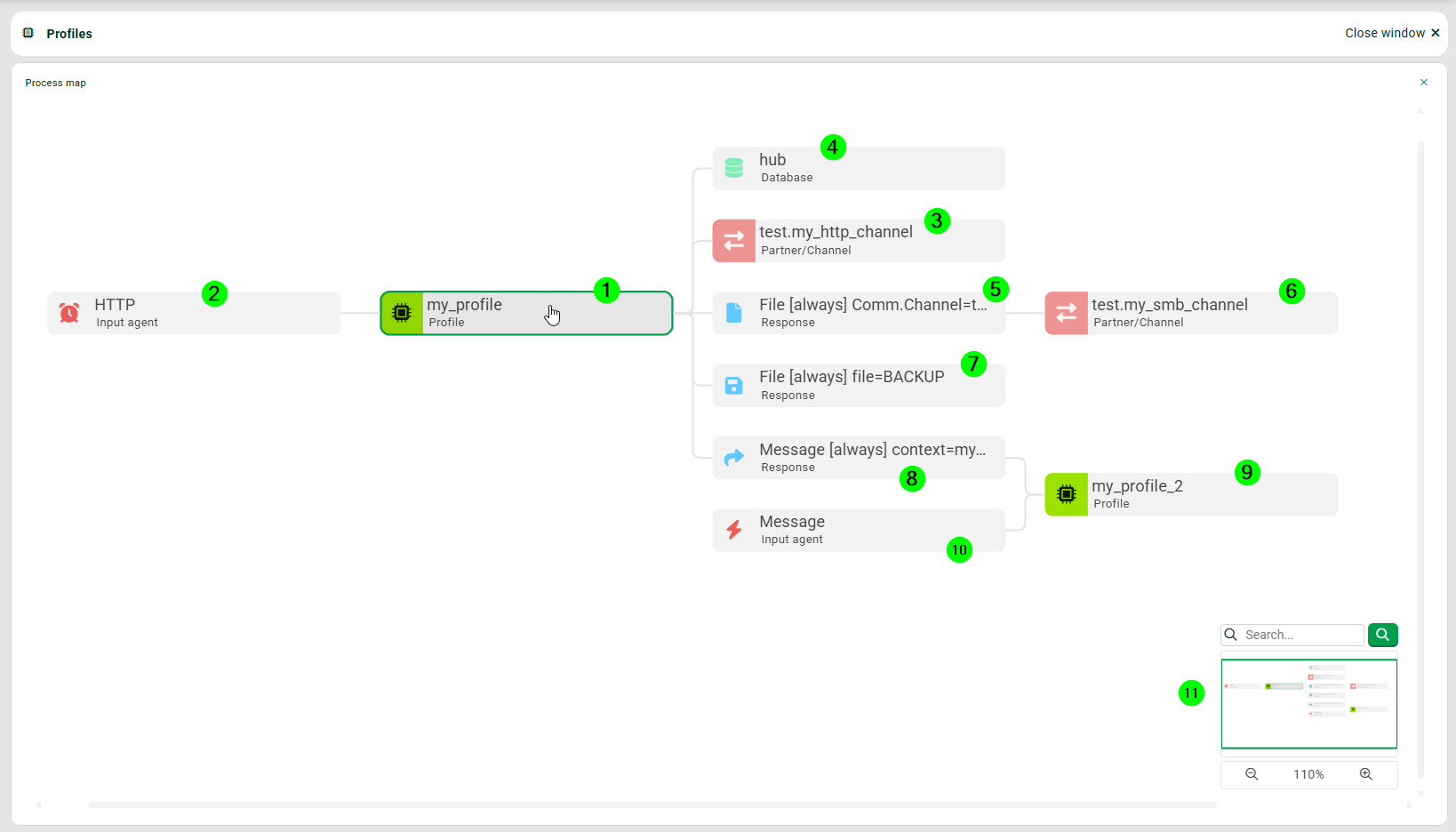
(1) The profile for which you have opened the process map is highlighted.
(2) The Input Agent of the profile (1).
(3) A channel the profile (1) uses in its Input Agent (2).
(4) A connected database that is used in phase 4 of the profile (1).
(5) A Response of type File that is used in profile (1).
(6) A channel that is used in Response (5).
(7) Another Response of profile (1) that creates a backup file.
(8) Another Response of type Message that calls a second profile.
(9) A second profile that is called by profile (1).
(10) The Input Agent of type Message of the second profile.
(11) A navigation pane. It lets you move the process map, search for specific entries, and change the display size.
Opening elements from the process map
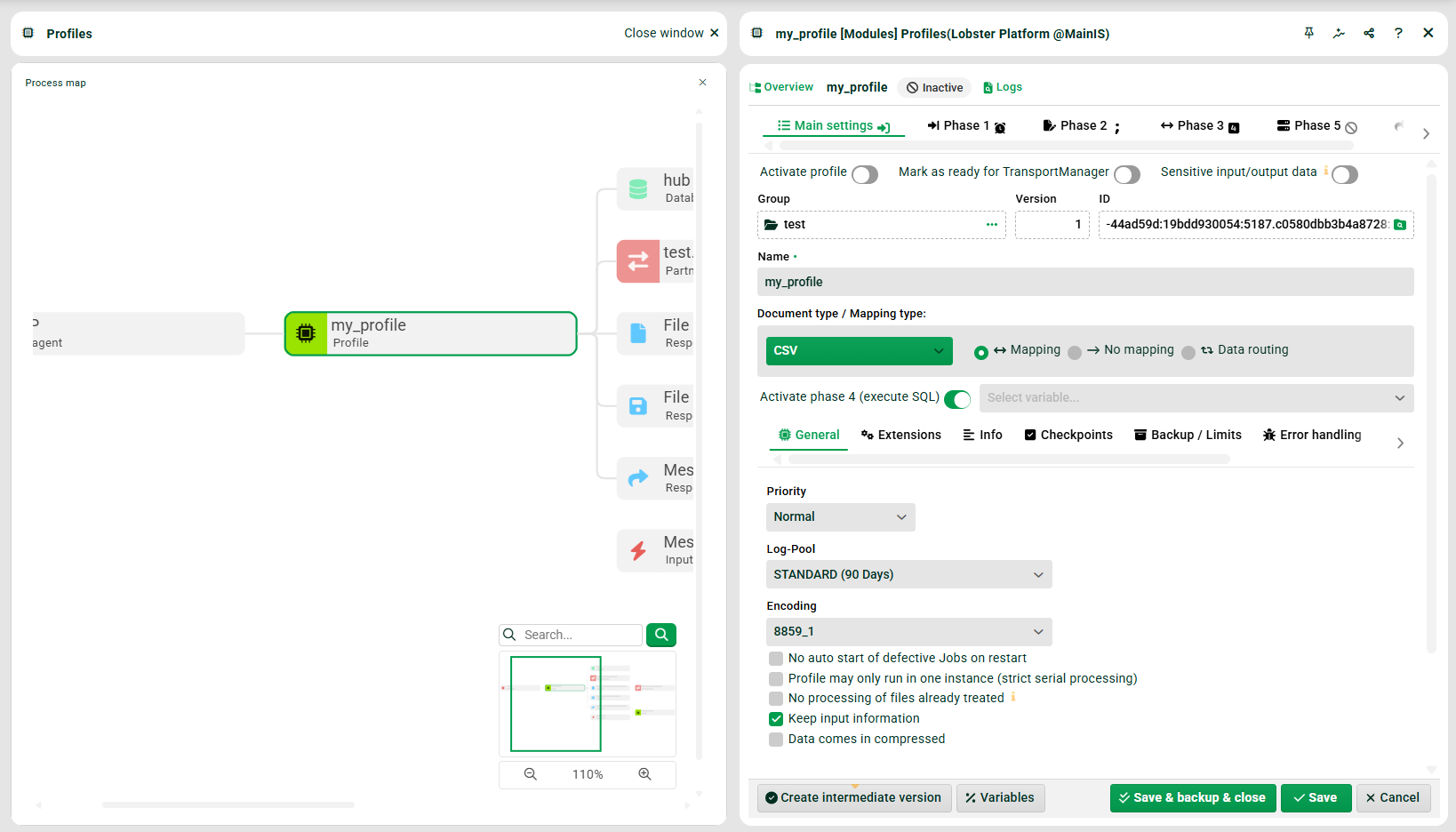
You cannot edit the map itself. You can open certain elements, such as profiles and channels, and edit them directly.
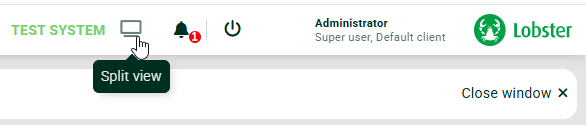
When you edit an element, switch to the side-by-side view.
.png)
Further examples
Sub profiles
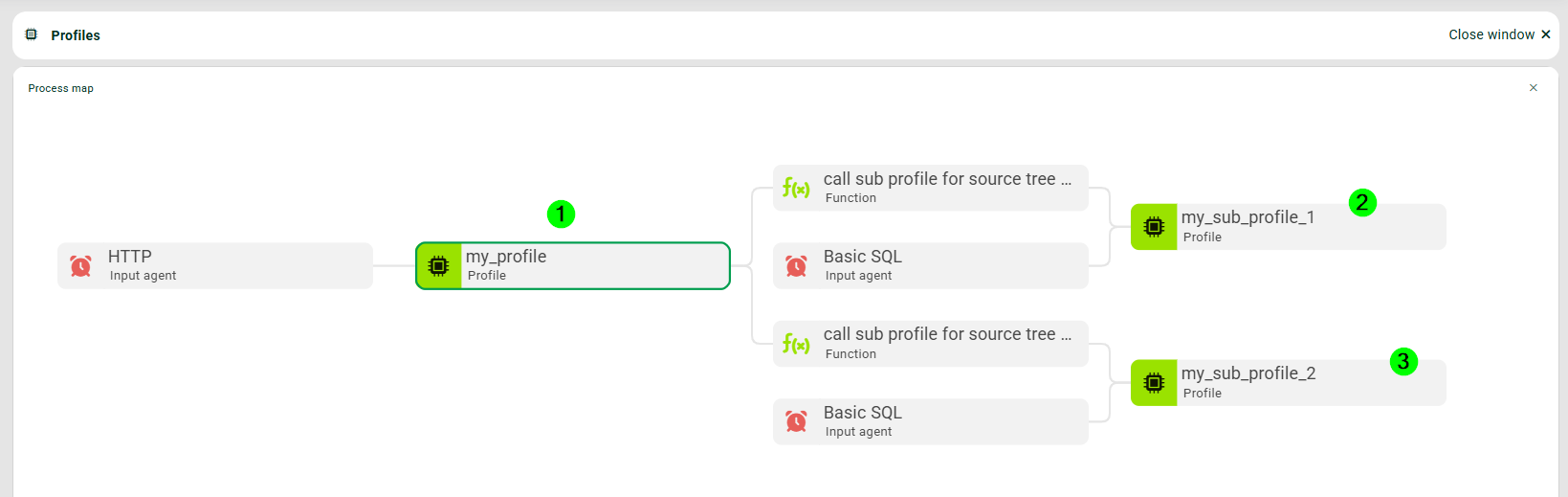
(1) The profile for which you have opened the process map.
(2) First sub profile called by profile (1).
(3) Second sub profile called by profile (1).
ETL/ELT, error profile, profile with variable name
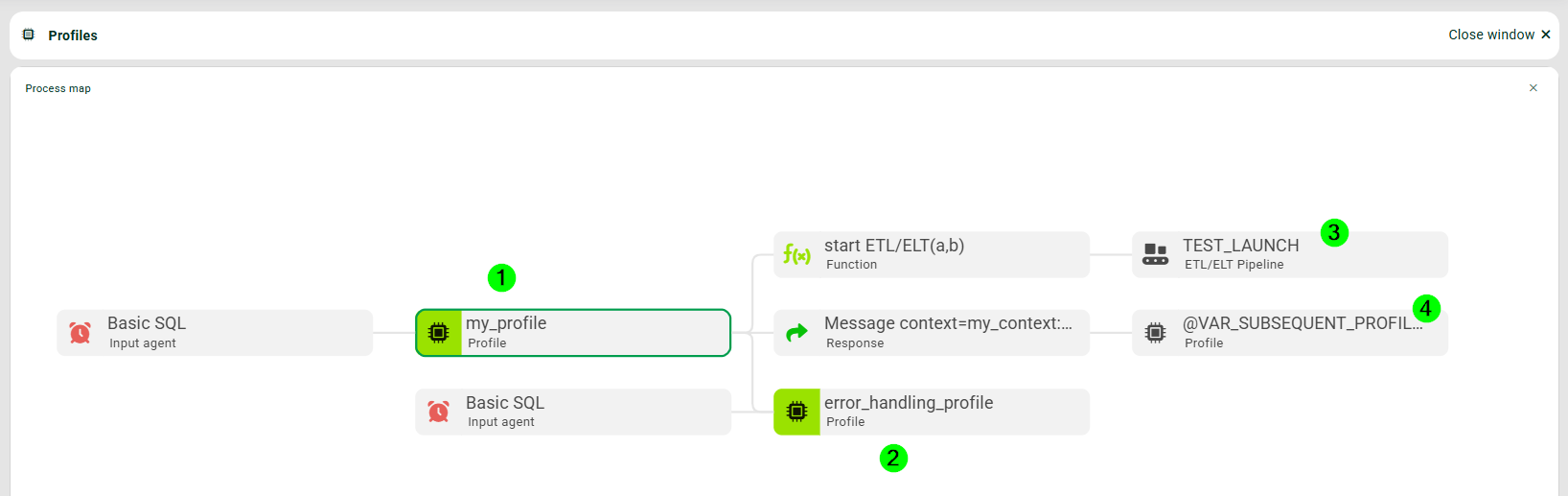
(1) The profile for which you have opened the process map.
(2) Profile that is called if an error occurs in phase 1 of the profile (1).
(3) The profile (1) calls an ETL/ELT entry with a function.
(4) The profile calls a subsequent profile via message. The name of that profile is specified with a variable.
Content Inspection and ASM
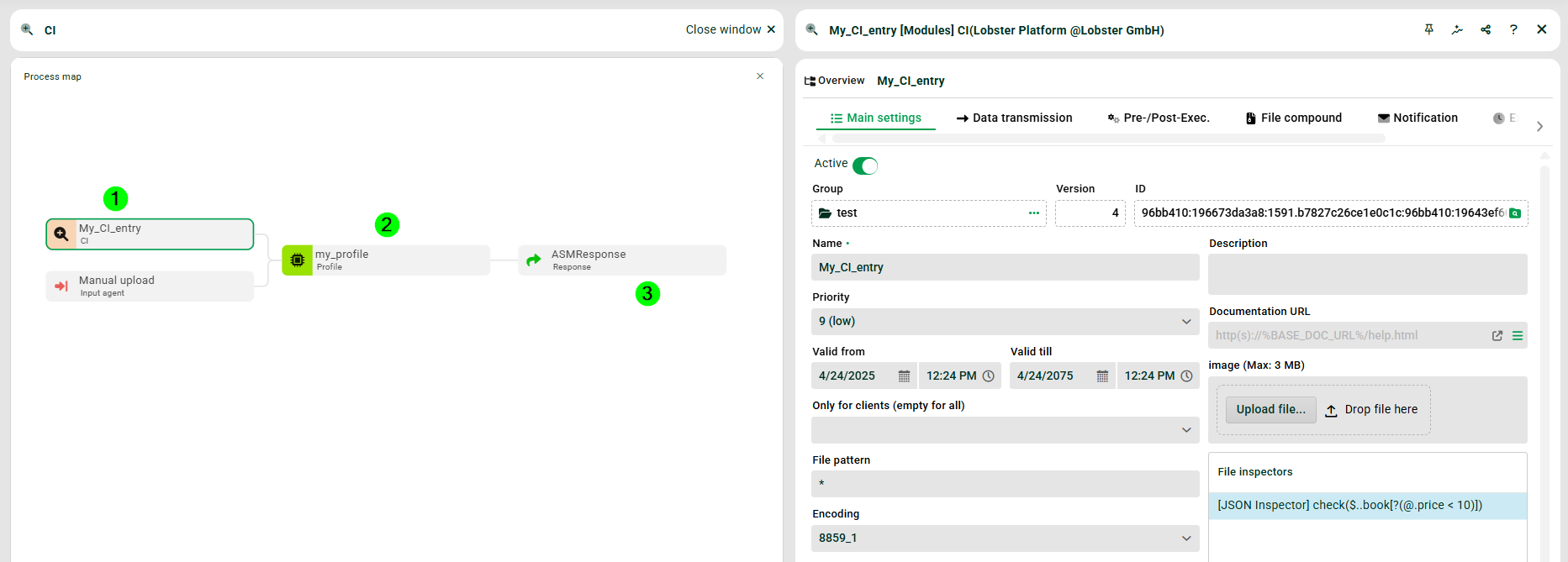
(1) A Content Inspection entry sends files to profile (2). Profile (2) then sends files to an ASM entry (3).
Portal
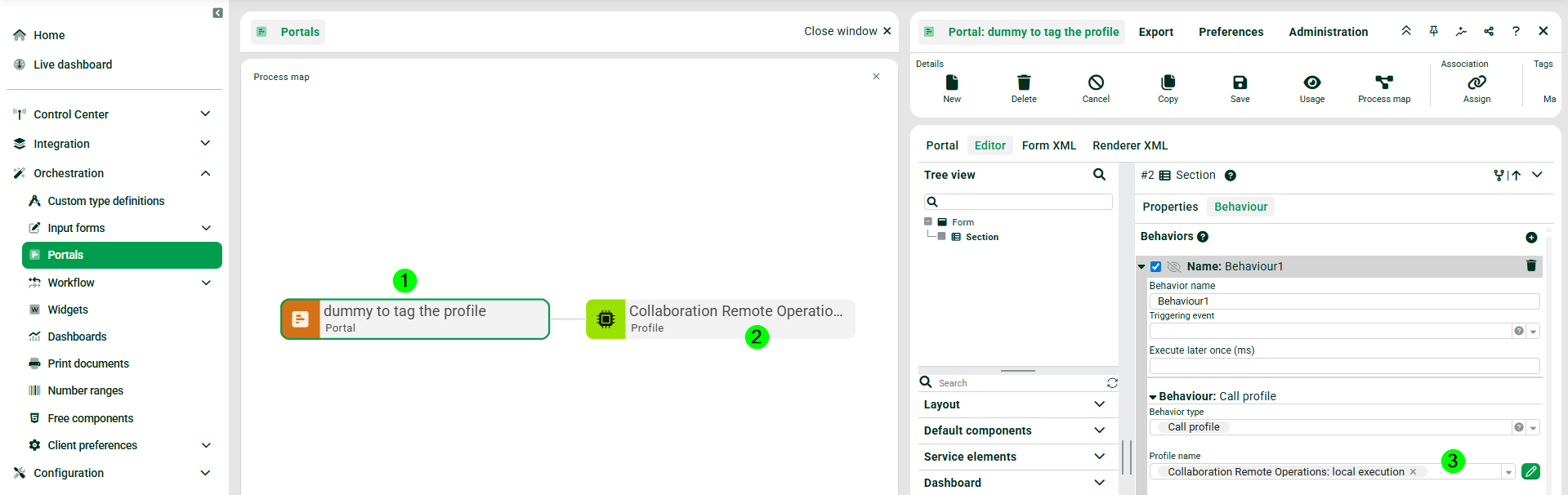
(1) A new style portal with the process map opened under Orchestration > Portals.
(2) A Processing profile connected to the portal (1), see (3).
REST API
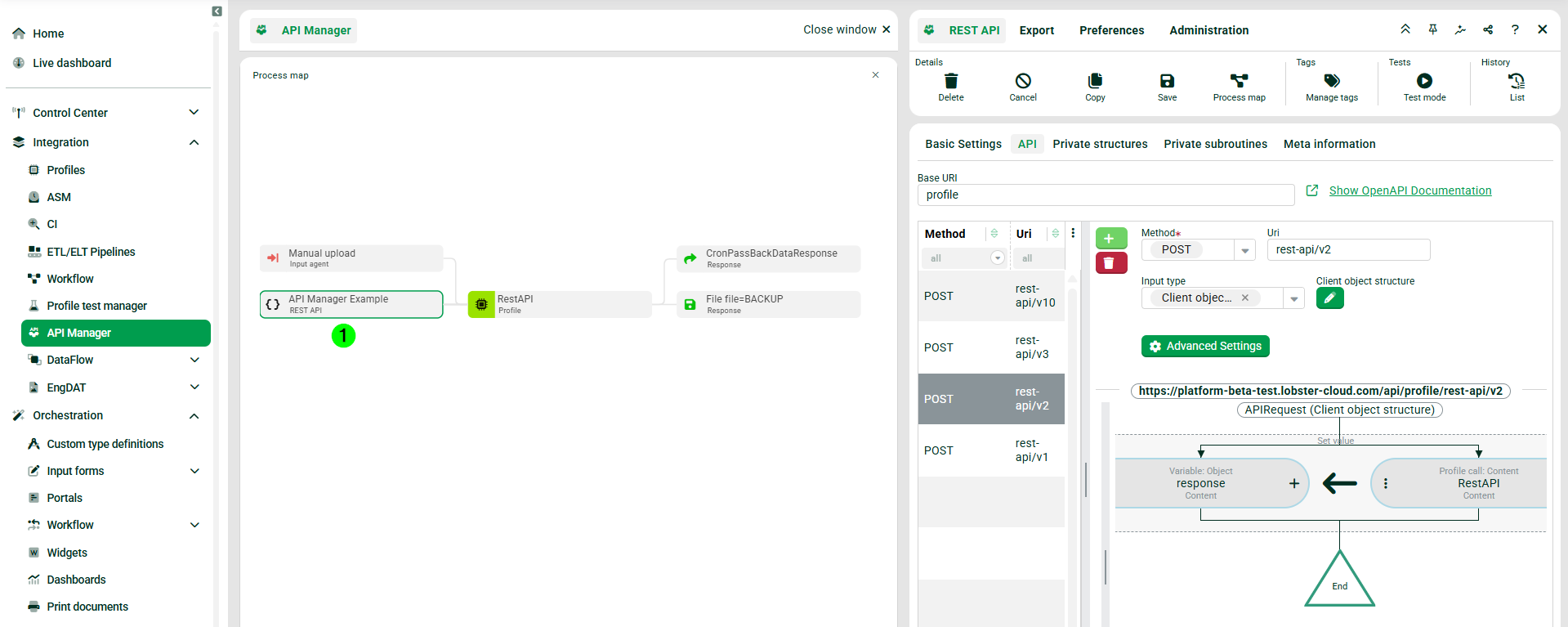
(1) A REST API with the process map opened under Integration > API Manager.
Event handler
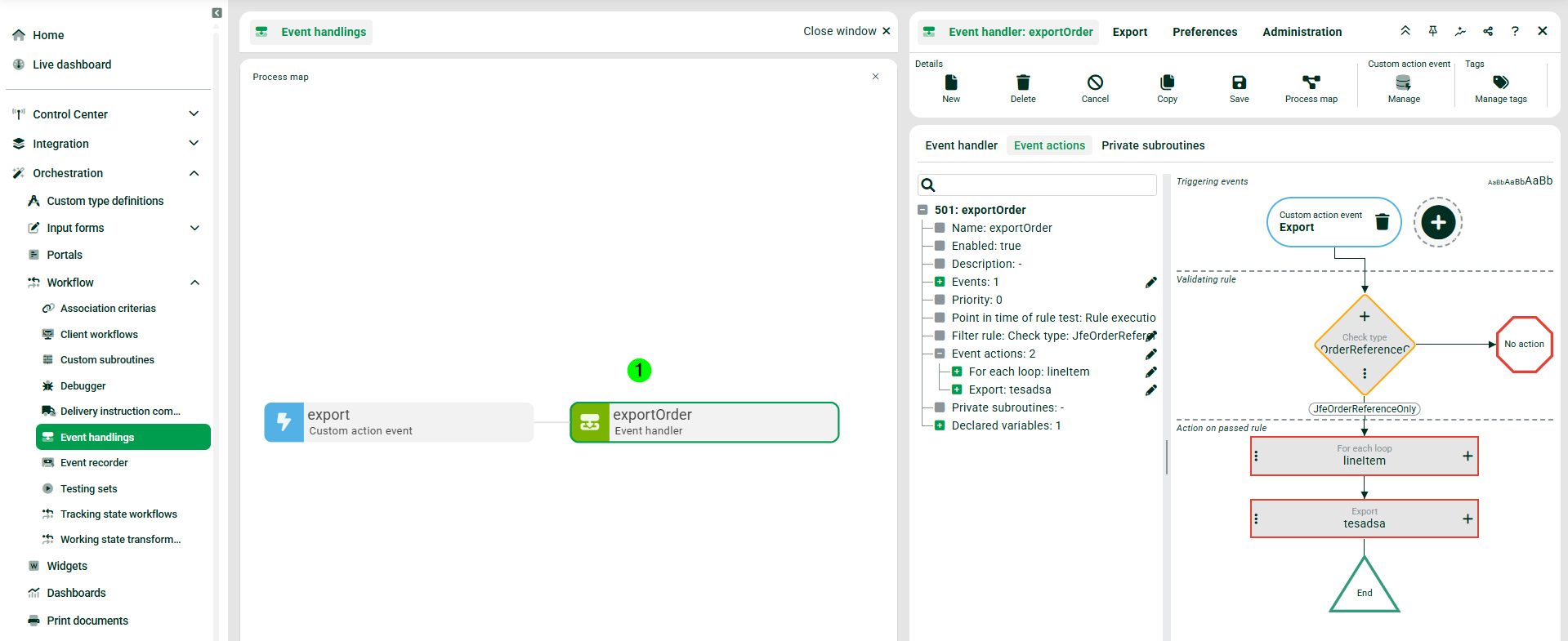
(1) An event handler with the process map opened under Orchestration > Workflow > Event handlings.