A profile has several phases, in which the data is received, processed and sent or stored. All this happens in graphical form. There is no programming required.
Note: You can define some default values in configuration file ./etc/admin/datawizard/defaults.properties.
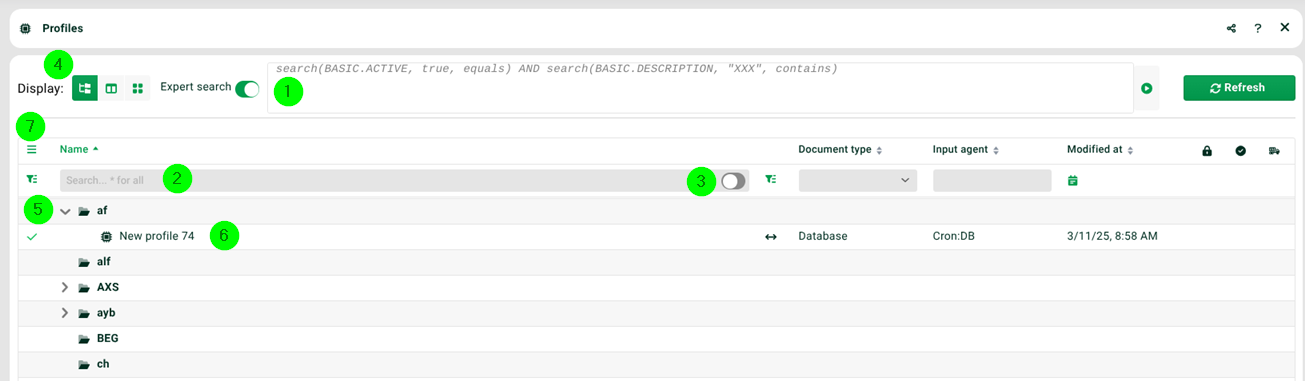

(1) Expert search: See section Expert search.
(2) Filter fields above list: You can search for a profile by name (for this client, see context menu option "Report for" for all clients). Tags will be taken into account. See also (4), where you can use certain criteria (e.g. variables used) to search for profiles. The result is a list of profiles. Notes:
If you use the two-column display option, you can select a group in the left-hand column and then use the prefix ":" in the search field here, e.g. ":profilename". The search term is then only searched for in the selected group.
An "!" can be used for the negation of a search term.
Generally see section Filter fields in tables.
(3) Switch on the right at filter field for name: This option allows you to also search in the description of the profiles.
(4) Display: Two views organised in groups and a tile view (without groups, maximum of 50 profiles). The tile view displays images that have been assigned in the respective entries. Jobs can be started directly by dragging and dropping an input file onto a tile.
(5) Folder icon in list: Each profile has to be assigned to a group and these groups are arranged in a tree structure in which you can either navigate directly or search for group names in the search field. Note: All groups and profiles can be moved by drag and drop.
(6) List below: Only active (and valid) profiles accept data. Note: Inactive profiles are grey and in italics.
(7) Burger menu top left: The Burger menu offers additional display properties.
Document type | The document type of the profile (Main Settings/Phase 2). |
Input agent | The Input Agent of the profile (Phase 1). |
Template | Indicates whether the profile is a template, see context menu option "Convert profile to template". |
Modified at | The last time the profile was modified. |
Priority | The priority of the profile (Main Settings). |
Locked | Indicates whether the profile is locked because it is already open or blocked, see context menu option "Block profile". |
Intermediate version | Indicates whether an intermediate version of the profile has been saved. |
Mark as ready for Transport Manager | Indicates whether the profile has been released for the Transport Manager (Main Settings). |
Modified by | The user who last edited the profile. |
Version | The version of the profile (Main Settings). |
(8) Opens the profile creator. A wizard that allows you to quickly set up new profiles with the most basic settings and then finish the profile in manual editing mode.
Context menu group
Activate/Deactivate profile | Here you can activate/deactivate all profiles of this group. Only an active (and valid) profile accepts data (unless you manually upload files). See also section Profile suspensions. |
Marked as ready for Transport Manager | You can mark all profiles of this group to be listed in the Transport Manager. |
Import profile | Here you can create a new profile in this group by importing an exported profile ("Export as"). See section Manual export and import of profiles. |
Profile templates | Here you can create a profile template or create a new profile in this group based on a previously created profile template. Note: A profile template looks just like a normal profile. In an open template, the only difference is a small note about it. In addition, column Template in the profile overview shows whether a profile is derived from a template (and of which) or whether it is a template (*****). |
Create new profile | Here you can create a new profile in this group. |
Change group | Allows you to change the group name and the parent group. |
Delete group | Deletes the group. |
Process map | See section Process map. |
Context menu profiles
Block profile | This allows you to block the profile for a specific user so that only this person is allowed to edit the profile. |
View profile only | If a profile is blocked ("Block profile"), you can view it but not edit it. |
Marked as ready for Transport Manager | You can mark a profile to be listed in the Transport Manager. See also "Mark as not ready for Transport Manager". |
Activate/Deactivate profile | Here you can activate/deactivate the profile. Only an active (and valid) profile accepts data (unless you manually upload files). See also section Profile suspensions. |
Convert profile to template | See "Profile templates" and "Convert template to profile". |
Clone profile | Creates a copy of this profile or deletes it. Note: Deleting will create a backup of the profile. See also sections Save and cache profiles and Backup/Limits. |
To clipboard | You can copy the ID and the name of the profile in another dialogue. |
Quick view | Opens another window that shows the most important parameters of the profile in a compact form. |
Export as | The profile can be exported and later imported via "Import profile". Please use format ".pak". See section Manual Export and import of profiles. |
Report for | You can have a report created for this or all profiles. In addition, you can search for a profile in all clients (this requires administrator rights), see also (2). |
Restart | This opens the Restart dialogue, in which you can manually start the profile. Note: See also section Blacklist and whitelists for file extensions. |
Import profile | You can import a profile. |
Profile templates | Here you can create a profile template or create a new profile based on a previously created profile template. See also "Convert profile to template" and "Detach from profile template". Note: A profile template looks just like a normal profile. In an open template, the only difference is a small note about it. In addition, column Template in the profile overview shows whether a profile is derived from a template (and of which) or whether it is a template (*****). If a template is changed later (in phases 1, 3-6) and the Save & backup & close button is used, then another dialogue appears in which it is possible to select which profiles derived from the template are to be synchronised accordingly. |
Open in new window | The entry will be opened in another browser tab. Attention: Your browser may block this as an unauthorised popup. Check your browser settings if necessary. |
Detach from profile template | See also "Convert profile to template" and "Profile templates". |
Convert template to profile | See "Convert profile to template". |
Mark as not ready for Transport Manager | See "Marked as ready for Transport Manager". |
Delete profile | Deletes the profile. Note: When a profile is deleted, the logs of finished jobs of that profile are still present, but all backups of input and output files are deleted. Backups of the profile itself are not deleted and can still be used if you create a new profile with exactly the same name. |
Process map | See section Process map. |
System variables
There is a variety of system variables (e.g. VAR_PROFILENAME, VAR_PROFILE_VERSION, etc.) that allow you to access all kinds of profile-relevant information. Just take a look through the list. You will also find explicit notes in the documentation of specific areas of the GUI.
Phases of a profile
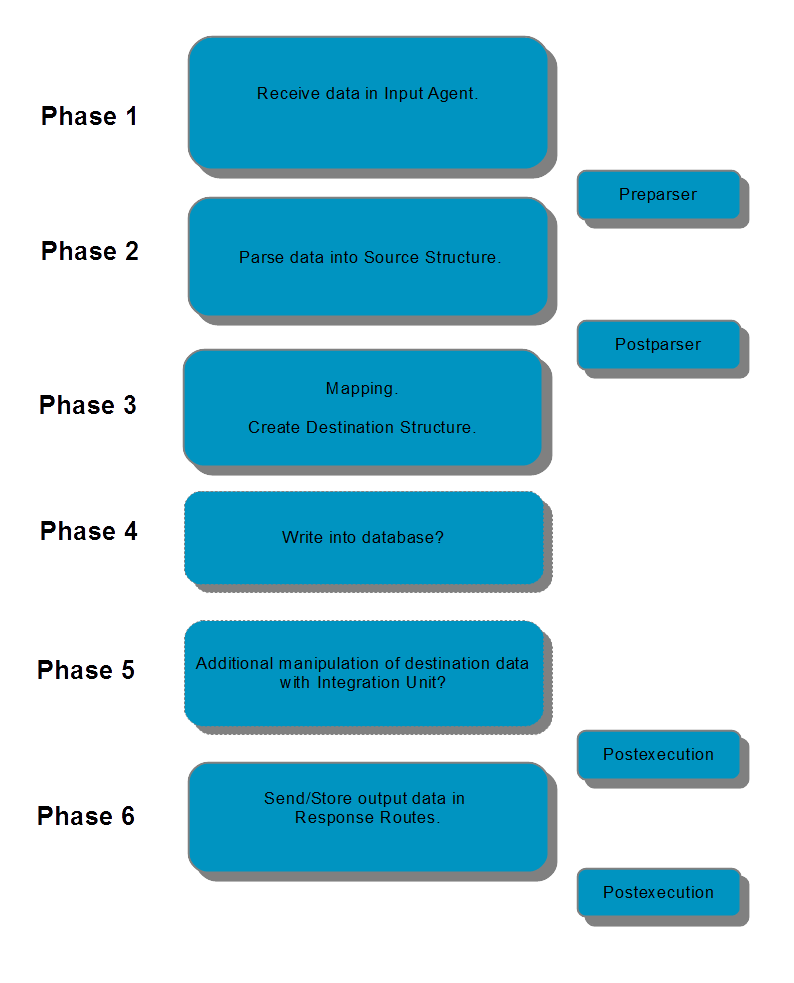
A profile processes data in several main phases and optional intermediate phases.
 Main phases
In phase 1, the input data are received by so-called Input Agents.
In phase 2, the data is then parsed into the source structure. There are many tools available to automatically generate a suitable source structure (the same applies to the target structure).
Each profile has a source structure and a target structure. In phase 3, the mapping is performed, that is, data is transferred from the source structure to the target structure by defined rules. In the target structure, the data can also be manipulated with so-called functions.
In phase 4, it is possible to write data from the target structure into a database.
Sometimes it is necessary to carry out further manipulations of the target data after the mapping, e.g. to convert the target data into an XML format. This can be done with so-called Integration Units in phase 5.
Phase 6 is then responsible for storing or sending the generated output data. This is done in so-called Responses.
Note: In principle, the phases 2 to 5 are optional. Sometimes, for example, you only want to receive and store data or forward it. Phase 6 is optional as well. You could, for example, store or send the data in the previous phases.
Intermediate phases
In addition to the main phases of a profile, there are intermediate phases that allow further data manipulations for special cases.
Preparsers allow the manipulation of input data before they are parsed (i.e. before phase 2). For example, it might be necessary to remove or convert special characters before parsing. However, one could also convert special and unknown input formats into input supported formats.
Postparsers can manipulate the parsed data directly after phase 2, but this application is very rare.
After phase 5 or after phase 6, postexecuters can give a final touch to the generated output data. An example would be the Base64 encoding of the output data. Note: We call data after phase 3 and 4 target data and output data after phase 5 and later. This is to distinguish between the data created by the mapping and the final data.
Jobs
If a so-called Input Agent of a profile has received data, backup files and a job are created for this profile. The data can either be supplied by a partner (event-driven Input Agents), uploaded manually by a user, or actively fetched (time-driven Input Agents).
Further details can be found in the section "Phase 1".
Note: Strictly speaking, data is received by a service (for example, the FTP service) of the Integration Server. From there, the data is passed on to a suitable Input Agent of a profile (in this case, to an Input Agent of type "FTP"). Normally, however, you do not have to deal with services when developing profiles. If a specific service has to be licensed separately and/or activated in a configuration file, this is explicitly mentioned for relevant Input Agents.
Jobs and logs in the Control Center
In the Control Center, you will find running jobs, successful jobs, and jobs that have failed (logs).
Profile chains and nested profiles (subprofiles)
Sometimes you are confronted with a problem that is not solvable in a single profile. For those cases, you can create profile chains, in which a profile starts one or more subsequent profiles. It is also possible to use a profile in another profile and thus to nest profiles (subprofiles).
Working with templates
In profiles, you can use templates in various places. See section Working with templates (templates for profiles, templates for source and target structures, templates to format values in source and target structure fields, and templates for Integration Units)
Backups of profiles
To learn how to back up profiles, see the section Backups of profiles.
Transport of profiles
Profiles can individually be exported and imported. Alternatively, you can use a tool for the mass migration of profiles from one system to another. See section Transport of profiles.
Data types and data structures in profiles
See sections Data types and Data structures.