You use the File Manager to manage files on the server. These files are available in the context of Lobster Data Platform/Orchestration.
You open the File Manager via Administration > File Manager.
The File Manager manages the upload directory of Lobster Data Platform/Orchestration. You configure this directory in the file FileManager.xml via homeDirectory.
Permissions
You assign these permissions under System/File Manager. Assign Modify and Delete restrictively.
Permission | Function |
|---|---|
View details | Shows the File Manager in the menu. |
Create, Modify | Allows upload, Create directory, and Rename. |
Read | Allows View file and Download. |
Delete | Allows deleting files and folders. |
Functions
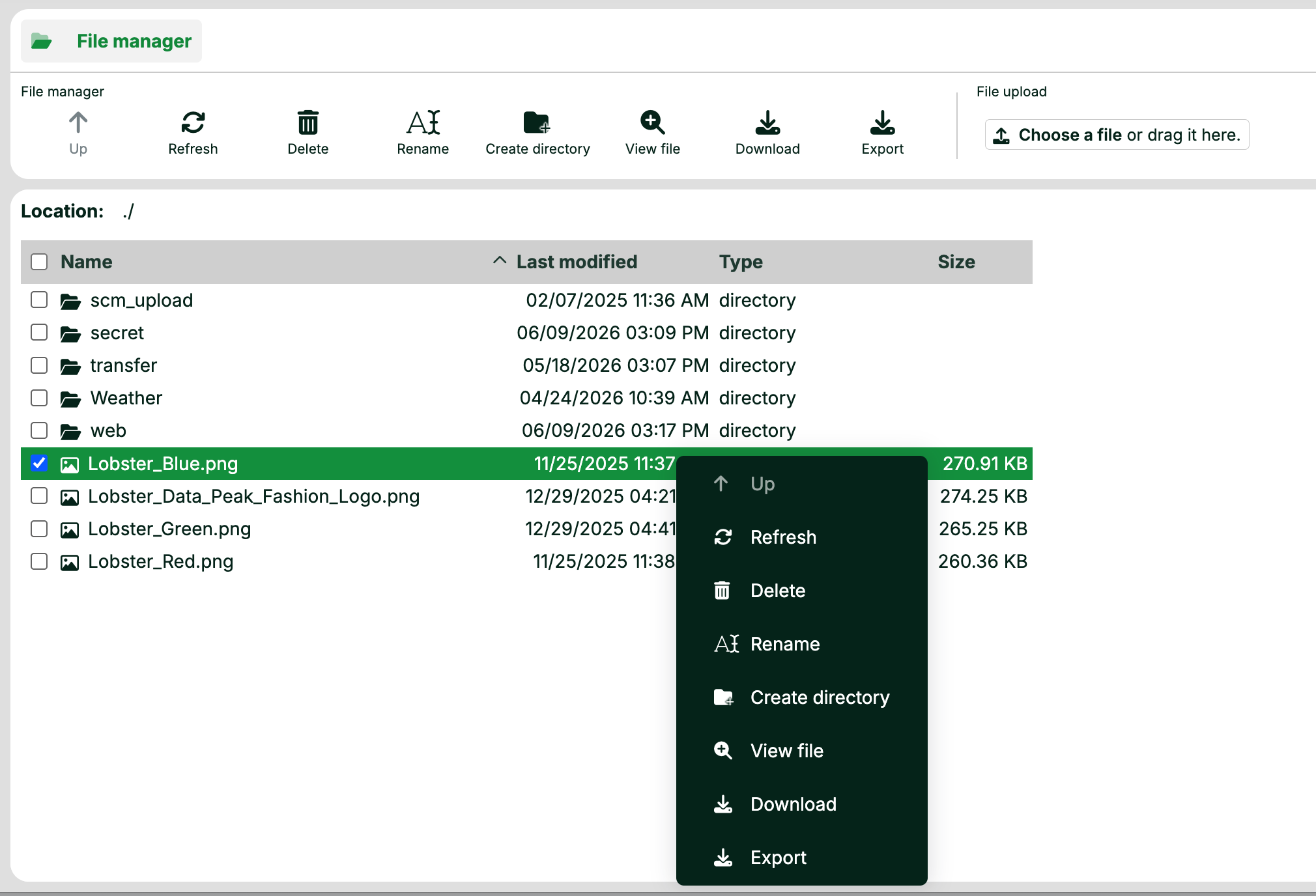
The following table describes the toolbar buttons.
Button | Function |
|---|---|
Up | Moves up one folder level. |
Refresh | Refreshes the file list. This does not happen automatically. |
Delete | Deletes selected files and folders. This action cannot be undone. |
Rename | Renames the selected file or folder. |
Create folder | Creates a new folder in the current directory. |
View file | Opens the file in a new browser tab or offers it for download. If popups are blocked, the browser does not open several files at once. |
Download | Downloads the selected files to the browser download directory. If popups are blocked, the browser does not download several files at once. |
Export | Exports the configuration. |
Select file or drag it here | Opens a file selection dialog for upload. You can also add files via drag-and-drop. |
Additional controls:
Context menu: All buttons are also available in the context menu via right-click.
Multiple selection: Select several entries using Shift, Ctrl (Mac: Cmd), or the checkboxes.
Move: Drag files and folders to other directories via drag-and-drop.
Keyboard: Navigate with the arrow keys. The Delete key removes entries after a prompt.
Public access via the web folder
Caution
Content in the
webfolder is readable in a browser without logging in. Do not store confidential files there.
Content in the web directory (including subdirectories) is readable in a browser. The URL of Lobster Data Platform/Orchestration is extended by the path for this.
Example: At https://<server>/avatar/user_avatar_1001.png you retrieve the profile picture of user 1001. You do not need to log in.