Value resolver – Abstract
Purpose: Requests text input from the user in an interactive context via a modal prompt.
Tooltip
Usage: The value resolver opens a prompt in an interactive context, taking into account the parameters described below, allowing the user to enter text.
When the input is completed with the OK button (or – for the Prompt type "Single-line text" – with the "Enter" key), the text entered is returned.
After the maximum waiting time (Timeout (s)) has elapsed, the value is returned if the Timeout value has been exceeded.
In a non-interactive context (e.g. profile call), the Timeout value is returned immediately without waiting.
When clicking the optional Cancel button, "no value" (
$null) is returned.Parameter: The Title, Message, Default value, and Timeout value text parameters can be specified statically by direct entry or defined by value resolvers at runtime.
The Title and Message parameters define the output text for the corresponding areas of the prompt.
The Default value optionally defines text with the input area of the prompt preset.
The Timeout value defines the return value in the event that the maximum waiting time (see Timeout) expires without "OK" or "Cancel" being clicked, OR the value resolver is executed in a non-interactive context.
The Prompt type parameter defines which type of input should be offered in the prompt.
The User resizable and Full screen parameters affect the behavior of the prompt window in terms of its size.
The Can cancel option decides whether the prompt offers a button to "Cancel" the prompt with the return value
$null.The Timeout (s) with a default value of 30 specifies the maximum number of seconds the prompt will remain open before returning the Timeout value.
CAUTION Entering 0 seconds is possible, but causes a timeout after 60 seconds. However, settings >60 seconds are explicitly accepted.
NOTE The Clear button in the prompt replaces the value in the input area with an empty string rather than "no value" (
$null).IMPORTANT This resolver is not available in a Client Workflow!
IMPORTANT
This resolver is not available in a Client Workflow!
The User prompt value resolver requests a text input from the user in an interactive context via a modal prompt, which usually defines the return value of the value resolver.
Exceptions:
If no input is made by the user within the waiting time parameterized as Timeout (s), the prompt is closed and the Timeout value is returned.
If Can cancel is checked, then when the user cancels the prompt, the value resolver returns "no value" (
$null) rather than the Prompt type or the Default value.
NOTE If there is no interactive context, e.g. because event handling was triggered by an Import profile, then no prompt can follow. In this case, the Timeout value (and not the Default value) is processed as the return value without any waiting time.
Runtime examples:
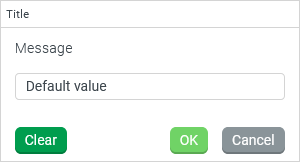
Single-line input area with Cancel button:
Multiline JSON input area:
|
|
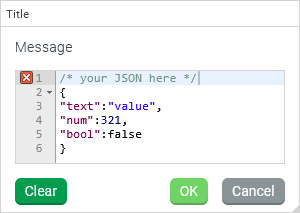
 icon marks a non-compliant line (no. 1). When hovering over it with the mouse cursor, a tooltip appears with more information (here:
 Configuration
The input value is only relevant as a reference object for value resolvers in parameters.
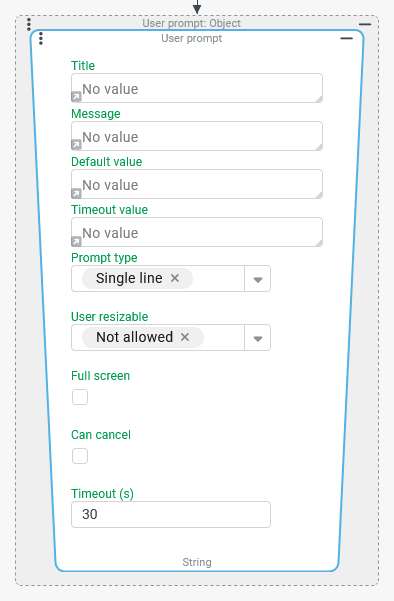
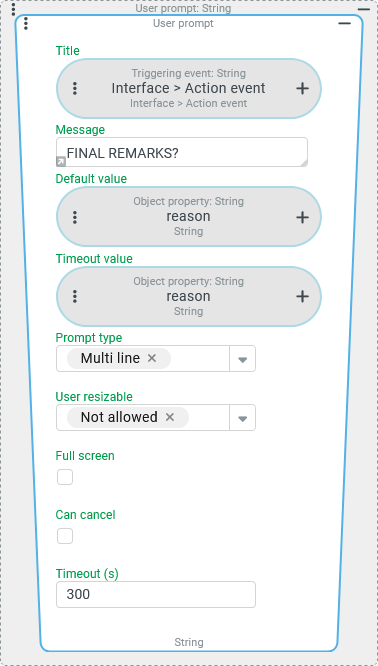
The Title, Message, Default value, and Prompt type value text parameters can be specified statically via direct input or defined via value resolvers at runtime.
By default, the direct input is active (see Message in the following screenshot), from which it is possible to switch to the value resolver definition by clicking on the small gray arrow at the bottom right of the text field.
|
|


Example
Certain Working state values (such as "Completed", "Canceled", etc.) should permanently terminate the life cycle of business objects of the "Shipment" type. If one of these terminal working states is assigned in an interactive workflow, the user is given the opportunity to enter a "Final remark" in the "Reason" (reason) field of the added working state entry. Detailed requirements for this:
If a text for the "Reason" (
reason) has already been predefined in the context of the workflow, this should appear as the "default value" so that it can be revised, supplemented or completely replaced or deleted by the user if necessary.The user should be given the option to rollback the entire transaction by clicking the "Cancel" button in the prompt, thus preventing the change to a terminal work state.
If the user does not make any entries within 5 minutes, the prompt is closed and the working state change including the predefined "Reason", if any, takes effect.
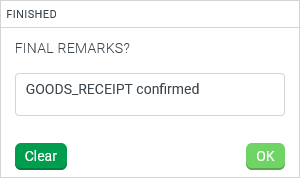
Runtime example:
|
|
Configuration:
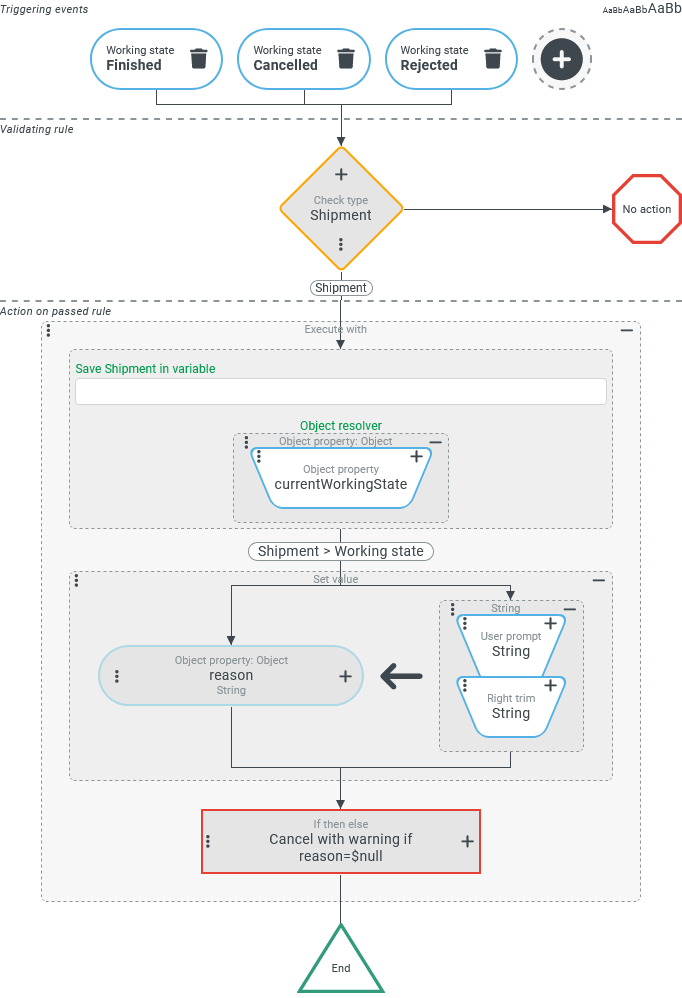
Before discussing details of the User prompt value resolver, an overview of the solution approach is explained using the configuration shown for an event handler:
Triggering events must be selected for all relevant working states, i.e. those from the Working state (Events) category that are triggered when a working state is added to any entity that is considered a "terminus" for Shipments in the context of the example. The Validating rule uses Check type to ensure that actions are only performed when one of the relevant working states has been added to a "Shipment". As an Action on passed rule, an Execute with event action is used to set the working state entry referred to by the shipment in the "Current working state (
|
|
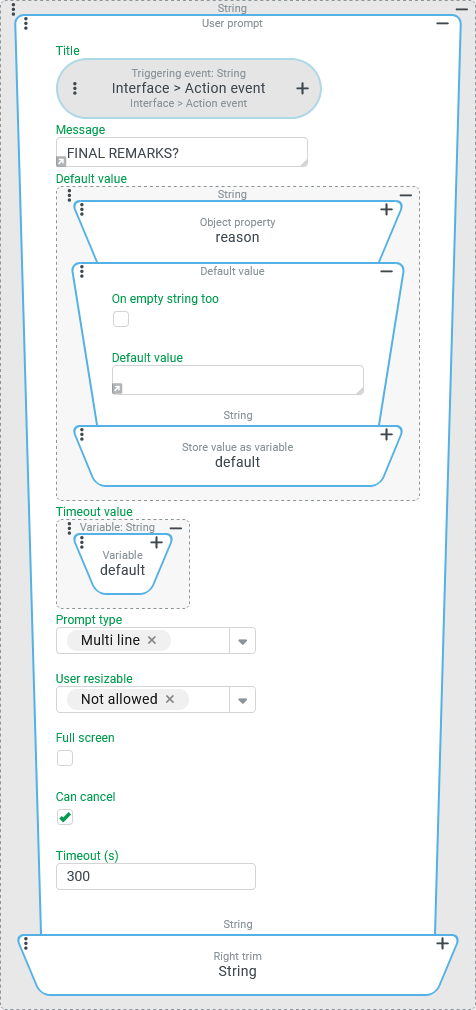
The User prompt value resolver is configured as shown on the right:
NOTE With this configuration, the prompt returns |
|
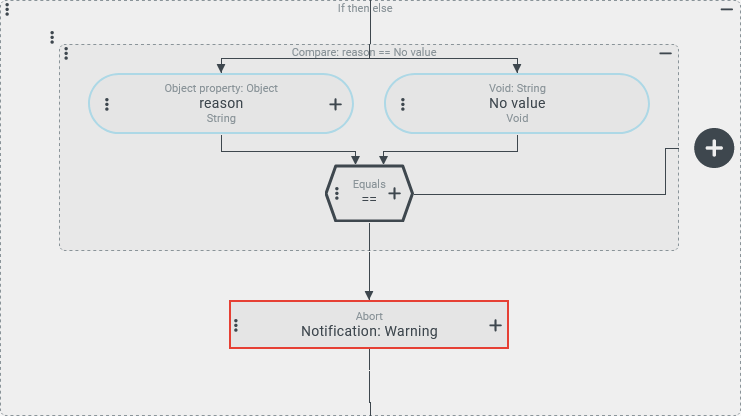
The Entity property rule within the downstream If then else event action explicitly checks the "no value" (as a compare value) per Equals to detect an abort executed by the user.
NOTE A check via Is empty would not be suitable here, because this would also be passed for the empty string (""), which is returned with the configuration above if the user does not react until the "Timeout", confirms an empty default value via "OK" or enters text and this is removed again via "Empty" and then confirmed via "OK". However, according to the requirement in our example, the rollback should only be triggered by clicking "Cancel". |
|