Version 1.0.0
The CEP Connector provides one unified integration for CEP services (Courier, Express, and Parcel providers). It supports shipment booking, label retrieval, and shipment tracking across multiple carriers. Integrate the unified data format LobsterCEP to get started. The CEP Connector handles the rest.
Key use cases
Book shipments and generate shipping labels in PDF, ZPL, or PNG formats.
Retrieve tracking updates throughout the delivery process near real time.
Obtain Proof of Delivery (POD) documents once shipments are delivered.
Requirements
Before you begin, ensure the following requirements are met:
Lobster Data Platform, version 25.1 or later.
CEP API access and credentials for each carrier (username/password or client ID/client secret).
How it works
.jpg)
Bidirectional data flow between LobsterCEP Template Profiles and CEP Connector Profiles for shipment tracking and transport order management within a customer LDP environment.
The CEP Connector includes a package of profiles of two different types:
CEP_CONNECTOR profiles are fixed implementations containing all the functionality of the CEP Connector. They contain mappings between the API formats of the CEP providers and the unified format
LobsterCEP.TEMPLATE_LobsterCEP profiles are predefined templates. They simplify integration through the
LobsterCEPformat.
IMPORTANT
Do not modify CEP_CONNECTOR profiles. Modifications break the functionality and maintainability of the CEP Connector.
Shipment booking
The shipment booking process books carrier shipments via their public APIs. The CEP Connector calls a mapper profile. It converts the LobsterCEP transport order into the carrier's required format. The connector then sends the data to the CEP system. The CEP system returns a synchronous response. The connector converts this response back to the LobsterCEP structure using a specific CEP mapper profile. Finally, it forwards the processed data to your customer profile as a transport order acknowledgement. The response is either a booking confirmation including the shipment label, or an error response with carrier feedback.
Tracking
The tracking process retrieves shipment status updates from the CEP providers via their public APIs. It reads Lobster Integration configuration files under ./conf/Connectors/CEP/Tracking. These files contain tracking details in CSV format. The polling logic fetches only new tracking events. This prevents redundant data retrieval. When you use the shipment booking process, the CEP Connector creates and updates the tracking configuration files automatically.
You can also fill these files manually for shipments booked elsewhere. The tracking files use the following format:
carrierTrackingNumber;customerShipmentId;latestEventTimestamp;shipmentCreationTimestampThe latestEventTimestamp field is filled automatically by the connector. Leave it blank during initial setup.
Example: to automatically track shipment test123 with DHL tracking number 1091847043 (created 2025-09-08 at 10:00:00), add the following line to ./conf/Connectors/CEP/Tracking/List_ShipmentTrackingNumbers_DHL.csv:
1091847043;test123;;1757318400000For FedEx, UPS, or PostNL, use FEDEX.csv, UPS.csv, or PostNL.csv instead of DHL.csv.
Installation
Preconfigured dataflows are available for Lobster Data Platform customers. They simplify integration with your CEP providers. The dataflows include:
CEP Connector profiles for integrating various CEP APIs.
Template profiles for your mappings to or from the LobsterCEP shipment structure.
Partner channels for your CEP providers.
System constants to customize the CEP Connector.
Step 1: Import package
Select Home > Start from template.
Select Install on the CEP Connector template tile.
You are automatically redirected to Integration > DataFlow > Designer.
The Import package dialog opens. It is organized into four tabs:
Contents: Lists all included profiles and DataFlows with type, name, status, and version.
Constants: Displays constants included in the package.
Partners/Channels: Displays partners and partner channels included in the package with import options.
Information: Contains supplementary information about the package.
Contents tab
The Contents tab displays all components included in the package:
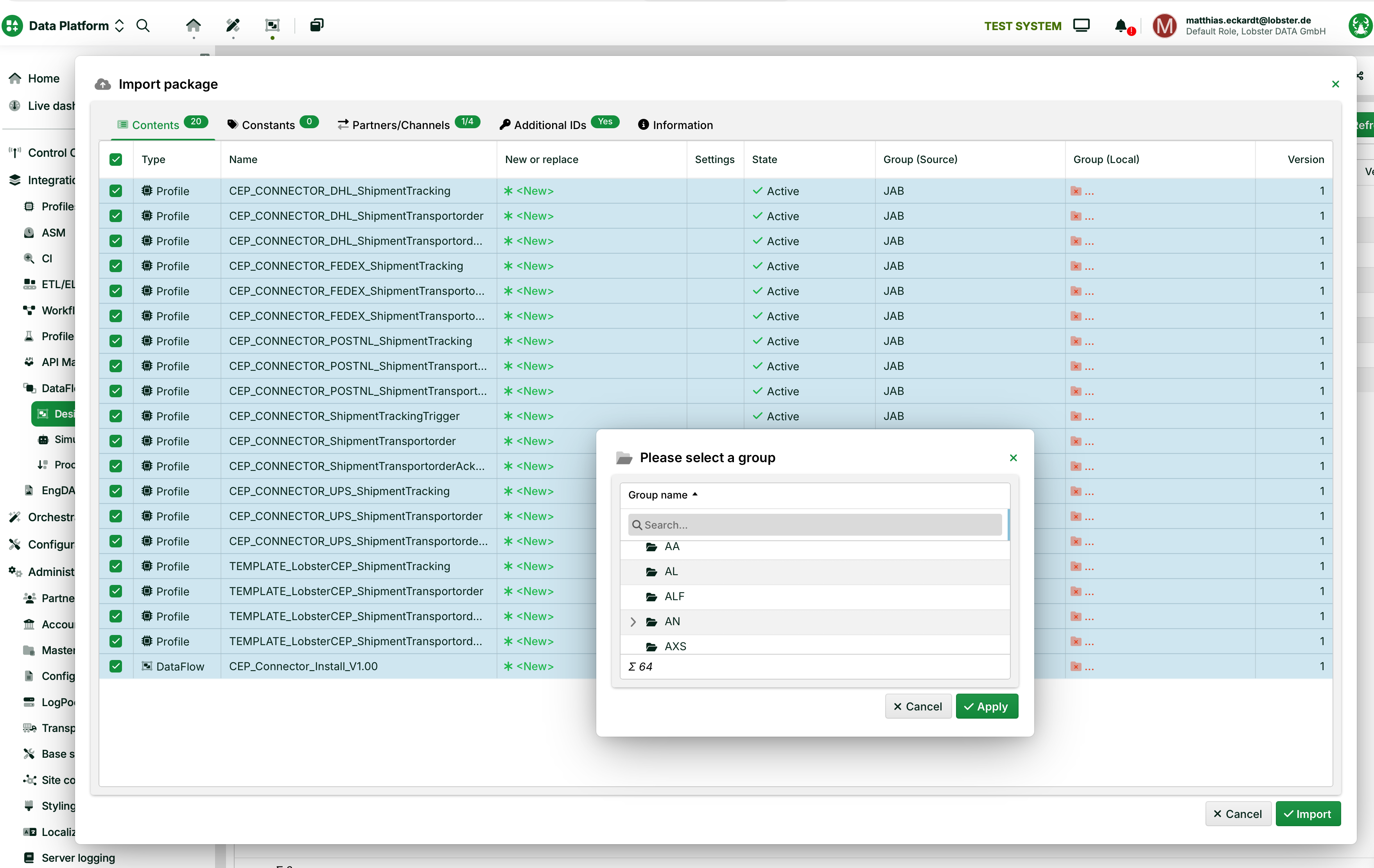
Import package dialog, Contents tab: overview of all profiles and DataFlows.
The package contains the following components:
Type | Name | Status | Version |
|---|---|---|---|
Profile |
| Active | 1 |
Profile |
| Active | 1 |
Profile |
| Active | 1 |
Profile |
| Active | 1 |
Profile |
| Active | 1 |
Profile |
| Active | 1 |
Profile |
| Active | 1 |
Profile |
| Active | 1 |
Profile |
| Active | 1 |
Profile |
| Active | 1 |
Profile |
| Active | 1 |
Profile |
| Active | 1 |
Profile |
| Active | 1 |
Profile |
| Active | 1 |
Profile |
| Active | 1 |
Profile |
| Active | 1 |
DataFlow |
| Active | 2 |
NOTE
All profiles in this package have the status Active and are ready for use immediately after import.
Group selection
Select the appropriate local groups for each profile, or create new ones. Click the folder icon in the Group (local) column.
Constants tab
The Constants tab displays the predefined constants for customizing the CEP Connector.
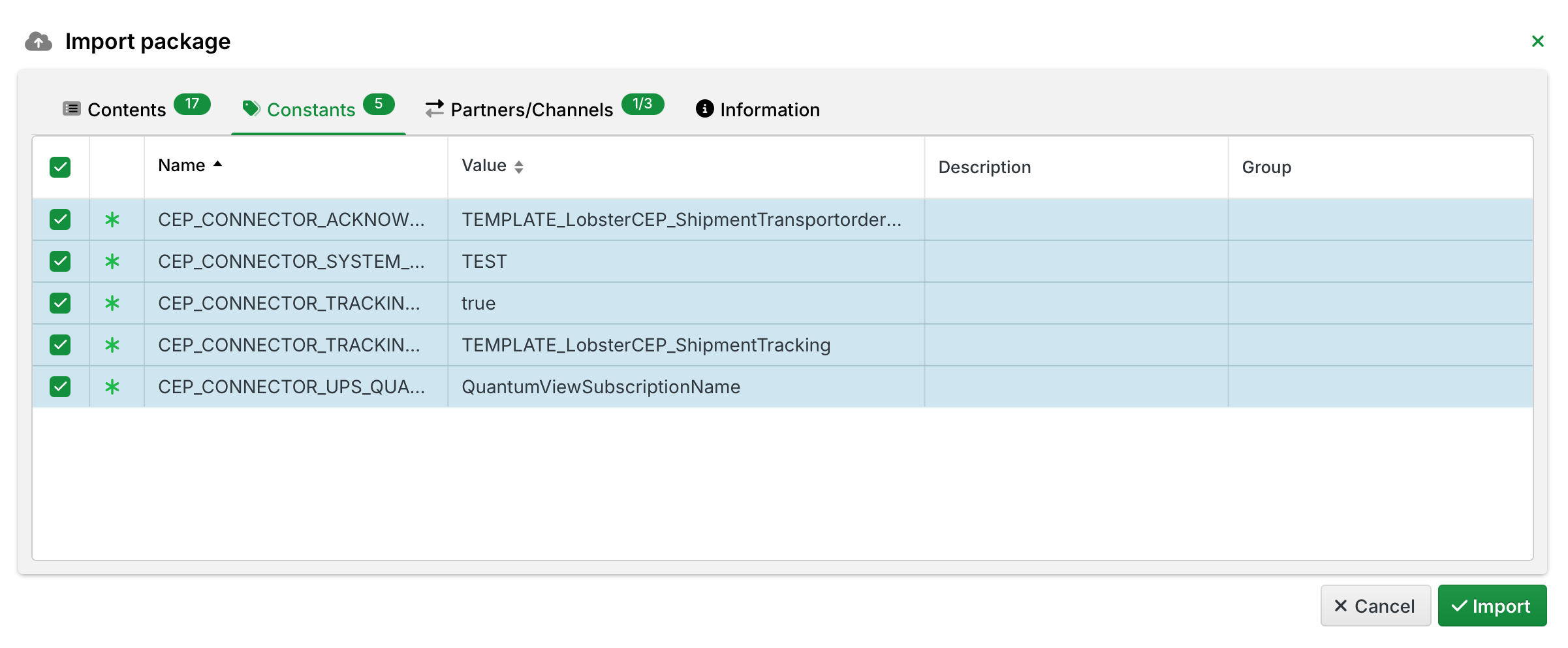
Existing constants are not overwritten by default, regardless of whether their values differ.
Partners/Channels tab
The Partners/Channels tab displays the partners and partner channels included in the package. This package contains one partner with three partner channels. Select whether to import or overwrite the preconfigured partner channels. If you do not enable overwrite, updates leave existing channel configurations unchanged.
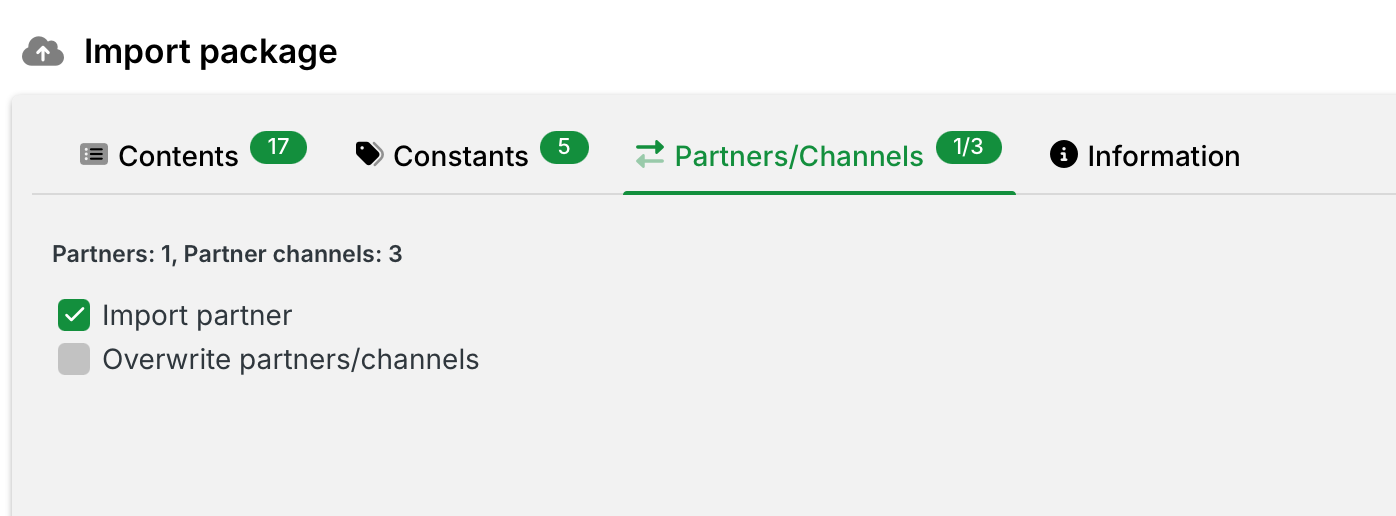
Import package dialog, Partners/Channels tab: import options for partners and partner channels.
The following options are available:
Import partners: Imports the CEP Connector partner along with the associated HTTPS channel. This option is enabled by default.
Overwrite partners/channels: Overwrites existing partners and channels with the same name. Enable this option only if you intentionally want to replace an existing configuration.
IMPORTANT
If the CEP Connector partner already exists in your environment and you have made custom modifications, leave Overwrite partners/channels disabled to preserve your configuration.
Complete the import
Review the displayed components across all tabs. Select Import and confirm to start the import.
Step 2: Configure credentials
Required credentials per carrier
Carrier | Credential type | Where to get |
|---|---|---|
DHL Express | Basic auth: username and password | |
FedEx | Client ID and client secret | FedEx Developer Portal, see "How to get API Credentials" |
UPS | Client ID and client secret | UPS Developer Portal, see "Getting Started with UPS APIs" |
PostNL | API key | PostNL Developer Portal, see "How to Get Started" |
Partner channel configuration
Navigate to Administration > Partner > Partners/Channels > CEP Connector.
DHL_Express_HTTPS
Enter the DHL Express username in the Own ID field.
Enter the DHL Express password in the Own Password field.
IMPORTANT
The partner address in the package points to the test environment by default. Before deploying to production, update this URL to the production endpoint.
FedEx_HTTPS
Select Configure OAuth 2.0….
Enter your client ID and client secret.
Select Client Credentials as the grant type.
Enter the Endpoint URL:
Test:
https://apis-sandbox.fedex.com/oauth/tokenProd:
https://apis.fedex.com/oauth/token
Select Fetch Access Token.
Enter the OAuth2 Refresh URL:
Test:
https://apis-sandbox.fedex.com/oauth/token?grant_type=client_credentials&client_id=<clientId>&client_secret=<clientSecret>Prod:
https://apis.fedex.com/oauth/token?grant_type=client_credentials&client_id=<clientId>&client_secret=<clientSecret>
UPS_HTTPS
Select Configure OAuth 2.0….
Enter your client ID and client secret.
Select Send 'client credentials' in header.
Select Authorization Code as the grant type.
Enter the Endpoint URL:
Test:
https://wwwcie.ups.com/security/v1/oauth/tokenProd:
https://onlinetools.ups.com/security/v1/oauth/token
Enter the Redirect URL. Use the internal address of your Lobster Data Platform:
https://<your-server>:<your-port>/dw/oauth2/<your-Application-ID>The Application ID starts with
_data. You can find it in your OAuth 2.0 settings. Register this URL in the UPS Developer Portal application settings as well.Enter the OAuth URL:
Test:
https://wwwcie.ups.com/security/v1/oauth/authorizeProd:
https://onlinetools.ups.com/security/v1/oauth/authorize
Select Fetch Access Token. You are redirected to UPS to sign in with your developer account credentials.
After a successful redirect, a blank page with
okis displayed. Reopen the channel. The tokensSYS_HTTP_OAUTH2andSYS_HTTP_OAUTH2_REFRESHare now visible under Additional IDs.Enter the OAuth2 Refresh URL:
Test:
https://wwwcie.ups.com/security/v1/oauth/refresh?grant_type=refresh_token&refresh_token=<refreshToken>&client_id=<clientId>&client_secret=<clientSecret>&useCredentialsInHeaderProd:
https://onlinetools.ups.com/security/v1/oauth/refresh?grant_type=refresh_token&refresh_token=<refreshToken>&client_id=<clientId>&client_secret=<clientSecret>&useCredentialsInHeader
PostNL_HTTPS
Add your API key as
SYS_HTTP_apikeyin the Additional IDs tab.
Step 3: Use profile templates for custom mappings
Direction | Template profile | Description |
|---|---|---|
📤 Sending shipments |
| Send LobsterCEP shipments to the booking connector. Replace the source structure with your custom format and map it to the pre-filled LobsterCEP format. |
📥 Receiving shipments |
| Receive LobsterCEP shipment acknowledgements. Replace the target structure with your custom format and process the received shipment. |
📥 Receiving tracking |
| Receive LobsterCEP tracking data. Replace the target structure with your custom format and process the tracking data. |
Smoketest |
| Quickly test the booking connector. Right-click the profile and select Restart > Start Cron. Set |
IMPORTANT
Do not modify CEP_CONNECTOR profiles. Modifications break the functionality and maintainability of the CEP Connector.
Configuration constants
The following system constants configure the CEP Connector. (M) = required, (D) = dependent, (O) = optional.
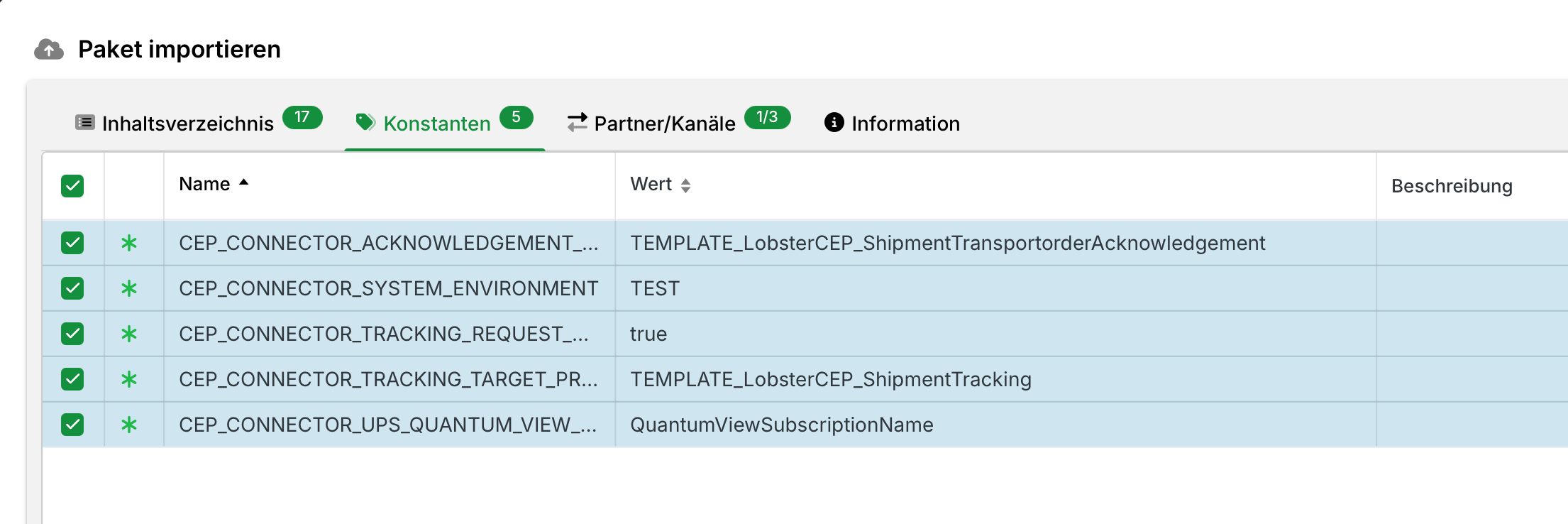
Constant | Type | Valid values | Default | Description |
|---|---|---|---|---|
| (M) |
|
| Indicates the system type. Controls target environments for endpoints and other variables. |
| (D) | Profile name |
| Profile to receive the booking response. Required when using the shipment booking process. |
| (D) | Profile name |
| Profile to receive tracking responses. Required when using the shipment tracking process. |
| (O) |
|
| Automatically include Proof of Delivery documents in tracking responses. |
| (D) | Subscription name(s), comma-separated | - | Required when using UPS shipment tracking. Specify your Quantum View subscription name(s). |
| (O) | Channel ID | - | Overrides the default DHL Express HTTPS channel. Create this constant manually if you have an existing DHL Express API channel. |
| (O) | Channel ID | - | Overrides the default FedEx HTTPS channel. Create this constant manually if you have an existing FedEx API channel. |
| (O) | Channel ID | - | Overrides the default UPS HTTPS channel. Create this constant manually if you have an existing UPS API channel. |
| (O) | Channel ID | - | Overrides the default PostNL HTTPS channel. Create this constant manually if you have an existing PostNL API channel. |
Input data structure: Shipment booking
Pass the following LobsterCEP data structure to the profile CEP_CONNECTOR_ShipmentTransportorder. The connector MAPS it to the carrier format, calls the carrier API, and forwards the result to your acknowledgement profile.
Output data structure: Shipment booking
Result | Description | Structure |
|---|---|---|
Confirmed | Shipment booked successfully. Label and carrier reference returned. |
|
Error | Booking failed. Carrier feedback included in the response. |
|
Example: Confirmed booking
{
  "LobsterCEP": {
    "header": {
      "carrierId": "DHL_EXPRESS",
      "processingStatus": {
        "code": "CONFIRMED",
        "realizationDateTime": "2025-08-13T09:33:59+02:00"
      }
    },
    "shipment": {
      "shipmentId": "ABC123456789",
      "carrierReference": "987654321",
      "estimatedDeliveryDate": "2025-08-18T23:59:00Z",
      "documents": [
        {
          "type": "LABEL",
          "name": "LABEL_987654321.pdf",
          "format": "PDF",
          "content": "<base64-encoded content>"
        }
      ],
      "trackingUrl": "https://express.api.dhl.com/mydhlapi/test/shipments/987654321/tracking"
    }
  }
}
Example: Error response
{
  "LobsterCEP": {
    "header": {
      "carrierId": "DHL_EXPRESS",
      "processingStatus": {
        "code": "ERROR",
        "reason": "1001: The requested product(s) (P) not available based on your search criteria.",
        "realizationDateTime": "2025-08-13T09:33:59+02:00"
      }
    },
    "shipment": {
      "shipmentId": "ABC123456789"
    }
  }
}
Output data structure: Tracking
The profile CEP_CONNECTOR_ShipmentTrackingTrigger polls the carrier automatically for new events. It delivers the following LobsterCEP structure to your tracking target profile. No call is required from your side. Configure the tracking CSV files as described in the Tracking section.
Example: Tracking
{
  "LobsterCEP": {
    "header": { "carrierId": "DHL_EXPRESS" },
    "shipment": [
      {
        "shipmentId": "ABC123456789",
        "carrierReference": "987654321",
        "estimatedDeliveryDate": "2025-08-18T23:59:00Z",
        "trackingEvents": [
          {
            "owner": "DHL_EXPRESS",
            "eventDateTime": "2025-09-01T01:43:03Z",
            "eventLocation": "CPH (Copenhagen-DK)",
            "statusDetails": [{ "code": "OK", "statusDescription": "Delivered" }]
          }
        ],
        "documents": [
          {
            "type": "POD",
            "name": "POD_987654321.pdf",
            "format": "PDF",
            "content": "<base64-encoded content>"
          }
        ],
        "trackingUrl": "https://express.api.dhl.com/mydhlapi/test/shipments/987654321/tracking"
      }
    ]
  }
}
LobsterCEP data format
The LobsterCEP object is the unified data format for all CEP Connector operations. The following sections provide a complete field reference.
Header
Contains carrier selection, action type, and document requirements.
Field | Type | Required | Description |
|---|---|---|---|
| string | Yes | The carrier to handle the shipment. Values: |
| string | Yes | Action to perform. Values: |
| array of string | No | Documents to return. Labels are always auto-requested. Values: |
Shipment
Contains all shipment details.
Field | Type | Required | Description |
|---|---|---|---|
| string | Yes | Unique identifier for the shipment. It can be identical to |
| string | Yes | Shipper's own reference for the shipment. |
| string | No | Carrier reference number. Normally generated by the carrier. For DHL Express, you can set your waybill number here. |
| string | No | Recipient's reference number. |
| string | Yes | Type of shipping service. See carrier-specific values below. |
| date-time | Yes | Date and time for shipping. Example: |
| string | No | International Commercial Terms. Values: |
| string | No | Location for the Incoterm. |
| string | No | Type of movement. Used to determine inbound/outbound commodity code for DHL Express. Values: |
| boolean | No | Whether a pickup is requested. |
| boolean | No | Whether a drop-off is requested. |
| string | Yes | Carrier account number. |
| PaymentInformation | No | Who pays for transportation? See Payment information. |
| PaymentInformation | No | Who pays duties and taxes? See Payment information. |
| Parties | Yes | All involved parties. See Parties and addresses. |
| array of Package | Yes | Packages in the shipment. See Packages and line items. |
| CustomsInformation | No | Shipment-level customs data. See Customs information. |
| string | No | Label format. DHL Express: |
| string | No | DHL Express label template. Default: |
serviceType values by carrier
Carrier | Valid values |
|---|---|
DHL Express |
|
FedEx |
|
UPS |
|
PostNL | ProductCode (default |
Parties and addresses
All parties involved in the shipment. shipper and recipient are required.
Field | Required | Description |
|---|---|---|
| Yes | Sending party. |
| Yes | Receiving party. |
| No | Pickup location if different from shipper. |
| No | Delivery location if different from recipient. |
| No | Ultimate consignee address. |
| No | Importer address. |
| No | Exporter address. |
| No | Buyer address. |
| No | Payer address. |
Address fields
Field | Required | Description |
|---|---|---|
| Yes | Primary name (usually company name). |
| No | Secondary name (for example, department). |
| No | Tertiary name. |
| Yes | Street address line 1. |
| No | Street address line 2. |
| Yes | Postal/ZIP code.. |
| Yes | City name |
| Yes | ISO country code (for example, |
| No | Country name. |
| No | State/province code. |
| No | State/province name. |
| No | External customer reference. |
| No | Additional identifiers (VAT, EOR, UEN, GLN). |
| No | Array of contact persons (name, e-mail, phone, fax). Name and phone are required per contact. |
Payment information
Field | Description |
|---|---|
| Who is responsible for payment: |
| Billing account number with the carrier. |
| ISO 3166-1 alpha-2 country code associated with the billing account. |
Packages and line items
Package fields
Field | Required | Description |
|---|---|---|
| Yes | Package identifier. |
| Yes | Shipper's reference for this package. |
| No | Carrier's reference for this package. |
| No | Recipient's reference for this package. |
| No | Serial Shipping Container Code. |
| No | Type of package (for example, |
| Yes | Physical dimensions. See Dimensions below. |
| No | Array of line items in the package. |
| No | Package-level customs data. |
| No | Array of dangerous goods declarations. |
Dimensions
All measurement values have a value (number) and unit field.
Field | Required | Units |
|---|---|---|
| Yes |
|
| No |
|
| No |
|
| No |
|
| No |
|
| No |
|
| No |
|
Line item fields
Field | Required | Description |
|---|---|---|
| Yes | Item number/SKU. |
| No | Position in line items list. |
| No | Description of the item. |
| No | Price value (number). |
| No | ISO 4217 three-letter currency code. |
| No | Quantity amount. |
| No | Unit of quantity (for example, |
| No | ISO country code of manufacture. |
| No | Reason for export. DHL Express only. Values: |
| No | Item dimensions. |
| No | Item-level customs data, including HS codes. |
Customs information
Available at shipment level, package level, and line item level.
Field | Level | Description |
|---|---|---|
| All | Description of goods for customs. |
| All | Value of goods (number). |
| All | ISO 4217 currency code. |
| Shipment & line item | Array of Harmonized System codes. |
| Shipment | Export declaration number. |
| Shipment | Commercial invoice number. |
| Shipment | Date of invoice. |
Documents
Documents are returned in the booking acknowledgement and tracking responses.
Field | Required | Description |
|---|---|---|
| Yes | Document type: |
| Yes | Filename (for example, |
| Yes | Document format: |
| Yes | Base64-encoded document content. |
Tracking response
Tracking event fields
Field | Required | Description |
|---|---|---|
| Yes | Date and time when the event occurred (ISO 8601). |
| Yes | Status code (for example, |
| No | Carrier that owns this status: |
| No | Creation date and time of the event. |
| No | Location where the event occurred. |
| No | Reason for the status. |
| No | Human-readable description. |
| No | Name of person who signed for delivery. |
Support
For questions about DataFlow configuration, contact the Lobster Support team.
Website: www.lobster-world.com
E-mail: support@lobster.cloud