Go to Administration → Partners → Partners/Channels.
Click the + (plus) icon in the bottom-right corner.
Select Create new channel.
Select SSH (SCP/SFTP) from the protocol list.
SSH is the transport protocol. The actual file transfer protocols are SFTP (SSH File Transfer Protocol) and SCP (Secure Copy Protocol). Use Allowed sub types options to select which of the two protocols this channel accepts. See also: FTP, FTPS, SSH, SCP, SFTP.
Settings

SSH (SCP/SFTP) channel settings: top section
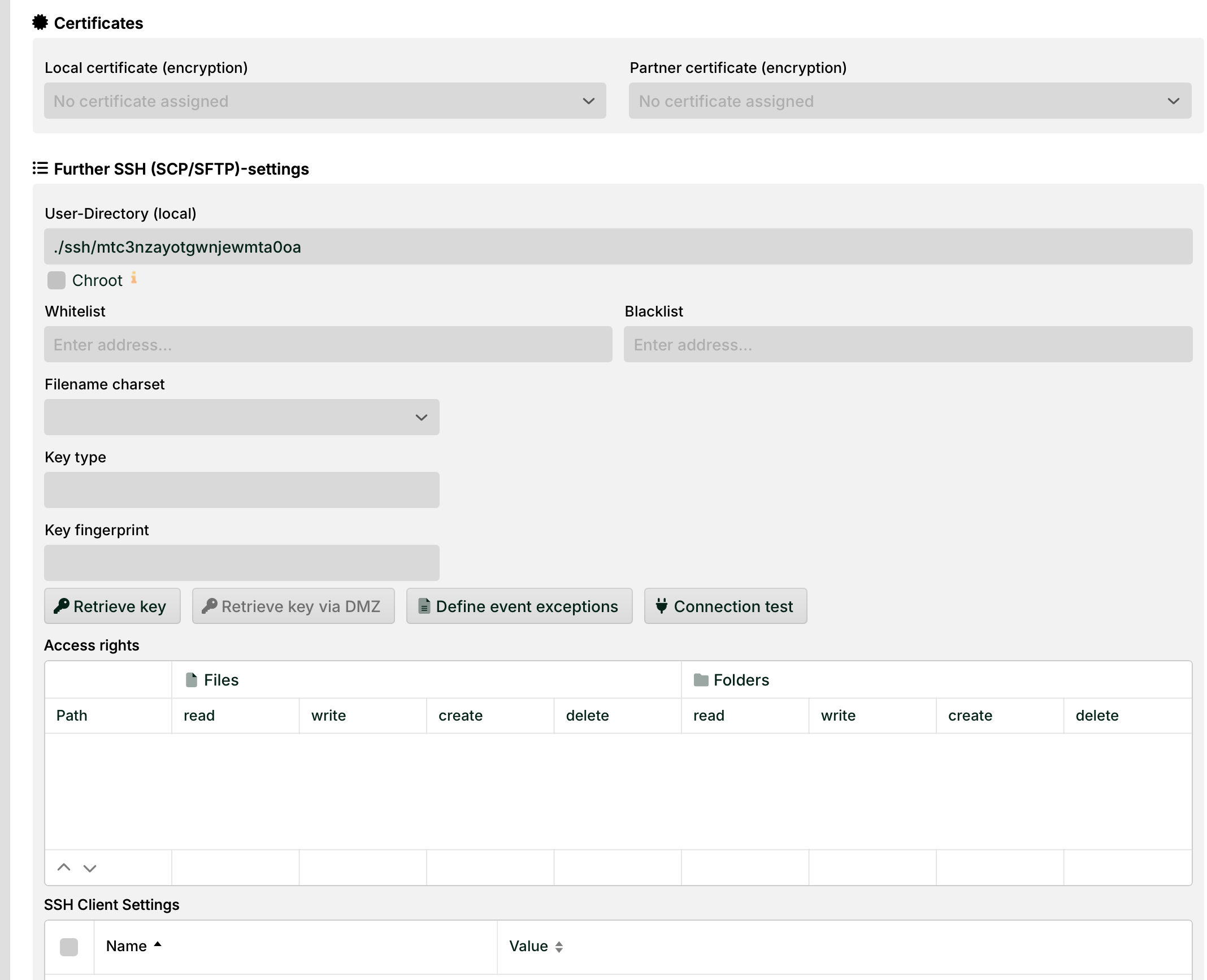
SSH (SCP/SFTP) channel settings: bottom section
Setting | Description |
|---|---|
Allowed sub types | Defines which file transfer protocols this channel accepts: SFTP, SCP, or both. A channel can be restricted to one subtype to prevent misuse or to match the capabilities of the partner system. See also: FTP, FTPS, SSH, SCP, SFTP. |
Quota settings | Daily limits for downloads, uploads, and logins. See the "Quota settings" below. |
Certificates | Assigns local and partner certificates to the channel. Certificate assignment is only required when using public key authentication instead of username and password. Transport encryption is always active, regardless of whether certificates are assigned. |
User directory (local) | The Home folders assigned to the user of this channel. The directory is created automatically the first time the channel is saved. See also: Do not create user directory again. |
Do not create user directory again | If checked, the Home folders and its subdirectories (see |
Chroot | If checked, the home directory is presented as the root directory ( NOTE This setting applies to SFTP sessions only. It has no effect on SCP. |
Key type | Clicking Retrieve key connects to the partner system specified in Partner address and reads its public key. The Key type and Key fingerprint fields are filled automatically. IMPORTANT The partner address must use the format |
Define event exceptions | Opens an editor for the file
|
Access rights | Controls read and write permissions per directory path for this channel's user. Managed in the same way as for FTP channels. |
Whitelist | Restricts or grants access based on client IP addresses or URLs. Both lists are evaluated. If an address appears on both lists, the blacklist takes precedence. |
Filename charset | The character encoding used to interpret incoming filenames. Default: |
Quota settings
Use quota settings to limit the number of daily operations for this channel. Set any value to -1 to remove the limit. When a limit is reached, the channel is set to inactive automatically.
Limit | Description |
|---|---|
Max. downloads per day | Maximum number of file downloads per day. |
Max. uploads per day | Maximum number of file uploads per day. |
Max. logins per day | Maximum number of login attempts per day, including failed logins. |
Use the buttons to view current counters (including failed logins) or to reset them.
To limit the maximum number of consecutive failed login attempts before the channel is blocked, add the following entry to the SSH service configuration file:
<Set name="autoblockLoginAttempts">5</Set>SSH client settings
The SSH client settings are listed in a table on the bottom of the dialog, below Access rights. Lobster Data Platform uses JSch (Java Secure Channel) as the SSH client library for all outbound SFTP and SCP connections. During the SSH key exchange, JSch negotiates algorithms with the remote server. If no common algorithm is found for any category, the connection fails with Algorithm negotiation fail.
From release 26.2.0, these JSch connection parameters can be configured per channel via a dedicated configuration field in the channel. Before 26.2.0, they could only be set globally as JVM system properties in wrapper.conf or execute.sh, applying to all SSH channels on the server.
These settings control Lobster as an outbound SSH client connecting to a partner system. They are unrelated to the SSH server settings in SshService, which control inbound connections from partners.
How algorithm negotiation works
JSch performs two steps before sending its algorithm lists to the server:
Availability check (
CheckCiphers,CheckKexes,CheckSignatures): JSch tests whether each algorithm in these lists is supported by the local JVM. Any algorithm that is unavailable in the JVM is silently removed before negotiation begins.KEXINIT negotiation: JSch sends its final algorithm lists to the server. For each category (cipher, MAC, key exchange, host key), the first entry in the client list that the server also supports is selected. Order determines priority: leftmost = highest preference.
If the remaining client list has no overlap with the server's list in any category, the connection is rejected.
Configuration parameters
All values are comma-separated algorithm names. The order of entries determines negotiation priority.
Parameter | Description |
|---|---|
| Comma-separated list of accepted public key algorithms for host key verification and public key authentication. This was the original parameter moved from global JVM scope to per-channel scope in release 26.2.0. Example: |
| Ciphers to check for JVM availability before the KEXINIT. Unavailable ciphers are removed from both Example: |
| Key exchange algorithms to check for JVM availability before the KEXINIT. Unavailable algorithms are removed from the KEX list before negotiation. Example: |
| Signature (host key) algorithms to check for JVM availability before the KEXINIT. Unavailable algorithms are removed from the host key list before negotiation. Example: |
| Cipher algorithm list sent to the server for the client-to-server direction. The first entry that the server also supports is selected. Example: |
| Cipher algorithm list sent to the server for the server-to-client direction. Typically configured identically to |
| MAC (Message Authentication Code) algorithm list for the client-to-server direction. Example: |
| MAC algorithm list for the server-to-client direction. Typically configured identically to |
| Key exchange algorithm list sent in KEXINIT. Determines how the session key is established. Example: |
| Compression methods offered for the client-to-server direction. In most deployments this is |
| Compression methods offered for the server-to-client direction. In most deployments this is |
When to configure these settings
In most deployments, the JSch defaults work without adjustment. Configure these settings when connections to a specific partner system fail with Algorithm negotiation fail. This typically happens with:
Legacy SFTP servers that support only older algorithms (e.g.
diffie-hellman-group1-sha1,ssh-rsa).Hardened servers that accept only a restricted set of modern algorithms not in JSch's default priority list.
Environments where a specific partner requires a key exchange or MAC that JSch de-prioritizes or excludes by default.
IMPORTANT
Adding an algorithm to the configuration does not guarantee it will be used. It must also be supported by the local JVM. Use
CheckCiphers,CheckKexes, andCheckSignaturesto verify JVM availability at connection time. Algorithms removed at this step are visible in./logs/FtpLog/client.log.