Behaviors define advanced logic for a form element. In general, behavior configuration links the following three components:
Events (Form designer) (e.g. Click or Changed), that determine the events that cause the behavior to be executed.
Evaluation logic referred to as a Behavior type (e.g. Filled mit or Items selected), which always returns a Boolean value ("true" or "false") and possibly also certain "behavior data".
Actions (e.g. Show alert or Set value), which are executed depending on the Boolean value from the behavior – as Actions on "true" or Actions on "false".
It is significant that the configuration of a behavior can specify no or several Events (Form designer) and also no or numerous Actions but must always address exactly one behavior type. Because of this close (1:1) relationship between a behavior and the behavior type it addresses, simplified language in the product and in the manual sometimes refers to "behavior", where a behavior type is actually meant.
NOTE If multiple behaviors with the same Events (Form designer) are defined for the same element, they are executed according to their sequence position (from top to bottom).
Simple example
The screenshot shows a sample configuration for a behavior named "Air freight alert" that checks if the "Freight type" Text field (element #3) is filled with the value "AIR" when the Button, for which it was configured, is clicked. If this is the case (i.e. on "true"), an alert is displayed, by configuration not to be presented in detail here.
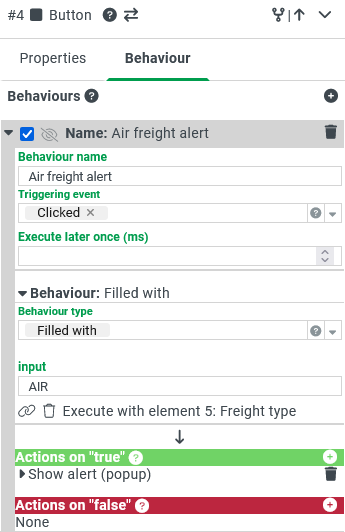
| Details (from top to bottom): Via the symbols .svg) and and .svg) , a new behavior can be added or an existing one removed. , a new behavior can be added or an existing one removed.
From the header line, the grey frame covers the entire behavior in its expanded state. The Name is set below in the Behavior name field. On one hand, it is used to identify the behavior, especially in the collapsed state, but on the other, it also serves as a reference to the behavior in certain cases (e.g. by the Logical condition behavior type or the action Execute behavior). NOTE If multiple behaviors are configured for the same form element, they can be re-sorted in the header using drag & drop. Shortcuts can also be used to completely copy (Ctrl+C), cut (Ctrl+X) and paste (Ctrl+V) selected behaviors. A copy can also be created by using drag & drop while holding down the Ctrl key.
The Triggering event field defines Events (Form designer) for the behavior via multiple selection. The choices depend on the type of the parent form element, also called the executing element of the behavior. In the example, clicking the button serves as a trigger. The Triggering event field can also be left empty if a behavior is to be invoked exclusively by other logics, such as the Logical condition behavior or the action Execute behavior.
In the Execute later once (ms) field, an optional time delay can be entered as an integer number of milliseconds (ms), to define a so-called "debounce" for the execution of the behavior. Each time one of the Events (Form designer) of the behavior is activated, a timer with the specified delay time is started. Processing of the Behavior therefore only starts if no further triggering takes place before this timer expires. A typical application for this technique is the joint evaluation of keyboard entries for a text field, where the string entered is often only to be processed if no further characters or keystrokes follow within the delay time (see Trigger Changed). Wait for later execution: If a delay (value > 0) is defined, calling instances are not waiting for the behavior to finish, if the displayed option "Wait for later execution" is deactivated. This affects calling other behaviors via action or loading form data.
The Behavior section, which can be collapsed, defines the Behavior type which is the logical core of the behavior configuration. Often the behavior type has an evaluative or validating character, so that an element must be linked as a reference object unless the behavior type should operate "reflexively", i.e. with reference to the executing element. In the example, the behavior Filled with was selected, which provides information on a compared value (here: "AIR") and a link to the reference object of the evaluation (here: Text field "Freight type" aka. element #3). The link to a form element is initiated by clicking on the chain symbol, if no link exists. Then the target element must be clicked on directly or in the tree structure of the form editor to establish the link. An existing link is removed by clicking on the corresponding chain symbol.
The sections Actions on "true" and Actions on "false" define an optional list of Actions for the respective evaluation results of the behavior. At runtime, precisely one of these lists is always processed sequentially, as long as an error does not cause processing to be terminated. NOTE Already configured actions can be moved in and between these lists via drag & drop and copied (Ctrl+C), cut (Ctrl+X) and pasted (Ctrl+V) via shortcuts. Copying actions are also possible by drag & drop while holding down the Ctrl key.
|
Available behavior types
The following behavior types can be selected for behaviors – partly depending on the installation of certain modules: