NOTE For background and concept, see How MCP works.
'API' tab
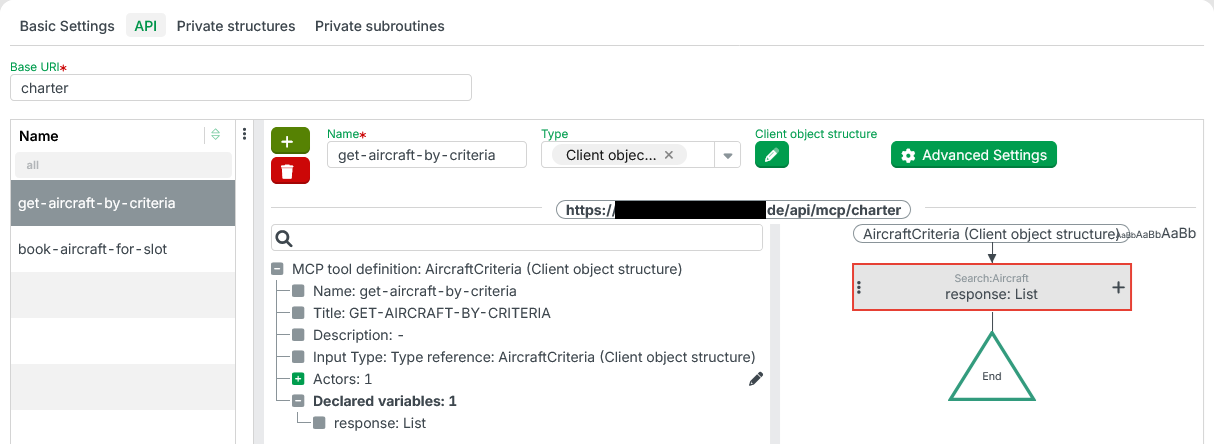
NOTE Only few details differ with respect to layout and functionality of the graphical user interface in the 'API' tab between classes MCP Server and REST API. The following documentation aims primarily on describing differences. Not all explanations for the less specific REST API class are reproduced in detail here.
IMPORTANT References to endpoints in documentation for REST API apply to tools in the MCP Server context.
Header area
The header area for MCP Server features exactly one Text field for the Base URI (baseUri), serving as a 'base address' for all tools defined by an MCP Server instance.
List of tools
Below the header area, a Data grid element lists all tools created within the 'API' in the left half of the details area.
This list is empty for a newly created MCP Server. Using the two buttons at the top left of the details area to the right of the list, an entry (tool) can be added () or any entry displayed in the details area can be removed ().
If list entries for tools already exist, a single list entry can be selected by clicking on the list line to display the associated data in the details area.
When the tab is first opened, no entry is initially selected. Then the details area does not display any detailed data.
Clicking on the row of an already selected entry deselects it, so that the details area no longer displays any specific data.
The selection of the list entry to be displayed can also be controlled using the cursor keys (↑↓) as long as the list has focus. This can be recognized by the fact that the selected list entry is highlighted in the primary color (see Styles).
The list can be filtered and sorted. However, any settings made will only be valid until the input form is closed. They will not be saved as user preferences.
The context menu (at the top right of the list) supports the following functions for data grids (see Data grid):
Change column visibility (settings are not saved).
Reset list settings (ineffective because settings are not saved).
Export list.
MCP tool definition details area
The details area for tools (on the right side of the list of tools) provides access to detailed data for the tool selected in the list:
The header of the details area contains the buttons mentioned above for adding () or removing () tools, as well as Form elements for direct (Name, Type, etc.) or indirect (Advanced settings Button) access to tool properties.
NOTE Depending on the selection taken, Form elements may appear in or disappear from this area. Any data entered into disappearing elements will be lost.The Combobox element for Type defines the input type for data provided as payload in a request to the tool.
For the input type 'Client object' (
ASObject) the Button Client object structure also appears, which can be used to reference a Custom client object structure or a 'Private structure' created in the context of the 'REST API definition' (RestApiDefinition) (see API Manager) or a 'New client object structure' can be created locally for the Input type.
The main window of the details area is divided vertically into two sections:
On the left, a tree view visualizes the data structure for the selected 'MCP tool definition' (
McpToolDefinition) data object. In addition, a node appears for Declared variables (see below for details), which can be used in the context of the action block.To the right of this, an action block for event handling for the tool can be configured by adding Event actions (see Configuration of events).
NOTE At the border between the header and main window, the URL for the tool is displayed according to the following scheme: <platform-url>/api/mcp/<baseUri>

<platform-url>is the URL under which the current client session was established.<baseUri>is a substring of the total URL that can be defined uniformly for all associated tools by the 'Base URI' property (baseUri) of the 'MCP server' (McpRestApi) class.
Name (name)
Each tool should receive a meaningful 'Name' (name) as an AI system is supposed to understand the purpose of the tool from this property.
Type (inputType)
The Combobox element for the 'Type' (inputType) defines the input type for requests to the tool.
The dropdown menu contains data types from different categories (simple values such as Boolean, complex data objects such as DateRange, and specific entity types, parent classes, interfaces, etc.).
The selection for the 'Input type' is optional. If no selection is made, the completely unspecific data type 'Object' (Object) is formally used.
Special input type: 'Client object' (ASObject)
If the 'Input type' is set to 'Client object' (ASObject) a Button labeled 'Client object structure' appears to the right of the Combobox element. This button can be used to define a Client object structure reference (in the clientStructure field). Clicking the button opens a Popover element that can be used to select an existing definition for a private or public client object structure or to create a local one (directly in Popover).
MCP tool definition – Advanced settings
General advanced settings (upper section of the dialog box)
Clicking on the Button 'Advanced Settings' opens a modal dialog that provides access to additional settings for the tool:
The Check box 'Allow anonymous access' (
allowAnonymousAccess) determines whether or not (default) the tool should be enabled for 'Anonymous access'.
CAUTION Anonymous access should only be permitted for a tool in absolutely exceptional cases, especially in a publicly accessible production system. The careless or inappropriate triggering of operations in the action block by 'anonymous callers' can have far-reaching consequences, depending on the configured workflow, and jeopardize both data security and the overall availability of the Lobster Data Platform (see section 'Anonymous vs. authorized access').The Text field 'Title' (
title) can optionally be filled with informative plain text, which may be used to identify the tool in an MCP client application or a related test utility.The Text field 'Description' (
description) can optionally be filled with informative plain text, which typically documents the tool configuration.
IMPORTANT A distinctive 'Description' and a meaningful name for each tool, enable an AI system to make proper use of the tool.
Policy settings (policySettings)
'Policy Settings' (policySettings) are handled as described for REST API.
Declared variables (tree view)
The tree view to the left of the action block reflects selected features of the data structure for the tool definition in the upper area.
The last element of the top hierarchical level in the 'tree' is the 'Declared variables' node, which lists all variables declared for the action block (including type information) for informational purposes.
There is exactly one Variable response predefined by the system. It can be used optionally to assign a return value within the action block.
NOTE If the node contains further 'Declared variables' as entries, these originate from configurations in the action block for the tool.
NOTE During configuration, the tree view is only updated when the tree 'is touched' (after changes in the action block).
Anonymous vs. authorized access
Access control for tools resembles that for endpoints (see REST API).