See also: Search builder, Search API, Search (Form designer), Tuple search (Form designer)
Event action – Abstract
Purpose: Searches data in the database of Lobster Data Platform/Orchestration and stores the result in a variable.
Tooltip
Usage: The 'Search' for the selected 'Entity', which can be configured in the same way as the Search builder, transfers the first or several return values from the database into the variable specified by 'Save result as', depending on the selected 'Mode'.
Parameter:
Save result as: Variable name.
Entity: The entity type being looked for.
Mode: Determines the return value.
↓ Mode/Search →
Search
Tuple search
CSV search
First result
One entity
One tuple data object
First tuple as CSV row
Search value
(List of results)
Entity list
Multiple tuple data objects
Multiple CSV rows
Search result
(as in the Search builder)
SearchResult
(Data object)
TupleSearchResult
(Data object)
CsvSearchResult
(Data object)
Search: Specific parameters for Search types (search, tuple/CSV search) analog Search builder.
Output: Result data in the specified variable.
NOTE The search takes into account the access rights for the login context of the current session or deviating settings within an Run as event action.
A Search (Event action) 'searches' for entity data in the Lobster Data Platform/Orchestration database via the Search API and, depending on the selected 'mode', stores the first hit (if any) or a data structure with multiple return values in a variable.
Search API background
In contrast to a direct access to the database, which can also be realized via the Execute SQL query event action, the Search API considers access rights for a specific login context, which is either defined by the session or – in the context of an Run as event action – different from the current session. The Search API also supports query definition (via an editor with graphical user interfaces for Projections, Restrictions, Joins, Resolvers, etc.) which enables efficient handling of data that is often distributed internally across multiple tables, without the need to create SQL code, to understand the internal data model in detail, or to take into account peculiarities of the database system used. Furthermore, since the Search API is also used in other contexts (Search builder, Custom overviews, Behaviors, etc.), existing configuration 'searches' (or parts of them) can be replaced by copy and paste if needed.
Conceptual parallels between a database query (via
SELECTin SQL) and the structure of a 'search', are also reflected in the language usage around the 'search'.NOTE Against the background of superficial similarities, attention to differences is appropriate and skepticism towards untested assumptions is recommended!
Functionally, three different search types (Search parameter) are relevant for the Search (Event action): Search, Tuple search and CSV search.
In combination with three choices for the Mode parameter (regarding return value) the following combinatorics of usage scenarios for a Search (Event action) result.
↓ Mode/Search → | |||
|---|---|---|---|
First result | One single entity Example: One Address book entity ( Value of the result variables | One tuple data object (one 'row' of a list) Example: ID and name of an Address book entity. Value of the result variables | First tuple as CSV row Example: ID and name of an Address book entity. Value of the result variables NOTE The first row of the CSV output contains the column name(s) (or the alias names of the projections) from the search. |
Search value (List of results) | A list of entities Example: Two Address book entities ( Value of the result variable | Multiple tuple data objects ('rows' of a list) Example: ID and name of two Address book entities ( Value of the result variables | Multiple CSV lines Example: ID and name of a set of Address book entities ( Value of the result variables |
Search result (as in the Search builder) | Data object of 'Search result' type Example: Two Address book entities (base: Value of the result variables | Data object of the 'Tuple search result' type Example: Two Address book entities ( Value of the result variables | Data object of the 'CSV search result' type Example: ID and name of a set of Address book entities ( Value of the result variables |
Configuration
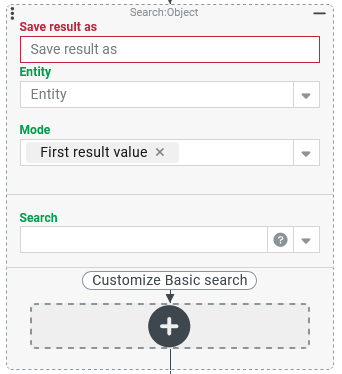
Independently of other parameters, the Save result as parameter must be specified as a variable name that can be used to access the return value after the Search has run without errors.
The data type of the return value varies depending on the settings for Mode and Search (see the table above). In the case of a Search, the selection for Entity is additionally relevant.
It is necessary to select the Entity type for each search, which will be considered as the primary target of the search.
Similar to the
FROMsection of theSELECTstatement in a database query, additional data from entities of other types can be included via Joins using the Search API.Restrictions and – if applicable – Projections can also access data of 'foreign' entities directly or via Joins and relate them to the primary entity.
As the Mode, one of the following options must be selected for passing the search results to the variable:
First result (default) limits the return to the first 'match', if there is one at all.
Search value returns all results of the search as a list, e.g. a list of shipments if a search for this entity is performed.
Search result returns all the results of the search as a Search result object. This object contains the output of the Search value mode in object property result and further information about the search in other properties (e.g.
count).
The selection for Search defines the type of search: Search, Tuple search or CSV search.
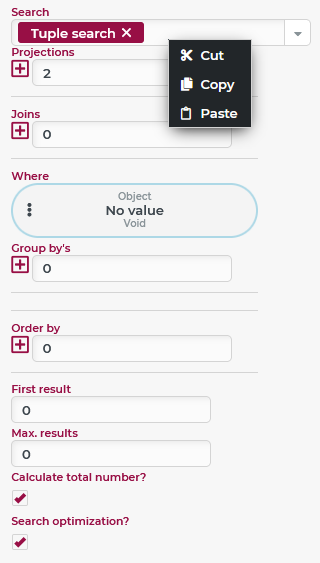
As soon as a selection is made for the Search parameter, further parameters appear below, with which the search can be defined in the same way as in the Search builder. CAUTION In principle, the type of an already configured Search can be changed subsequently. However, when changing to the Search type, configuration for Projections and Grouping are lost, since the Search does not support them. Using the context menu for the Search parameter displayed in the upper right corner of the image, the complete configuration can be copied or cut via the Lobster Data Platform/Orchestration clipboard and pasted again in any context that refers to the Search API. The Paste option appears only if the clipboard already contains a search definition. This special clipboard not only enables the exchange of search definitions, e.g. for tests with the Search builder. It can also be used to 'freeze' a particular change state when editing, so that it can be restored later if needed. In addition, individual components such as Projections, Joins, or Restrictions can of course be cut, copied, and pasted, provided that the source and target contexts are compatible. |
|
Example
When creating Shipments, it should be possible to identify a unique reference to exactly one item of a purchase order to which this shipment refers via a linked entity attribute (of the 'shipment to order line item' type) in the header of the shipment.
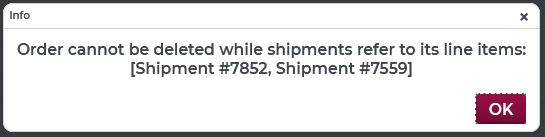
The deletion of Orders is not permitted as long as there are Shipments that refer to items of the order to be deleted. When trying to delete such an order, a message like the following should be displayed and the deletion should be prevented:
Configuration:
An event handler is configured as shown on the right:
|
|
| |
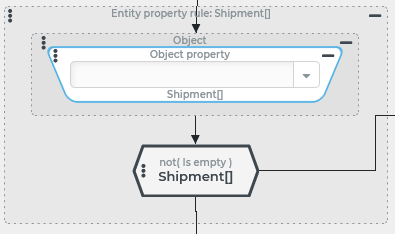
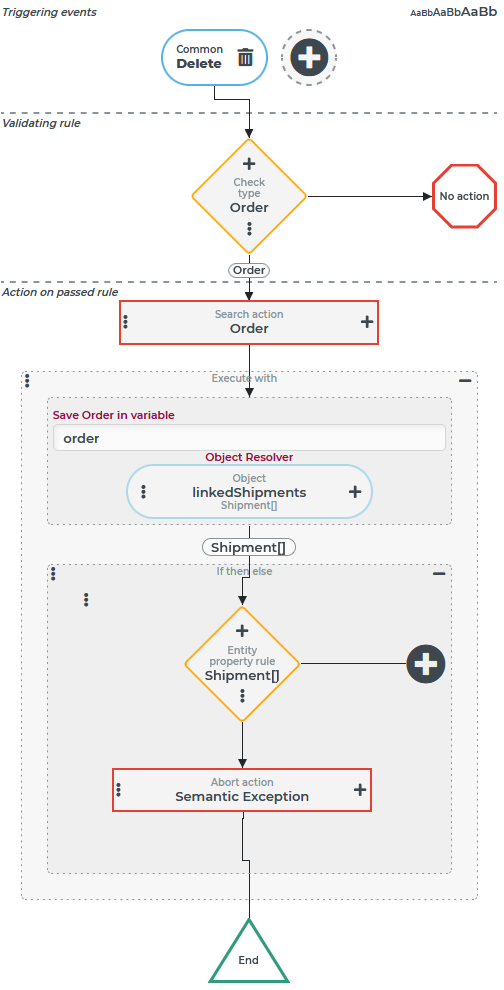
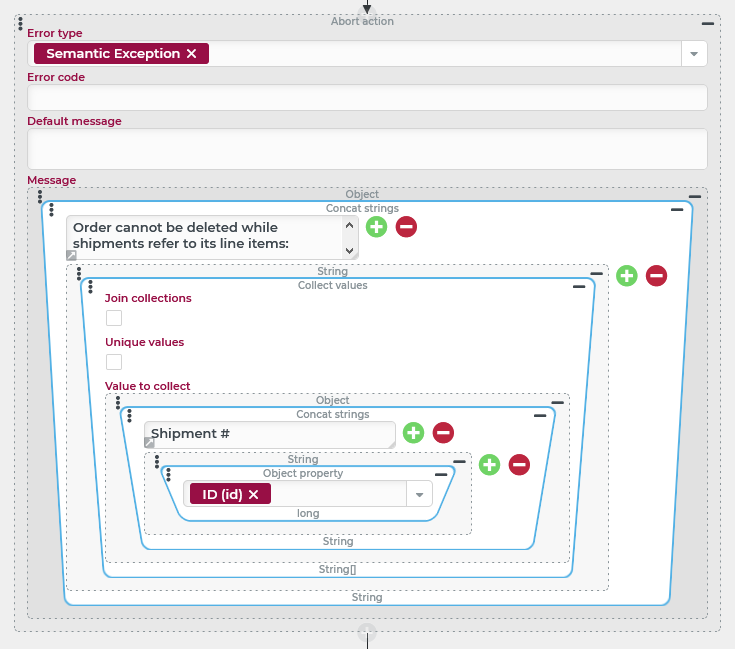
The initial Search (Event action) is configured as follows:
|
|
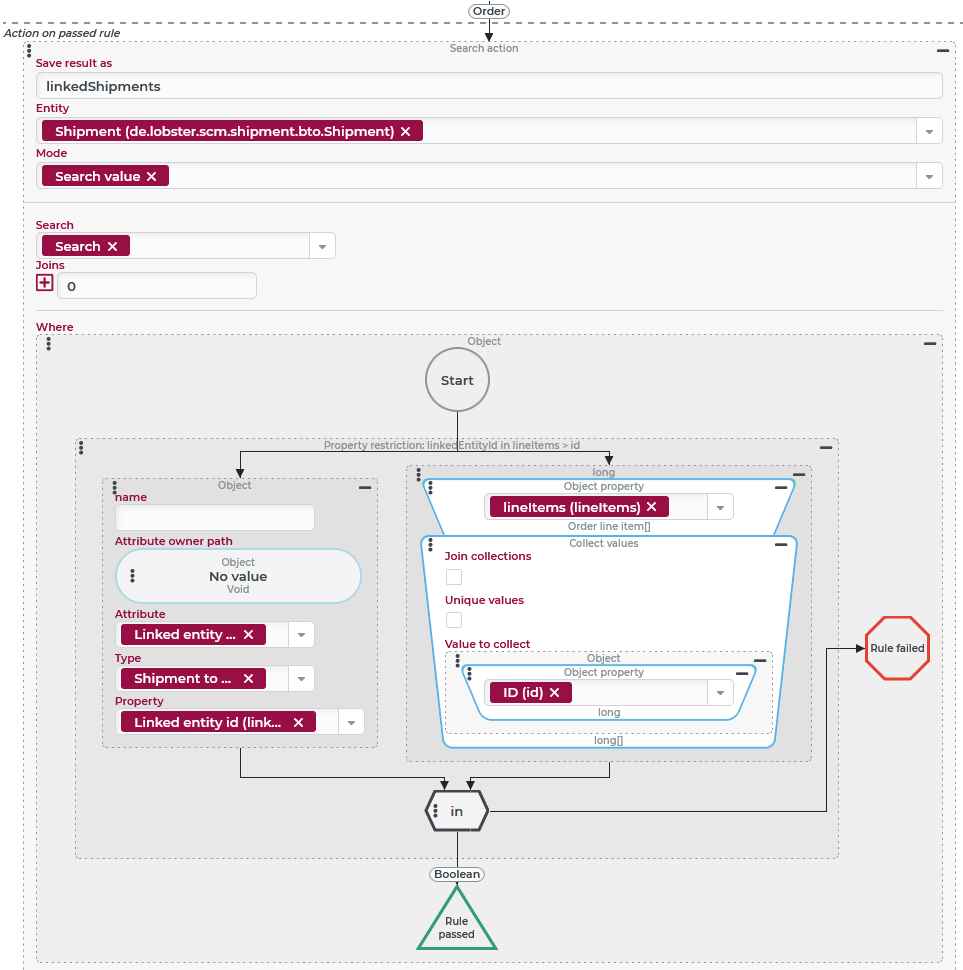
Action block 'Customize Search'

In the 'Customize Search' block, Event actions can be configured that are executed before the search is carried out. The search is considered a reference object so that its definition can be customized.
Typical use case: Paging
A typical use for customizing the search is the manipulation of the 'First result' and 'Max. results' parameters in order to implement paging for large amounts of data via the Search (Event action).
For the following configuration, we assume that two variables firstResult and maxResults in the execution context for the Search (Event action) are filled with Long values to enable 'scrolling' through a large number of results.
Configuration:
The Set values event action shown on the right has been added to the 'Customize Search' block via the context menu for the
NOTE As no Target host is defined, the Object property value resolvers for the Target values (on the left in the image) refer to the configured 'Search' that applies to the reference object in the 'Customize Search' block. The entity type of this reference object depends on which of the Search types is selected in the 'Search' parameter (see above). The label in the header of the 'Customize Search' block varies accordingly ('Customize Search', 'Customize tuple search' or 'Customize CSV search'). |
|
.svg) icon (see above). It defines two assignments:
icon (see above). It defines two assignments: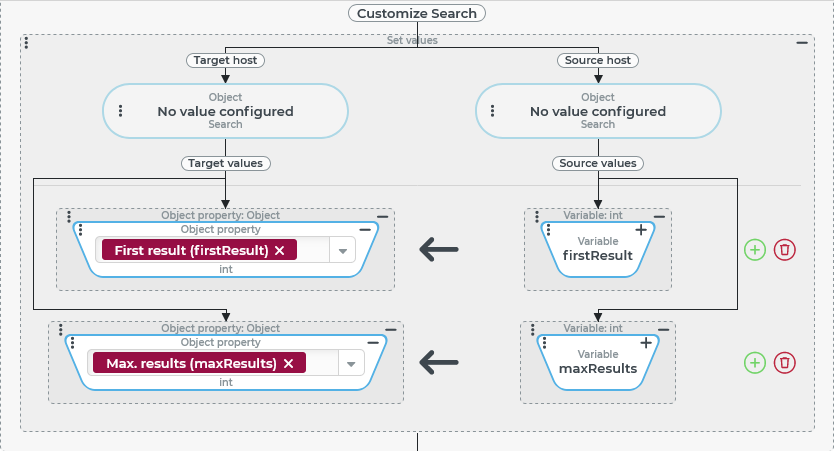
Special application example: 'Upgrading' a condition
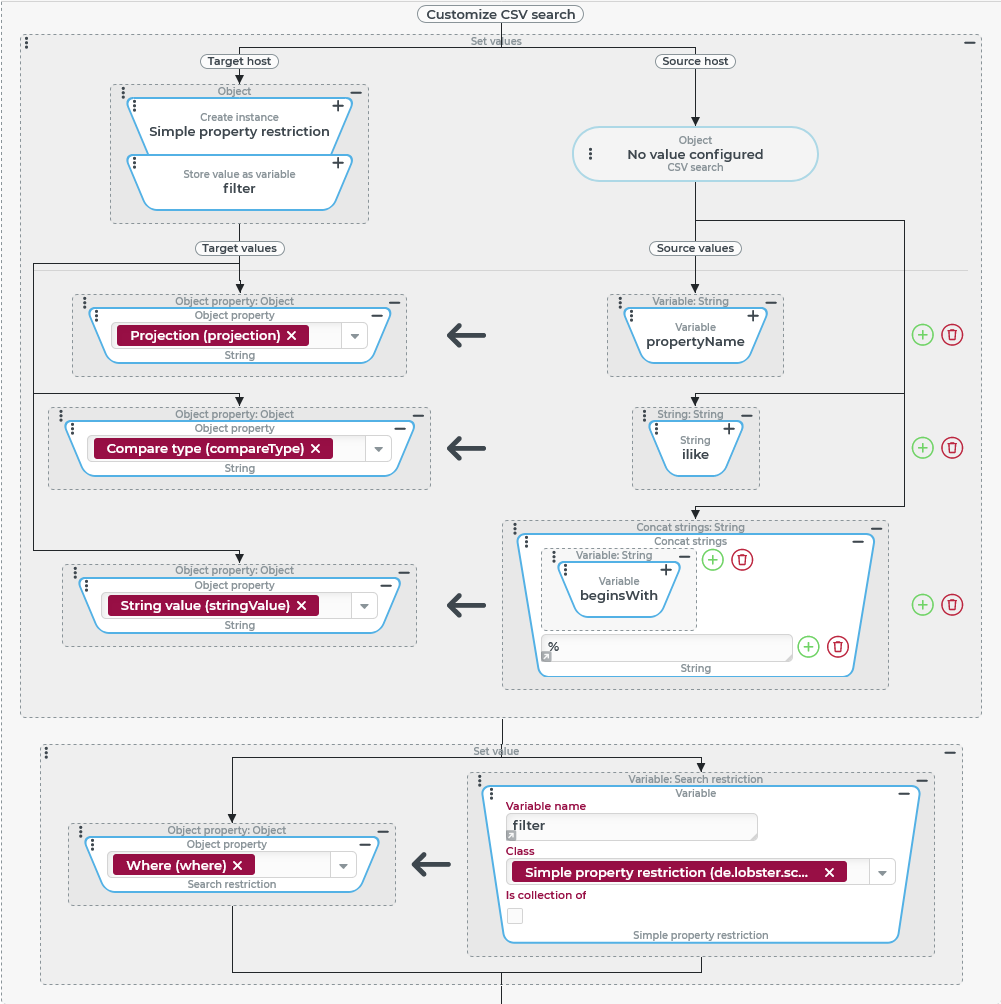
A CSV search in the context of a Search (Event action) does not have a 'Where' condition by default. In the 'Customize Search' block, however, a Simple property restriction is generated as a 'Where' condition based on two text values from variables (propertyName and beginsWith).
The following convention applies:
The
propertyNamevariable names a valid 'data field path' for the entity being searched for, e.g.namefor the 'Name' property.The
beginsWithvariable defines a case-insensitive string that is expected at the beginning of the value in the relevant data field (propertyName), such asTEST.
Configuration:
The screenshot on the right shows the configuration for Event actions in the 'Customize Search' block of a Search (Event action) that performs a 'CSV search':
NOTE If the configuration for the 'Where' condition of the CSV search does provide for one or more (static) Restrictions, our assignment completely overwrites these. If the created restriction is intended to be considered in addition to existing restrictions, a Search junction must be adapted or created in order to create either an AND or an OR relationship as required. |
|
Special use case: Generating a 'Search' object
The Open view (Action) can be used to open an overview for an entity type with a 'Search' (or 'CSV search' or 'Tuple search') object instead of 'Form data'. The 'Where' condition from the search then acts as a 'Restriction' for Custom overviews. If the opened view is a custom overview, the 'Where' condition from the search is AND-linked with the configured restriction of the overview, if applicable.
As creating a condition via automation can quickly become complex and confusing if more than one Simple property restriction (see above) is involved, a Search (Event action) can be 'misused' to create the required 'Search' object for an Open view (Action).
Configuration:
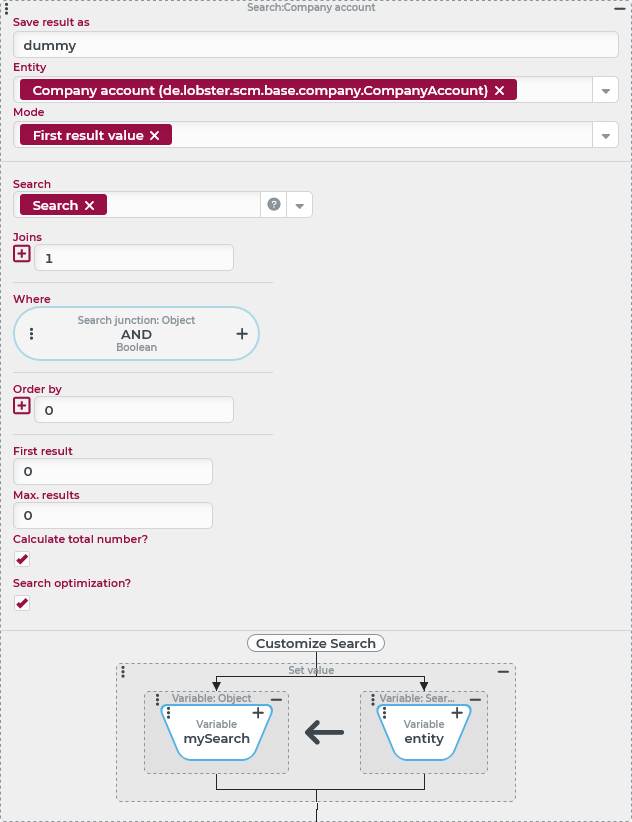
The screenshot on the right shows the configuration for a Search (for the Companies/Clients Entity) within a Search (Event action), which actually only serves to create a NOTE As execution of the Search cannot be prevented, it is configured here so that it generates as little data as possible. The Mode 'First result value' is therefore selected so that only one or no company account is saved in the
IMPORTANT In the subsequent Open view (Action) event action, the |
|
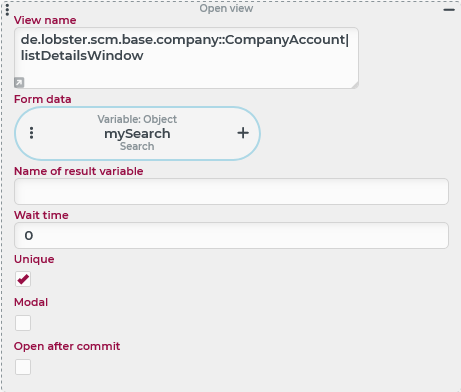
The Open view (Action) event action shown on the right opens a standard 'Company account overview' for which the 'Where' condition from the IMPORTANT In case a Tuple search or CSV search is defined in the Search (Event action) in the It is important to understand why: Open view (Action) only attempts to derive a restriction for the View name to be opened from the Form data parameter if its value corresponds to the 'Search' ( |
|
NOTE For all relevant Search types (Search, Tuple search and CSV search), it is possible to access the where property within the search in the Form data parameter. An attempt is then made to consider the Where condition defined there directly (and AND-linked if necessary) as a restriction for the View name. However, this is only successful if no Joins are accessed within the search restriction that are not completely integrated into the 'Where' condition via a Chained projection.